

Contour Design Balance Keyboard Wireless Manual
PDF manual · 8 Pages
English



Quick check
Incorrect answer, please try again.
Chat with your Contour Design Balance Keyboard Wireless manual using AI
Get instant AI answers from your Contour Design Balance Keyboard Wireless manual
Ask anything about the Contour Design Balance Keyboard Wireless. Answers come from this manual, with the pages they are based on.
Ask a Question
Do you recommend Balance Keyboard Wireless?
Yes NoVideo Manual
Better Than a Scroll Wheel? Contour Balance Keyboard & Touchpad Review
Frequently Asked Questions
Pull the tab from the battery compartment on the underside of the keyboard, insert the extender cable with the dongle into a USB port, and the keyboard should power on and be ready to use.
Is this answer helpful?
Remove and reinsert the extender cable into the computer USB port, place the keyboard close to the receiver, then hold the Control key and press the Power button once to initiate pairing.
Is this answer helpful?
Press and hold the Start/Option key and then press the power button. The LEDs will flash in succession to confirm the mode change.
Is this answer helpful?
Press the Fn key to activate function mode temporarily. To change the default so function keys are on by default, press and hold Fn and press the Power button once.
Is this answer helpful?
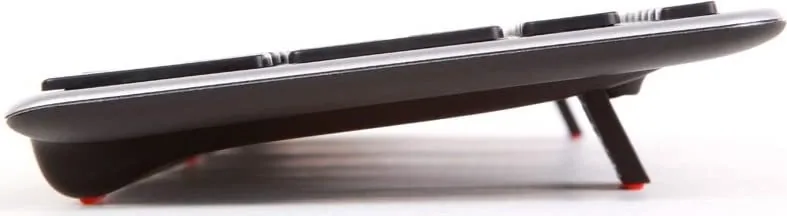
The keyboard has three adjustable tilt positions: positive, neutral and negative, allowing you to customize wrist and hand angle for comfort.
Is this answer helpful?
The warranty covers manufacturing defects but does not cover damage from misuse. Attempting to dismantle the product will invalidate the warranty.
Is this answer helpful?
The package contains the Balance Keyboard Wireless, the USB dongle (inserted in the extender cable), a USB extender cable, two AAA batteries, and a user guide.
Is this answer helpful?
Advantages and Disadvantages
Advantages

- Ergonomic three-position tilt (positive, neutral, negative) for improved typing posture.
- Pre-paired USB wireless dongle with extender for easy setup and better reception.
- Fn key toggle and configurable default between media and function key modes.
- Compact dongle storage in the extender and battery compartment for portability.
- Broad compatibility: PC keyboard with Mac mode toggle and DE (German) layout.
Disadvantages

- Uses two AAA batteries rather than built-in rechargeable battery.
- Power button required to turn on from off state; keys won’t power it on.
- Pairing must be performed close to the receiver; may be inconvenient for some users.
- DE layout may not suit users who need other regional key arrangements.
- Warranty voids if the user attempts to dismantle the keyboard.
Product Specification
Layout
DE
Type
Rubber Dome
Backlighting
N/A
Keycap Profile
regular, framed, Chiclet
Keycap Shape
flat
Keycap Top
straight
Numeric Keypad
Standard
Cursor Block
offset
Control Keys
N/A
Enter Key
Standard
Delete Key
Standard
Status Indicator
Caps Lock, Num Lock, Scroll Lock
Palm Rest
N/A
Case
Plastic
Case Color
multicolor, black/silver
Keycap Color
solid color, black
Connection
wireless (2.4GHz), USB (USB-A receiver)
Power Supply
2x AAA
Dimensions (WxHxD)
15.43x0.79x4.69in
Weight
1.28 lb
Features
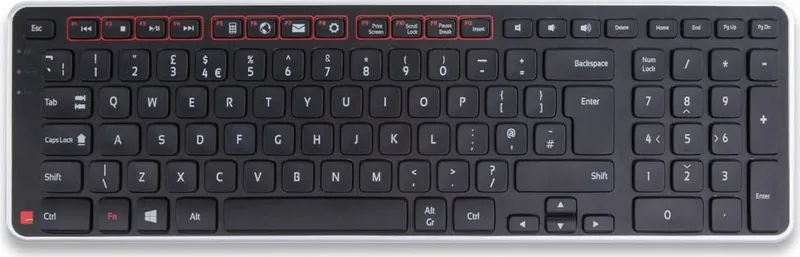
3 multimedia keys, FN key
Product Description
Contour Design Balance Keyboard Wireless black/silver, USB, DE Manual
The Contour Design Balance Keyboard Wireless in black/silver blends ergonomic design with reliable wireless connectivity. Built for everyday productivity, this full-size keyboard ships with a USB wireless dongle, USB extender cable, two AAA batteries and an easy setup routine. Its DE (German) layout ensures familiar key placement for German-speaking users while maintaining broad compatibility with both PC and Mac systems.
Design and Features
Sculpted for comfort, the Balance Keyboard offers three tilt positions — positive, neutral and negative — so you can adjust wrist angle and typing posture. The keyboard houses risers, a battery compartment with a pull tab for first-time activation, and onboard storage for the wireless dongle when traveling. The power button and status LEDs give clear feedback on power and pairing states.
Connectivity and Modes
Connectivity is handled by a pre-paired USB dongle that arrives inserted into the extender cable for convenience. If pairing is lost, simple pairing steps let you re-establish the connection: insert the extender cable, bring the keyboard close to the receiver, and use the Control + Power sequence. The keyboard supports both PC and Mac modes; toggle them by holding the Start/Option key and pressing the power button.
Functionality and Shortcuts
The keyboard offers dedicated media and application functions, with an Fn key that toggles F1–F12 and media modes. By default media keys are active; you can set function mode as default by holding Fn and pressing Power. The power button also controls LED animation during power on/off and must be used to power the keyboard on from an off state.
Practical Considerations
Battery life is powered by two AAA cells and the compartment includes a pull tab to prevent activation in transit. The included extender cable not only positions the dongle for better reception but also stores it when not in use. The unit complies with FCC and IC regulations, and Contour Design provides a warranty covering manufacturing defects (misuse or unauthorized dismantling voids the warranty).
Notes
- Dongle is stored in the extender cable on delivery; keep the extender handy for pairing and range.
- To clear existing pairings, use Control + Power while near the receiver.
- Changing default function key behavior requires an Fn + Power command.
- Warranty voids if the product is dismantled.
Search for 67,706 Manuals online


Type-in Brand or Model