
Cisco WAP125 Manual
PDF manual · 12 Pages
English



Quick check
Incorrect answer, please try again.
Chat with your Cisco WAP125 manual using AI
Get instant AI answers from your Cisco WAP125 manual
Ask anything about the Cisco WAP125. Answers come from this manual, with the pages they are based on.
Ask a Question
Do you recommend WAP125?
Yes NoFrequently Asked Questions
The Cisco WAP125 is an indoor dual-band wireless access point for small business networks. It uses parallel 802.11ac and 802.11n radio capability and connects to the wired network through a Gigabit Ethernet LAN port.
Is this answer helpful?
Yes. The LAN port supports Power over Ethernet, allowing the same Ethernet cable to provide network connectivity and power. If PoE is unavailable, the unit can instead be powered with its included 12V DC adapter.
Is this answer helpful?
The device normally receives an address from DHCP. You can locate it through Cisco FindIT, Bonjour-enabled discovery, or your DHCP server or router. If DHCP is unavailable for 60 seconds, it uses fallback IP address 192.168.1.245.
Is this answer helpful?
The default username is cisco and the default password is cisco. Change these credentials during initial deployment to protect management access.
Is this answer helpful?
The initial setup SSID is CiscoSB-setup, and its default password is cisco123. This connection is intended for onboarding. Complete the setup wizard to allow normal traffic between wireless clients and the Ethernet network.
Is this answer helpful?
Solid green means normal operation with no wireless client connected. Solid blue means normal operation with at least one wireless client connected. Green blinking indicates startup, blue blinking indicates a firmware upgrade, and red indicates a boot failure involving both firmware images.
Is this answer helpful?
For a restart, briefly hold Reset for less than 10 seconds and release when the lights go out. Holding Reset for more than 10 seconds restores factory settings. With PoE, temporarily disconnecting Ethernet also restarts the unit.
Is this answer helpful?
Advantages and Disadvantages
Advantages

- Dual 802.11ac and 802.11n radio design supports practical dual-band indoor wireless connectivity.
- PoE support through the Gigabit Ethernet port can simplify placement and reduce power cabling.
- Can also use the included 12V DC adapter when PoE infrastructure is unavailable.
- Cisco FindIT, Bonjour discovery, DHCP, and a fallback IP provide multiple device discovery options.
- Clear LED status signals and reset controls help with monitoring, troubleshooting, and recovery.
Disadvantages

- Initial setup wireless access does not allow normal wireless-to-Ethernet traffic until the setup wizard is completed.
- Default administrator and setup credentials must be changed to avoid leaving the network with known passwords.
- Fallback access requires the management computer to use the 192.168.1.x network range.
- The access point is intended for indoor use and requires adequate airflow and temperatures below 40 C.
- A red power LED after firmware installation may indicate a serious boot image issue requiring support.
Product Specification
LAN
1x 1000Base-T (PoE PD)
Wireless
WLAN 802.11a/b/g/n/ac (Wi-Fi 5), simultaneous
Data rate
300 Mbps (2.4 GHz), 867 Mbps (5 GHz)
Security
AES, WPA, WPA2
Antennas
Internal
Ports
N/A
Power consumption
6.5 W (operating consumption), not specified (max. power supply rating)
Dimensions
4.84 x 4.84 x 1.22 in
Special features
VLAN, IPv6
Band capability
Dual band (simultaneous)
Manufacturer warranty
Lifetime (10 years in Austria/Germany)
Product Description
Cisco WAP125 Manual: Reliable Dual-Band Wireless for Small Business
The Cisco WAP125 Wireless-AC/N Dual Band Access Point is designed to bring dependable indoor Wi-Fi coverage to small offices, retail spaces, and other professional environments. This compact access point combines 802.11ac and 802.11n wireless capability through two parallel radio modules, helping compatible devices connect on the most suitable band while maintaining a practical network foundation for daily business traffic.
Flexible Power and Network Connectivity
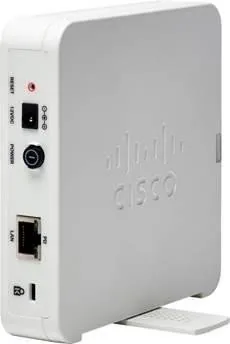
A key advantage covered by the Cisco WAP125 Manual is its flexible installation approach. The unit can receive power through its Gigabit Ethernet LAN port using Power over Ethernet, reducing cable clutter and making placement easier where electrical outlets are limited. When PoE is not available, it can also operate with the included 12V DC power adapter. For best Gigabit performance, Category 5e or higher Ethernet cabling is recommended.
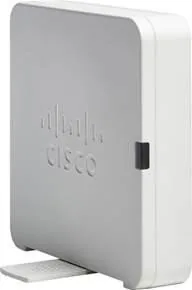
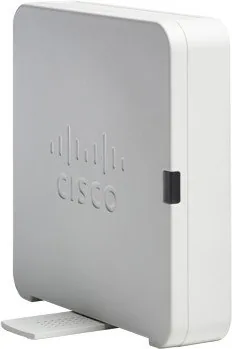
The access point may be positioned horizontally on its rubber feet or vertically with its integrated stand. Proper airflow, a stable surface, and an operating environment below 40 C help support reliable operation. A Kensington lock slot adds an option for physical security in shared or public locations.
Straightforward First-Time Setup
The Cisco WAP125 Manual highlights several ways to locate and configure the device. By default, the access point requests an IP address through DHCP, while a fallback address of 192.168.1.245 is available if a DHCP response is not received. Cisco FindIT and Bonjour discovery can help identify the device on a local network, simplifying access to the browser-based setup process.
For wireless onboarding, the default setup network is identified as CiscoSB-setup and uses the password cisco123. The initial wireless setup connection is intended for configuration, so the setup wizard should be completed to enable normal traffic between the wireless and Ethernet networks. Default administrator credentials are cisco for both the username and password; these should be changed during deployment to improve security.
Visibility and Recovery Features
A front status light offers clear operating feedback. Green indicates normal operation without wireless clients, blue indicates that at least one wireless client is connected, and blinking states identify startup or firmware upgrade activity. Ethernet indicators show whether a link is active, transmitting data, or operating at Gigabit speed.
The reset control supports both reboot and factory reset actions. A brief press while powered on restarts the device, while holding it longer restores factory settings and removes saved configuration. This provides a practical recovery path when troubleshooting connectivity or configuration issues.
Note: Use the setup wizard for initial deployment, confirm DHCP availability, and verify power and Ethernet LED states before investigating more advanced network issues.
Search for 67,706 Manuals online


Type-in Brand or Model