
Cisco RV260P Manual
PDF manual · 12 Pages
English



Quick check
Incorrect answer, please try again.
Chat with your Cisco RV260P manual using AI
Get instant AI answers from your Cisco RV260P manual
Ask anything about the Cisco RV260P. Answers come from this manual, with the pages they are based on.
Ask a Question
Do you recommend RV260P?
Yes NoFrequently Asked Questions
The default username and password are both 'cisco'. It is case-sensitive. You should change these immediately after logging in to ensure network security.
Is this answer helpful?
Connect an Ethernet cable from your cable or DSL modem to the WAN port on the back of the RV260. Ensure the modem is powered on before connecting the router.
Is this answer helpful?
Yes, the device includes a rack-mounting kit with two brackets and eight screws. Ensure ventilation openings face sideways if mounted vertically.
Is this answer helpful?
The DIAG LED blinks red slowly during firmware upgrades and fast red if an upgrade fails. It stays solid red if the boot process fails completely.
Is this answer helpful?
Press and hold the RESET button for more than 10 seconds using a paperclip. This restores all configurations to their original factory defaults.
Is this answer helpful?
Yes, the USB Type-A port supports 3G/4G/LTE USB dongles. However, you must use the supplied power adapter to ensure proper operation.
Is this answer helpful?
Advantages and Disadvantages
Advantages

- Intuitive setup wizard simplifies initial configuration for non-experts
- Eight Gigabit Ethernet ports provide ample connectivity options
- Built-in VPN capabilities enhance security for remote access
- Clear LED indicators allow for quick hardware status monitoring
- Supports both desktop and rack mounting for flexible deployment
Disadvantages

- Default credentials must be changed immediately for security
- Self-signed certificate may trigger browser warnings during setup
- Requires specific power adapter to ensure USB dongle functionality
- No built-in Wi-Fi capability requiring external access points
- Remote management setup requires careful subnet configuration
Product Specification
Modem
N/A
WAN
1x SFP, 1x 1000Base-T
LAN
8x 1000Base-T (4x PoE+)
Telephone
N/A
Ports
1x USB-A 2.0, 1x RJ-45 Management Port
Power Consumption
Not specified (operating consumption), not specified (max power supply output)
Dimensions
11.02 x 6.69 x 1.53 in
Weight
2.78 lbs
Features
IPv6, VPN passthrough (IPSec/PPTP/L2TP), VLAN
Manufacturer Warranty
Lifetime (10 years in AT/DE)
Product Description
Discover the Power of Cisco RV260P
The Cisco RV260P stands as a robust solution for small businesses seeking a reliable and secure internet connection. Designed with ease of use in mind, this VPN router features eight ports and supports IPv6 firewalls to ensure your network remains protected against modern threats. The device comes equipped with a user-friendly interface that guides users through setup wizards, making it accessible even for those with limited technical expertise.
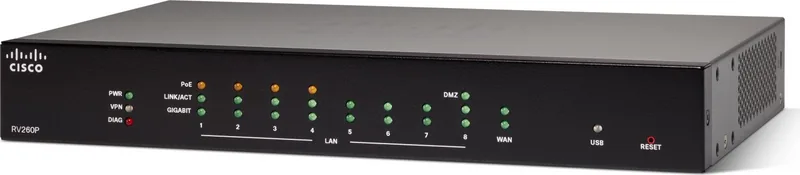
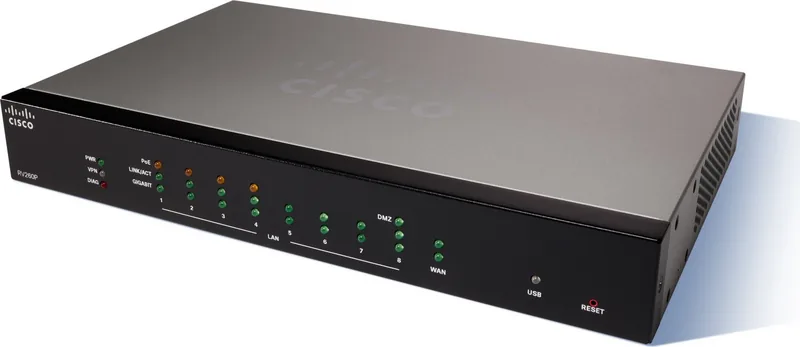
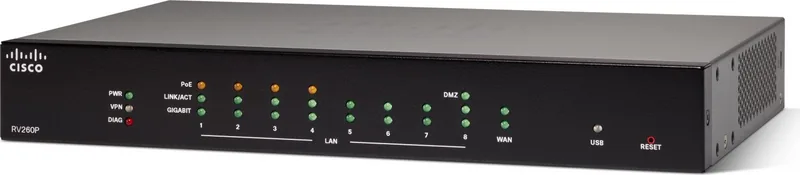
Installing the RV260 is straightforward when following the provided guidelines. Proper placement is crucial to prevent overheating; ensure adequate air circulation and avoid placing heavy objects on top. Whether you choose desk placement using the rubber feet or rack mounting with the included kit, stability is key. The front panel offers clear LED indicators for power, VPN status, diagnostics, and link activity, allowing for quick visual checks of your network health. The rear panel houses essential connectivity options including Gigabit Ethernet ports, an SFP slot for fiber connections, USB ports for dongles or storage, and a console port for advanced management.
Setting up your network begins with connecting the WAN port to your modem and LAN ports to your devices. Once powered on, accessing the web-based manager via the default IP address allows you to launch the Setup Assistant. This tool automatically detects your internet connection type and configures settings accordingly. For security, it is highly recommended to change the default administrator credentials immediately after installation. The system also supports remote management, though this requires a password change for safety. Troubleshooting common issues like connection failures can be done easily using standard tools like ping commands to verify reachability between your computer and the router.
This device represents a complete package for business-class networking needs, combining performance with simplicity. Its ability to handle multiple connections while maintaining high speeds makes it an ideal choice for growing enterprises.
Search for 67,706 Manuals online


Type-in Brand or Model