
Captiva Power Starter I77 Manual
PDF manual · 142 Pages
English



Quick check
Incorrect answer, please try again.
Chat with your Captiva Power Starter I77 manual using AI
Get instant AI answers from your Captiva Power Starter I77 manual
Ask anything about the Captiva Power Starter I77. Answers come from this manual, with the pages they are based on.
Power Starter I77 Maintenance Schedule
Ensure the computer is disconnected from all external power supplies, peripherals, and cables before cleaning.
Do not use a dropped or damaged battery; replace it with an equivalent type recommended by the manufacturer.
Ask a Question
Do you recommend Power Starter I77?
Yes NoFrequently Asked Questions
Enter BIOS via F2. Select SATA Mode as Intel RST. Install Windows with 5MB unallocated space. Install IRST driver and Optane app. Enable Optane memory for caching.
Is this answer helpful?
Yes, dual channel DDR4 slots support up to 32GB. Use compatible modules for best performance. Ensure modules match the speed specifications.
Is this answer helpful?
Go to Settings. Accounts section. Sign-in options. Set up PIN. Then select Face Recognition setup. Keep camera active for scanning.
Is this answer helpful?
It is a safety mechanism. Stop usage immediately. Contact service personnel for replacement with approved parts only to ensure safety.
Is this answer helpful?
Use HDMI or Thunderbolt 4 port. Connect monitor. Press Windows key and P to select projection mode like extend or duplicate.
Is this answer helpful?
Check if Airplane mode is enabled. Use Fn plus F11 to toggle. Ensure modules are supported by the system specifications.
Is this answer helpful?
No, internal servicing voids warranty. Contact authorized personnel for repairs. Use approved power adapters for charging.
Is this answer helpful?
Advantages and Disadvantages
Advantages

- Intel Optane memory technology improves system performance significantly.
- Durable chassis design withstands daily usage effectively.
- Multiple USB and Thunderbolt ports support high-speed transfers.
- Efficient Intel integrated graphics GPU for visual tasks.
- Windows Hello facial recognition offers secure login access.
Disadvantages

- Limited storage upgrade options for SSD upgrades are available.
- Battery life varies depending on the capacity option selected.
- Keyboard backlight is not standard on all configuration models.
- Requires AC adapter for proper facial recognition setup.
- Internal parts require authorized service to maintain warranty.
Product Specification
Type
Laptop
Display
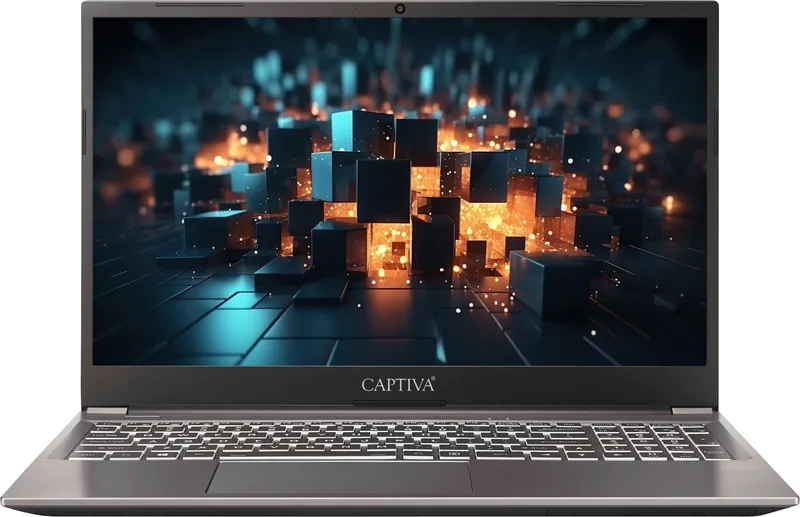
15.6", 1920x1080 (FHD), 16:9, 141ppi, 60Hz, non-glare (matte)
Hard Drive
N/A
Flash Storage
N/A
Camera
1 Megapixel
Optical Drive
N/A
Features
Security Lock (Kensington Security Slot)
Warranty
2 Years (Mail-in Service)
USB Type
Link
Product Description
Captiva Power Starter I77 15.6" Insights
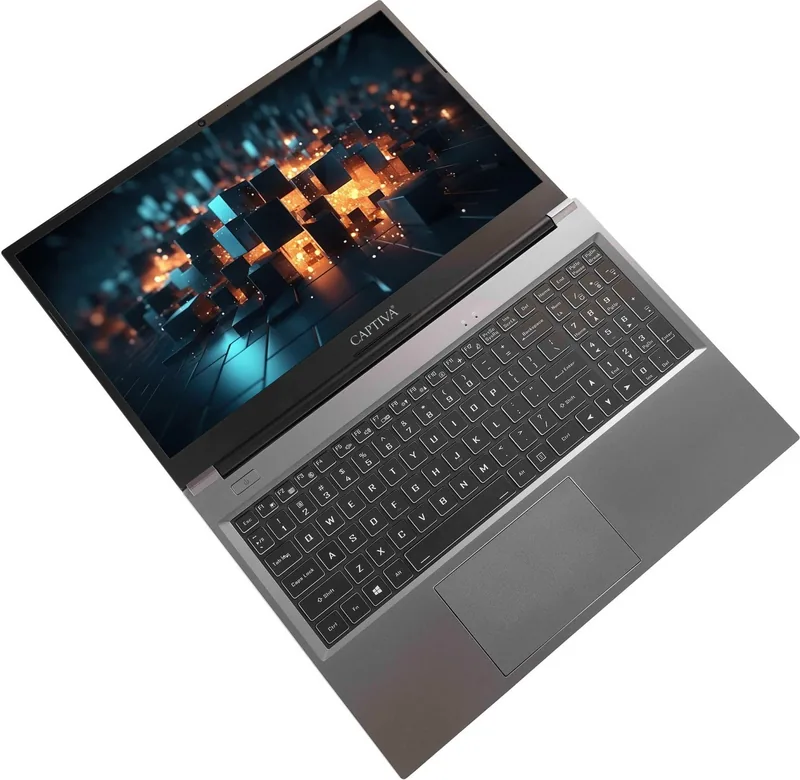
The Captiva Power Starter I77 15.6" Laptop Manual offers a foundational approach for navigating the advanced capabilities of this versatile machine. First steps involve removing packing materials and connecting the AC adapter to unlock the battery. This critical phase ensures the system powers correctly without triggering shipping safeguards. Users should verify all peripherals before pressing the power button located on the front right side. Opening the lid requires gentle support of the base to avoid strain on the hinges during initial use.
Performance optimization begins with Access Intel Optane settings within the BIOS utility. This combination of memory and software accelerates boot time by caching frequently accessed data. Installation requires deleting existing partitions to leave five megabytes of unallocated space. Following this, install Windows drivers and enable the Optane Memory application for seamless data handling. Users should also explore the Control Center to manage Power Modes such as Performance or Quiet.
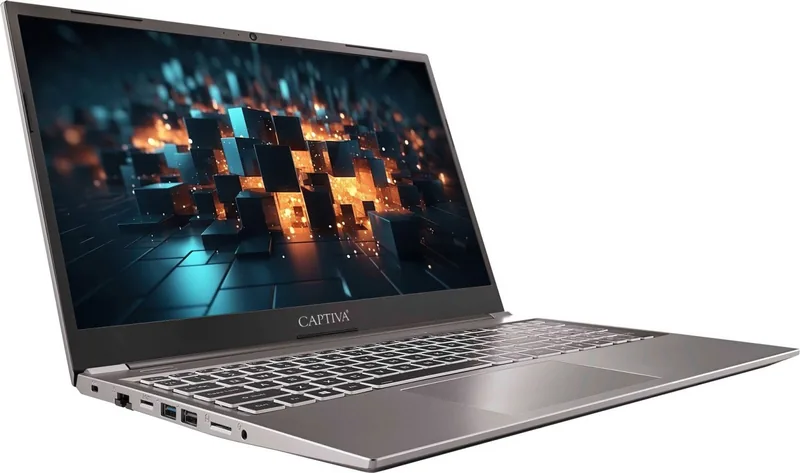
Connectivity options are robust with HDMI, Thunderbolt 4, and USB 3.2 Gen 2 ports supporting high-speed transfers. The Display settings allow up to three external monitors for enhanced workflow efficiency. Audio features include a 2-in-1 jack for both headset and microphone functionality. Wireless LAN modules support dual-band Wi-Fi 6 for stable internet access. Bluetooth configuration enables pairing with multiple devices directly from the Start Menu settings interface for convenient data sharing.
Security integration is a major highlight with optional TPM and Fingerprint Reader hardware support. Windows Hello facial recognition simplifies login procedures but requires the camera to be active. Troubleshooting guides help resolve issues like undetected Wireless modules often caused by Airplane Mode being enabled. Battery care instructions prohibit disposal in fire and recommend replacement only with equivalent types. Always shut down via the Windows menu to prevent hard disk corruption or system instability issues during updates.
Notes
Important Notes: Keep vents clear to prevent overheating during heavy tasks. Use only approved power adapters to ensure safety. The system supports Modern Standby for quick resume functionality without reopening applications. This guide covers essential procedures for daily operation and long term reliability. Regular cleaning is advised.
Pros include fast boot times and solid security features. Cons involve limited internal upgrade paths and service restrictions.
Search for 67,732 Manuals online


Type-in Brand or Model