
Captiva Highend Gaming I74 Manual
PDF manual · 272 Pages
English



Quick check
Incorrect answer, please try again.
Chat with your Captiva Highend Gaming I74 manual using AI
Get instant AI answers from your Captiva Highend Gaming I74 manual
Ask anything about the Captiva Highend Gaming I74. Answers come from this manual, with the pages they are based on.
Highend Gaming I74 Maintenance Schedule
Fully discharge, then fully recharge the battery to optimize battery life and performance.
Replace the battery every two years. Use only the same or equivalent manufacturer-recommended type.
Rotate desktop background images to help prevent LCD image persistence.
Free maintenance reminders
Timed to your purchase date. Always free, unsubscribe anytime.
Ask a Question
Do you recommend Highend Gaming I74?
Yes NoFrequently Asked Questions
The I74 supports integrated CPU graphics and discrete NVIDIA GPUs with switchable modes. Some models include NVIDIA Advanced Optimus (dynamic display switching) for automatic switching; others use switchable graphics. Use BIOS Display Mode and NVIDIA/Intel control panels to configure behavior.
Is this answer helpful?
Use only the supplied or approved AC/DC adapter. Fully discharge and then fully charge a new battery before initial use. Charge/discharge cycles every 30 days are recommended for storage. Avoid exposing the battery to high temperatures, and replace only with manufacturer-recommended types.
Is this answer helpful?
The manual warns that removing covers or screws for upgrades may void your warranty. For upgrades like SSD, RAM, or optical drives, contact your distributor or authorized service personnel to avoid warranty issues and for safe handling of internal components.
Is this answer helpful?
Ensure vents and fan intakes are unobstructed, use the Control Center to switch to a higher fan/performance mode when gaming, and consider using Balanced or High Performance power plans. If overheating persists, contact authorized service to inspect cooling and thermal solutions.
Is this answer helpful?
Follow the driver installation order recommended in the manual (chipset, video drivers, device drivers, optional drivers). Use vendor-provided installer tools and update BIOS only via the manufacturer procedure. Reinstall Creative Sound Blaster and audio drivers after core system drivers when required.
Is this answer helpful?
Yes, the device meets applicable CE, FCC, and R&TTE directives and includes RF exposure guidance (keep 20 cm from the body). For travel, power adapter supports 100–240V; use socket adapters if needed, hand-carry the notebook, and follow screening/security procedures to protect hardware and data.
Is this answer helpful?
Use power-saving modes in Windows, reduce display brightness, disconnect unused peripherals, enable Battery Saver for background limits, and prefer integrated graphics where possible. For peak gaming, expect higher power use; plug in the AC adapter to maintain performance and thermal management.
Is this answer helpful?
Advantages and Disadvantages
Advantages

- High-performance hardware with NVIDIA switchable graphics (Advanced Optimus on some models).
- Comprehensive connectivity: Thunderbolt 4, HDMI, Mini DisplayPort, multiple USB ports.
- Fast storage options with M.2 SSD and support for Intel Rapid Storage/Optane where applicable.
- Dedicated Control Center and BIOS utilities for fine-grained power, fan, and display control.
- Robust safety, regulatory, and battery-handling guidance to protect hardware and users.
Disadvantages

- Bottom-cover removal and internal servicing may void the warranty and require authorized service.
- High performance modes and discrete GPU use significantly increase power draw and fan noise.
- Advanced features rely on correct driver/BIOS installation order; improper setup can limit functionality.
- Travel and airport screening can risk hardware or media exposure; recommended hand-carry and inspection.
- Some advanced display and audio features require additional vendor drivers (e.g., Creative Sound Blaster).
Product Specification
Type
Notebook
Display
16", 1920x1080 (FHD), 16:9, 138ppi, 165Hz, non-glare (matte), IPS
CPU
Intel Core i9-13900HX, 8C+16c/32T, 2.20-5.40GHz, 36MB+32MB Cache, 55-157W TDP (PBP/MTP), Codename "Raptor Lake-HX" (Raptor Cove + Gracemont, Intel 7)
HDD
N/A
Flash
N/A
Graphics
NVIDIA GeForce RTX 4070 - 8GB GDDR6 - Mobile, 36SM/4608SP, Codename "AD106" (Ada Lovelace, TSMC 5nm "NVIDIA 4N")
Input
Keyboard with DE-layout (single-key RGB illuminated, numpad, Rubber-Dome), Touchpad
Ports
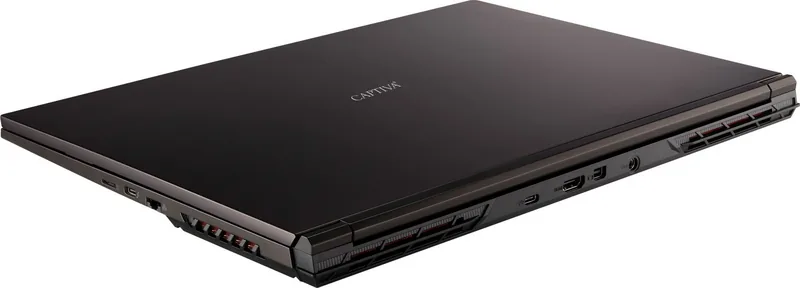
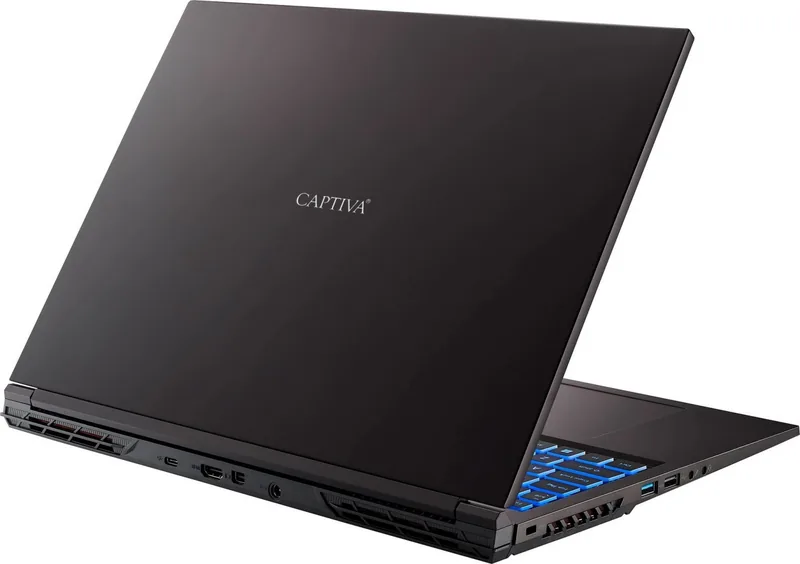
1x USB-C 3.1 (10Gb/s), 1x USB-A 3.0 (5Gb/s), 1x USB-A 2.0 (480Mb/s), 1x Thunderbolt 4 (40Gb/s, power connection, PD), 1x Mini DisplayPort 1.4, 1x HDMI, 2x 3.5mm jack, 1x RJ-45 1Gb LAN, 1x microSD, 1x DC-In barrel jack (power connection)
Wireless
Wi-Fi 6E (WLAN 802.11a/b/g/n/ac/ax, 2x2, Intel AX211), Bluetooth 5.3
Authentication
TPM 2.0
Camera
1 Megapixel
Optical Drive
N/A
Battery
permanently installed, Li-Polymer, 4 cells, 73Wh, 8.33h runtime
Power Supply
1x barrel plug (280W/20V/14A)
Special Features
Security Lock (Kensington Security Slot), MUX-Switch (Advanced Optimus)
Weight
5.40 lb
Dimensions
14.15x10.39x1.08in (WxDxH)
Color
black
USB Naming Convention
Link
Product Description
Captiva Highend Gaming I74 16" Manual
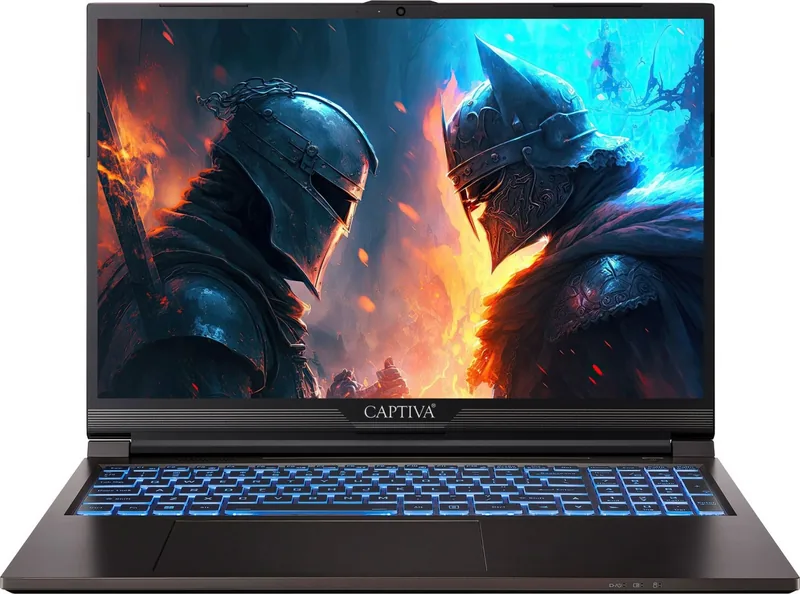
The Captiva Highend Gaming I74 16" is a feature-rich gaming laptop designed for demanding players who want high performance, advanced thermal controls, and flexible connectivity in a portable chassis. With a 16-inch display, Thunderbolt 4 and HDMI outputs, multiple USB ports, high-performance SSD storage, and support for NVIDIA switchable graphics (including Advanced Optimus on some models), the I74 balances raw power with practical everyday use for gamers, creators, and power users.
The system ships with Windows 11 (64-bit) support and a recommended minimum of 8GB RAM for optimal operation. It includes a robust power subsystem: a full-range AC/DC adapter (100–240V, 20V DC output) and a rechargeable Lithium-Ion/Polymer battery with guidance on charging cycles, handling, and disposal. The manual emphasizes safety and regulatory compliance (CE, FCC, R&TTE), RF exposure limits, and guidance for traveling with the notebook.
Internals include modern interfaces and components: M.2 solid-state drives for fast storage, microSD card reader, Realtek audio with optional Creative Sound Blaster software, and configurable Thunderbolt/USB Type-C ports. The laptop supports BIOS/UEFI features such as Secure Boot, UEFI booting, and an Insyde BIOS utility, plus RAID and Intel Rapid Storage/Optane support on applicable configurations.
The keyboard offers illuminated colored LED options with function and hotkey controls for quick access to fan modes, display toggling, keyboard backlight, airplane mode, and power modes. The precision clickpad supports multi-finger gestures (two-, three-, and four-finger swipes and taps) and adjustable sensitivity. Cooling management and a Control Center utility enable quick adjustments for performance, fan speed, and power profiles.
Battery and power management are covered extensively: configurable power plans, Sleep and Hibernate behavior, battery saver settings, and tips to extend runtime. The manual provides recommended care and handling—avoid liquids, shocks, overheating, and magnetic fields—and instructs users to refer servicing to authorized personnel to avoid warranty violations.
Connectivity and display flexibility are strong points: HDMI, Mini DisplayPort, Thunderbolt 4, and switchable GPU options let users connect external monitors, use G-Sync/High-refresh setups, or opt for battery-saving integrated graphics when appropriate. The NVIDIA Control Panel and Intel Graphics Command Center are referenced for advanced display and 3D configuration.
Notes:
- Configure power and performance profiles based on your use (game, work, travel).
- Keep BIOS and drivers updated for optimal switching between iGPU and dGPU and for Thunderbolt/Optane features.
- Refer to authorized service channels before opening the bottom cover to avoid warranty voids.
Search for 67,732 Manuals online


Type-in Brand or Model