
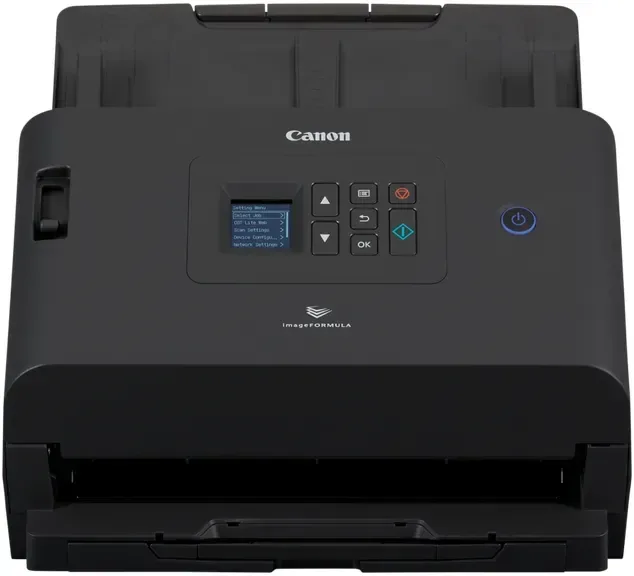
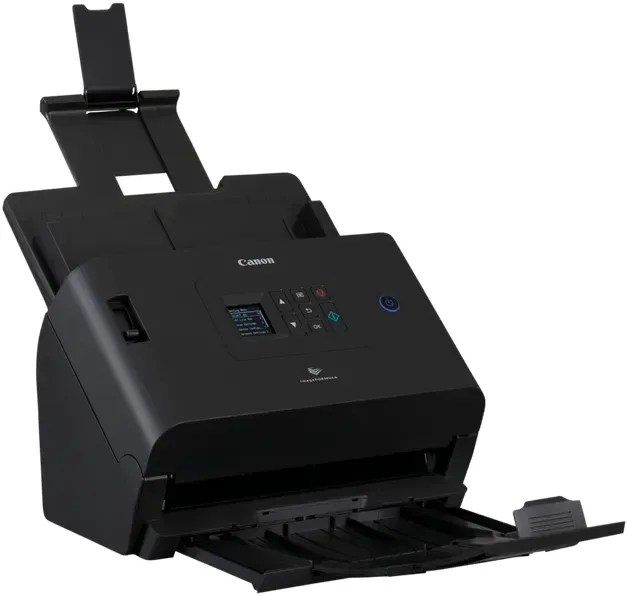
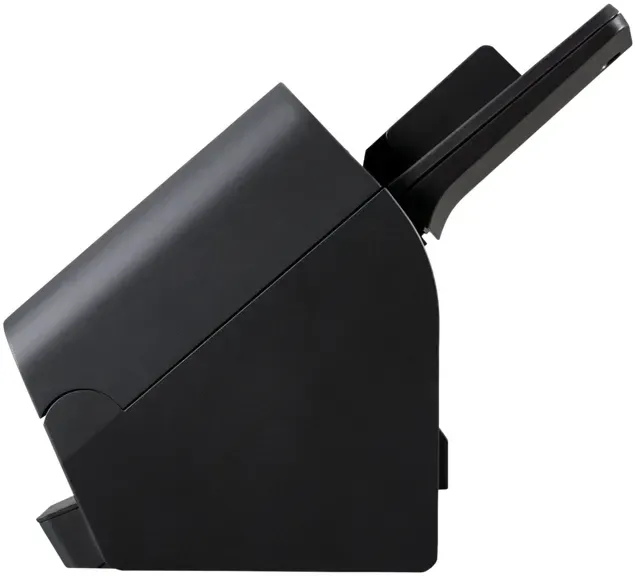
Canon imageFORMULA DR-S250N Manual
PDF manual · 169 Pages
English



Quick check
Incorrect answer, please try again.
Chat with your Canon imageFORMULA DR-S250N manual using AI
Get instant AI answers from your Canon imageFORMULA DR-S250N manual
Ask anything about the Canon imageFORMULA DR-S250N. Answers come from this manual, with the pages they are based on.
imageFORMULA DR-S250N Maintenance Schedule
Wipe the outside with a damp cloth and dry it. Clean the display with a dry cloth without pressure.
Use pure compressed air spray to remove dust and paper particles from the feed slot and interior.
Wipe the glass with a lightly dampened, wrung-out cloth and dry with a clean, soft cloth.
Wipe rollers with a damp, wrung-out cloth while rotating them, then dry with a soft cloth.
Replace the carrier sheet after approximately 1,000 scan operations or if damaged/dirty.
Replace rollers when the page count exceeds the life limit or a replacement message is shown.
Ask a Question
Do you recommend imageFORMULA DR-S250N?
Yes NoDo you recommend imageFORMULA DR-S250N?
Yes NoFrequently Asked Questions
Yes you can scan directly via a web browser using CaptureOnTouch Lite Web. You do not need to install special programs before starting. Simply connect the scanner to your network and access the interface from any smart device.
Is this answer helpful?
The hardware handles materials ranging from credit card sized slips to massive long records measuring up to 220 inches. Travelers appreciate the dedicated passport mode which keeps your ID safe. Oversized papers fit easily when folded correctly for processing.
Is this answer helpful?
Administrators can restrict settings for general users to maintain security. Equipment meets modern security protocols including SSL certificates and password protection. You can define access levels to protect data integrity.
Is this answer helpful?
Accuracy is maintained through ultrasonic double feed detection. If a multiple sheet entry happens the system alerts you immediately. The ultrasonic sensor stops the entry to prevent errors.
Is this answer helpful?
You can register common scan jobs on the machine for quick access. Users define custom names each scan job stored on device. Organization helps teams retrieve data without confusion during retrieval processes.
Is this answer helpful?
Installation requires standard internet protocols and compatible drivers for Windows or Mac systems. Ensure the network voltage matches local requirements to avoid electrical issues. Compatible versions include Windows 10 or later.
Is this answer helpful?
Regular maintenance prompts appear on the LED screen. The system tracks roller usage to prompt timely maintenance. Always use the provided power cable to ensure safety during replacement.
Is this answer helpful?
Advantages and Disadvantages
Advantages

- Wireless web scanning without software installation required for basic use
- Supports passports long documents up to 220 inches and credit card sized slips
- Ultrasonic double feed detection ensures high accuracy during processing
- Energy efficient design with automatic sleep mode after 10 minutes inactivity
- Intuitive LED display provides clear status updates and error notifications
Disadvantages

- Requires specific USB cables for optimal data transfer speeds
- Some network features need detailed configuration by IT administrators
- Older operating systems beyond Windows 10 not supported for installation
- Roller replacement is a periodic maintenance task for all users
- Built-in OCR depends on correct software configuration settings
Product Specification
Type
Document Scanner (CIS)
Resolution
600x600 dpi
Speed
50/50 ppm (B&W/Color)
Paper/Film Format
A4
Paper/Film Feeder
60 sheets DADF, Duplex unit
Connections
1x USB 3.0, 1x Gb LAN
Display
monochrome, 6-line
Software
OCR-Software (CaptureOnTouch Pro, CaptureOnTouch JobTool)
Power Consumption
22.5W (maximum), 3.4W (standby), 0.1W (sleep), 0.1W (off)
Dimensions
11.46 x 9.53 x 10.51 in
Weight
7.50 lbs
Features
LED Lighting
Manufacturer Warranty
1 Year
Product Description
Introduction to the Canon imageFORMULA DR-S250N
Welcome to efficient document management with the Canon imageFORMULA DR-S250N. This device revolutionizes how you handle paperwork in modern office environments. One feature is the ability to scan directly via a web browser using CaptureOnTouch Lite Web. You do not need to install special programs before starting. Connect the scanner to your network and access the interface from any device. This is ideal for temporary setups or remote offices.
Versatility and Accuracy
The hardware handles materials ranging from credit card sized slips to massive long records measuring up to 220 inches. Travelers appreciate the dedicated passport mode which keeps your ID safe. The machine supports Folio Mode for scanning oversized papers up to A2 size by folding. Accuracy is maintained through ultrasonic double feed detection. If a multiple sheet entry happens, the system alerts you immediately. Passport mode is distinct for secure travel record handling. Oversized papers fit easily when folded correctly for processing.
Control and Deployment
Control is intuitive thanks to the front panel display. You can register common scan jobs on the machine for quick access. Administrators can restrict settings for general users to maintain security. The system tracks roller usage to prompt timely maintenance. Energy consumption is kept low with automatic sleep mode after ten minutes. This model fits standard USB and LAN connections for flexible deployment. Regular maintenance prompts appear on the LED screen. Network flexibility allows sharing across multiple workstations.
Maintenance and Security
Maintenance is straightforward with guided steps for cleaning. Always use the provided power cable to ensure safety. Avoid placing the unit near water or direct sunlight. Equipment meets modern security protocols including SSL certificates and password protection. Whether in a corporate setting or a small business, this scanner delivers reliability. It meets your daily archiving needs efficiently.
Software and Integration
Software allows for advanced image processing. Adjust color tones to highlight text or remove background colors. The scanner supports OCR for text recognition. Network management is simplified through SNMP protocols. You can send scans directly from the device using the mail function. Included application provides shortcuts for frequent tasks. Display lights indicate connection status. Safety sensors monitor temperature. Unit represents a comprehensive solution for digital conversion tasks requiring speed. Security patches ensure compatibility with latest systems. Data integrity is preserved during transfer processes.
Installation and Setup
Installation requires standard internet protocols and compatible drivers for Windows or Mac systems. Ensure the network voltage matches local requirements to avoid electrical issues. The output folder settings allow for automatic sorting based on actions. Users define custom names each scan job stored on device. Organization helps teams retrieve data without confusion during retrieval processes.
Search for 67,732 Manuals online


Type-in Brand or Model