Manual.ly Logo

Burris BTH Manual

0.0 · 0 Ratings

PDF manual · 12 Pages

English

M: qwen/qwen3.8-flash
page

/ 12

Loading...
burris-thermal-hand-held-manual-28e7b93b-7da4-410e-81d6-6b2a6c52298b page 5
4
SHORTCUT MENU
• Press the M button to enter the shortcut menu
• Press the Up/Down button to switch between PIP,
Screen BRI, Stadiametric Rangefinder, Hot track
and energy-saving modes
Picture In Picture (PIP)
• With the PIP window open, select the left /
middle / right for placement
• The window image is 2X magnification of the
main image
Screen Brightness
• Brightness levels can be adjusted from 10 to
100 percent
Stadiametric Rangefinder
The stadia metric rangefinder lets you estimate the
distance of a target . There are three stadia
available on the device – Rabbit (35 cm / 13.7 in.),
Boar (35 cm / 13.7 in.), Deer (35 cm / 13.7 in.).
How to use the stadia:
• Align the lower horizontal line with the bottom of
the target image, press the Up/Down button to
change the width between the upper and lower
horizontal lines until the upper horizontal line is
aligned with the top of the target icon
• The distance can now be calculated and
displayed automatically
• By comparing the target size with the three
reference animal sizes, the user can roughly
calculate the distance of the target
Hot Track
• When hot track is turned on, the active crosshair
tracks the point with the highest temperature in
the scene
Super Energy-Saving Mode
• In the super energy-saving mode, screen bright-
ness is reduced to 30 percent and the WiFi is
turned off
• When the Super energy-saving mode is off, the
screen brightness and WiFi are restored to their
original state
NOTE - If WiFi cannot be turned on, please check if
the super energy-saving mode is off.
MAIN MENU
• Press and hold the M button to enter the main menu
• Press the Up/Down button to switch between
Image quality adjustment, Calibration mode,
WiFi, power saving settings, indication settings,
general settings and other settings
Image Quality Adjustment
• Image enhancement - When the image enhance-
ment is turned on, the image of the target can be
enhanced
• Scene mode - Image brightness and contrast can
be adjusted for each scene mode to achieve the
best image
Color Palettes
• White hot - The objects with higher temperature
show in white or light gray
• Black hot - The objects with higher temperature
show in black or dark gray
• Red hot - The objects with higher temperature
show in red
• Adjustable red hot - The objects with higher
temperature show in red. Users can adjust the
intensity of range of red heat from level 1 to 10
• Iron - The objects with higher temperature show
in iron red
• Blue hot - The objects with lowest temperature
show in blue or dark blue, and the object with
higher temperature shows in red
Brightness
• Adjustable from level 1 to 10 level
Contrast
• Adjustable from level 1 to 10 level
Calibration Mode
• Automatic - The device automatically corrects the
image quality without any action
• Scene - The user manually corrects the image
quality as needed. For manual correction, the
lens cover needs to be attached before calibration
• Shutter - The user manually corrects the image
quality as needed and the device shutter closes
for calibration.
WiFi
It can be connected to the mobile phone via WiFi
and the thermal imager can be operated remotely
via the mobile phone APP. When WiFi is turned on,
but not connected, the WiFi icon flashes and the
WiFi name is displayed at the top of the screen.
When the WiFi is connected, the WiFi icon is
always on
• Mobile phone APP - Search and
download 'Burris Thermal' APP in
the mobile phone app market.
Open the app, and find the WiFi
name of “Burris BTH” in your mobile phone WiFi
settings, enter the password '12345678', then
after the connection is successful, the user can
operate remotely
• Android - Please search and download in
Google play
• IOS - Please search and download in the
APP store
Power Saving Settings
• Auto Stand-By - If there is no operation in the
setting time, it enters Stand-by mode. If the work
indicator is on before entering Standby mode, the
work indicator will flash in Stand-by mode
• Auto Power - If there is no operation in the setting
time, it will power off automatically
Note - Auto Stand-by and Auto power-off cannot be
performed while WiFi is connected.
Indication Settings
• Charging indication - In the charging state, you
can turn the charging indicator on or off
• Working indication - In the normal working state,
you can turn the working indicator on or off
General Settings
• Time style - Select 12-hour or 24-hour style
• Date style - Choose different date styles
according to your preference
• Time setup - Adjust the current date and time
Watermark Settings
• Users can choose the display style of date and
time watermark on the screen
Language Settings
• Language choices include English/Russian/
German/French/Chinese.
Memory Card Formatting
• Allows the use to format and empty onboard
storage
Restore Default
• This function restores the factory settings.
Other Settings (optional accessories feature
settings)
• Ranging
• Ranging adjustment
• Pointer
• Pointer adjustment
These functions are used for auxiliary Optional
accessories. There are differences between the
individual models. For details, please refer to the
accessory manual.
Charging
When using the thermal imager for the first time,
use the USB charger to charge battery for at least
four hours. When charging, insert the matching
Type C USB charging cable and plug in the power.
Charging specifications: 5V, 2A.
Charging indicator is red during normal charging.
Charging indicator is green when charging is
complete.
Do not charge the battery in an environment over
40˚C or 104˚ F.
Note - Charging when the thermal imager
is being used does not charge the battery.
This icon indicates the unit is using the
external power for normal operations.
This icon indicates that the external
power supply is charging the battery.
Video Output
There is a video output port beside the USB inter-
face on the side of the thermal imager, and is
simply plug and play.
The screen image of the thermal imager can be
output to an external screen through the matching
HDMI video cable. There are two display modes,
either the external screen or the screen of the
device, but only one mode is active.
Note - When HDMI is used to connect the external
display screen, the real-time screen can only be
viewed by the external display. There is no screen
display on the screen of this device. When the
HDMI cable is unplugged, the screen of the device
is restored.
Storage and Maintenance
When the thermal imager will be not used for a
long time, store in a dry, well-ventilated environ-
ment and charge the thermal imager at least four
hours every two months during the storage
The infrared lens of the thermal imager is coated
with an anti-reflection film. Clean the lens only
when dirt or smudges are present. Frequent
scrubbing may damage the lens coating.
To clean non-optical surfaces of the thermal imager,
do not scrub with chemical solvents or cleaners.
On exterior surfaces, wipe with a soft and dry
microfiber cloth.
Warranty
The Burris Thermal Hand Held thermal products are
covered by Limited Warranty and Burris will repair or
replace your product if it is defective. Do not
disassemble the thermal imager as this will void the
warranty. Contact your nearest Burris dealer for
assistance.
For detailed warranty information scan the QR
codes below.
US Warranty International Warranty
This manual is available in German, French, Italian
and Spanish translations at available at https://
www.burrisoptics.com/sites/default/files/
content/products/manuals/thermal/handheld
BUTTON FUNCTION
BUTTON
DEVICE CURRENT
STATUS
SHORT PRESS LONG PRESS
Photo /
video
Photo mode Photo /
Video mode
/ Start video recording
/ Stop video recording
NOTE - Users can adjust the device language according to their needs,
English/Russian/German/French/Chinese for choose.

Chat with your Burris BTH manual using AI

Get instant AI answers from your Burris BTH manual

Ask anything about the Burris BTH. Answers come from this manual, with the pages they are based on.

BTH Maintenance Schedule

Remind me when maintenance is due
Every two months
Charge battery during long-term storage

When not used for a long time, store in a dry environment and charge the thermal imager at least four hours every two months.

As needed
Clean infrared lens

Clean the lens only when dirt or smudges are present. Avoid frequent scrubbing to prevent damage to the anti-reflection coating.

As needed
Wipe exterior surfaces

Wipe non-optical exterior surfaces with a soft, dry microfiber cloth. Do not use chemical solvents or cleaners.

Free maintenance reminders

Timed to your purchase date. Always free, unsubscribe anytime.

By submitting you agree to the privacy policy. Unsubscribe with one click in any email.
M: qwen/qwen3.8-flash

Ask a Question

0/1000

Do you recommend BTH?

Yes No

Frequently Asked Questions

A

Enable WiFi on the device. Download the 'Burris Thermal' app from Google Play or the App Store. In your phone's WiFi settings, find the network named 'Burris BTH' and enter the password '12345678'. Once connected, you can operate the device remotely.

Is this answer helpful?

A

The stadiametric rangefinder estimates the distance to a target by comparing its apparent size to predefined reference sizes for Rabbit, Boar, and Deer. You align the crosshairs with the top and bottom of the target, and the device calculates the distance automatically.

Is this answer helpful?

A

No, charging does not occur while the thermal imager is being used for normal operations. When plugged in during use, the device runs on external power only. To charge the battery, the unit must be powered off.

Is this answer helpful?

A

The Burris BTH provides a minimum of 5 hours of working time at 25 degrees Celsius. Using the Super Energy-Saving mode can extend this duration by reducing screen brightness and turning off WiFi when not needed.

Is this answer helpful?

A

Check the calibration mode. If set to Automatic, it corrects itself. If in Scene or Shutter mode, perform a manual calibration. Ensure the lens is clean and free of smudges, and verify that the device is not exposed to extreme heat sources.

Is this answer helpful?

M: qwen/qwen3.8-flash

Advantages and Disadvantages

Advantages

  • High-resolution 400x300 detector with 17um pixel size for clear thermal imaging
  • Built-in WiFi allows remote control and live streaming via mobile app
  • Multiple color palettes including White Hot, Black Hot, Red Hot, Iron, and Blue Hot
  • Stadiametric rangefinder helps estimate distance to targets using known animal sizes
  • USB Type-C charging and Micro HDMI output for versatile connectivity options
VS

Disadvantages

  • Manual focus required instead of autofocus, which may slow down target acquisition
  • Charging does not work while the device is actively being used for viewing
  • Sensitive electronics require careful handling to avoid voiding the warranty
  • No mention of waterproof rating, limiting use in heavy rain or wet environments
  • Battery life limited to approximately 5 hours under standard conditions
M: qwen/qwen3.8-flash

Product Description

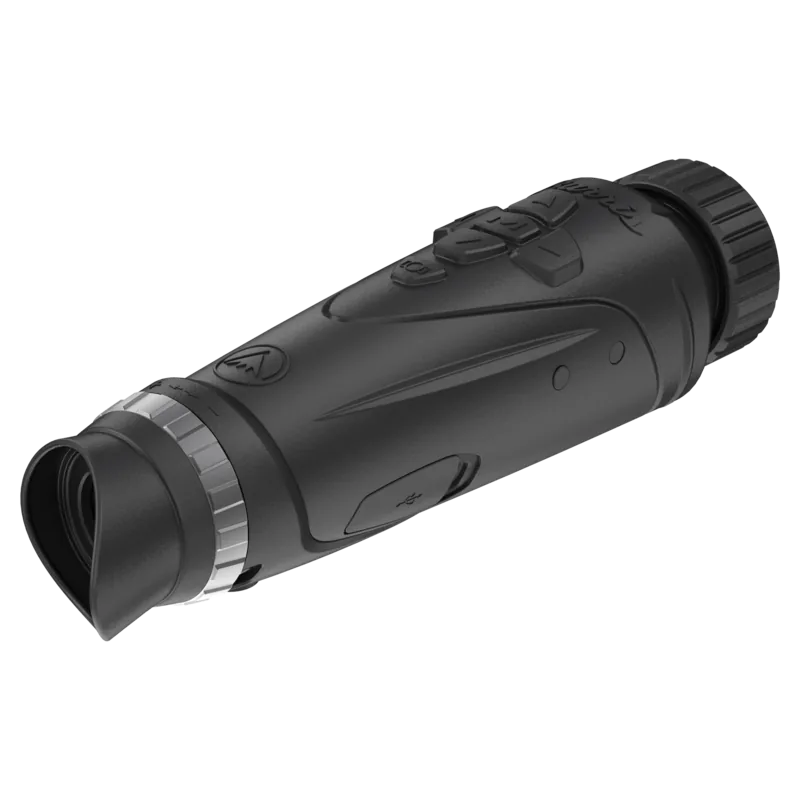
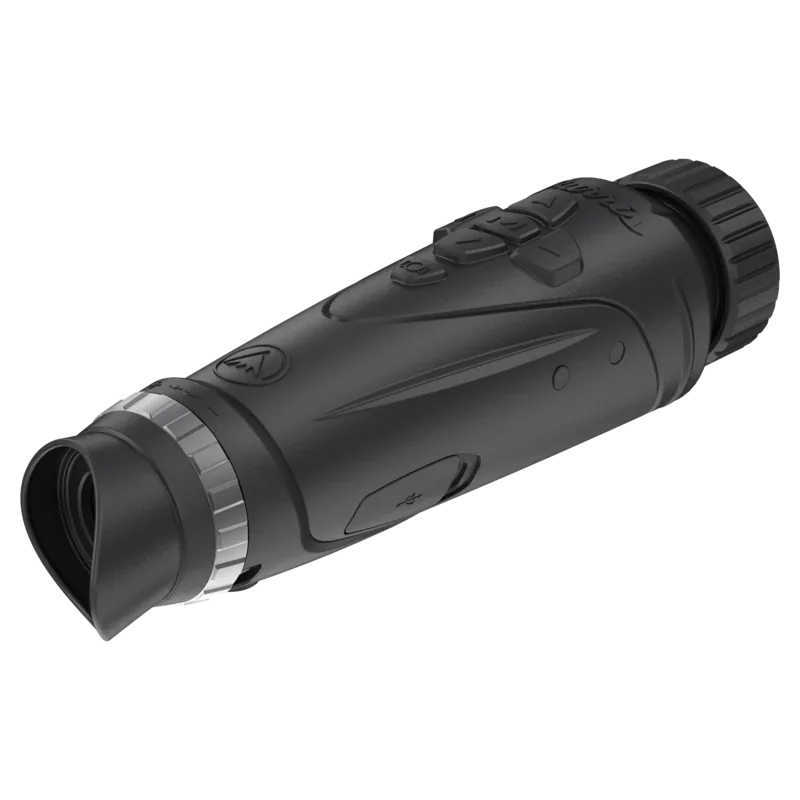
Burris BTH Thermal Handheld Monocular: A Comprehensive Overview

The Burris BTH series represents a significant leap in thermal imaging technology, designed for hunters and outdoor enthusiasts who require precision in low-light or no-light conditions. This handheld monocular is not just a viewing device but a sophisticated tool that combines optical clarity with digital intelligence. The lineup includes the BTH 25, BTH 35, and BTH 50 models, each offering distinct focal lengths to suit various hunting scenarios. Whether you are tracking small game or scanning vast fields, these devices provide exceptional detail through their high-resolution sensors.

Key Features and Performance

At the heart of the Burris BTH is a 400x300 resolution detector with a pixel size of 17 micrometers, ensuring sharp images even at long distances. The devices feature manual focusing rings and diopter knobs, allowing users to customize the view to their specific eyesight needs. One of the standout features is the versatile color palette options, including White Hot, Black Hot, Red Hot, Iron, and Blue Hot. These modes help users identify heat signatures against different backgrounds, enhancing target acquisition speed and accuracy.

Connectivity is another strong point. Built-in WiFi allows seamless integration with mobile devices via the Burris Thermal app, available on both Android and iOS platforms. This enables remote control and live streaming capabilities, making it easier to share discoveries or adjust settings without touching the unit. Additionally, the Micro HDMI port supports external display connections, providing flexibility for observation setups.

Battery Life and Durability

Power management is critical for extended field use. The BTH series offers over five hours of continuous operation at standard temperatures, supported by efficient charging via USB Type-C. The super energy-saving mode further extends battery life by reducing screen brightness and disabling non-essential functions like WiFi when not needed. Constructed with precision optics and sensitive electronics, these units require careful handling to maintain performance and warranty validity.

User Experience

Navigating the interface is intuitive thanks to clearly labeled buttons for power, menu, zoom, and photo/video capture. The shortcut menu provides quick access to essential tools such as Picture-in-Picture (PIP), stadiametric rangefinder, and hot track functionality. The stadiametric rangefinder is particularly useful for estimating distances to targets based on known animal sizes, adding a layer of tactical advantage during hunts.

In summary, the Burris BTH thermal handheld monocular delivers a blend of advanced imaging technology, user-friendly controls, and robust connectivity. It stands out as a reliable companion for serious outdoorsmen seeking to maximize their effectiveness in challenging environmental conditions.

M: qwen/qwen3.8-flash

© Copyright 2026 Manual.ly