
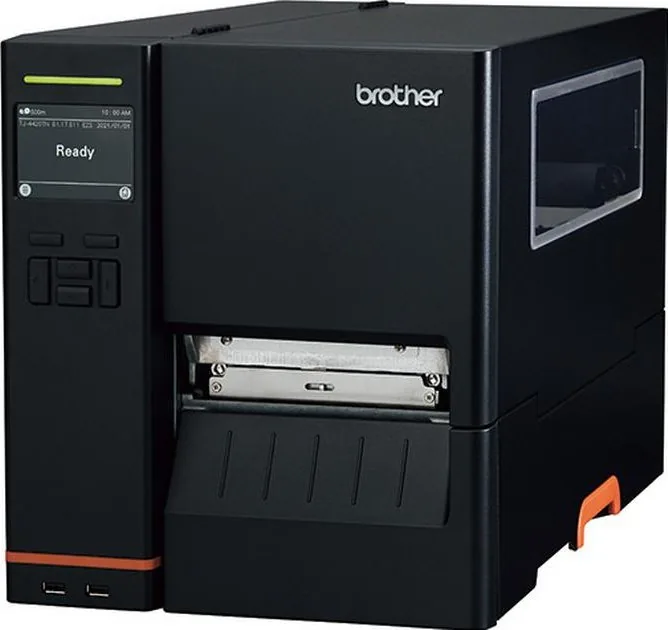
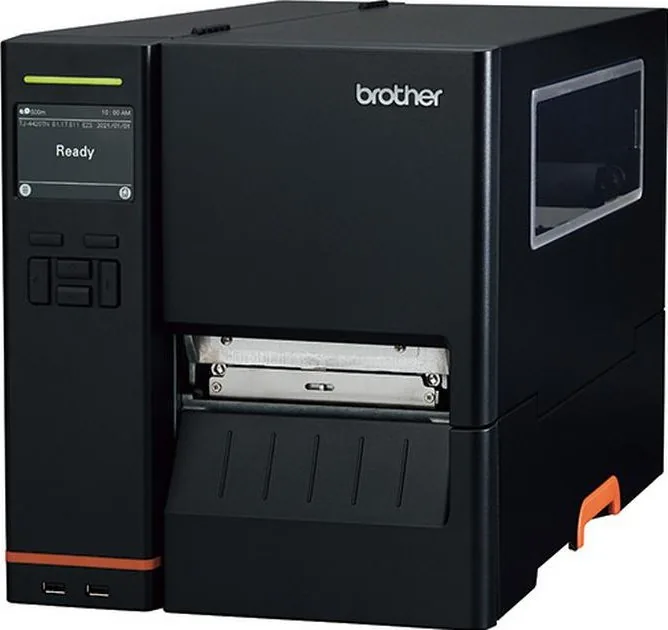
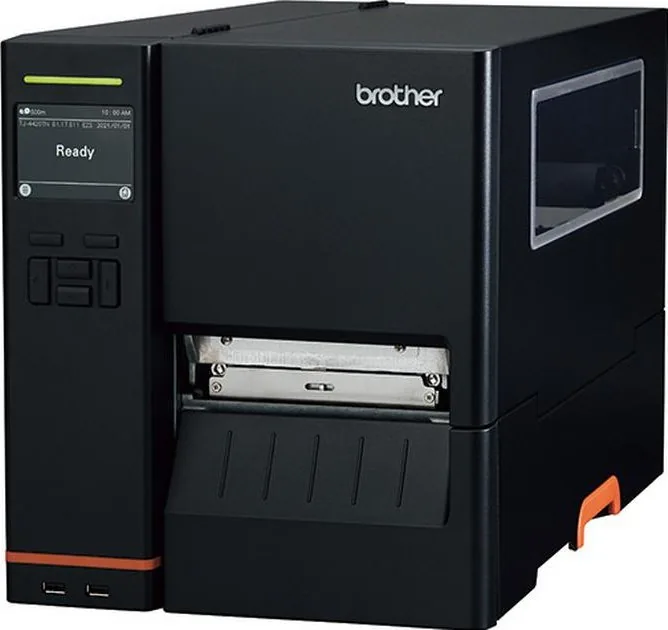
Brother TJ-4000 Series Manual
PDF manual · 90 Pages
English



Quick check
Incorrect answer, please try again.
Chat with your Brother TJ-4000 Series manual using AI
Get instant AI answers from your Brother TJ-4000 Series manual
Ask anything about the Brother TJ-4000 Series. Answers come from this manual, with the pages they are based on.
TJ-4000 Series Maintenance Schedule
Use compressed air or vacuum to clean the Gap and Black Mark Sensors.
Turn off the printer, let it cool, and wipe the Print Head with a cotton swab dipped in isopropyl alcohol or ethanol.
Turn off the printer, rotate the roller, and wipe it thoroughly with a lint-free cloth or cotton swab dipped in isopropyl alcohol or ethanol.
Free maintenance reminders
Timed to your purchase date. Always free, unsubscribe anytime.
Ask a Question
Do you recommend TJ-4000 Series?
Yes NoFrequently Asked Questions
The printer supports a maximum print width of 104 mm, accommodating labels ranging from 20 mm to 114 mm in width.
Is this answer helpful?
Yes, the device supports various media types including RFID tags, making it suitable for asset tracking applications.
Is this answer helpful?
Sensors can be calibrated automatically via the Brother Printer Management Tool or manually through the onboard menu using navigation keys.
Is this answer helpful?
No, the high-performance cutting blade is not designed for user replacement and must be serviced by authorized dealers.
Is this answer helpful?
Drivers are available for Windows, Mac, and Linux systems to ensure broad compatibility with various computing environments.
Is this answer helpful?
Advantages and Disadvantages
Advantages

- Supports long ribbon lengths up to 600 meters for extended operation
- Offers high resolution up to 600 dpi for detailed graphics and text
- Includes versatile connectivity options like Ethernet, USB, and optional Wi-Fi
- Features adjustable tension controls to prevent label wrinkling
- Compatible with major barcode formats and industry standard languages
Disadvantages

- Wireless features require purchasing an optional interface module separately
- Some advanced calibration steps may require technical knowledge
- Replacement parts like blades are not user-serviceable and need authorized dealers
- Large footprint may require significant desk space in compact offices
- Initial setup for network configuration can be time-consuming for new users
Product Specification
Type
Label printer/Barcode printer
Technology
Direct thermal
Memory
128MB (RAM), 128MB (Flash)
Connections
USB 2.0, 1x USB-A 2.0 (Host), serial
Network
LAN
Emulation
FBPL
Manufacturer warranty
3 years in AT/DE/PL (on-site after registration)
Product Description
Brother TJ-4000TN - Read, Download & Print Free
Discover the Power of Precision Labeling
The Brother TJ-4000TN series represents a robust solution for professional label printing needs. Designed with durability in mind, this device handles ribbon lengths up to 600 meters and accommodates large 8-inch label rolls. Whether you are managing inventory, shipping logistics, or retail tagging, this printer ensures consistent performance across demanding environments.
Advanced Connectivity and Versatility
Connectivity is seamless with integrated Ethernet ports and USB 2.0 interfaces that support keyboards and barcode scanners. For wireless flexibility, optional modules enable Wi-Fi and Bluetooth connections, allowing for mobile printing setups. The system supports multiple interface types including serial RS-232C, ensuring compatibility with legacy systems and modern networks alike.
Superior Print Quality and Control
Achieve crisp, high-resolution output with resolutions reaching up to 600 dpi on select models. The machine utilizes a powerful TrueType font engine alongside scalable bitmap fonts for professional typography. Users can fine-tune print density, head tension, and ribbon tension to eliminate wrinkles and ensure sharp barcodes. The included management tool simplifies sensor calibration and firmware updates directly from your computer.
User-Friendly Operation
Operating the device is intuitive thanks to a responsive interface available on higher-end models. Navigate menus easily using touch controls or physical buttons to adjust settings like print speed, media type, and cut modes. The system offers various feeding options including peel mode, rewind mode, and single-cut configurations to suit diverse workflow requirements. Regular maintenance is straightforward with clear guidelines for cleaning heads and sensors.
Key Features
- High-speed thermal transfer printing
- Support for wide range of media types
- Comprehensive diagnostic tools
- Flexible mounting and connectivity options
Search for 67,706 Manuals online


Type-in Brand or Model