
Brother TD-4550DNWB Manual
PDF manual · 195 Pages
English



Quick check
Incorrect answer, please try again.
Chat with your Brother TD-4550DNWB manual using AI
Get instant AI answers from your Brother TD-4550DNWB manual
Ask anything about the Brother TD-4550DNWB. Answers come from this manual, with the pages they are based on.
TD-4550DNWB Maintenance Schedule
Clean the printhead with a lint-free cloth or cotton swab moistened with isopropyl alcohol or ethanol. Follow manufacturer safety instructions.
Replace the CR2032 button cell battery every two years to maintain internal clock and memory settings.
Free maintenance reminders
Timed to your purchase date. Always free, unsubscribe anytime.
Ask a Question
Do you recommend TD-4550DNWB?
Yes NoFrequently Asked Questions
It uses direct thermal printing, which means it prints by applying heat to compatible media. This reduces consumable costs because there is no ink, toner, or ribbon to replace.
Is this answer helpful?
Yes. It supports USB, wired LAN, Wi-Fi, and Bluetooth. That makes it suitable for standalone use, shared office setups, and mobile-friendly labeling workflows.
Is this answer helpful?
Yes. The printer is well suited for barcode labels, product labels, shipping tags, and inventory tasks. It also supports template-based printing for repetitive label formats.
Is this answer helpful?
For advanced label design, Brother P-touch Editor is recommended. It lets you create layouts, insert text, images, and barcodes, and transfer templates to the printer.
Is this answer helpful?
Yes. After templates are transferred, labels can be printed directly from the printer’s LCD menu. It also supports certain driver-free and mass storage printing methods.
Is this answer helpful?
Make sure the RD roll is loaded correctly, the print side faces up, and the sensor position matches the media type. This helps prevent misfeeds and poor print alignment.
Is this answer helpful?
Advantages and Disadvantages
Advantages

- Direct thermal printing keeps operation simple and removes the need for ink or toner.
- Multiple connection options support shared offices, mobile workflows, and network setups.
- LCD controls and template features make recurring label tasks faster and easier.
- Works with barcodes, templates, and different media types for versatile labeling.
Disadvantages

- Direct thermal labels can fade more quickly than thermal transfer prints over time.
- Media setup requires careful sensor adjustment for different label types.
- Some advanced features depend on Brother software and Windows-based tools.
- Wireless and template workflows may need initial configuration before use.
Product Specification
Type
Label printer
Technology
Direct thermal
Print resolution
300 dpi
Roll diameter
5.00 in
Print width
4.25 in
Print length
118.11 in
Print speed
5.98 in/s
Memory
256MB (RAM), 64MB (Flash)
Ports
USB 2.0, 1x USB-A 2.0 (Host), serial
Network
LAN, Wi-Fi 4 (WLAN 802.11a/b/g/n), Bluetooth 4.2, Wi-Fi Direct
Display
monochrome
Emulation
ZPL II, ESC/P, CPCL, GDI
Dimensions
4.25x8.82x6.10 in
Weight
4.59 lb
Features
Paper cutter, Label peeler
Manufacturer's warranty
3 years in AT/DE/PL (On-site after registration), one year in UK
Product Description
Brother TD-4550DNWB: Flexible Direct Thermal Printing for Modern Labeling
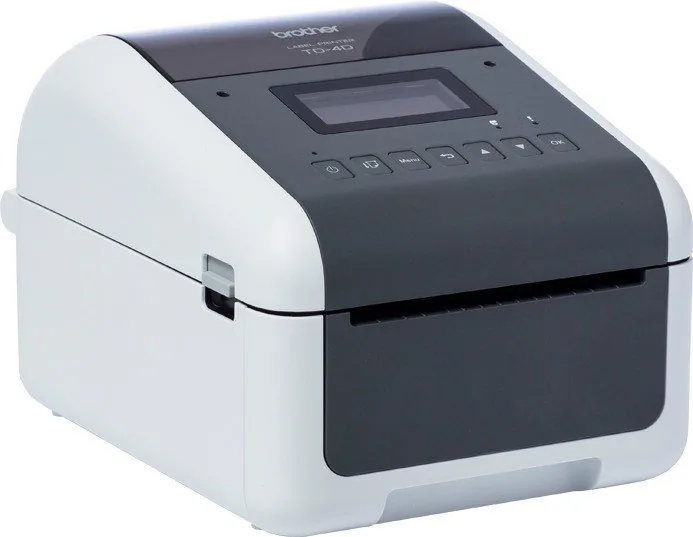
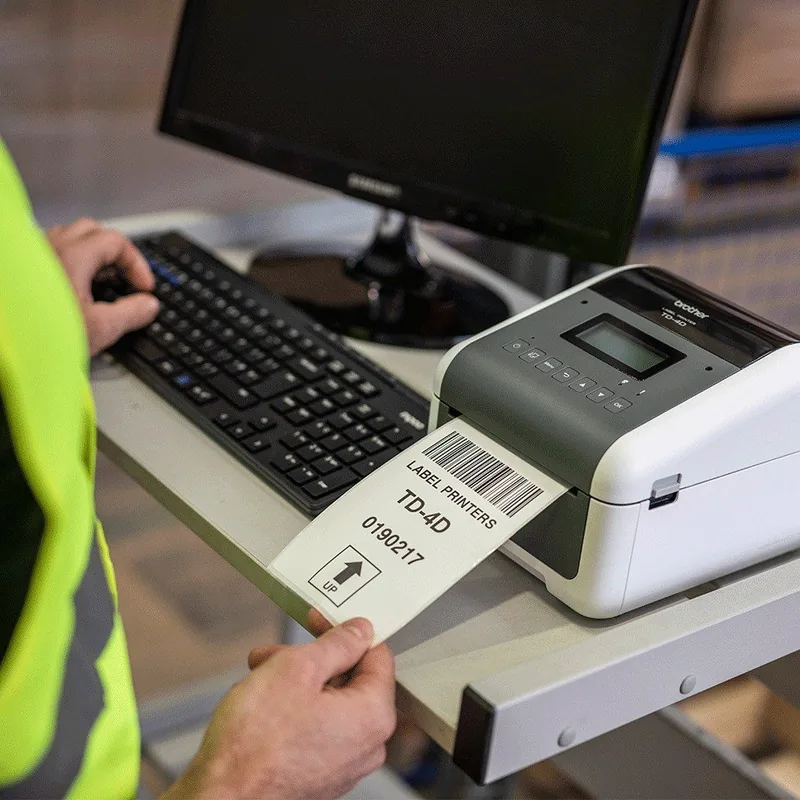
The Brother TD-4550DNWB is designed for teams that need dependable label output, broad connectivity, and straightforward operation. Built around direct thermal printing, it removes the need for ink or toner and keeps everyday labeling fast and efficient. Whether you are producing shipping labels, inventory tags, or barcode-ready media, this model is made to fit into busy workflows with minimal friction.
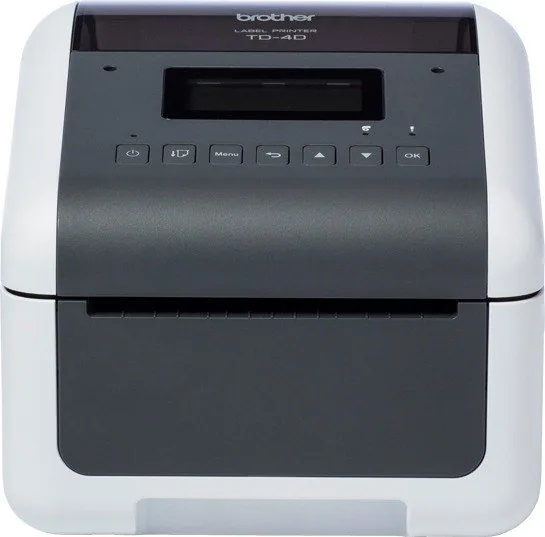
What makes the TD-4550DNWB especially practical is its mix of classic desktop control and network-ready features. It supports USB, wired LAN, Wi-Fi, and Bluetooth, so it can work in both individual and shared environments. The LCD and physical buttons help users manage templates, printer settings, and status checks directly on the device, while Brother software such as P-touch Editor expands layout design options on a computer.
The Brother TD-4550DNWB, German, direct thermal Manual also reflects how much the printer focuses on real-world usability. Setup covers essentials like loading RD rolls, adjusting sensor position for different media types, and setting the date and time for clock-backed functions. That makes it easier to handle die-cut labels, black-mark media, wristbands, and receipt-style rolls without guesswork. For users who rely on repeat jobs, template transfer and template mode can save time by letting labels print directly from the printer’s memory.
Another strong point is workflow flexibility. The device supports barcode printing, distributed printing across multiple printers, and even special modes like mass storage for transferring command files without a driver. This makes it a solid choice for environments that value repeatability, speed, and controlled label formats. If your operation depends on scanners or mobile devices, the printer also offers P-touch Template functions and mobile connectivity options for direct label production.
Overall, this printer is best suited for businesses that want reliable direct thermal output with a professional feature set. It blends simple maintenance with advanced label management, making it useful for retail, logistics, warehousing, and office labeling tasks alike.
Notes
- Use genuine Brother RD rolls for best results.
- Keep labels stored in a cool, dark place.
- Check the sensor position before changing media type.
- Clean the printer regularly to avoid jams and print issues.
Search for 67,706 Manuals online


Type-in Brand or Model