
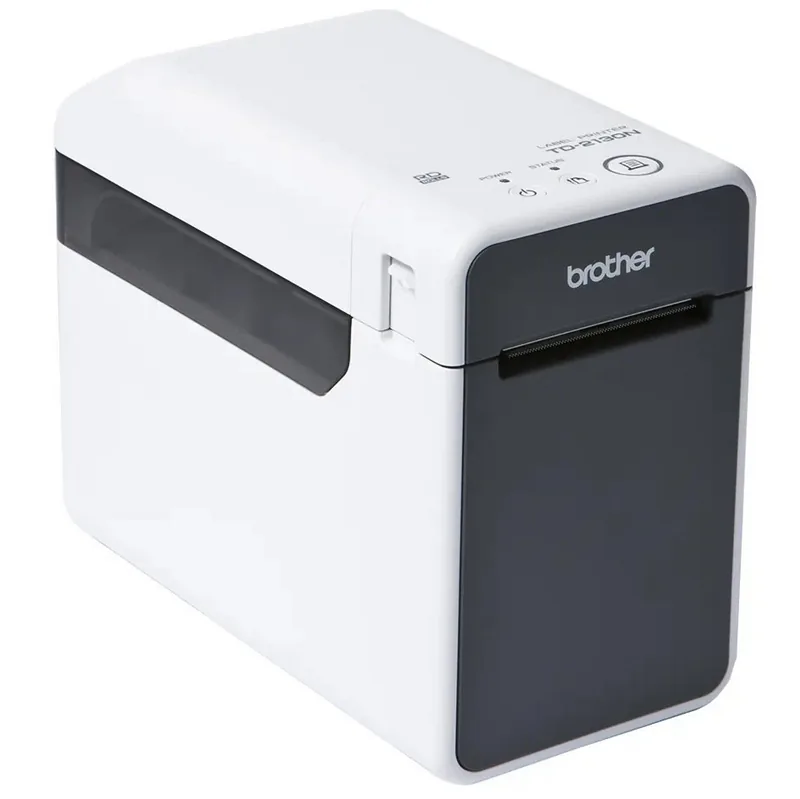
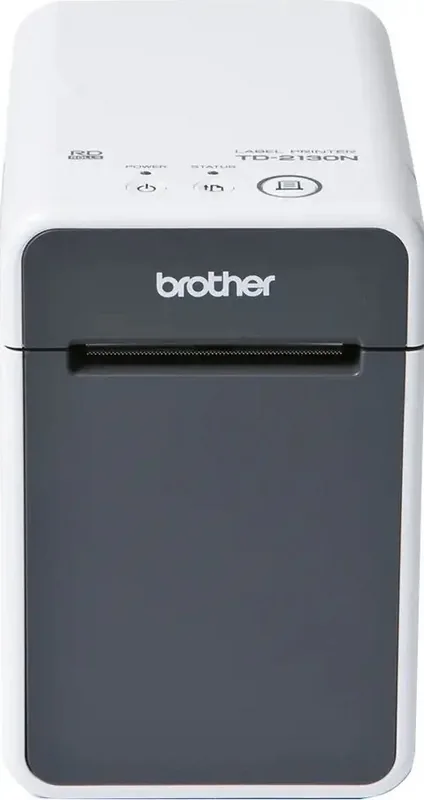
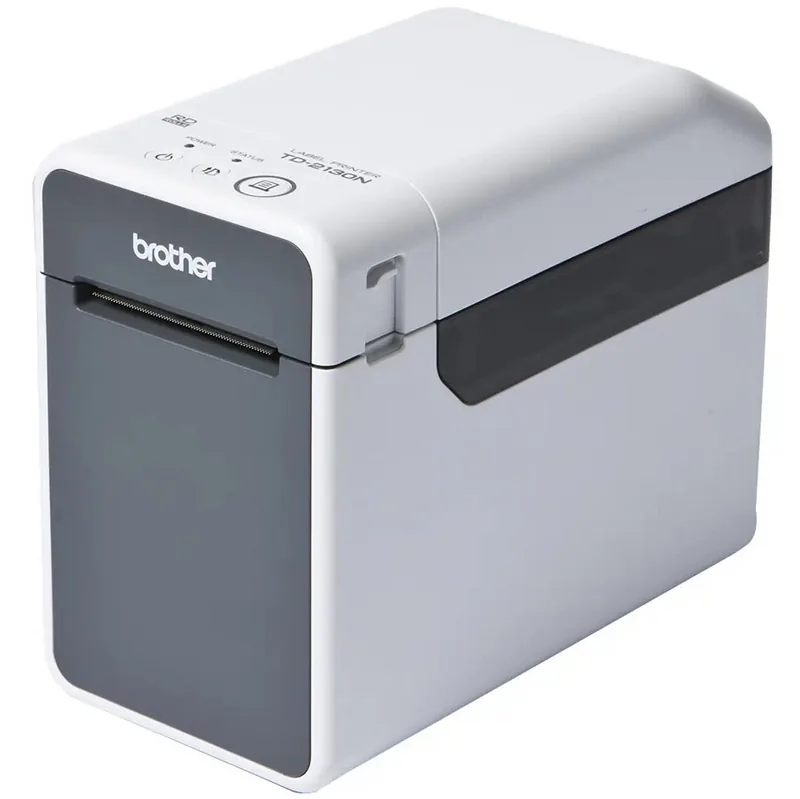
Brother TD-2135NWB Manual
PDF manual · 99 Pages
English



Quick check
Incorrect answer, please try again.
Chat with your Brother TD-2135NWB manual using AI
Get instant AI answers from your Brother TD-2135NWB manual
Ask anything about the Brother TD-2135NWB. Answers come from this manual, with the pages they are based on.
TD-2135NWB Maintenance Schedule
Clean the print head with a dry cotton swab to remove dust or dirt that can cause white streaks on labels.
Use a piece of cellophane tape to remove contamination from the platen roller.
If adhesive accumulates and causes jams, disconnect power and clean the media exit with a cloth lightly dampened with isopropyl alcohol.
If adhesive accumulates on the peeler parts causing jams, disconnect power and clean them with a cloth lightly dampened with isopropyl alcohol.
Ask a Question
Do you recommend TD-2135NWB?
Yes NoFrequently Asked Questions
Yes, you can connect the printer to your computer using a USB cable connection for direct communication without needing an internet or local area network setup.
Is this answer helpful?
Wipe the print head with a cotton swab dipped in isopropyl alcohol once a day or every roll replacement, avoiding contact with skin to prevent damage.
Is this answer helpful?
Use Media Rolls with an outer roll dimension of five inches or less and ensure they are designed for the TD series printers for compatibility.
Is this answer helpful?
Yes, you can reset the printer to factory defaults using the command file feature in the Printer Setting Tool or by performing specific button combinations on the device.
Is this answer helpful?
When the Wi-Fi indicator is lit in green, the connection is established. If it blinks, it indicates data transfer or connection attempts are in progress.
Is this answer helpful?
Genuine Brother Media Rolls are recommended for the best results, though third-party media may work if dimensions and sensor alignment match the requirements.
Is this answer helpful?
Advantages and Disadvantages
Advantages

- Supports multiple connectivity options including USB, wired LAN, wireless LAN, and Bluetooth for flexible deployment in various office environments.
- Allows deep customization of communication and device settings using the dedicated Printer Setting Tool for precise control over operations.
- Optional touchpanel display enables local layout creation and database management without reliance on host applications for every single job.
- Includes WPA3 network security support to protect sensitive data transmission during wireless printing activities securely.
Disadvantages

- Requires regular maintenance of the print head and platen roller to ensure clear prints and prevent media jams from occurring.
- Initial setup may require connecting via USB cable to download settings before enabling wireless or network configurations properly.
- Optional accessories like label peelers and touchpanel displays add to the overall cost and complexity of the initial purchase budget.
Product Specification
Type
Label Printer
Technology
Direct Thermal
Print Resolution
300 dpi
Roll Diameter
5.0 inches
Paper Thickness
2.17-3.15 mils
Print Width
2.2 inches
Print Length
39.37 inches
Print Speed
6.0 in/s
Memory
256MB (RAM), 64MB (Flash)
Ports
USB 2.0, 1x USB-A 2.0 (Host), Serial
Network
LAN, Wi-Fi 4 (WLAN 802.11a/b/g/n), Bluetooth 5.2, Wi-Fi Direct
Display
N/A
Emulation
ZPL II, ESC/POS, ESC/P Raster, CPCL, P-touch
Dimensions
4.33x6.77x8.46 inches
Weight
2.93 lbs
Special Features
Print Server
Manufacturer Warranty
3 Years in Austria/Germany/Poland (On-site after registration)
Product Description
Brother TD-2135NWB Direct Thermal Description
The Brother TD-2135NWB Direct Thermal printer stands out as a versatile solution for busy offices and warehouses requiring high-quality label printing. This compact desktop thermal printer delivers fast and reliable output without the need for ink or toners, relying instead on heat-sensitive media to create durable labels. Connectivity options make it suitable for diverse environments, supporting USB, wired LAN, wireless LAN, and Bluetooth connections seamlessly. Whether you need to print shipping labels, asset tags, or product packaging, this machine handles various media types with precision.
Setting up the printer is straightforward with the included software tools. The Printer Setting Tool allows for deep customization of communication and device settings directly from your computer. You can adjust print density, paper size registration, and even manage templates without needing complex configurations. Wireless Direct mode enables direct connection to mobile devices for on-the-go printing, ensuring flexibility when a network is unavailable. The optional touchpanel display enhances usability by allowing users to create layouts and manage databases locally on the device. This capability is particularly useful for retail environments where real-time data entry is required.
Maintenance is minimal but important for longevity. Regular cleaning of the print head and platen roller ensures clear prints and prevents jams. The tear bar provides a clean cut for continuous paper rolls, while the optional label peeler streamlines workflow for die-cut labels. Users should refer to the Brother TD-2135NWB Direct Thermal Manual for detailed troubleshooting steps regarding status indicators and error messages. Proper ventilation helps prevent overheating during high-volume jobs, ensuring consistent performance throughout the day without interruption.
Key considerations include the supported paper sizes and sensor alignment. The printer accommodates media rolls up to five inches in diameter. Advanced features like mass storage allow command data for execution via USB, facilitating automated setups for large batches. Network security is prioritized with WPA3 support for wireless connections, protecting sensitive data transmission. This printer balances performance with ease of maintenance, making it a robust choice for businesses seeking efficiency.
The software ecosystem supports various operating systems, ensuring compatibility across modern workplaces. Driver installation is simple via USB or network download. For large deployments, the tool allows applying settings to multiple printers simultaneously. Energy settings can be configured to reduce power consumption during idle periods. Barcode printing is optimized with specific drivers ensuring readability upon scanning, which is crucial for logistics tracking. P-touch templates allow for quick deployment of standardized label designs across the network.
Notes
Always use genuine Brother media for best results. Ensure sensors are aligned correctly for die-cut labels to avoid feed errors. Check LED indicators for status updates regarding paper levels or system errors. Keep the area around the printer clear for optimal airflow.
Search for 67,706 Manuals online


Type-in Brand or Model