
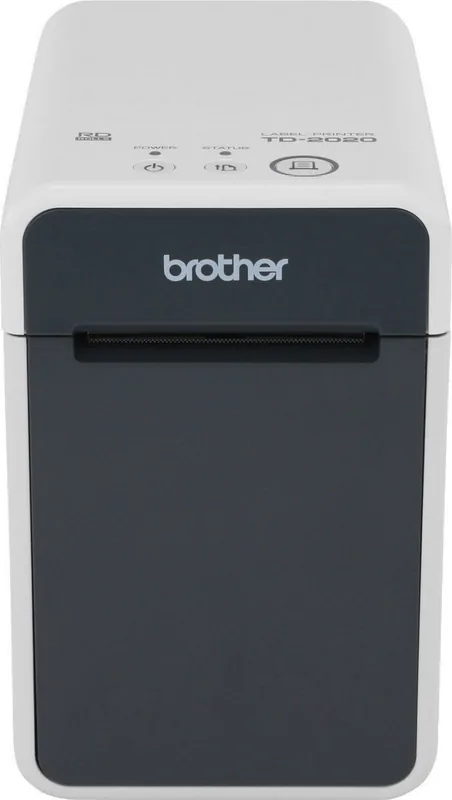
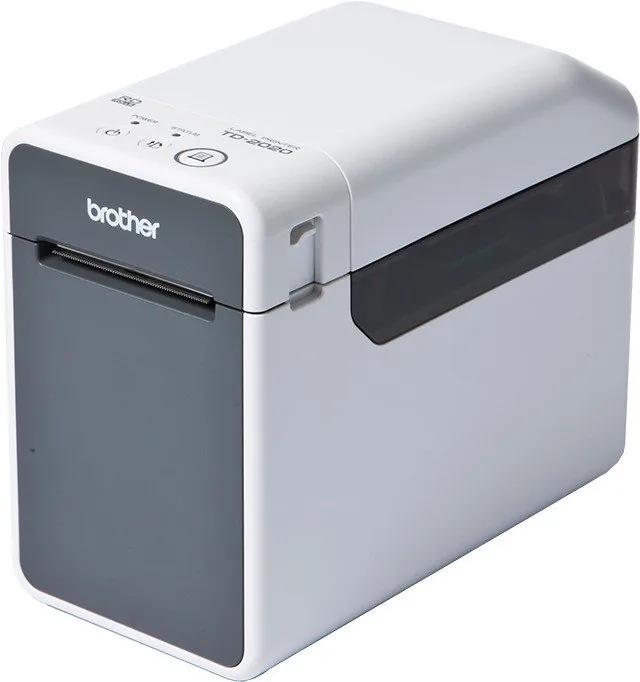
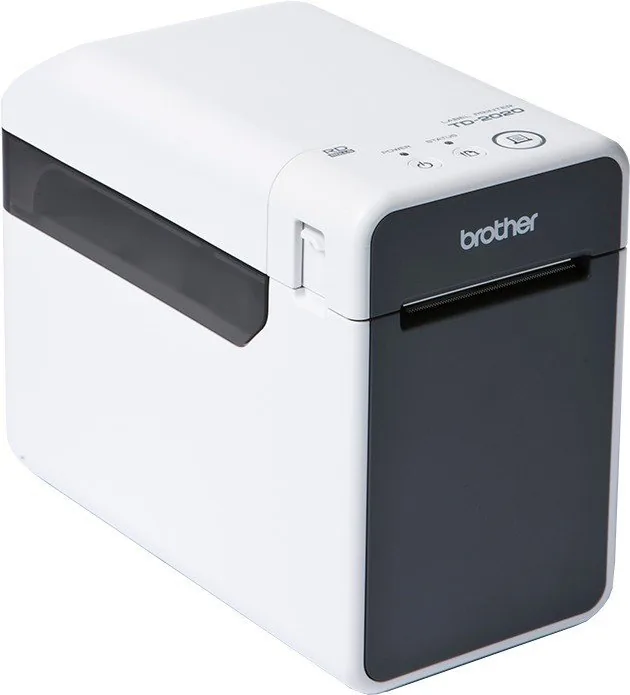
Brother TD-2120N Manual
PDF manual · 122 Pages
English



Quick check
Incorrect answer, please try again.
Chat with your Brother TD-2120N manual using AI
Get instant AI answers from your Brother TD-2120N manual
Ask anything about the Brother TD-2120N. Answers come from this manual, with the pages they are based on.
TD-2120N Maintenance Schedule
We recommend replacing the CR2032 battery every two years to maintain the internal clock settings.
Use a dry cotton swab to wipe the print head. Dirt may cause white streaks or jams.
Use cellophane tape to remove dirt from the platen roller to prevent media jams.
If adhesive accumulates, disconnect power and clean with a cloth moistened with isopropyl alcohol.
Clean peeler separator and sensor with a cloth moistened with isopropyl alcohol if adhesive accumulates.
Free maintenance reminders
Timed to your purchase date. Always free, unsubscribe anytime.
Ask a Question
Do you recommend TD-2120N?
Yes NoFrequently Asked Questions
Connect the printer via the USB port. Ensure the driver is installed before powering on the device to ensure proper detection.
Is this answer helpful?
Yes, via optional WLAN or Bluetooth modules. Configure settings using the Printer Setting Tool on your computer.
Is this answer helpful?
The optional Lithium-Ion battery supports portable use. Automatic power-off saves energy during inactivity.
Is this answer helpful?
Clean the print head and transport roller regularly. Use alcohol wipes and follow safety warnings in the manual.
Is this answer helpful?
It supports roll labels and continuous paper. Register sizes accurately in the settings to prevent alignment issues.
Is this answer helpful?
Use the included CD-ROM or download from the support site. Follow the standard installation wizard steps.
Is this answer helpful?
The optional display allows layout editing and status viewing without a computer via the integrated interface.
Is this answer helpful?
Advantages and Disadvantages
Advantages

- Direct thermal technology eliminates ink costs entirely.
- Optional battery allows portable printing without power outlets.
- Supports USB and network connectivity for flexible setups.
- Compatible with P-touch Editor for professional label design.
Disadvantages

- Optional features like wireless require separate hardware purchases.
- Paper width registration must be done correctly to avoid errors.
- Maintenance requires regular cleaning of the print head.
Product Specification
Type
Label Printer
Technology
Thermal Direct
Print Resolution
203 dpi
Roll Diameter
5 inch
Paper Thickness
2.17-3.15 mil
Print Width
2.28 inch
Print Speed
6 in/s
Memory
32MB (RAM), 16MB (Flash)
Connectors
USB 2.0, Serial
Network
LAN
Display
N/A
Emulation
ZPL II, ESC/POS, ESC/P Raster, P-touch
Dimensions
5.71 x 5.83 x 7.68 inch
Weight
2.95 lb
Manufacturer Warranty
3 years in AT/DE/PL (On-site after registration)
Product Description
The Brother TD-2120N Direct Thermal Revolution
The Brother TD-2120N stands out as a powerful desktop thermal printer designed for high efficiency in professional settings. Its direct thermal technology ensures crisp, clear labels without the ongoing cost and mess of ink. This robust device supports various connectivity options including USB and Ethernet LAN, making network sharing seamless. Users appreciate the flexibility offered by optional modules like WLAN and Bluetooth for wireless printing. This ensures it fits well in busy office environments or mobile setups where cable management is crucial.
Versatile Connectivity Options
Connecting this machine is straightforward for IT administrators and end-users alike. You can use a standard USB cable for direct local tasks. Network integration allows multiple users shared access via LAN. Wireless capabilities are available through specific optional interfaces, enhancing flexibility. This ensures it fits well in busy office environments or mobile setups where cable management is crucial. The serial port option is also available for legacy systems. You can configure these settings easily through the PC software interface without accessing physical switches.
Power and Portability
For continuous operation, the standard AC adapter is included with the unit. Alternatively, an optional Lithium-Ion battery supports portable printing without tethering. This allows work away from power outlets in warehouses or delivery vehicles. The battery unit is a great addition for dynamic logistics tasks. Charging is simple using the dedicated charger. The printer features an automatic power-off timer to save energy during inactivity. This helps extend battery life significantly between charges.
Software Integration
Managing the device is easy with the Driver Software Suite. The Printer Setting Tool allows deep configuration of settings. P-touch Editor 5.0 creates professional labels with database support. These tools streamline workflow by simplifying setups. You can assign custom button functions on the panel. The optional touch panel display offers an intuitive interface. Users can edit layouts and view status without a computer. Maintenance involves cleaning the transport roller. Regular updates via P-touch software keep features current.
Notes on Resources
Always refer to the guides for detailed setup procedures. The Brother TD-2120N German Direct Thermal Manual ensures users can operate the device safely. Keep safety in mind. Clean the print head regularly. Check the sensor position for media. Paper widths need accurate registration. This printer delivers reliability across industries. It balances speed and quality effectively.
Search for 67,706 Manuals online


Type-in Brand or Model