
Brother ScanNCut SDX900 Manual
PDF manual · 110 Pages
English



Quick check
Incorrect answer, please try again.
Chat with your Brother ScanNCut SDX900 manual using AI
Get instant AI answers from your Brother ScanNCut SDX900 manual
Ask anything about the Brother ScanNCut SDX900. Answers come from this manual, with the pages they are based on.
ScanNCut SDX900 Maintenance Schedule
Remove cut scraps, lint and dust from the holder using a brush. Ensure the blade rotates freely.
Scrape off cut scraps with the spatula and remove threads with tweezers. Clean dot marks with a dry cloth.
If vertical lines appear in scans, clean the internal scanner glass with a soft, lint-free cloth dampened with water.
Replace if cuts are rough, quality suffers, or the blade is dull or chipped.
Replace if adhesive strength decreases, there are many cut marks, or deep cuts exist.
Replace if adhesive strength weakens or fabric twists during cutting.
Ask a Question
Do you recommend ScanNCut SDX900?
Yes NoFrequently Asked Questions
The SDX900 can cut a range of compatible materials, including printer paper, cardstock, vinyl, fabric, felt, foam sheets, plastic sheets, magnets, and sticker materials. Results depend on material thickness, texture, mat adhesion, and blade settings.
Is this answer helpful?
No. Its built-in scanner can capture images or drawings directly at the machine, and the touchscreen offers editing tools for many projects. A computer can still be useful with CanvasWorkspace for creating, managing, and transferring more detailed designs.
Is this answer helpful?
A test cut checks whether the mat, material, blade, and pressure settings are working together correctly. It helps prevent incomplete cuts, damage to the mat, excessive blade wear, and wasted project material.
Is this answer helpful?
Yes. It can cut compatible fabric for applique and quilting. For best results, use the recommended mat and fabric support method, such as an iron-on applique sheet or a fabric cutting adhesive sheet, based on the project type.
Is this answer helpful?
CanvasWorkspace is Brother's design environment for creating and editing cutting or drawing patterns. With a wireless connection, compatible designs can be transferred to the machine without a USB stick. A PC version can also support offline editing.
Is this answer helpful?
Use the correct mat for the material, avoid placing material outside the marked adhesive area, remove cut pieces with a spatula, clean the mat as needed, and replace the protective sheet after use. Store the mat away from heat, humidity, and direct sunlight.
Is this answer helpful?
Advantages and Disadvantages
Advantages

- Built-in scanner can turn original drawings, printed images, and motifs into usable cutting designs.
- Automatic blade technology detects material thickness and adjusts blade depth for simpler setup.
- Supports cutting, drawing, scanning, pattern editing, and fabric-oriented features in one machine.
- Wireless CanvasWorkspace transfer and USB support provide flexible design storage and access.
- On-screen layout tools help resize, rotate, align, duplicate, group, and arrange patterns efficiently.
Disadvantages

- A test cut is still necessary to confirm settings for each material and avoid poor results.
- Fabric cutting may require additional adhesive sheets or iron-on support materials.
- Mat adhesive strength must match the material, and mats need regular cleaning and careful storage.
- Very small details or closely arranged designs may not cut cleanly on some materials.
- Wireless transfer requires network setup and a CanvasWorkspace account for connected features.
Product Specification
Type
Cutting plotter with scanner
Format
12 x 12 in, 12 x 24 in
Material
Vinyl, paper, fabric, felt, craft foam, cardboard, plastic, leather
Cutting method
Media transport method
Cutting area (L x W)
11.69 x 11.69 in (11.69 x 24.02 in optional)
Resolution
600 x 600 dpi
Ports
1 x USB 2.0 (Host)
Wireless
801.11b/g/n
Display
Color, 3.47 in, touchscreen
Emulation
N/A
Dimensions (W x H x D)
20.91 x 6.81 x 8.46 in
Weight
13.23 lb
Package contents
Stylus, spatula, 2 x adhesive sheets, standard blade
Special features
Standalone device, 682 design templates, 7 fonts
Manufacturer warranty
2 years
Product Description
Brother ScanNCut SDX900 - Read, Download & Print Free
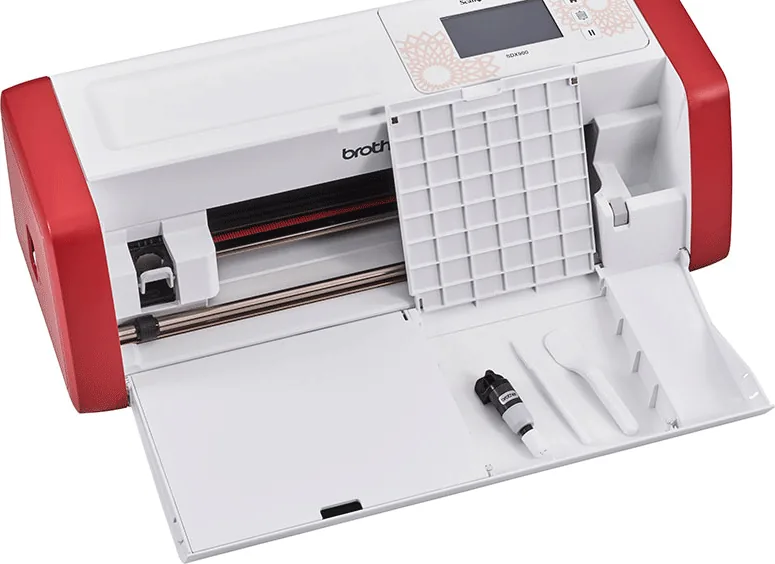
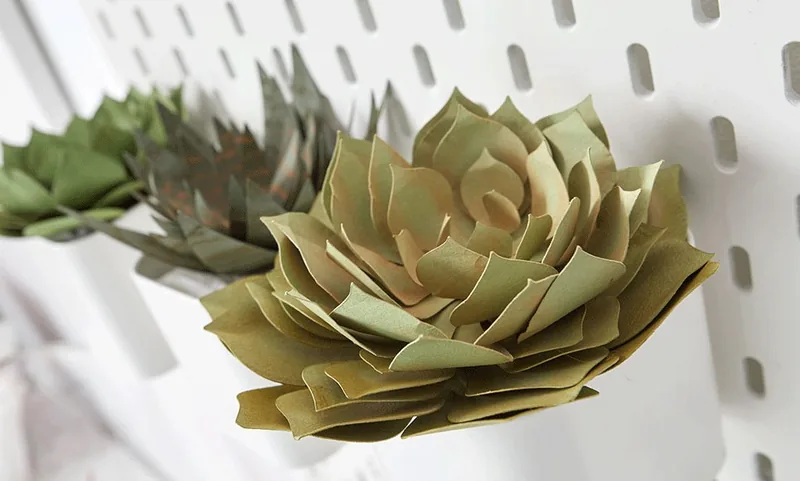
The Brother ScanNCut SDX900 is a versatile electronic cutting machine designed for crafters who want to turn paper, fabric, vinyl, foam, and other compatible materials into polished creative projects. Its standout feature is an integrated scanner that lets users capture drawings, printed motifs, and images directly at the machine. This creates a practical workflow for personalized cards, labels, scrapbook pieces, quilt shapes, appliques, home decor, and custom gift details.
Scan, Cut, Draw, and Create
Rather than requiring every design to start on a computer, the SDX900 can scan an image and convert it into cutting data. Users can cut around a scanned design, save the scan for later use, or edit it on the touchscreen before starting. Built-in patterns provide another convenient starting point, with tools for resizing, rotating, duplicating, grouping, aligning, welding outlines, and arranging shapes efficiently on the cutting mat.
The machine also supports drawing functions, making it useful for adding outlines, seam guides, lettering, and decorative details before cutting. For sewing and quilting projects, seam allowance settings help prepare fabric shapes with greater consistency. The combination of scanning, editing, drawing, and cutting makes the SDX900 suitable for both quick everyday crafts and more detailed multi-part designs.
Material-Friendly Automatic Blade System
Brother equips the ScanNCut SDX900 with an automatic blade holder that detects material thickness and adjusts blade depth accordingly. This helps simplify setup when moving between lightweight paper, cardstock, vinyl, fabric, felt, plastic sheets, and selected thicker materials. A test cut is still recommended for each project, particularly when using unfamiliar materials, specialty surfaces, or delicate fabrics.
The right mat and adhesive preparation are important for clean results. A standard tack mat supports many materials, while a low-tack option is better suited to lighter papers. Fabric projects may require an iron-on support sheet or a dedicated fabric cutting adhesive sheet, depending on whether the material is used for applique or quilting.
Connected Creative Workflow
Wireless network capability allows compatible designs to be transferred through CanvasWorkspace, Brother's design environment. Projects can also be saved or retrieved through USB connections, giving makers flexible ways to organize designs. The color touchscreen provides direct access to settings, previews, layout editing, scanning controls, and machine information.
Note: Keep the cutting mat clean, cover its adhesive surface when stored, and perform a test cut before every new material combination. Proper mat adhesion, blade selection, and cutting pressure are essential for accurate results.
The Brother ScanNCut SDX900 brings hands-on creativity and digital precision together in one compact crafting tool. It is especially appealing for makers who value the freedom to scan original artwork and cut it without relying entirely on pre-made designs.
Search for 67,706 Manuals online


Type-in Brand or Model