
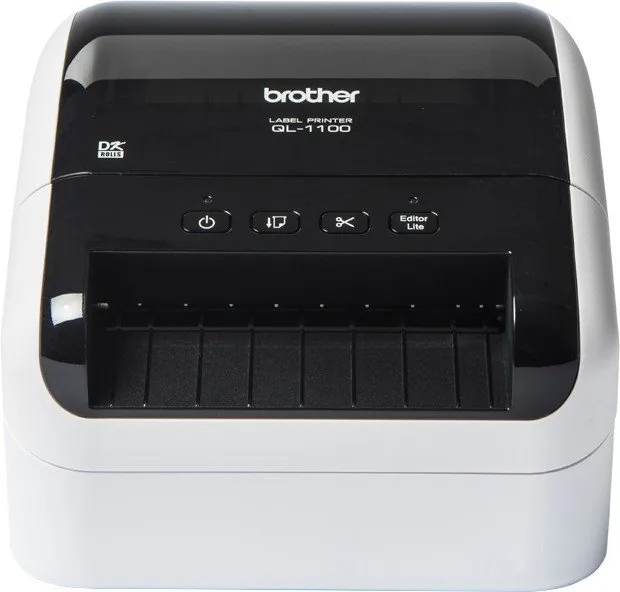
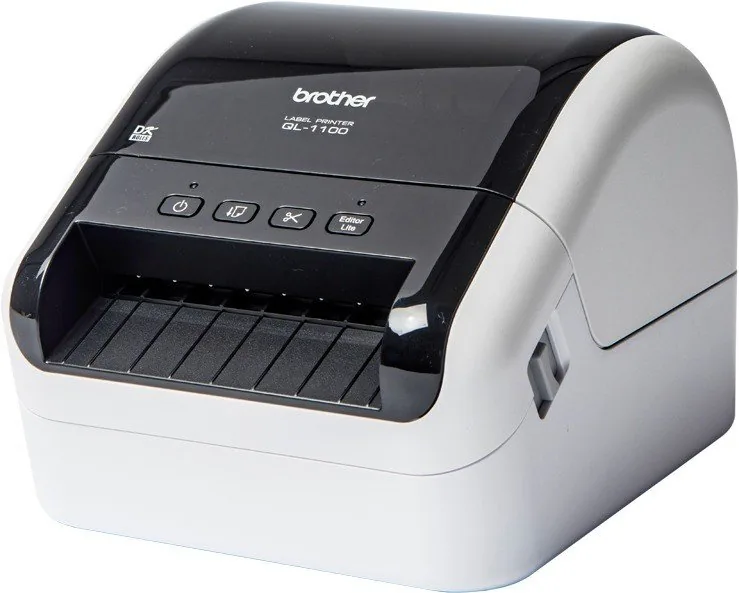
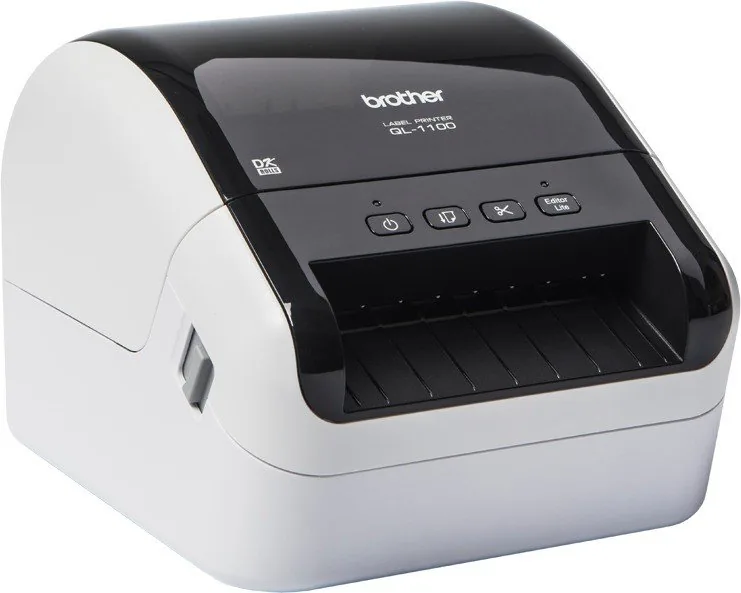
Brother QL-1100 Manual
PDF manual · 136 Pages
English



Quick check
Incorrect answer, please try again.
Chat with your Brother QL-1100 manual using AI
Get instant AI answers from your Brother QL-1100 manual
Ask anything about the Brother QL-1100. Answers come from this manual, with the pages they are based on.
QL-1100 Maintenance Schedule
Wipe dust and marks with a soft dry cloth or slightly damp cloth. Do not use organic solvents.
Disconnect power and clean adhesive residue from the outlet using a cloth or cotton swab dipped in alcohol.
Place the adhesive side of a DK label against the roller to remove dirt.
Ask a Question
Do you recommend QL-1100?
Yes NoFrequently Asked Questions
It uses direct thermal printing. That means it prints by applying heat to special label media, so you do not need ink, toner, or ribbons. This keeps maintenance simple and makes it efficient for frequent label jobs.
Is this answer helpful?
It can print a variety of labels, including shipping labels, address labels, barcode labels, and custom layouts. With Brother software, users can also build templates for repetitive business tasks and label management.
Is this answer helpful?
Yes. P-touch Editor Lite lets Windows users create simple labels without installing full drivers or software. For more advanced design and printing features, Brother also provides P-touch Editor and related tools.
Is this answer helpful?
Yes. Brother mobile apps let you create and print labels from a phone or tablet. You can also transfer templates from a computer and print them through supported mobile workflows.
Is this answer helpful?
Direct thermal labels are convenient, but they are not ideal for harsh outdoor conditions. Heat, sunlight, humidity, and abrasion can cause fading or peeling, so they are best used in controlled environments.
Is this answer helpful?
P-touch Editor, P-touch Transfer Manager, and Printer Setting Tool are the key tools. They let you design templates, transfer them to the printer, manage settings, and support barcode or database-based printing.
Is this answer helpful?
Advantages and Disadvantages
Advantages

- Fast direct thermal printing with no ink or toner needed.
- Supports shipping, address, barcode, and custom label workflows.
- Works with desktop and mobile Brother apps for flexible use.
- Template printing and barcode scanning improve repeat tasks.
- Useful productivity tools like crop print and distributed printing.
Disadvantages

- Thermal labels can fade with heat, sunlight, and outdoor exposure.
- Best advanced transfer features are more limited on Mac.
- Requires genuine DK media for reliable performance.
- Some setup and template features may feel complex for beginners.
Product Specification
Type
Label printer
Technology
Direct thermal
Print resolution
300dpi
Print width
4.06in
Print speed
4.33in/s
Memory
6MB (RAM)
Connections
USB 2.0, 1x USB-A 2.0 (Host)
Display
N/A
Emulation
ESC/P, ESC/P Raster
Dimensions
6.69x5.95x8.74in
Weight
3.77lb
Special features
Paper cutter (Cutter)
Manufacturer warranty
3 years
Note
QL1100ZG1 = DE model, QL1100ZG2 = AT model
Product Description
Brother P-touch QL-1100: A Practical Direct Thermal Label Printer for Fast, Clean Labeling
The Brother P-touch QL-1100 is designed for users who want dependable label printing without unnecessary complexity. Built around direct thermal technology, it prints sharp labels quickly and cleanly, making it a strong fit for offices, warehouses, shipping desks, and busy home workspaces. Because it uses thermal media, there is no ink or toner to replace, which keeps operation simple and maintenance low.
One of the most appealing aspects of the QL-1100 is its flexibility. It can print a wide range of labels, including address labels, shipping labels, and barcode labels, and it works smoothly with Brother’s software tools such as P-touch Editor and P-touch Editor Lite. That means users can either create detailed layouts on a computer or produce simple labels on the fly. It also supports mobile printing through Brother apps, which is helpful for teams that need quick label output from a phone or tablet.
The QL-1100 manual highlights how much control users have over setup and printing behavior. From loading DK rolls to adjusting cutting options and managing printer settings, the device is built for consistency. It also supports template-based workflows, barcode scanning, and database lookup printing, which can speed up repetitive tasks and reduce manual entry errors. For businesses handling serialized labels or frequent shipping jobs, that is a major advantage.
Another practical strength is the printer’s focus on productivity. Features such as distributed printing, crop printing for barcode PDFs, and customizable template transfer help users scale their labeling process. These tools make the QL-1100 more than just a basic label printer; it becomes part of an organized labeling system. Even better, Brother provides software for Windows and Mac, along with helpful mobile options, so the printer can fit into a variety of workflows.
Notes
- Use genuine Brother DK rolls for best results.
- Keep labels away from heat, sunlight, and moisture when durability matters.
- For advanced templates and barcode workflows, Windows software offers the most features.
- Test labels on the target surface before large print runs.
Search for 67,706 Manuals online


Type-in Brand or Model