
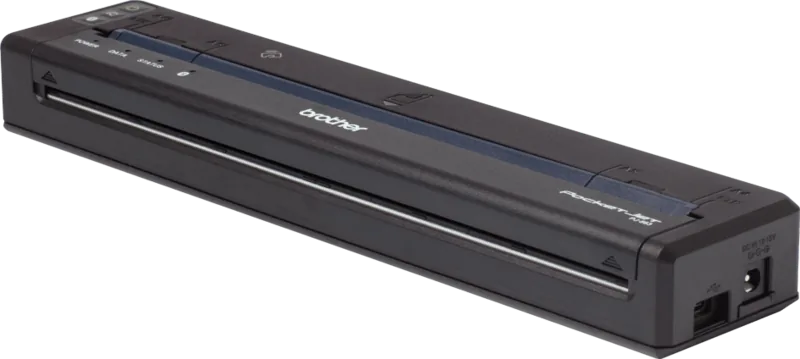

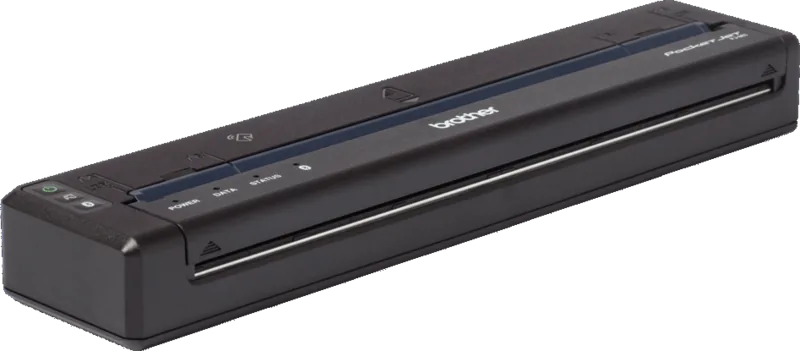
Brother PocketJet PJ-800 Series Manual
PDF manual · 199 Pages
English



Quick check
Incorrect answer, please try again.
Chat with your Brother PocketJet PJ-800 Series manual using AI
Get instant AI answers from your Brother PocketJet PJ-800 Series manual
Ask anything about the Brother PocketJet PJ-800 Series. Answers come from this manual, with the pages they are based on.
PocketJet PJ-800 Series Maintenance Schedule
Use the dedicated cleaning sheet to remove dirt and debris that cause paper feed issues or poor print quality. Do not use other materials.
Wipe the exterior with a dry cloth only. Do not use wet cloths, benzene, alcohol, paint thinner, or abrasive cleaners.
Ask a Question
Do you recommend PocketJet PJ-800 Series?
Yes NoFrequently Asked Questions
The series includes the PJ-822, PJ-823, PJ-862, PJ-863, and PJ-883. Features differ by model, especially wireless connectivity. The PJ-862 and PJ-863 add Bluetooth and NFC, while the PJ-883 adds Wi-Fi, Wireless Direct, WPS, AirPrint, and Mopria support.
Is this answer helpful?
No. These printers use direct thermal technology, so ink cartridges, toner, and ribbons are not required. They print on compatible thermal paper, which should be loaded with its thermal print surface facing down.
Is this answer helpful?
The printer can operate from its rechargeable lithium-ion battery or a compatible external power source. Charging options include an optional AC adapter, vehicle adapter, USB Type-C power adapter, or a compatible USB charging source. USB data connection by itself does not provide operating power.
Is this answer helpful?
Bluetooth is available on the PJ-862, PJ-863, and PJ-883. NFC is also available on these models for compatible Android devices. Wi-Fi is exclusive to the PJ-883, which supports infrastructure mode, Wireless Direct, and WPS configuration.
Is this answer helpful?
Yes. Supported models work with Brother mobile apps for direct printing and template transfer. The PJ-883 also supports AirPrint for Apple devices and Mopria Print Service for compatible Android devices over a wireless network.
Is this answer helpful?
Yes. Mass storage mode enables USB transfer of supported BIN, BLF, and JPG files without installing a driver. The printer has storage limits and files are removed when mass storage mode is exited, so this workflow is best suited to controlled transfers and simple deployments.
Is this answer helpful?
Advantages and Disadvantages
Advantages

- Compact direct thermal printing eliminates the need for ink, toner, and ribbons.
- USB Type-C is available across the range, while selected models add Bluetooth, NFC, and Wi-Fi.
- PJ-883 supports AirPrint, Mopria, Wireless Direct, WPS, and advanced network security features.
- P-touch Editor and transfer tools support custom layouts, templates, settings, and firmware updates.
- Battery, AC, vehicle, and USB Type-C charging options suit office, field, and vehicle workflows.
Disadvantages

- Thermal output can fade or discolor after contact with certain chemicals, adhesives, heat, moisture, or handling products.
- Print speed and battery endurance can vary with battery voltage, print density, and connection conditions.
- Wi-Fi is available only on the PJ-883, and Bluetooth/NFC are limited to selected models.
- USB connectivity alone does not power the printer; a battery or external power source is required.
- Direct thermal printing requires compatible thermal paper and only prints on one side of the media.
Product Specification
Type
Mobile direct thermal printer
Format
8.27 x 11.69 in
Paper feed
Single-sheet feeder
Memory
6 MB (RAM), 4 MB (Flash)
Ports
USB-C 2.0
Display
N/A
Emulation
ESC/P, ZPL II
Dimensions
10.04 x 1.18 x 2.17 in
Weight
1.06 lb
Features
Battery (Li-ion, optional)
Product Description
Brother PocketJet PJ-800 Series Manual: Mobile Thermal Printing Made Practical
The Brother PocketJet PJ-800 Series is a family of compact mobile thermal printers designed for professionals who need dependable printing away from a desk. The range includes the PJ-822, PJ-823, PJ-862, PJ-863, and PJ-883, giving users a choice of connectivity options for field work, vehicles, retail, logistics, public safety, and service teams. This Brother PocketJet PJ-800 Series Manual overview highlights the features that help keep mobile printing straightforward and efficient.
Portable printing without ink or toner
PocketJet PJ-800 Series models use direct thermal printing, so there are no ink cartridges, toner supplies, or ribbons to replace. Paper is loaded through the front feed slot, with the printable thermal side facing down. The built-in tear edge supports quick handling of printed output, while support for single sheets, rolls, perforated rolls, and selected two-ply media adds flexibility for different tasks.
A rechargeable lithium-ion battery powers mobile operation. It can be charged with an optional AC adapter, vehicle adapter, USB Type-C power adapter, or compatible USB charging source. Battery condition and operating status are communicated through clear LED indicators. Users can also adjust print density and speed to balance output quality with battery use.
Connectivity tailored to each model
USB Type-C connectivity is available across the series for direct computer connections. The PJ-862 and PJ-863 add Bluetooth and NFC support, making them suitable for wireless work with compatible computers and Android devices. The PJ-883 offers the broadest connection set, with Bluetooth, Wi-Fi, Wireless Direct, WPS setup, NFC, AirPrint, and Mopria Print Service support.
Wireless controls and indicator colors help users identify whether Bluetooth, Wi-Fi, or both are active. The PJ-883 can connect through an existing wireless network or create a direct wireless connection for a computer or mobile device. For secure deployment, network features include certificate management, SSL/TLS, SNMPv3, and IEEE 802.1x authentication options.
Software and flexible workflows
Windows and Mac users can print through the standard driver and create tailored layouts with P-touch Editor. Windows users also have access to P-touch Transfer Manager, P-touch Library, Printer Setting Tool, and update utilities. These tools support template transfer, configuration changes, firmware maintenance, and repeatable workflows across multiple printers.
The series also supports practical driver-free options. Mass storage mode lets compatible BIN, BLF, and JPG content be transferred over USB without installing a printer driver. Mobile users can work with Brother apps, while the PJ-883 supports native Apple and Android printing services.
Notes: Fully charge the battery before first use, keep the output cover closed when not in use, and use clean, dry thermal paper. Avoid storing the printer in excessive heat, humidity, direct sunlight, or dusty locations.
Search for 67,706 Manuals online


Type-in Brand or Model