
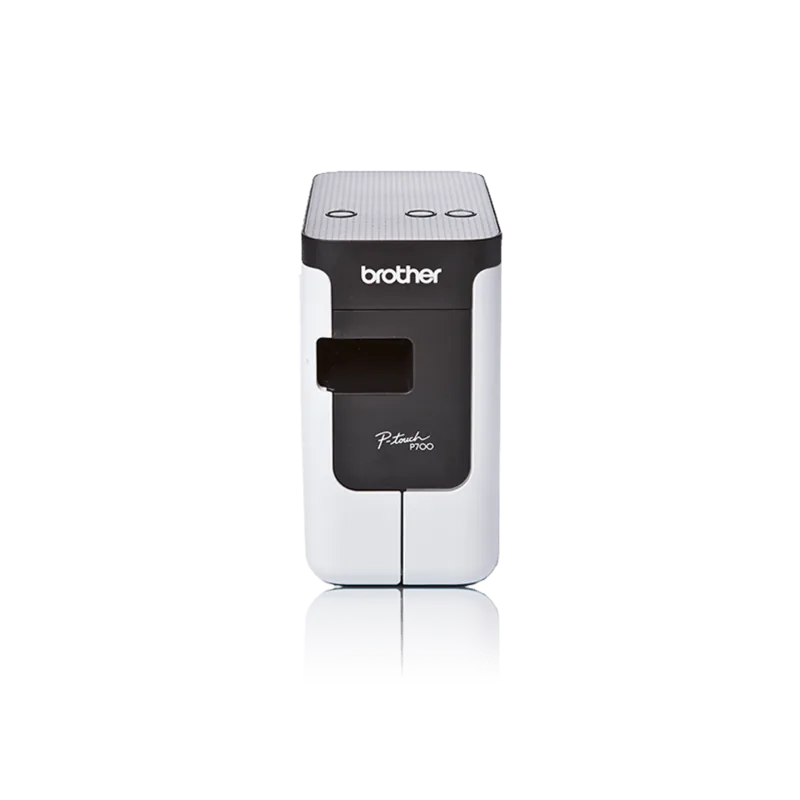
Brother P-touch P700 Manual
PDF manual · 4 Pages
English



Quick check
Incorrect answer, please try again.
Chat with your Brother P-touch P700 manual using AI
Get instant AI answers from your Brother P-touch P700 manual
Ask anything about the Brother P-touch P700. Answers come from this manual, with the pages they are based on.
Ask a Question
Do you recommend P-touch P700?
Yes No
Thomas Weber
6 months ago
Is the included software compatible with modern Windows versions or should I download the latest version?

Manual.ly
6 months ago
The software on the included CD often has compatibility issues with newer Windows operating systems. For the best experience, please download the latest P-touch Editor from the manufacturer's website. This version ensures smooth installation, supports current OS updates, and provides access to advanced features like logo insertion and database connectivity for more efficient labeling workflows.
Frequently Asked Questions
You can power the printer using the included AC adapter for continuous use or insert six AA batteries. Ensure correct polarity when installing batteries. The status LED will indicate the current power state.
Is this answer helpful?
Yes, drivers are available for Mac OS X versions 10.6.8 and up. You can download software or use the included CD-ROM. The utility allows for extensive label design and setup before printing.
Is this answer helpful?
Clean the print head gently with a soft, dry cloth or a cleaning cassette. Do not use alcohol on the plastic housing. Avoid touching the head directly with fingers to prevent oil damage.
Is this answer helpful?
The device supports TZe tapes ranging from 3.5 mm to 24 mm. Ensure the tape is compatible with the model for proper feeding and cutting. Incompatible tapes may cause jams.
Is this answer helpful?
To reset, turn off the unit. Hold the feed and cut button while pressing the power button. Release when lights flash. Follow specific button sequences to restore factory settings.
Is this answer helpful?
Yes, the unit features an Editor Lite function for standalone operation. You can design and label without a computer. This is useful for quick labeling tasks away from a desk.
Is this answer helpful?
A flashing red light signals errors like missing tape or overheating. Check the tape position and ventilation. Ensure the lid is fully closed. Consult the guide for specific blink patterns.
Is this answer helpful?
Advantages and Disadvantages
Advantages

- Intuitive control panel with clear LED indicators for easy status monitoring.
- Supports various tape widths for diverse labeling needs from 3.5mm to 24mm.
- Portable design allows for cordless operation on battery for mobility.
- Includes software for advanced graphic design capabilities on connected PC.
- Fast printing speeds enhance workflow efficiency for daily office tasks.
Disadvantages

- Proprietary tape cartridges increase long-term operating costs compared to standard paper.
- Battery operation is not rechargeable via USB connector requiring alkaline replacement.
- Printing width is limited compared to industrial heavy duty models.
- USB connection requires specific driver installation on PC for full features.
- No built-in display screen for detailed text preview on the device.
Product Specification
Type
Professional Labeling System, Thermal Transfer Printing
Print Resolution
180 dpi
Label Tape Width
0.14 in, 0.24 in, 0.35 in, 0.47 in, 0.71 in, 0.94 in
Print Length
1.18-39.37 in
Print Height
0.71 in
Print Speed
1.18 in/s
Font Styles
12
Template Memory
30
Print Functions
Automatic Numbering (1-200), Multi-Print (1-200), Border Printing, Mirror Text, Vertical Print
Display
N/A
Keyboard
PC Keyboard
Connections
USB 2.0
Power Supply
Battery (6x AAA)
Dimensions
5.98x5.63x3.07 in
Weight
1.57 lbs
Consumables
TZe
Features
Automatic Cutter
Warranty
3 Years
Note
PTP700ZG1 = DE-Model, PTP700ZG2 = AT-Model
Product Description
Discover the Efficiency of the Brother P-touch P700
The Brother P-touch P700 brings professional labeling to home and office environments with impressive ease of use. This compact printer simplifies organization by allowing you to create durable, high-quality labels in minutes. Users appreciate the portability, making it perfect for tagging storage boxes or managing cables. The device features a straightforward interface that requires minimal setup to start printing immediately.
Software and Connectivity
You can design custom graphics directly on the device without a computer. For more advanced projects, the software included on the CD-ROM offers extensive design tools. Referencing the Brother P-touch P700 Manual ensures you understand the full range of capabilities available for your specific needs. Connection to a PC is seamless via the included USB cable for Windows and Macintosh systems. This flexibility supports both standalone and integrated workflows effectively for all users.
Power and Battery Life
Power options provide flexibility for various locations. You may use the included AC adapter for continuous desktop use or insert six AA batteries for mobility. The status LED gives clear visual feedback on power states and errors. Keep the device charged for consistent performance.
Safety and Maintenance
Proper care extends the lifespan of your machine. Clean the print head gently with a soft cloth after prolonged use. Avoid using harsh chemicals that could damage the plastic housing. Follow recommended voltage settings to protect the internal circuitry. Keep the device away from moisture and direct sunlight when not in active use.
Versatility in Application
This tool supports tape sizes from 3.5 mm to 24 mm. It handles professional grade tapes suitable for various surfaces. Whether you are labeling files or creating signage, the results are clear and consistent. The integrated cutter ensures clean edges every time you finish a label. Organize your workspace efficiently with this reliable machine.
Troubleshooting and Support
Common issues often relate to sensor alignment or tape loading errors. The LED indicators provide specific color codes to diagnose problems quickly. Red flashing lights signal specific faults like overheating or jammed tape. Consult the online resources or support center if issues persist beyond basic checks for assistance. Resetting the unit is straightforward if performed according to safety protocols outlined in technical guides.
Professional Results Every Time
Achieve sharp text and graphics that last for years on many materials. The thermal printing technology ensures smudge-proof outputs for heavy duty environments. This reliability makes it a favorite for inventory management tasks. Invest time in learning the optimal settings for your specific tape types. The learning curve is short thanks to intuitive button layouts and clear indicators.
Search for 67,706 Manuals online


Type-in Brand or Model
Thomas Klein
6 months ago
Does the cassette system result in a specific amount of label tape wasted with each print job?
Manual.ly
6 months ago
Yes, due to the thermotransfer cassette technology, there is approximately 2.5 cm of tape waste at the beginning of every new print job. This trim ensures the cutter aligns correctly for clean label separation. However, if you use the batch printing feature in our P-touch Editor software with Excel data sources, this single trim applies to the entire batch rather than individual labels. This helps reduce overall material consumption significantly while maintaining durable, laminated label quality.