
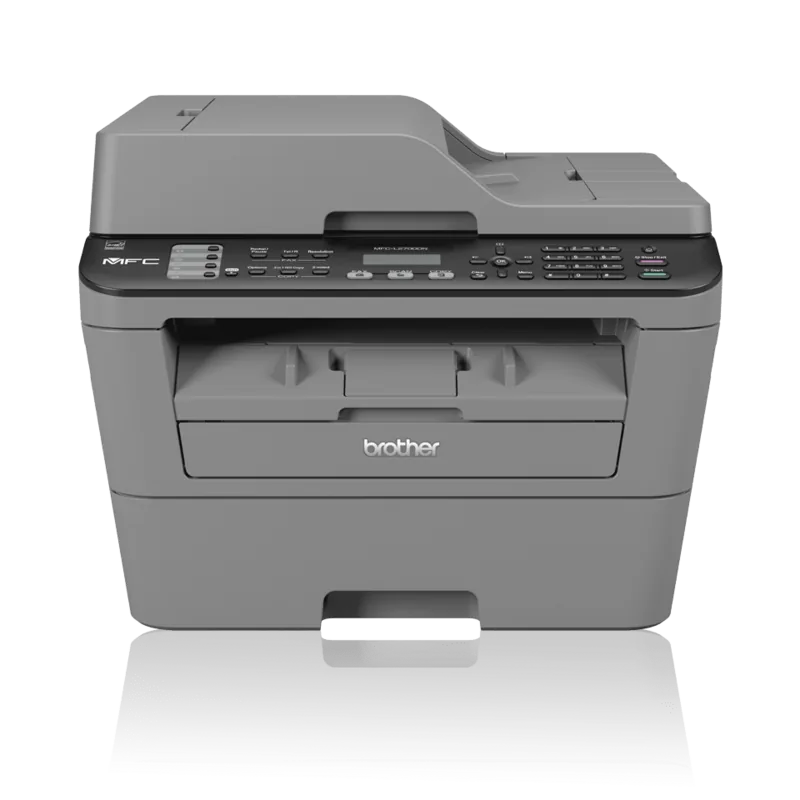
Brother MFC-L2700DN Manual
PDF manual · 75 Pages
English



Quick check
Incorrect answer, please try again.
Chat with your Brother MFC-L2700DN manual using AI
Get instant AI answers from your Brother MFC-L2700DN manual
Ask anything about the Brother MFC-L2700DN. Answers come from this manual, with the pages they are based on.
MFC-L2700DN Maintenance Schedule
Clean the corona wire of the drum unit when the error message 'Trommel !' appears to ensure print quality.
Replace the toner cartridge when the message 'Toner ersetzen' or 'Toner verbraucht' appears as it reaches the end of its usage life.
Replace the drum unit when the message 'Trommel ersetz.' appears or after approximately 12,000 pages depending on usage.
Free maintenance reminders
Timed to your purchase date. Always free, unsubscribe anytime.
Ask a Question
Do you recommend MFC-L2700DN?
Yes No
Sabrina Koch
9 months ago
Is the Brother MFC-L2700DN reliable for everyday printing and scanning, and does it have low operating costs with long-lasting laser toner?

Manual.ly
8 months ago
Yes. Multiple customers report reliable day-to-day performance with no issues, and that printing and scanning are straightforward to set up and use. Because it uses laser technology and compatible laser cartridges/toner, the running costs are typically low, and the cartridges are reported to last a long time. If you only need print/scan, you can still use the device normally without relying on the fax function.
Frequently Asked Questions
It is best for small offices and home offices that need reliable black-and-white printing, copying, scanning, and faxing. It works especially well for text-heavy work like reports, forms, and invoices.
Is this answer helpful?
Yes, it supports duplex printing and copying. For best results, make sure the paper size matches the machine settings, and follow the correct 2-sided options in the printer driver or control panel.
Is this answer helpful?
Yes. The automatic document feeder is designed for multi-page jobs, so it is faster than placing each sheet on the scanner glass. The glass is still useful for IDs and single pages.
Is this answer helpful?
You can choose modes such as Fax Only, Fax/Tel, Manual, or External TAD depending on your phone setup. The right mode depends on whether you use a fax line, answering device, or shared telephone service.
Is this answer helpful?
Check the paper size, type, and tray loading first. Make sure the stack is not overfilled and the guides fit snugly. If a jam happens, remove the paper gently and clear any scraps from the path.
Is this answer helpful?
Yes, but specialty media should be loaded through the manual feed slot. Only one sheet or envelope should be inserted at a time, and you should select the correct media type in the print settings.
Is this answer helpful?
The printer uses separate toner and drum units, so each part can be replaced individually when needed. The machine gives low, end-of-life, and replacement alerts to help you plan ahead.
Is this answer helpful?
Advantages and Disadvantages
Advantages

- All-in-one design covers print, copy, scan, and fax tasks in a single compact unit.
- Laser monochrome output is sharp and well suited for business text and forms.
- Automatic document feeder helps speed up multi-page scanning, copying, and faxing.
- Duplex support reduces paper use and supports more efficient document handling.
- Clear LCD menus and error messages make everyday operation and maintenance easier.
Disadvantages

- Monochrome printing only, so it is not the best choice for color-rich projects.
- Manual feed works one sheet at a time, which slows specialty printing jobs.
- Automatic 2-sided printing requires the correct paper size, especially A4.
- Fax features add setup steps such as receive mode, station ID, and compatibility settings.
- Toner and drum are separate consumables, so upkeep requires tracking two parts.
Product Specification
Format
A4 (Printing), A4 (Scanning)
Type
Printer/Scanner/Copier/Fax
Color System
1-color, 1x Single Toner
Consumables
TN-2310, TN-2320, DR-2300
Printing
2400x600dpi - 24 ppm (A4) (ISO)
Scanning
2400x600dpi
Copying
600x600dpi - 24 ppm (A4) (ISO)
Paper Feed
250 sheets, ADF (35 sheets), Duplex Unit
Memory
32MB (RAM)
Connections
1x USB-B 2.0, 1x Fax (RJ-11)
Network
LAN, Cloud Print
Display
monochrome, 2-line
Power Consumption
510W (maximum), 60W (standby), 1.1W (sleep)
Sound Pressure Level
50.0dB(A)
Emulation
GDI
Housing Color
grey
Dimensions
16.10x12.46x15.69in
Weight
25.13lbs
Special Features
OCR Software, Blue Angel
Manufacturer Warranty
3 years in AT/DE/PL (On-site after registration), one year in UK
Note
MFCL2700DNG1 = DE model, MFCL2700DNG2 = AT model
Product Description
Brother MFC-L2700DN Laser Monochrome: A Practical Office Workhorse
The Brother MFC-L2700DN Laser monochrome is built for people who want dependable black-and-white performance without unnecessary complexity. It brings printing, copying, scanning, and faxing into one compact machine, making it a smart fit for small offices, home offices, and shared workspaces where space and efficiency both matter. The Brother MFC-L2700DN Laser monochrome Manual highlights a device that favors straightforward operation, solid paper handling, and consistent output over flashy extras.
Why it stands out
This model is designed around speed, clarity, and routine productivity. Laser printing is a natural match for text-heavy work such as invoices, reports, forms, and internal paperwork. The output is sharp and professional, while the monochrome format keeps workflows focused on the essentials. For users who print the same types of materials every day, that reliability is often more valuable than color features.
The built-in scanner and copier add another layer of convenience. The automatic document feeder helps when multiple pages need to be processed quickly, while the scanner glass is ideal for ID cards, single pages, or items that need careful placement. Fax functions are still present for businesses that rely on them, and the machine supports station ID settings, dialing shortcuts, and receive modes to match different office setups.
Easy to control and adapt
One of the strongest points is how configurable the machine feels. You can set paper size and type, adjust volume levels, choose duplex printing, and use the manual feed slot for envelopes, labels, or thicker media. That flexibility makes it useful for both everyday jobs and occasional specialty tasks. The control panel and LCD also make it easier to manage common actions without digging through complicated menus.
Built for steady performance
The manual also shows that Brother has put real effort into maintenance and troubleshooting support. Clear alerts for toner, drum units, jams, and connection issues help users solve problems quickly and keep work moving. With separate toner and drum supplies, long-term upkeep is predictable and easier to plan around.
Notes
- Best suited for offices that need fast monochrome output.
- Great for forms, letters, copies, and fax-heavy workflows.
- Manual feed is useful for envelopes and specialty paper.
- Regular supply checks help avoid interruptions.
Search for 67,706 Manuals online


Type-in Brand or Model
Sofia Klein
9 months ago
Is the Brother MFC-L2700DN reliable in everyday use, and are the running costs low thanks to laser cartridges?
Manual.ly
9 months ago
Based on customer feedback, it is very reliable and easy to use for daily scanning and printing. One buyer purchased it in January 2017 and reports no problems up to today. Multiple reviews also describe the device as solid and doing exactly what it should, with scan and print setup/use being straightforward. Customers particularly highlight the low operating costs: laser toner cartridges help keep expenses down and they are reported to last a long time. (Note: at least one reviewer does not use the fax feature, so performance there was not widely tested.)