
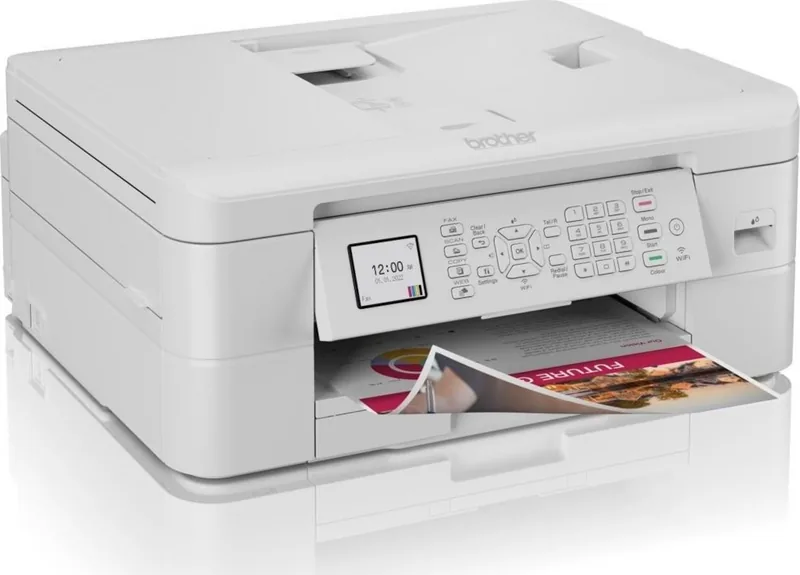
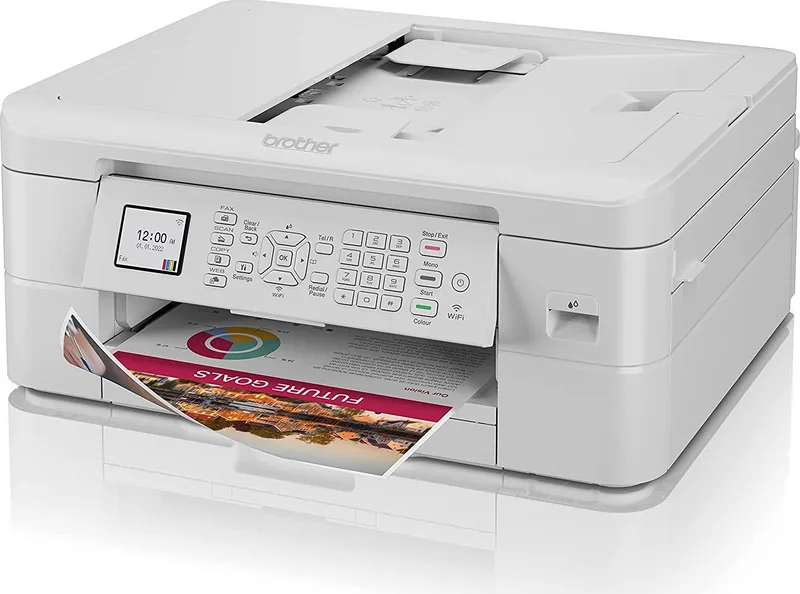
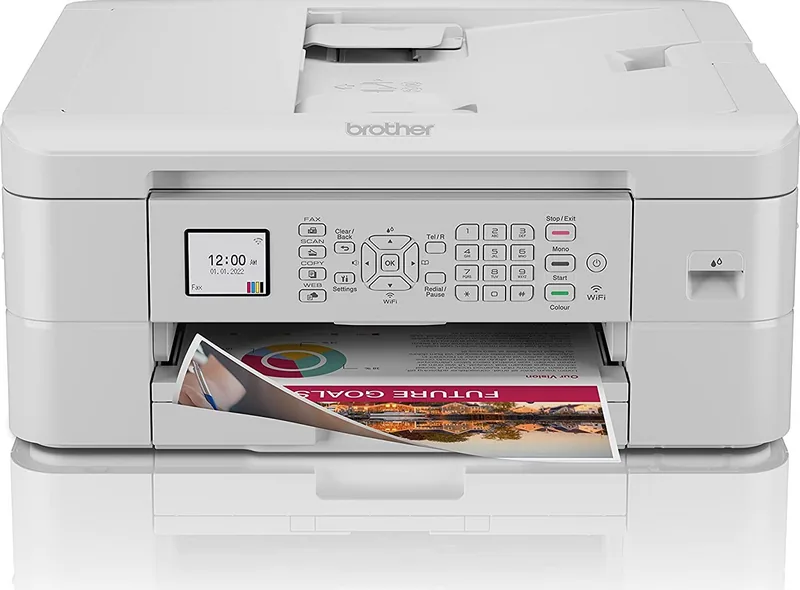
Brother MFC-J1010DW Manual
PDF manual · 486 Pages
English



Quick check
Incorrect answer, please try again.
Chat with your Brother MFC-J1010DW manual using AI
Get instant AI answers from your Brother MFC-J1010DW manual
Ask anything about the Brother MFC-J1010DW. Answers come from this manual, with the pages they are based on.
MFC-J1010DW Maintenance Schedule
Set the device to print a journal report every 2 or 7 days to monitor fax history.
The ink absorber must be replaced by a Brother service partner or dealer when full to ensure optimal performance. This is a regular maintenance part not covered under warranty.
Set the device to print a journal report after every 50 sent and received faxes to track activity.
Set the device to print a journal report at specific time intervals such as every 6, 12, or 24 hours.
Free maintenance reminders
Timed to your purchase date. Always free, unsubscribe anytime.
Ask a Question
Do you recommend MFC-J1010DW?
Yes No
Nina Patel
5 months ago
Are the replacement ink cartridges affordable, and are there cheaper high-capacity alternatives?

Manual.ly
5 months ago
The printer is generally praised for reliable everyday printing, scanning, copying, faxing, and easy setup, including on Linux. However, several users note that LC421 cartridges can be expensive, run out relatively quickly, and currently have limited higher-capacity or lower-cost alternatives. It is best suited to home and office documents rather than frequent photo printing.

fcole66
6 months ago
Are the LC421 ink cartridges expensive, and are there higher-capacity alternatives available?
Manual.ly
6 months ago
Several users find the running costs higher than expected, especially because standard cartridges can run out quickly. Check whether your specific model supports higher-yield LC421XL cartridges, which may reduce the cost per page. Availability of third-party cartridges can vary, so use compatible supplies only if they are clearly listed for your printer model.
nostrum_eius
5 months ago
Are the ink cartridges affordable, and are there cheaper high-capacity alternatives available?
Manual.ly
5 months ago
The printer is generally praised for reliable everyday printing, scanning, copying, and easy setup. However, several users note that LC421 cartridges can be expensive, run out relatively quickly, and currently have limited higher-capacity or lower-cost alternatives. It is best suited to home office and regular document printing rather than high-volume photo printing.
sapiente95
4 months ago
Are the ink cartridges affordable, and are cheaper high-capacity alternatives available?
Manual.ly
4 months ago
The printer is generally praised for reliable everyday printing, scanning, copying, and easy setup. However, several users note that LC421 cartridges can be expensive, run out relatively quickly, and currently have limited third-party or higher-capacity alternatives. Check cartridge prices and yield before purchase if running costs are important.
Lena Schubert
2 months ago
Are the ink cartridges expensive, and are there affordable higher-capacity alternatives?
Manual.ly
2 months ago
Reviews praise the printer's reliable everyday printing, scanning and easy setup, but several users note that replacement LC421 cartridges can be costly and may run out quickly. Check the available standard and high-yield cartridge options for your model, compare page yields, and use draft mode for routine documents to reduce running costs.
Elliott Phillips
2 months ago
Are the replacement ink cartridges affordable, and are there higher-capacity alternatives for the LC421 series?
Manual.ly
2 months ago
The printer is widely appreciated for reliable everyday printing, scanning and easy setup, but several users note that genuine LC421 cartridges can be expensive and may run out quickly. Check the available standard and high-yield LC421 options for your region, and compare cost per page before buying. Third-party alternatives may be limited, so verify compatibility and warranty implications carefully.
Carole Moore
5 months ago
Are the replacement ink cartridges expensive and are there affordable alternatives available?
Manual.ly
5 months ago
The original Brother LC421 cartridges are priced higher than average, which is a common concern among users. Currently, there are very few third-party alternatives with larger capacity or better pricing. While the printer itself offers excellent functionality and reliability for home office use, we recommend budgeting for the ongoing cost of genuine consumables to ensure optimal print quality.
Sarah Jenkins
3 months ago
Does this model include an automatic document feeder (ADF) and can it be used without fax features?
Charlotte Evans
3 months ago
Are the replacement ink cartridges for this Brother printer affordable and available from third-party alternatives?
Manual.ly
3 months ago
Thank you for your inquiry. While some users report that replacement cartridges are expensive, others have found them to be reasonably priced. Regarding third-party alternatives, availability varies by region and specific model. We recommend checking our official website or authorized retailers for compatible options. If you need assistance locating a specific cartridge type, please contact our support team directly.
Charity Schmidt
5 months ago
Does this printer work well with Linux operating systems and is it easy to set up for non-tech-savvy users?
Marlee Leffler
3 months ago
Is this printer compatible with Linux and are the replacement ink cartridges affordable?
Manual.ly
3 months ago
Yes, this Brother printer offers easy installation and full functionality on Linux systems. While the print quality is excellent for home office use, please note that original LC421 cartridges can be expensive and may not have many third-party alternatives available at competitive prices.
Carmen Murray
3 months ago
Why are the replacement cartridges so expensive compared to other brands?
quae_natus
3 months ago
Are the replacement ink cartridges compatible with third-party alternatives or are they too expensive?
Manual.ly
3 months ago
Thank you for your inquiry. While some users have noted that original Brother LC421 cartridges can be pricey and may not offer the highest capacity, we recommend using genuine cartridges to ensure optimal print quality and device longevity. Third-party options exist but compatibility varies. For specific pricing and availability of alternative high-yield cartridges, please visit our official store or authorized retailers.
Declan Simonis
4 months ago
Does this printer work well on Linux systems and is it easy to set up without HP+ restrictions?
sint_ullam
4 months ago
Are the replacement ink cartridges compatible with third-party options or are they too expensive?
Manual.ly
4 months ago
The LC421 cartridges used in this printer currently have very few third-party alternatives available. While some users find the official Brother cartridges overpriced and short-lasting, they remain the primary option for reliable performance. We recommend checking authorized retailers for the best pricing on genuine supplies.
Kimberly Berge
4 months ago
Does this printer come with an automatic document feeder since I need to scan multiple pages?
ut10
3 months ago
Is this printer compatible with Linux and does it come with an automatic document feeder?
Manual.ly
3 months ago
Yes, installation on Linux is straightforward and fully supported. However, this model does not include an automatic document feeder (ADF). It is designed for reliable everyday printing and scanning without the ADF feature.
Saver_Sarah
2 months ago
Are replacement ink cartridges affordable or are they expensive like other brands?
et_incidunt
5 months ago
Are the replacement ink cartridges compatible with third-party alternatives or are they exclusively expensive original Brother LC421 cartridges?
Manual.ly
4 months ago
Thank you for your inquiry. The device is designed to work optimally with genuine Brother LC421 ink cartridges. While some users have noted that third-party options are limited and often more expensive than the originals, we recommend using authentic cartridges to ensure consistent print quality and reliable performance. We appreciate your feedback regarding pricing and availability.
Klaus Mueller
4 months ago
Does this printer support Linux operating systems and how difficult is the installation process?
Frequently Asked Questions
This printer supports standard A4 and Letter sizes, as well as envelopes like C5 and DL. It also handles glossy photo paper and cardstock up to specific weights, ensuring versatility for different document types.
Is this answer helpful?
You can use Brother iPrint&Scan or AirPrint depending on your operating system. Ensure your device and printer are on the same Wi-Fi network, then select the printer from your apps' print menu.
Is this answer helpful?
Yes, the MFC-J1010DW features automatic two-sided printing. You can configure this in the printer driver settings under the Duplex option to save paper on long documents.
Is this answer helpful?
Check the paper tray and the automatic document feeder. Gently remove any stuck paper without tearing it. Ensure the paper guides are adjusted correctly to prevent future jams.
Is this answer helpful?
Clean the print head regularly if you notice streaks or missing colors. Use the maintenance menu on the device or the software utility on your computer to run a cleaning cycle.
Is this answer helpful?
Yes, the MFC-J1010DW works with macOS. You can install the necessary drivers via the Brother website or use AirPrint for direct wireless printing without additional software.
Is this answer helpful?
Advantages and Disadvantages
Advantages

- Multicolor ink system produces vibrant and accurate prints for both documents and photos
- Automatic duplex printing reduces paper usage and saves costs over time
- Wireless connectivity and Wi-Fi Direct enable flexible printing from various devices
Disadvantages

- Glossy photo paper requires immediate removal to prevent smudging or jams
- Initial setup and driver installation may take time for first-time users
- Print speed may be slower when using eco-mode or reducing smear settings
Product Specification
Format
A4 (Print), A4 (Scan)
Type
Printer/Scanner/Copier/Fax
Color System
4-color, 4x individual cartridges
Consumables
LC421
Printing
6000x1200dpi - 9.5 pages/min (A4) (ISO)
Scanning
2400x1200dpi (CIS) (A4)
Copying
1200x1200dpi - 4 pages/min (A4) (ISO)
Paper Input
150 sheets, ADF (20 sheets), Duplex unit
Memory
128MB (RAM)
Connections
1x USB-B 2.0, 1x Fax (RJ-11)
Network
Wi-Fi 4 (WLAN 802.11b/g/n), WPS, Wi-Fi Direct, AirPrint, Mobile Print, Mopria
Display
color, 1.8"
Power Consumption
18W (typical), 3W (standby), 1W (sleep), 0.2W (off)
Sound Pressure Level
53.0dB(A)
Emulation
GDI
Housing Color
white
Dimensions
15.7x6.8x13.5 inches
Weight
17.9 lbs
Features
USB direct scan, borderless printing, PictBridge, Direct Print, Blue Angel
Manufacturer Warranty
3 years in AT/DE/PL (on-site after registration), 1 year in UK
Product Description
Brother MFC-J1010DW Ink: Multicolor Performance for Home and Office
The Brother MFC-J1010DW stands as a versatile all-in-one solution designed to meet the dynamic needs of modern home offices and small businesses. At the heart of its operation lies the multicolor ink system, which delivers vibrant prints that bring documents and photos to life. This printer is not just about output; it is about seamless integration into your daily workflow through intuitive controls and robust connectivity.
Equipped with a user-friendly interface, the MFC-J1010DW features a clear display and dedicated function keys for faxing, scanning, copying, and web services. Whether you are printing high-quality color documents or managing important faxes, the device ensures efficiency. The automatic two-sided printing capability helps reduce paper consumption, while the mobile printing options allow you to print from smartphones and tablets effortlessly. The inclusion of Wi-Fi Direct means you can connect directly without needing a router, offering flexibility in any environment.
Maintenance is straightforward with easy access to ink cartridges and cleaning tools. The device supports various paper types, including glossy photo paper and envelopes, making it suitable for diverse tasks. From creating brochures to scanning documents into editable text formats, this machine handles it all with precision. The multicolor ink technology ensures that every detail is captured accurately, whether for professional presentations or personal memories.
Key Features Overview
The Brother MFC-J1010DW combines functionality with ease of use. Its compact design fits well on any desk, while the advanced scanner unit allows for quick document digitization. Users can enjoy wireless printing capabilities that keep their workspace clutter-free. The ability to send faxes directly from a computer adds another layer of convenience for those who still rely on traditional communication methods alongside digital tools.
Important Notes
- Always use recommended paper types to prevent jams and ensure optimal print quality.
- Keep the device powered on to maintain the print head and extend cartridge life.
- Regularly check ink levels to avoid interruptions during critical print jobs.
- Utilize the built-in troubleshooting guides if error messages appear on the display.
Search for 67,706 Manuals online


Type-in Brand or Model
Emil Heathcote
6 months ago
Are the ink cartridges affordable and readily available, or do running costs become expensive?
Manual.ly
6 months ago
The printer is generally praised for reliable everyday printing, scanning, copying, and easy setup. However, several users note that LC421 replacement cartridges can be expensive, have limited higher-capacity alternatives, and may run out quickly. It is best suited to home office and document printing rather than high-volume photo printing.