
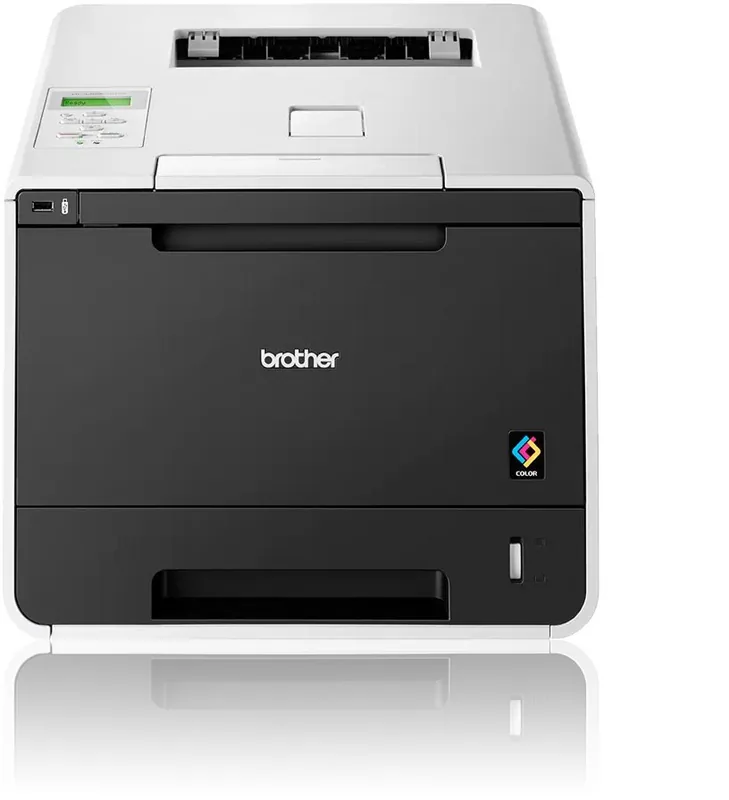
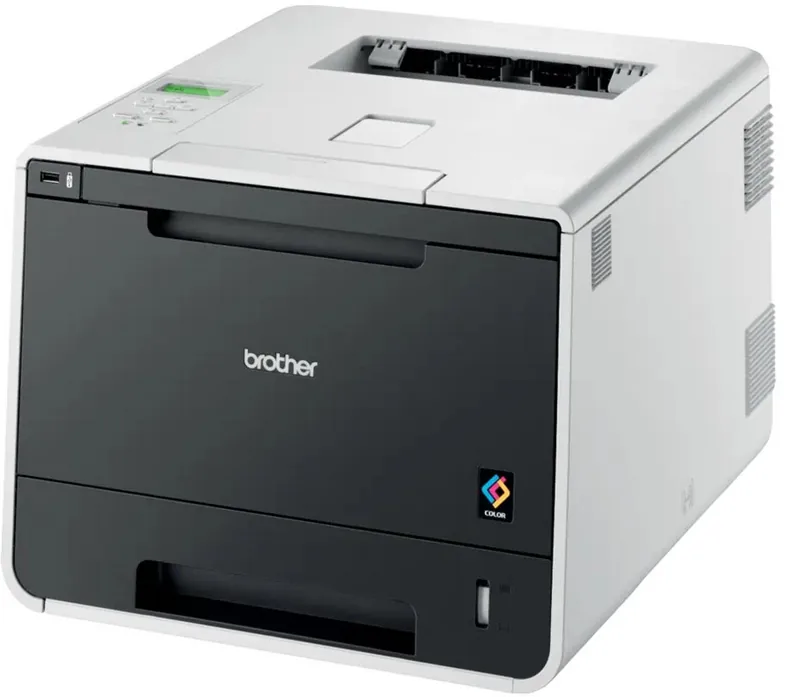
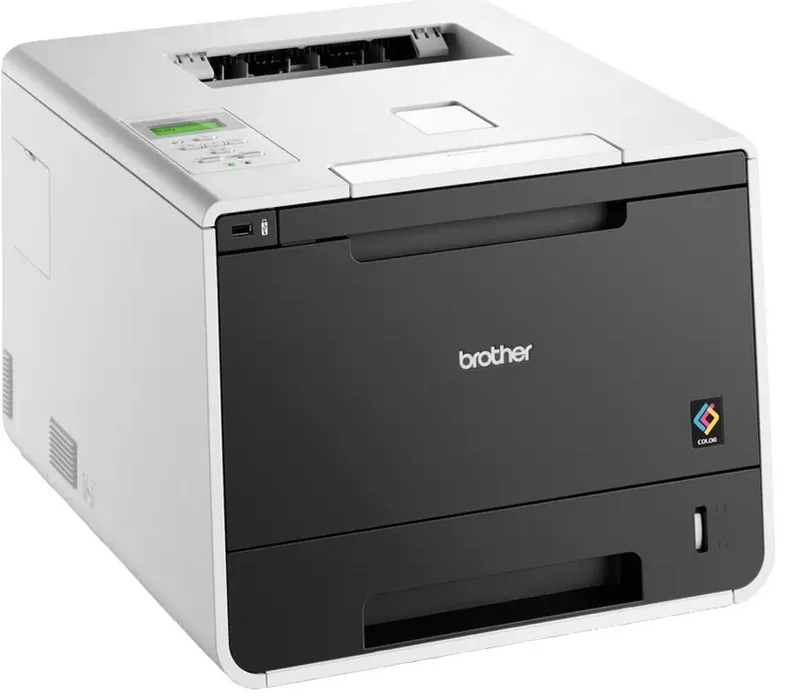
Brother HL-L8250CDN Manual
PDF manual · 221 Pages
English



Quick check
Incorrect answer, please try again.
Chat with your Brother HL-L8250CDN manual using AI
Get instant AI answers from your Brother HL-L8250CDN manual
Ask anything about the Brother HL-L8250CDN. Answers come from this manual, with the pages they are based on.
HL-L8250CDN Maintenance Schedule
Replace the belt unit when the Replace Belt message appears or after approximately 50,000 pages.
Replace the waste toner box when the Replace WT Box message appears or after approximately 50,000 pages.
Replace the drum unit when the Replace Drum message appears or after approximately 25,000 pages.
Call a dealer to replace the paper feeding kit for the multi-purpose tray after approximately 50,000 pages.
Call a dealer to replace the paper feeding kit for the standard tray after approximately 100,000 pages.
Call a dealer to replace the fuser unit after approximately 100,000 pages.
Call a dealer to replace the laser unit after approximately 100,000 pages.
Clean the corona wires inside the drum unit if you have print quality problems like vertical stripes.
Clean the inside of the machine with a dry cloth when replacing the toner cartridge or drum unit.
Clean the paper pick-up rollers periodically to prevent paper jams by ensuring proper paper feeding.
Ask a Question
Do you recommend HL-L8250CDN?
Yes NoFrequently Asked Questions
Pull the tray out, adjust guides to paper size, fan the stack to avoid jams, load beneath the mark with print side down, ensure guides touch paper edges, and push tray in firmly.
Is this answer helpful?
Yes, connect a USB flash drive to the front interface. The LCD displays device name and file list. Use the control panel buttons to select files and start printing without a computer.
Is this answer helpful?
Secure Print stores documents in memory. The user must enter a password on the machine control panel to release and print the job. This prevents unauthorized viewing of confidential data.
Is this answer helpful?
It supports A4, Letter, Legal, Executive, A5, A6, and Folio. The multi-purpose tray can also handle custom sizes configured in the driver or control panel.
Is this answer helpful?
Use the printer driver to select Fine print quality or Adjust Media Type settings. Run Color Calibration from the driver or control panel settings for better density consistency.
Is this answer helpful?
Regularly clean outside surfaces, interior area, and corona wires. Replace toner and drum units when indicated. Keep rollers clean to ensure proper feeding and avoid jams.
Is this answer helpful?
Yes, use the control panel or network software to set IP addresses. The Network User Guide provides details on wired and wireless security settings and protocol information.
Is this answer helpful?
Advantages and Disadvantages
Advantages

- Multiple paper tray options including standard, lower, and multi-purpose for media flexibility.
- Secure Print feature requires passwords to release documents from memory for safety.
- Direct USB printing capability allows workflow without a connected computer.
- Automatic two-sided printing reduces paper consumption and costs.
- Network capabilities and Status Monitor support remote management and monitoring.
Disadvantages

- Glossy paper loading is limited to a single sheet in the multi-purpose tray.
- Envelopes require strict creasing and flatness to avoid feeding jams.
- Toner Save mode results in lighter print quality less suitable for photos.
- Some envelopes and labels may cause damage and are not covered by warranty.
- Manual duplex printing may result in paper jams if not handled correctly.
Product Specification
Format
A4
Type
Laser Printer
Color System
4-color
Consumables
TN-321BK/C/M/Y, TN-326BK/C/M/Y, BU-320CL, DR-320CL, WT-320CL
2400x600 dpi - 28/28 ppm (A4)
Paper Input
300 Sheets (1x 250 Sheets + 1x 50 Sheets), Duplex Unit
Memory
128MB (RAM)
Connections
1x USB-B 2.0, 1x USB-A 2.0 (Host)
Network
LAN, AirPrint, Cloud Print, Mobile Print
Display
Monochrome, 2-line
Power Consumption
520W (max), 65W (standby), 7.5W (sleep)
Noise Level
53.5 dB(A)
Emulation
PCL 6, PostScript 3
Housing Color
White, Black
Dimensions
16.14 x 12.32 x 19.13 in
Weight
48.28 lbs
Features
Direct Print, Blue Angel
Manufacturer Warranty
3 Years in AT/DE/PL, 1 Year in UK
Note
HLL8250CDNG1 = DE Model, HLL8250CDNG2 = AT Model
Product Description
Professional Color Printing Revolutionized
Welcome to the future of efficient office workflows. The Brother HL-L8250CDN Laser Color Printer stands out as a robust solution for high-volume color printing. Whether you need vibrant marketing materials or crisp business documents, this machine delivers consistent quality. Understanding the Brother HL-L8250CDN Laser, Color Manual is crucial for maximizing the potential of your device. This reference guide ensures you configure settings correctly for optimal output.
The printer supports multiple paper sources including a standard tray, an optional lower tray, and a multi-purpose tray for special media like envelopes or glossy paper. This flexibility reduces downtime during busy workdays. The standard tray holds up to 250 sheets while the optional lower tray accommodates 500 sheets. Direct printing via USB flash drive eliminates the need for a computer connection for simple tasks. The interface allows you to select files from removable media and print instantly using the LCD control panel.
Security is a priority for modern businesses. The Secure Print feature requires a password at the machine before documents release from memory. This prevents confidential information from being left unattended on the output tray. Automatic two-sided printing saves paper costs and supports environmentally friendly practices. The manual duplex mode gives users control over specific binding requirements.
Driver settings offer extensive customization for both Windows and Macintosh users. They can adjust color calibration and toner save modes to suit specific needs. Advanced features include watermarking, header footer printing, and secure function lock. These tools help administrators manage access and maintain brand consistency across all printed pages. You can define custom paper sizes and manage print profiles for quick access to frequent configurations. Sleep modes ensure energy efficiency without sacrificing immediate responsiveness to new print jobs. BR-Script driver features enable PostScript emulation for complex graphics.
Maintenance is simplified with clear instructions found within the documentation. Replacing toner and drum units is straightforward provided you follow the steps outlined in the manual. Regular cleaning of the corona wires and paper pick-up rollers ensures longevity. Troubleshooting tips address common issues like paper jams or color degradation. Be cautious when using glossy paper or labels to avoid internal jams. Check the LED indicators for error messages to maintain smooth operation.
Network connectivity allows for shared access across teams. You can configure IP addresses and TCP/IP settings through the control panel. The Status Monitor utility keeps you informed of machine health and toner levels remotely.
Essential Notes
Always test paper types before large print runs. Use only Brother genuine supplies for warranty protection. Keep the manual accessible for troubleshooting network issues. Avoid using damaged envelopes or preprinted paper with low temperature dyes.
Search for 67,706 Manuals online


Type-in Brand or Model
Klaus Becker
6 months ago
Is the network setup complicated for users with multiple adapters, and are the toner costs reasonable for frequent printing?
Manual.ly
6 months ago
Setup via LAN is simple, though configuring dual network adapters requires only one active connection during initial driver installation to avoid search conflicts. Individual toner cartridges for each color are a standard feature; they generally offer better value and lower cost per page compared to combined color cartridges used by some other manufacturers.