
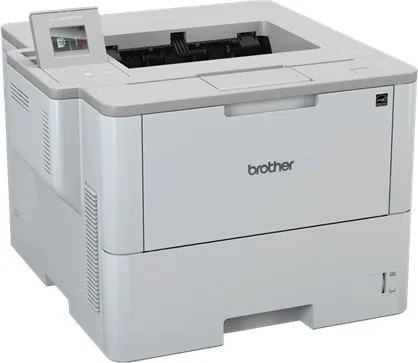
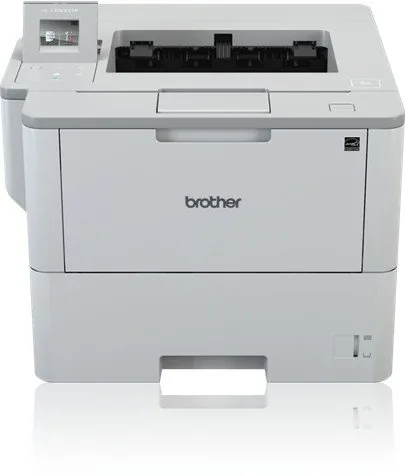
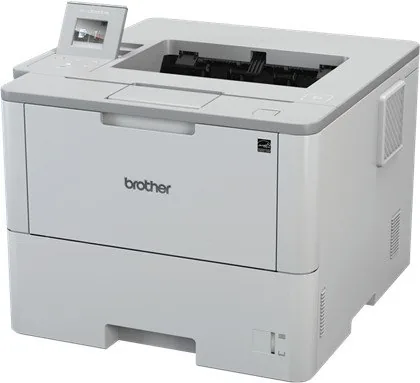
Brother HL-L6300DW Manual
PDF manual · 386 Pages
English



Quick check
Incorrect answer, please try again.
Chat with your Brother HL-L6300DW manual using AI
Get instant AI answers from your Brother HL-L6300DW manual
Ask anything about the Brother HL-L6300DW. Answers come from this manual, with the pages they are based on.
HL-L6300DW Maintenance Schedule
Replace the drum unit when the message Drum Replace appears. Life is approx 30,000 pages.
Replace the drum unit when the message Drum Replace appears. Life is approx 50,000 pages for 3-page jobs.
Order a new toner cartridge when the message Toner Order appears to be ready when Toner Replace shows.
Order a new drum unit when the message Drum Order appears to be ready before Drum Replace shows.
Clean the corona wire on the drum unit when the message Drum Clean appears or for ghosting issues.
Ask a Question
Do you recommend HL-L6300DW?
Yes NoFrequently Asked Questions
Yes. It supports wireless networking on compatible setups, and it can also use Ethernet or USB. Mobile options such as AirPrint, Mopria, Wi-Fi Direct, and NFC may be available depending on the model and environment.
Is this answer helpful?
Yes. The HL-L6300DW supports duplex printing, and manual 2-sided printing is also available. For the best results, use the recommended paper type and make sure the sheets are flat and correctly loaded.
Is this answer helpful?
You can use plain paper, letterhead, recycled paper, envelopes, labels, and some thicker media. The key is to choose the correct tray and set the paper size and type to match what you load.
Is this answer helpful?
Secure Print holds a document in the printer until you enter a password at the control panel. It is useful for confidential or sensitive jobs because the output is not released until you are physically present.
Is this answer helpful?
Load only the recommended amount of paper, fan the stack before inserting it, adjust the guides tightly, and avoid mixing sizes or media types in one tray. Keeping paper dry and flat also helps prevent feeding issues.
Is this answer helpful?
Run a test print, check toner and drum status, and inspect the machine for dirt or worn parts. If needed, clean the corona wire or rollers and confirm that the media type setting matches the paper you are using.
Is this answer helpful?
Advantages and Disadvantages
Advantages

- Fast monochrome laser printing for sharp text and efficient everyday office output.
- Flexible connectivity with wireless, Ethernet, USB, and mobile printing support.
- Duplex, booklet, and N-in-1 features help save paper and streamline workflows.
- Good paper handling for plain paper, envelopes, labels, and thicker media.
Disadvantages

- Monochrome only, so it is not suitable for color printing needs.
- Some features and controls vary by model, operating system, or region.
- Manual duplex and special media require extra attention to avoid jams.
- Paper size and paper type settings must be managed carefully for best results.
Product Specification
Format
A4
Type
Laser Printer
Color System
Monochrome
Consumables
DR-3400, TN-3430, TN-3480, TN-3512
Printing
1200x1200dpi - 46 ppm (A4)
Paper Feed
570 sheets (1x 520 sheets + 1x 50 sheets), Duplex unit
Memory
256MB (RAM)
Ports
1x USB-B 2.0
Network
Gb LAN, Wi-Fi 4 (WLAN 802.11b/g/n), NFC, AirPrint, Cloud Print, Mobile Print
Display
color, 1.8", Touchscreen
Power Consumption
740W (typical), 32W (standby), 7.3W (sleep), 0.04W (off)
Sound Pressure Level
54.0dB(A)
Emulation
XPS, PCL 6, PDF 1.7, Epson FX-850, IBM ProPrinter XL
Housing Color
white, gray
Dimensions
15.75x11.34x15.59in
Weight
29.11lb
Manufacturer Warranty
3 years in AT/DE/PL, one year in UK
Note
HLL6300DWG1 = DE model, HLL6300DWG2 = AT model
Product Description
Brother HL-L6300DW Laser Monochrome Manual: Built for Fast, Reliable Printing
The Brother HL-L6300DW is a monochrome laser printer made for people who want speed, consistency, and low-fuss everyday performance. Its design leans toward practical office use, with straightforward controls, dependable paper handling, and output that is sharp enough for reports, invoices, forms, and other text-heavy jobs. If you want a printer that focuses on doing black-and-white printing well, this model fits that role nicely.
One of its strongest advantages is flexibility. The printer supports a range of connection options, including wireless networking, Ethernet, USB, and mobile-friendly printing methods on supported setups. That makes it easy to place in a shared workspace or a home office without being locked into one setup style. The touchscreen interface on the HL-L6300DW family also makes daily use smoother, letting you check toner, review settings, and manage jobs with fewer steps.
The printer also stands out for its paper handling. The main tray and multi-purpose tray allow for different media types, from plain paper to envelopes, labels, and thicker stock. The manual guidance is especially helpful here, because print quality and reliability depend on choosing the right tray, paper orientation, and media setting. When those details are matched correctly, the machine can handle a surprisingly wide range of office tasks.
Beyond basic printing, the HL-L6300DW supports useful productivity features such as duplex printing, booklet layouts, N-in-1 pages, secure print, and print profiles. These options make it more than a simple document printer; it becomes a tool for organizing work, saving paper, and protecting sensitive output. For offices that print many repeat documents, these extras can save time and reduce routine effort.
Maintenance and troubleshooting are also well covered. The guide explains how to manage paper jams, replace toner and drum components, clean key parts, and check machine status through on-screen messages or software utilities. That matters because a monochrome laser printer is often expected to stay available and ready. With proper care, the HL-L6300DW is built to remain dependable over long periods of use.
Notes
- Best for black-and-white business documents and high-volume text output
- Match paper size, type, and tray settings before starting a job
- Secure Print and network controls help protect shared printing environments
- Regular cleaning and supply replacement support stable print quality
Search for 67,706 Manuals online


Type-in Brand or Model