
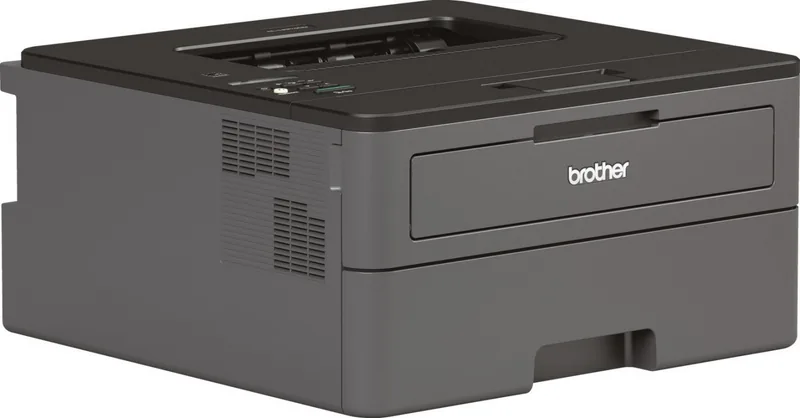
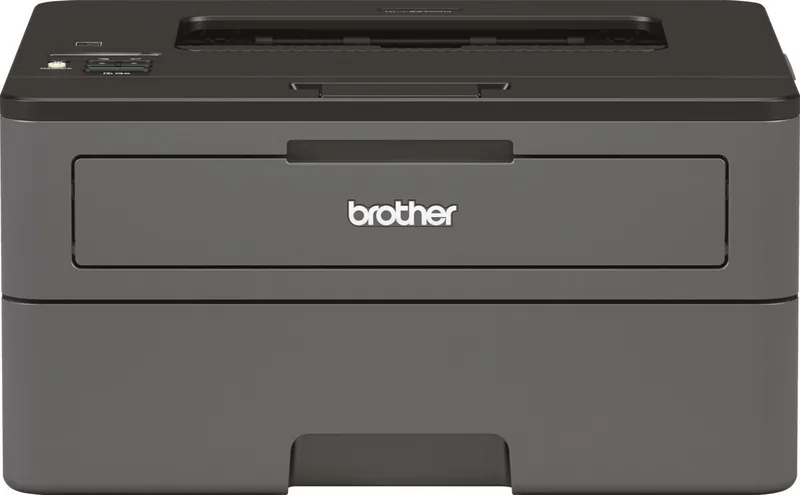
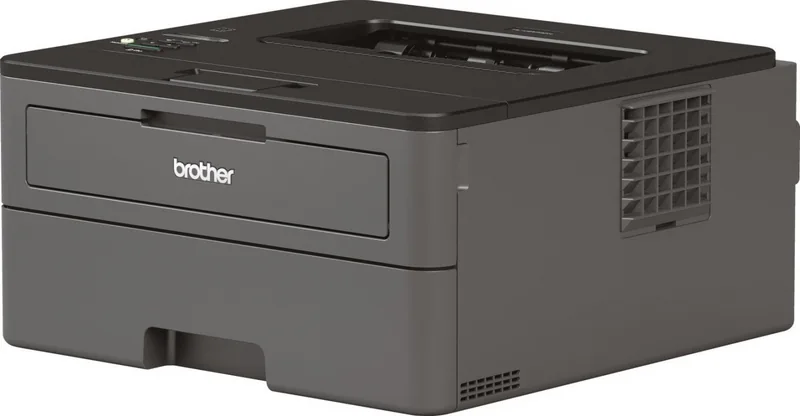
Brother HL-L2370DN Manual
PDF manual · 248 Pages
English



Quick check
Incorrect answer, please try again.
Chat with your Brother HL-L2370DN manual using AI
Get instant AI answers from your Brother HL-L2370DN manual
Ask anything about the Brother HL-L2370DN. Answers come from this manual, with the pages they are based on.
HL-L2370DN Maintenance Schedule
Replace when the Replace Drum message appears or after approximately 12,000 pages based on ISO/IEC 19752.
Order a new toner cartridge when Toner Low appears and replace it when Replace Toner appears.
Clean the corona wire inside the drum unit by sliding the green tab left and right if Drum ! status appears.
Wipe rollers with a lint-free cloth soaked in lukewarm water to prevent paper jams if feed problems occur.
Ask a Question
Do you recommend HL-L2370DN?
Yes No
SvenKlein
10 months ago
The HL-L2370DN has no built-in Wi-Fi and I read some buyers were missing the LAN cable. What connections are supported, and do I need to buy any extra cable or use a Wi-Fi adapter?

Manual.ly
10 months ago
The HL-L2370DN supports USB and Ethernet (LAN). If you want to print wirelessly, the printer still needs to be on the network via LAN, so you must place it near your router or use a Wi-Fi to LAN bridge (sometimes called a Wi-Fi adapter or nano-router). For the LAN setup, use a standard Ethernet cable if one is required. Whether a cable is included can vary by package, so please check the box contents. Once connected to your network, you can install the drivers and use mobile printing features (for example via Mopria) as long as your phone and printer are on the same network.
Frequently Asked Questions
Use the WiFi button on the control panel to start the setup wizard via the installation disc or web browser.
Is this answer helpful?
Yes, automatic duplex printing is supported for standard paper sizes.
Is this answer helpful?
AirPrint, Mopria, and Brother iPrint&Scan support iPhone and Android devices.
Is this answer helpful?
Follow the error messages on the display to open covers and remove trapped paper carefully.
Is this answer helpful?
Yes, drivers are available for macOS and configuration is possible via System Preferences.
Is this answer helpful?
Wi-Fi Protected Setup allows connection without entering a password using a button press.
Is this answer helpful?
Original Brother consumables are recommended for warranty and quality assurance.
Is this answer helpful?
Advantages and Disadvantages
Advantages

- Duplex printing capability reduces paper usage significantly
- Supports mobile printing via AirPrint and Mopria protocols
- Includes status monitoring tools for remote management
- Fast network setup with WPS push button configuration
- Compact design fits easily on standard office desks
Disadvantages

- Monochrome output limits color printing capabilities
- Manual setup can be complex for some network environments
- Requires specific Brother consumables for warranty coverage
- No built-in display for basic troubleshooting without software
- Wi-Fi only on supported models, not all configurations
Product Specification
Format
A4
Type
Laser Printer
Color System
Monochrome
Consumables
TN-2410, TN-2420, DR-2400
Print Speed
1200x1200dpi - 34 ppm (A4)
Paper Input
Duplex Unit
Memory
64MB (RAM)
Connections
1x USB 2.0 Type-B
Network
LAN, AirPrint, Cloud Print, Mobile Print, Mopria
Display
Monochrome, 1-line
Power Consumption
510W (typical), 48W (standby), 0.6W (sleep)
Noise Level
48.0dB(A)
Emulation
PCL 6
Housing Color
Black, Anthracite
Dimensions
14.02x7.20x14.17 in
Weight
15.87 lbs
Manufacturer Warranty
3 Years in AT/DE/PL, 1 Year in UK
Note
HLL2370DNG1 = DE Model, HLL2370DNG2 = AT Model
Product Description
Brother HL-L2370DN Overview
Experience high efficiency with the Brother HL-L2370DN. This monochrome laser printer is designed for busy offices needing speed and reliability. The HL-L2370DN delivers crisp black and white output suitable for paperwork, reports, and everyday correspondence. Its robust design ensures consistent performance over time. Users appreciate the intuitive control panel which allows quick access to settings without needing computer software. Network connectivity is a standout feature, enabling seamless integration into modern workspaces via wired or wireless connections. The included software suite simplifies installation and management on both Windows and Mac systems. Status monitoring tools keep administrators informed about toner levels and potential issues before they become critical.
Duplex printing capabilities reduce paper consumption significantly. Automatic two-sided printing helps save resources while maintaining professional presentation quality. Mobile printing support means content can be sent directly from smartphones or tablets using AirPrint or Mopria protocols. This flexibility enhances productivity for staff working remotely. Security settings protect sensitive business information during transmission and storage. Users seeking comprehensive guidance should consult the Brother HL-L2370DN, Laser, monochrome Manual for detailed operation instructions. Troubleshooting tips are readily available to resolve common connectivity or paper jam issues quickly. Network configuration supports various modes including WPS push button setup or manual SSID entry for secure wireless environments.
Maintenance is straightforward with clear indicators for toner replacement and drum unit status. Regular cleaning protocols extend the lifespan of internal components effectively. The device fits easily on standard desks without occupying excessive space. High-volume capacity paper trays minimize interruption during peak usage periods. Energy saving modes reduce power consumption during idle times without sacrificing wake-up speed. Whether for small businesses or home offices, this machine offers a reliable printing solution. It combines speed, quality, and connectivity in a compact footprint. The HL-L2370DN remains a popular choice for those prioritizing functionality and cost-effectiveness. Wi-Fi Direct allows immediate pairing with devices without a router infrastructure. High resolution ensures sharp text. Regular checks ensure longevity. The physical design accommodates standard office environments well. Noise levels remain low during operation which is beneficial for quiet work areas. Power consumption is optimized through intelligent sleep modes that activate after brief inactivity. This approach helps lower utility costs over the course of a business year. Performance remains steady even under heavy workloads typical of departmental centers.
Notes:
- Check toner availability before large runs to avoid interruptions.
- Verify network drivers are updated for optimal performance and compatibility.
- Use recommended paper weights to prevent jams during high-speed operation.
- Keep the device away from direct sunlight to protect sensors.
- Schedule routine cleaning to maintain print quality over time.
Search for 67,706 Manuals online


Type-in Brand or Model
Chris Davis
6 months ago
Does this printer support wireless printing from a phone without a computer nearby?
Manual.ly
6 months ago
The HL-L2370DN does not have built-in WiFi. It requires a USB or LAN cable for direct connection. However, you can connect it to your router via LAN cable. Once connected to the network, mobile devices on the same network can print using apps like Mopria. This allows wireless printing indirectly. Please check if a USB cable is included in your box, as some users reported it was missing.