
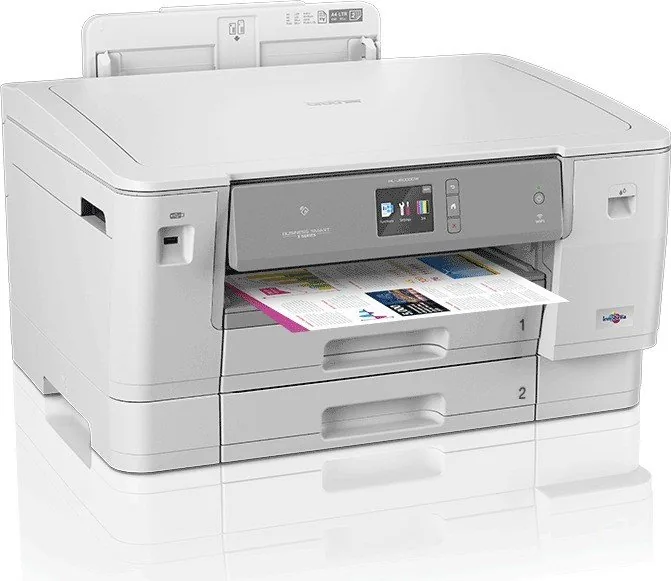
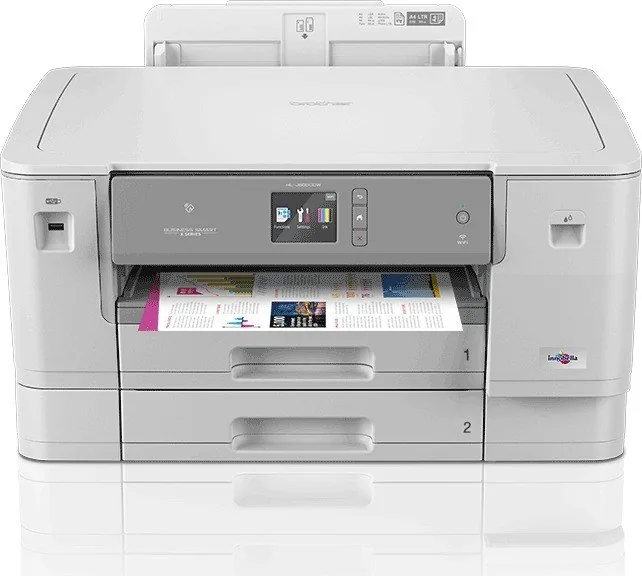
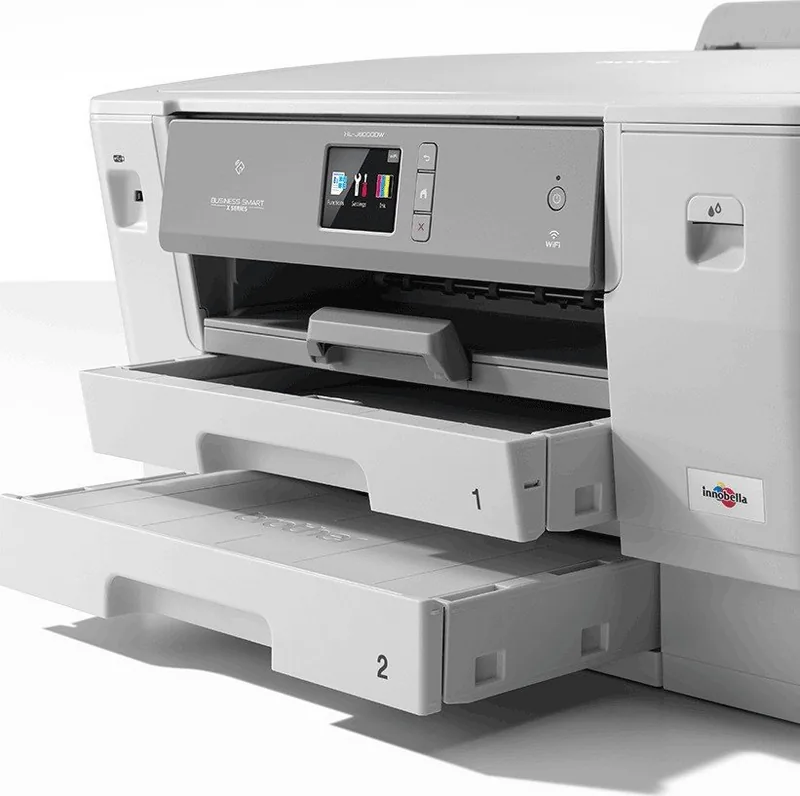
Brother HL-J6000DW Manual
PDF manual · 372 Pages
English



Quick check
Incorrect answer, please try again.
Chat with your Brother HL-J6000DW manual using AI
Get instant AI answers from your Brother HL-J6000DW manual
Ask anything about the Brother HL-J6000DW. Answers come from this manual, with the pages they are based on.
HL-J6000DW Maintenance Schedule
Clean the print head lenses to maintain print quality. Access via [Settings] > [Maintenance] > [Print Head Cleaning].
Clean paper pick-up rollers if they are dirty with dust or ink to prevent paper jams.
Clean the printer platen to remove ink stains that may cause smudges on printed pages.
Clean the base pad in the paper tray to prevent multiple page feeding issues.
Replace the ink absorber box when the Ink Absorber Pad Full message appears. This is a periodic maintenance item requiring service center assistance.
Free maintenance reminders
Timed to your purchase date. Always free, unsubscribe anytime.
Ask a Question
Do you recommend HL-J6000DW?
Yes NoFrequently Asked Questions
It explains how to set up, use, maintain, and troubleshoot the Brother HL-J6000DW printer. The guide covers paper loading, printing options, wireless connections, security, and routine upkeep in a clear, task-focused way.
Is this answer helpful?
The guide includes plain paper, inkjet paper, glossy photo paper, recycled paper, and envelopes. It also supports several sizes such as A3, A4, Letter, Ledger, Legal, and photo formats, depending on tray and task.
Is this answer helpful?
Yes. The manual covers mobile-friendly options like NFC, Wi-Fi Direct, AirPrint, Mopria, Brother iPrint&Scan, and cloud-related printing methods. These features make it easier to print without relying only on a computer.
Is this answer helpful?
Yes. The guide explains automatic 2-sided printing and also booklet printing. It gives binding choices and setup steps so users can save paper and create more polished handouts or booklets.
Is this answer helpful?
Secure Print keeps sensitive jobs stored on the machine until you enter a password at the control panel. This helps prevent others from seeing confidential documents before you are ready to release them.
Is this answer helpful?
The manual covers ink replacement, print head cleaning, alignment checks, jam removal, tray adjustments, and print quality checks. These steps help keep output sharp and reduce common printing problems.
Is this answer helpful?
Advantages and Disadvantages
Advantages

- Supports a wide range of paper sizes and media, including A3, Ledger, envelopes, and photo paper.
- Offers flexible print features such as duplex, booklet mode, N in 1, secure print, and USB direct printing.
- Works with Wi-Fi, Wi-Fi Direct, NFC, AirPrint, Mopria, and Brother iPrint&Scan for easy sharing.
- Includes strong maintenance and security guidance for stable use in busy or shared environments.
Disadvantages

- Some trays are limited to plain paper, which reduces media flexibility in certain setups.
- Borderless printing is not available for envelopes or 2-sided printing.
- Advanced security and network settings may feel complex for casual users.
- Photo and envelope loading require care to avoid smudging, misfeeds, or jams.
Product Specification
Format
A3
Type
Inkjet printer
Color system
4-color, 4x individual cartridge
Consumables
LC3237, LC3239XL
Printing
4800x1200dpi - 22/20 ppm (A4) (ISO)
Paper feed
500 sheets (2x 250 sheets), Duplex unit
Memory
512MB (RAM)
Ports
1x USB-A 2.0 (Host)
Network
Gb LAN, Wi-Fi 4 (802.11b/g/n), WPS, NFC, Wi-Fi Direct, AirPrint, Cloud Print, Mobile Print
Display
color, 2.7", Touchscreen
Emulation
XPS, PCL 6, PostScript 3, PDF 1.7
Housing color
gray
Dimensions
21.46x14.92x18.78in
Weight
43.00lb
Features
USB direct scan, borderless printing, PictBridge, Direct Print
Manufacturer warranty
3 years in AT/DE/PL (On-site after registration), one year in UK
Product Description
Brother HL-J6000DW Ink, Multicolor Manual
The Brother HL-J6000DW Ink, multicolor Manual reads like a practical playbook for a high-volume color inkjet designed to handle everyday office printing with less friction. It focuses on setup, paper handling, connection options, maintenance, and print controls, making it useful for anyone who wants dependable output without a complicated learning curve.
One of the biggest strengths highlighted in the guide is media flexibility. It explains how to load standard paper, photo paper, envelopes, and larger formats such as A3, Ledger, and Legal. It also covers tray settings, paper orientation, printable areas, and the right paper types for each task. That kind of detail helps reduce feed issues and supports better-looking prints, especially when switching between business documents and creative jobs.
The manual also shows that this printer is built for convenient workflows. It walks through printing from Windows and Mac, using USB flash drives, and choosing features like 2-sided printing, booklet layout, N in 1 output, grayscale mode, and secure print. For users who work across devices, the connectivity options stand out too. Wi-Fi, Wi-Fi Direct, NFC, AirPrint, Mopria, Brother iPrint&Scan, and cloud tools give the printer a modern, flexible feel.
Maintenance is treated as part of normal use, not an afterthought. The guide includes print head cleaning, ink checks, alignment steps, jam clearing, tray adjustments, and reset options. It also covers security features such as SSL/TLS, IPsec, LDAP, Active Directory authentication, and Secure Function Lock 3.0. That makes the printer especially appealing for shared workspaces that need both convenience and control.
Notes
- Use the correct media setting for cleaner color results.
- Keep paper flat and within tray limits to avoid jams.
- Secure Print is helpful for sensitive office jobs.
- Wireless and mobile features make sharing easier across teams.
Overall, this Brother model comes across as a versatile printer with strong paper support, useful mobile connectivity, and detailed guidance for keeping print quality steady. The Brother HL-J6000DW Ink, multicolor Manual is especially valuable for users who want a reliable color printer that can handle both routine tasks and more advanced office needs.
Search for 67,706 Manuals online


Type-in Brand or Model