
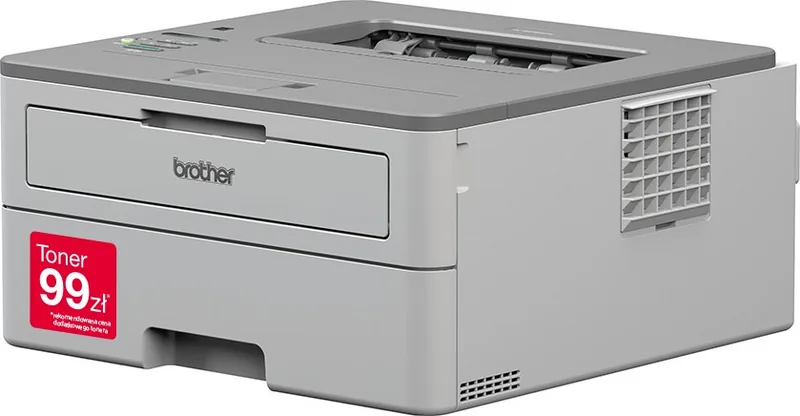
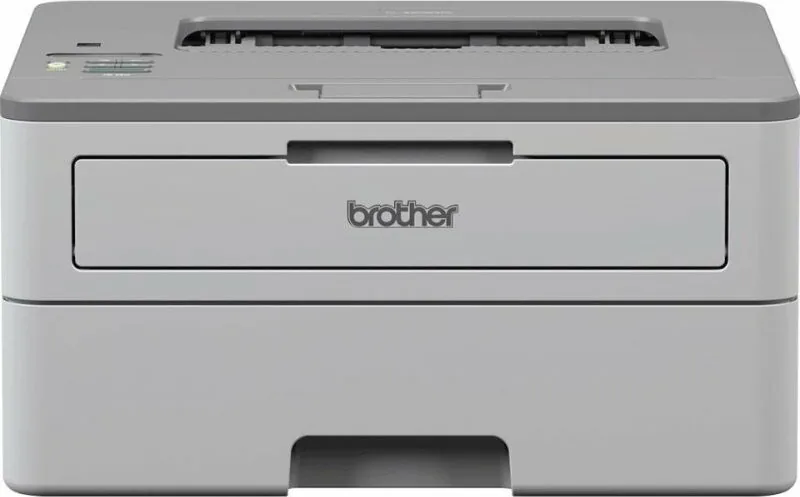
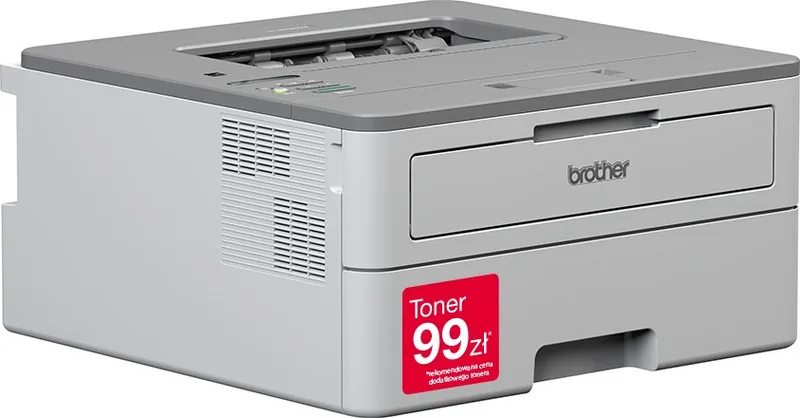
Brother HL-B2080DW Manual
PDF manual · 235 Pages
English



Quick check
Incorrect answer, please try again.
Chat with your Brother HL-B2080DW manual using AI
Get instant AI answers from your Brother HL-B2080DW manual
Ask anything about the Brother HL-B2080DW. Answers come from this manual, with the pages they are based on.
HL-B2080DW Maintenance Schedule
Cleaning the paper pick-up rollers periodically may prevent paper jams by ensuring that paper feeds properly.
If you have print quality problems or the control panel displays [Drum !] status, clean the corona wire inside the drum unit.
Free maintenance reminders
Timed to your purchase date. Always free, unsubscribe anytime.
Ask a Question
Do you recommend HL-B2080DW?
Yes NoFrequently Asked Questions
When you load a different paper size or type, update Paper Size and Paper Type settings on the printer LCD at the same time. The guidance also recommends matching the media settings in your print driver. If Check Size is enabled, the machine can prompt you when the tray is removed, helping prevent mismatched settings that can cause poor output or feeding problems.
Is this answer helpful?
For the tray, slide the guides to fit, fan the stack, load print-side face down, and keep the paper under the maximum fill line. For the manual feed slot, load one sheet (or one envelope) at a time, keep the paper straight, and ensure it is positioned correctly so it feeds without skewing. Overfilling or misalignment increases jam risk.
Is this answer helpful?
You can set up wireless using the installation process, then choose the control panel setup wizard, or use WPS one-push (if supported) from the WLAN menu. If you have WPS PIN support, you can enable the WPS PIN method and enter the PIN from the machine on the registrar side. The setup also supports SSID-not-broadcast by entering the SSID and security details.
Is this answer helpful?
Yes. The printer supports Wi-Fi Direct, which creates a secured wireless connection between the printer and the mobile device without needing a router. The guidance notes WPA2 security with AES encryption. You can configure Wi-Fi Direct using one-push, PIN, or manual SSID and password setup methods.
Is this answer helpful?
Use the Status Monitor utility to receive immediate error notifications at preset intervals. On network setups, you can also access Web Based Management by entering the printer IP address in a standard browser. For Windows-based administration, BRAdmin Light supports initial discovery and basic IP configuration, while BRAdmin Professional supports deeper monitoring and firmware updates.
Is this answer helpful?
The guidance highlights SSL/TLS as an effective way to protect data sent over IP networks by encrypting print job traffic, helping prevent unauthorized users from reading captured data. It also recommends network security practices such as disabling insecure services like FTP/TFTP and using machine setting lock features to restrict access to configuration.
Is this answer helpful?
Advantages and Disadvantages
Advantages

- Guided control panel setup with clear LCD prompts and adjustable options
- Flexible paper handling using tray plus manual feed for plain, recycled, labels, envelopes, and thick media
- Driver tools such as toner save, watermark, header-footer, skip blank pages, and quality/density adjustments
- Multiple network setup paths: wireless wizard, WPS one-push, WPS PIN, SSID-not-broadcast workflows
- Network visibility via Status Monitor, Web Based Management, and BRAdmin utilities
Disadvantages

- Paper changes require updating Paper Size and Paper Type to avoid incorrect feeding or print results
- Some media types are not recommended (for example, inkjet paper and certain specialty coatings)
- Manual feed is intended for one sheet or one envelope at a time to reduce jams
- Wireless performance can be affected by distance, obstacles, and unsupported router security combinations
- Security and setting lock features require careful password and configuration management
Product Specification
Format
A4
Type
Laser Printer
Color System
Monochrome
Consumables
TN-B023, DR-B023
Printing
1200x1200dpi - 34/16 ppm (A4)
Paper Feed
Duplex Unit
Memory
64MB (RAM)
Ports
1x USB-B 2.0
Network
LAN, Wi-Fi 4 (WLAN 802.11b/g/n), Wi-Fi Direct, AirPrint, Cloud Print, Mobile Print, Mopria
Display
monochrome, 1-line
Power Consumption
460W (typical), 48W (standby), 0.6W (sleep)
Sound Pressure Level
44.0dB(A)
Emulation
PCL 6
Case Color
grey
Dimensions
14.02x7.20x14.17in
Weight
16.33lb
Manufacturer Warranty
3 years in AT/DE/PL, one year in UK
Product Description
Brother HL-B2080DW Laser monochrome Manual
If you want fast, crisp black-and-white output for everyday documents, the Brother HL-B2080DW Laser monochrome is built for straightforward printing plus flexible setup. Its control panel and LCD help you manage key printer settings, while the accompanying feature set covers everything from paper loading to network connectivity and day-to-day troubleshooting.
Printing and paper handling that stay consistent
Getting reliable results starts with correct paper preparation. The printer tray setup emphasizes sliding guides to the right width, fanning the stack, loading print-side correctly, and staying under the maximum fill line to reduce jams. When you switch to a different paper size or type, you must update Paper Size and Paper Type settings on the machine (and in your computer software, if prompted). There is also a Check Size option that can warn you when the tray is removed.
The manual feed slot expands your options for plain, thin, recycled, and bond paper, as well as envelopes, labels, and thicker media. For best results, the guidance includes unprintable area awareness (avoid printing into those edge zones) and recommended media suggestions to maintain print quality and prevent issues.
Print options for documents that need control
From your computer, the printer driver supports core tasks like selecting paper size and orientation, choosing copies, and setting media type so the device can adjust automatically. Advanced options include toner save mode (lighter but legible output), watermark printing, header-footer printing, and tools to improve dense areas or thin line clarity. Practical features like skipping blank pages, density adjustment, and timing-based sleep and quiet settings help keep output efficient and predictable.
Wireless networking, mobile printing, and security
The HL-B2080DW supports wired and wireless connectivity (only one method at a time) and provides multiple wireless setup paths. You can connect via the control panel setup wizard, WPS one-push, or WPS PIN. If your SSID is not broadcast, the setup supports creating a new SSID and entering authentication and encryption details.
For mobile and direct connections, Wi-Fi Direct can create a secured link without an access point, using WPA2 with AES. For broader management, the Status Monitor utility and Web Based Management let you view machine state, while BRAdmin Light and BRAdmin Professional assist with initial setup and more advanced network monitoring.
Notes
- Avoid inkjet paper and unsupported media types to reduce the risk of jams or damage.
- For security, SSL/TLS helps protect data sent over IP networks by encrypting print job traffic.
Pros and cons (from the provided guidance)
Pros
- Guided setup and clear LCD-based prompts for changing settings.
- Flexible paper handling: tray plus manual feed for varied media.
- Print driver options like toner save, watermark, and skip blank pages.
- Multiple wireless methods: setup wizard, WPS one-push, WPS PIN, plus SSID-not-broadcast support.
- Network management: Status Monitor and Web Based Management.
- Security emphasis using SSL/TLS and setting lock controls.
Cons
- Requires matching Paper Size and Paper Type settings when media changes.
- Certain paper types are discouraged (for example, inkjet paper, highly textured or specialty coated stock).
- Manual feed is designed for one sheet or one envelope at a time.
- Wireless connection can be limited by proximity, obstacles, and router settings.
- Security features may require careful configuration and password management.
Key results
- Faster day-to-day printing with driver controls for quality, layout, duplex-style settings, and toner saving.
- Fewer paper issues by following tray and manual feed loading rules plus Check Size prompts.
- Easier network setup through wireless wizard, WPS, and Wi-Fi Direct methods.
- Better protection for networked printing via SSL/TLS encryption and machine setting lock.
Search for 67,706 Manuals online


Type-in Brand or Model