
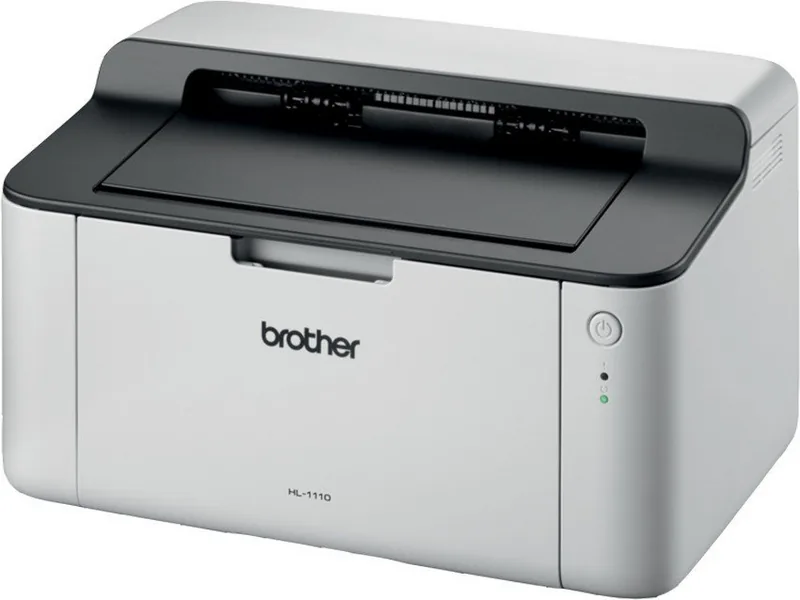
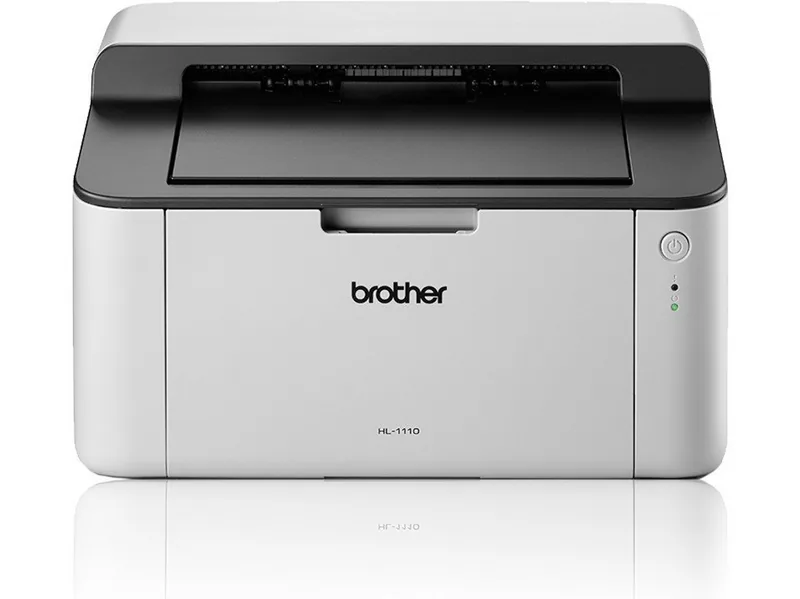
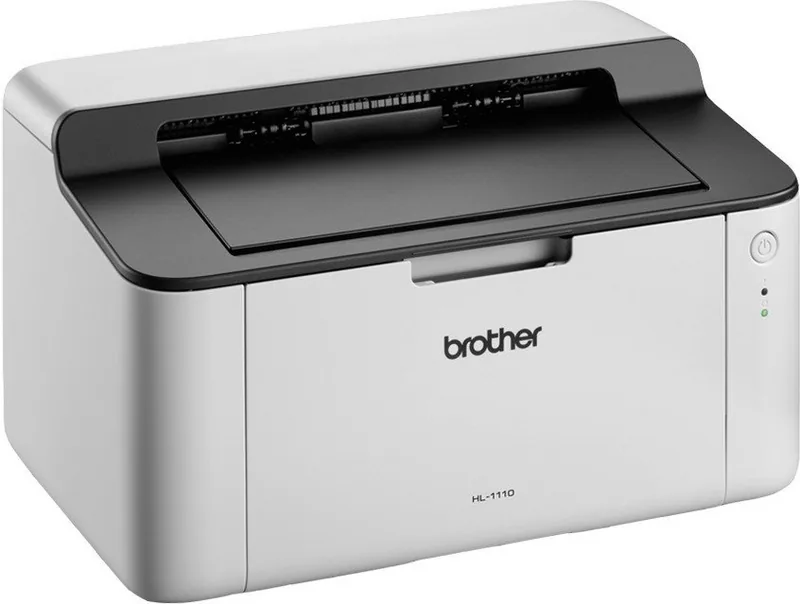
Brother HL-1110 Manual
PDF manual · 73 Pages
English



Quick check
Incorrect answer, please try again.
Chat with your Brother HL-1110 manual using AI
Get instant AI answers from your Brother HL-1110 manual
Ask anything about the Brother HL-1110. Answers come from this manual, with the pages they are based on.
HL-1110 Maintenance Schedule
Replace the drum unit when the Replace Drum message appears or after approximately 10,000 pages. Reset the drum counter.
Replace the toner cartridge when the Replace Toner message appears or when print quality becomes faint.
Slide the green tab on the drum unit from left to right several times if vertical stripes appear on printed pages.
Wipe the drum roller surface with a dry cotton swab if black or white dots appear on printed pages.
Clean the inside and outside of the machine regularly with a dry lint-free cloth, especially when replacing consumables.
Ask a Question
Do you recommend HL-1110?
Yes NoFrequently Asked Questions
The printer accepts A4, Letter, Legal and Folio sizes and is optimized for plain and recycled paper. Recommended paper weight is 65–105 g/m2 (best results around 80 g/m2). Avoid mixing paper types in the tray to prevent jams.
Is this answer helpful?
Two-sided (duplex) printing is manual: choose 2-sided (Manual) in the driver. The printer prints even pages first, prompts you to reinsert the stack, then prints odd pages. Follow the on-screen instructions and straighten paper before reinserting to reduce jams.
Is this answer helpful?
Use Brother toner TN-1050 or TN-1030 (region-dependent) and drum DR-1050 or DR-1030. Inbox toner yields are approximately 700–1,000 pages; standard toner yields around 1,000 pages and the drum around 10,000 pages (subject to ISO testing conditions).
Is this answer helpful?
Regularly clean the corona wire and interior with a dry lint-free cloth, check and replace toner/drum when indicated, and use recommended paper. If faint prints appear, try density adjustment or Improve Print Output settings in the driver for toner fixing or reduced curl.
Is this answer helpful?
Two LEDs (Ready and Error) communicate states and error codes; the Status Monitor utility on Windows/macOS provides detailed alerts including Toner Low/Replace, Drum End, paper jams and service-call patterns. Consult the manual’s LED table to decode blinking sequences.
Is this answer helpful?
Yes. Toner Save mode lightens prints to reduce toner use (not recommended for photos or Fine quality). Sleep, Deep Sleep and Power Off modes progressively lower power consumption, with Deep Sleep and Power Off giving the biggest savings while still allowing wake-on-print.
Is this answer helpful?
Drivers, utilities, and troubleshooting resources are available from Brother Solutions Center at solutions.brother.com. The website hosts the latest drivers for Windows, macOS and some Linux distributions, plus FAQs and contact info for regional support.
Is this answer helpful?
Advantages and Disadvantages
Advantages

- Reliable monochrome laser output up to 20 ppm with quick first-page times.
- Compact footprint with 150-sheet tray and common paper-size support.
- Simple maintenance: separate drum and toner units with clear replacement guidance.
- Energy-saving modes and toner save option reduce running costs.
- Comprehensive driver features: manual duplex, watermarks, profiles, and status monitoring.
Disadvantages

- Manual two-sided printing requires user intervention and can cause jams if handled poorly.
- Basic memory and feature set limit complex or high-volume office workflows.
- Toner and drum are consumables; using third-party supplies may void warranty or reduce quality.
- Limited wireless/network options—primarily USB connection.
- Some advanced print options (fine quality vs. toner save) are mutually exclusive.
Product Specification
Format
A4
Type
Laser Printer
Color System
1-color
Consumables
TN-1050, DR-1050
Printing
600x600dpi - 20 ppm (A4)
Paper Feed
150 Sheets
Memory
1MB (RAM)
Ports
1x USB-B 2.0
Display
N/A
Power Consumption
1044W (maximum), 40W (standby), 0.5W (sleep)
Sound Pressure Level
51.0dB(A)
Emulation
GDI
Housing Color
white, black
Dimensions
13.39x7.44x9.37in
Weight
9.92lb
Manufacturer Warranty
3 Years in AT/DE/PL, one Year in UK
Note
HL1110G1 = DE-Model, HL1110G2 = AT-Model
Product Description
Brother HL-1110 grau, Laser, einfarbig Manual
The Brother HL-1110 (and HL-1112) is a compact monochrome laser printer designed for home and small-office use. With a reliable single-function print focus, it delivers consistent black-and-white output at up to 20 ppm (A4) and fast first-page times under 10 seconds. The model line supports standard USB connectivity and straightforward driver installations for Windows, macOS and certain Linux distributions, making it simple to integrate into most basic workflows.
This printer emphasizes practicality: a 150-sheet input tray, up to 50-sheet face-down output, and support for common paper sizes (A4, Letter, Legal, Folio) cover everyday document needs. Print quality choices (Draft, Normal, Fine) and a density adjustment let you balance speed, toner use and output clarity. Toner save mode and sleep/deep-sleep/power-off energy features help reduce consumable and power costs while maintaining readiness for jobs.
Drivers include typical features such as 2-sided manual printing, multiple-page layouts, scaling, watermarking, header/footer printing, and basic image/text optimization. The Windows driver adds Print Profiles, advanced watermark controls, administrator locks, skip-blank-page detection, and a Status Monitor utility for real-time error and supply alerts. macOS drivers mirror many controls in a platform-appropriate interface, including manual duplex instructions and preset management.
Maintenance and consumables are straightforward: the drum unit and toner cartridges are separate parts (DR-1050/DR-1030 and TN-1050/TN-1030 depending on region), and routine care like corona wire cleaning, drum cleaning and proper paper handling keeps print quality consistent. The machine provides clear LED patterns and a status monitor to identify low toner, drum end, jams, or service-call conditions. Toner handling supports a default stop mode when toner is low, with an optional Continue mode if you need to print until replacement.
For troubleshooting and updates, Brother’s online Solutions Center hosts drivers, FAQs and support resources. The manual covers setup, driver installation, print settings, advanced options, troubleshooting steps for paper jams and print defects, plus environmental recommendations for optimal operation.
Notes
- Supports manual two-sided printing; follow driver prompts to reinsert pages.
- Genuine Brother toners and drums are recommended to ensure quality and warranty coverage.
- Energy modes (Sleep, Deep Sleep, Power Off) minimize power draw while maintaining usability.
Search for 67,706 Manuals online


Type-in Brand or Model
Lena Schneider
10 months ago
Does the Brother HL-1110 support wireless (Wi-Fi) printing, and which Windows versions does it work with?
Manual.ly
10 months ago
No, this model is not a Wi-Fi printer. It is intended for direct printing via a USB connection to your computer (a USB cable is often not included). For Windows compatibility, install the correct driver from the official Brother support page for the HL-1110 and follow the listed supported operating systems. The exact Windows versions supported can depend on the driver, so the product support page is the best place to confirm your specific Windows version.