
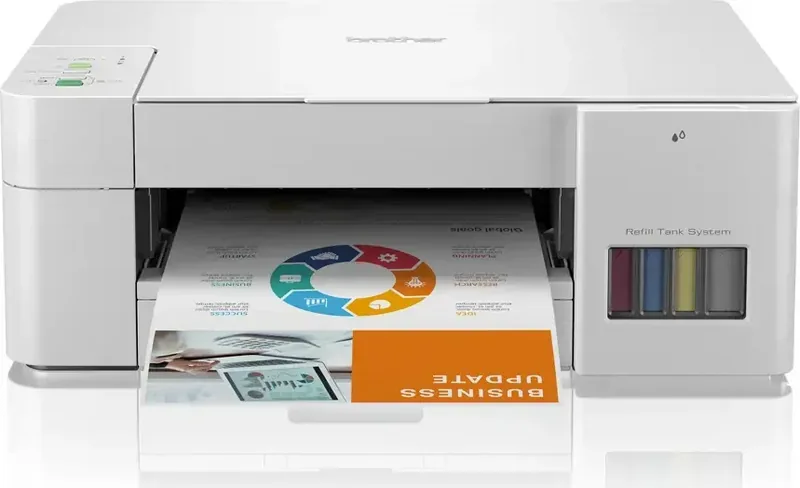
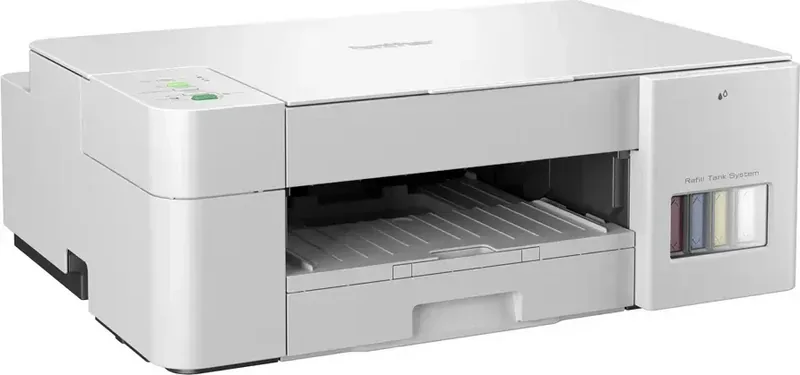
Brother DCP-T426W Manual
PDF manual · 235 Pages
English



Quick check
Incorrect answer, please try again.
Chat with your Brother DCP-T426W manual using AI
Get instant AI answers from your Brother DCP-T426W manual
Ask anything about the Brother DCP-T426W. Answers come from this manual, with the pages they are based on.
DCP-T426W Maintenance Schedule
Perform this if there are horizontal lines or blank spaces in text/graphics. The machine also cleans automatically when needed.
Check the window of the ink tank. Refill when the remaining ink level is at or below the lower line under the minimum fill mark.
Cleaning periodically may prevent paper jams by ensuring that paper feeds correctly. Use a soft lint-free cloth moistened with water.
Cleaning the Base Pad periodically may prevent the machine from feeding multiple sheets of paper when only a few sheets remain.
Clean the scanner glass and white plastic with a soft lint-free cloth moistened with water if dirt causes black marks or spots on copies.
Unplug the machine and wipe scattered ink from the printer platen area with a dry, soft lint-free cloth to remove stains on printed pages.
If stained with ink or paper dust causing feed problems, clean the front and back sides with a soft lint-free cloth moistened with water.
Ask a Question
Do you recommend DCP-T426W?
Yes NoFrequently Asked Questions
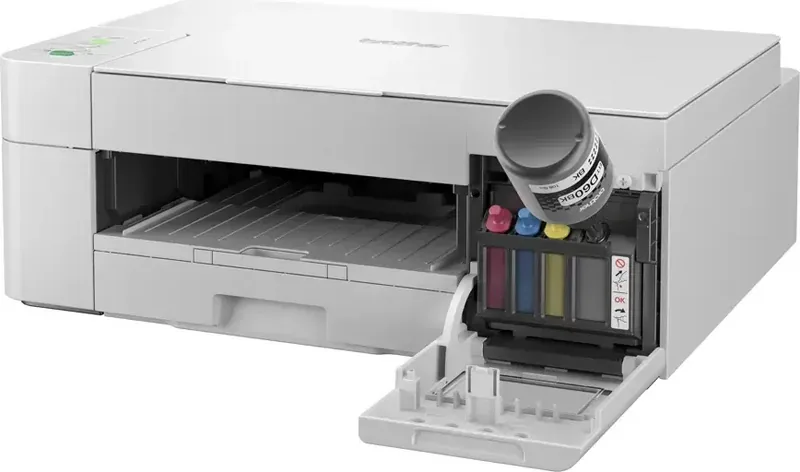
Open the cover on the front of the machine. Locate the colored caps corresponding to the ink colors. Remove the cap, insert the nozzle of the ink bottle into the fill port until it clicks, and press down gently to fill. Close the cap securely when finished.
Is this answer helpful?
Yes, you can use the Brother iPrint&Scan app available for iOS and Android devices. Ensure your phone and printer are connected to the same Wi-Fi network, then select the document or photo you wish to print within the app.
Is this answer helpful?
No, the DCP-T426W does not have an automatic duplexer. You must manually reload the paper to print on the second side using the manual two-sided printing option in your computer's driver settings.
Is this answer helpful?
It supports plain paper, recycled paper, inkjet coated paper, glossy photo paper, envelopes, and index cards. It accepts sizes ranging from 100 x 148 mm up to A4 (210 x 297 mm).
Is this answer helpful?
You can clean the print head using the maintenance utility on your computer or by pressing specific button combinations on the control panel. Navigate to the maintenance menu in the software and select 'Head Cleaning' to start the process.
Is this answer helpful?
Advantages and Disadvantages
Advantages

- Low cost per page due to refillable ink tank system
- Supports wireless connectivity and mobile printing via iPrint&Scan
- Versatile paper handling for envelopes, photos, and standard documents
- Built-in OCR functionality for converting scans to editable text
- Manual duplex printing capability saves paper
Disadvantages

- No automatic two-sided printing; requires manual intervention
- Unprintable margins exist on all sides of the paper
- Photo drying time may be longer on certain media types
- Setup process for network features can be complex for beginners
- Maximum paper capacity is lower compared to laser printers
Product Specification
Format
A4 (Print), A4 (Scan)
Type
Printer/Scanner/Copier
Color System
4-color, 4x Refill Tank
Consumables
BT5000 C/M/Y, BTD60 BK
Printing
1200x1200dpi - 8/3 ppm (A4) (ISO)
Scanning
1200x1200dpi (CIS) - 3.4/4.4 ppm (A4)
Paper Input
150 Sheets
Memory
64MB (RAM)
Connections
1x USB-B 2.0
Network
Wi-Fi 4 (WLAN 802.11b/g/n), Wi-Fi Direct, Mopria
Display
N/A
Power Consumption
11W (max), 2.5W (standby), 0.7W (sleep), 0.2W (off)
Sound Pressure Level
53.5dB(A)
Emulation
GDI
Dimensions
17.1x6.3x14.1 inches
Weight
14.1 lbs
Features
Refill System
Manufacturer Warranty
3 Years (after registration)
Product Description
Discover the Brother DCP-T426W Printer: A Multicolor Ink Solution
The Brother DCP-T426W Printer stands out as a versatile all-in-one device designed for home offices and small businesses that demand high-quality output without breaking the bank. This multicolor inkjet printer utilizes an innovative tank system, allowing users to refill their own ink rather than purchasing expensive cartridges. This feature significantly reduces the cost per page and minimizes waste, making it an eco-friendly choice for high-volume printing tasks.
Printing with the DCP-T426W is seamless across various media types. Whether you are producing vibrant photo prints on glossy paper or crisp black-and-white documents on standard bond paper, the machine delivers consistent results. The control panel offers intuitive navigation with dedicated buttons for monochrome and color operations, while LED indicators keep you informed of the machine's status at all times. Connectivity options include wireless LAN and USB, ensuring easy integration into any network setup.
Beyond printing, this multifunction unit excels in scanning and copying. The scanner glass accommodates documents up to A4 size, and the built-in OCR technology allows for converting scanned text into editable files. Users can also utilize the Brother iPrint&Scan application to manage print jobs from mobile devices or computers, adding convenience to daily workflows. Manual two-sided printing capabilities help save paper, while the ability to print multiple pages on a single sheet optimizes document distribution.
Maintenance is straightforward with clear instructions for cleaning the print head and refilling tanks directly from the front of the machine. The robust design handles various paper weights and sizes, from envelopes to index cards, providing flexibility for diverse office needs. With its combination of low operating costs, reliable performance, and extensive feature set, the Brother DCP-T426W Printer is a smart investment for anyone seeking efficient multicolor printing solutions.
Search for 67,706 Manuals online


Type-in Brand or Model