
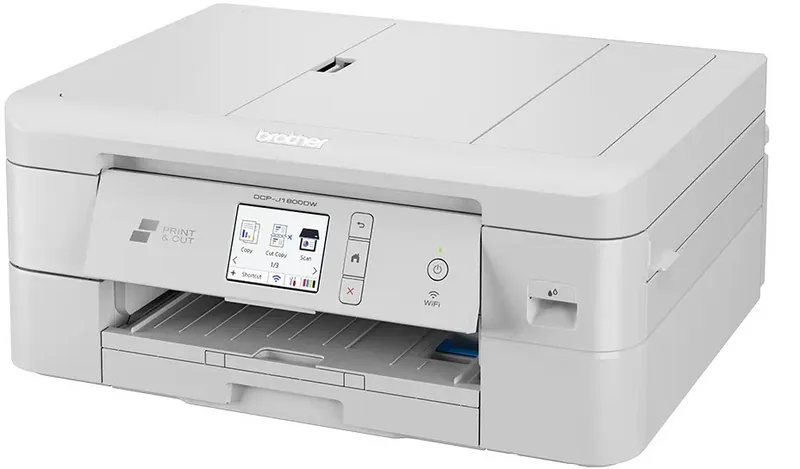
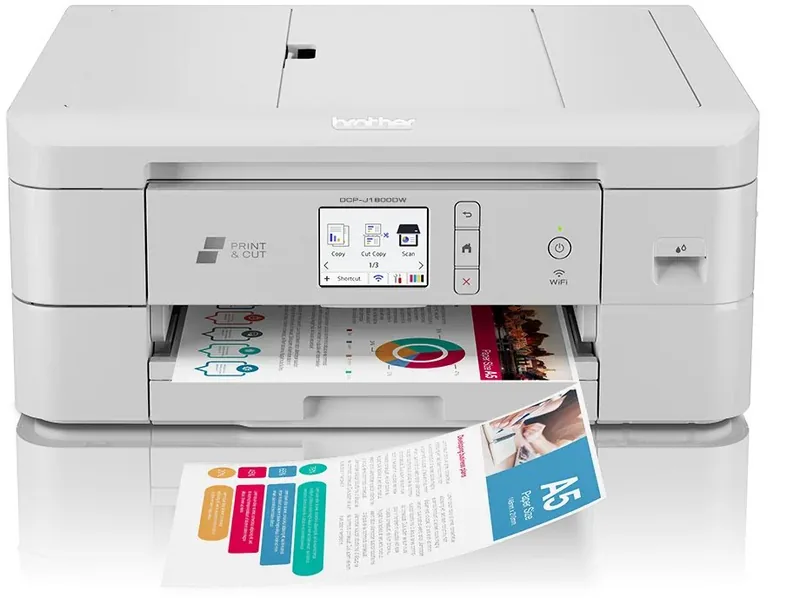
Brother DCP-J1800DW Manual
PDF manual · 360 Pages
English



Quick check
Incorrect answer, please try again.
Chat with your Brother DCP-J1800DW manual using AI
Get instant AI answers from your Brother DCP-J1800DW manual
Ask anything about the Brother DCP-J1800DW. Answers come from this manual, with the pages they are based on.
DCP-J1800DW Maintenance Schedule
Replace ink cartridges when the LCD displays 'Replace Ink' or an ink cartridge reaches the end of its life.
Run print head cleaning from the Maintenance menu if print quality is poor or vertical lines appear.
Clean the scanner glass and document cover with a soft lint-free cloth moistened with neutral detergent if scan results are dirty.
Clean the paper pick-up rollers with a lint-free cloth moistened with water if paper dust accumulates or jams occur.
Clean the printer platen (the black rubber strip) with a lint-free cloth to remove ink smudges that may affect print quality.
Wipe the touchscreen with a soft, dry, lint-free cloth. Do not use liquid cleaners or sprays.
Clean the base pad inside the machine if it becomes dirty or stained with ink.
Ask a Question
Do you recommend DCP-J1800DW?
Yes NoFrequently Asked Questions
The machine has an ink volume monitoring feature that alerts you before running completely out.
Is this answer helpful?
Yes, you can scan materials to email or specific folders directly without extra steps.
Is this answer helpful?
No, you can set up wireless connections easily without complex cables.
Is this answer helpful?
Yes, two sided printing reduces overall paper usage significantly.
Is this answer helpful?
Regular maintenance prevents unexpected paper jams inside the mechanism.
Is this answer helpful?
Borderless printing creates professional borders for photographs easily.
Is this answer helpful?
It supports popular operating systems like Windows and Mac seamlessly.
Is this answer helpful?
Advantages and Disadvantages
Advantages

- Multicolor ink system ensures vibrant output for text and photos.
- Wireless connections setup easily without complex cables.
- Touchscreen interface makes navigation simple and intuitive.
- Automated sheet input system saves time processing multiple items.
- Two sided printing reduces overall paper usage significantly.
Disadvantages

- Quiet mode reduces operational noise levels during busy hours.
- Manual input slot accommodates custom media sizes only one at a time.
- Network reports help troubleshoot connection problems quickly.
- Security certificates ensure safe printing protocols on the local network.
- Borderless printing creates professional borders for photographs easily.
Product Specification
Format
A4 (Printing), A4 (Scanning)
Type
Printer/Scanner/Copier
Color System
4-color, 4x individual cartridges
Consumables
LC421, LC421XL
Printing
1200x600dpi - 13/10.5 ppm (A4) (ISO)
Scanning
1200x1200dpi (CIS) (A4)
Copying
1200x600dpi
Paper Input
150 sheets, ADF (20 sheets)
Memory
512MB (RAM)
Connections
1x USB-B 2.0
Network
LAN, Wi-Fi 4 (802.11b/g/n), Wi-Fi Direct, AirPrint, Mopria
Display
color, 2.7", Touchscreen
Power Consumption
21W (typical), 3W (standby), 0.9W (sleep), 0.2W (off)
Noise Level
53.0dB(A)
Emulation
GDI
Casing Color
gray
Dimensions
16.18x8.94x13.50 inches
Weight
18.30 lbs
Features
USB-Direct Scan, borderless printing, PictBridge, Direct Print, Blue Angel, Paper Cutter (1x A4 to 2x A5)
Manufacturer Warranty
3 Years in AT/DE/PL (after registration), 1 Year in UK
Product Description
Discover Your New Printing Partner
Running a busy home office requires reliable equipment to handle daily tasks efficiently. The Brother DCP-J1800W stands out as a robust solution for modern users seeking versatility. It handles printing, scanning, and copying functions within one compact unit. The multicolor ink system ensures vibrant output suitable for both text and photos. You can set up wireless connections easily without complex cables. The touchscreen interface makes navigation simple and intuitive for everyone. Paper handling is versatile to accommodate various sizes and types from plain sheets to glossy photo stock. Maintenance routines are straightforward with specific cleaning options to keep the print head healthy. Network security features protect your sensitive data during transmission. This machine fits perfectly into small workspaces without cluttering the desk. It supports popular operating systems like Windows and Mac seamlessly. Photo printing looks excellent when using recommended glossy paper types. Envelopes are fully supported for mailing needs directly from the tray. You can scan materials to email or specific folders directly without extra steps. The automated sheet input system saves significant time when processing multiple sheets. Two sided printing reduces overall paper usage significantly. Cut print features divide standard A4 sheets automatically for custom sizes. Quiet mode reduces operational noise levels during busy hours. Ink volume monitoring helps plan refills before running completely out. Firmware updates keep performance high with new features added over time. Security certificates ensure safe printing protocols on the local network. This multifunction device streamlines workflow for small businesses or students. Reliability matters greatly for daily operational consistency. Setup is quick with provided software installation tools. Drivers work on multiple OS versions without issues. Network reports help troubleshoot connection problems quickly. Regular maintenance prevents unexpected paper jams inside the mechanism. Paper guides adjust smoothly for different media types placed inside. The LCD screen displays current status messages clearly for the user. Warning icons alert you immediately to any errors requiring attention. Overall experience remains seamless throughout extended usage periods. Efficiency increases overall productivity for all users. Investing in quality hardware yields better results long term. Optical character recognition allows text conversion for easy editing later. Email printing capabilities send attachments directly to the device inbox. Network scanning services allow access from multiple computer locations simultaneously. This comprehensive package delivers value through speed and quality combined. The manual input slot accommodates custom media sizes effectively. You can adjust margins within applications to optimize layout. Borderless printing creates professional borders for photographs easily. The machine monitors ink availability to prevent surprise interruptions. Cloud services support remote access from various devices globally. Regular firmware checks help maintain security standards consistently. Users appreciate the compact design fitting well on desks.
Search for 67,706 Manuals online


Type-in Brand or Model