
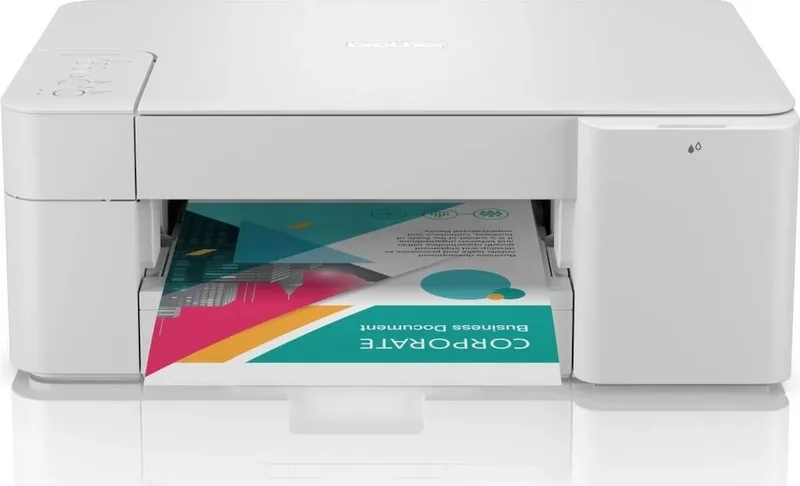
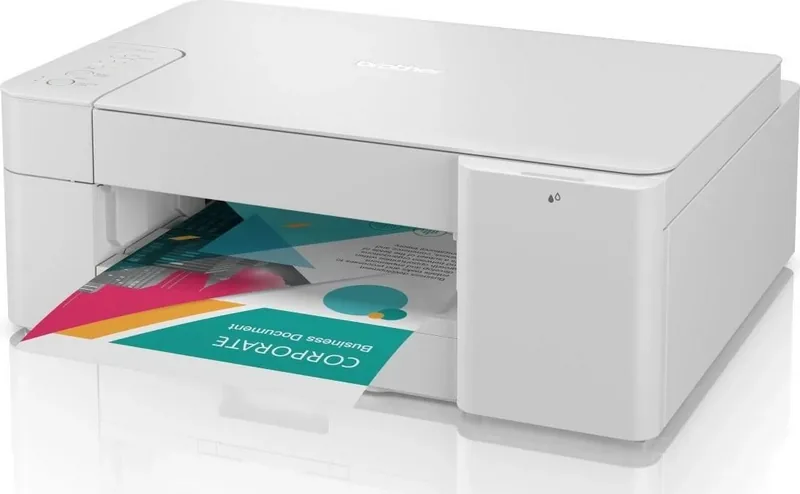
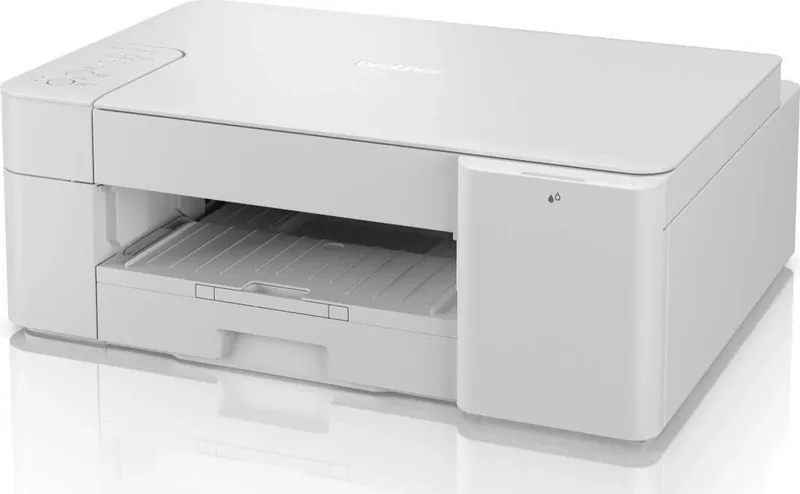
Brother DCP-J1200W Manual
PDF manual · 241 Pages
English



Quick check
Incorrect answer, please try again.
Chat with your Brother DCP-J1200W manual using AI
Get instant AI answers from your Brother DCP-J1200W manual
Ask anything about the Brother DCP-J1200W. Answers come from this manual, with the pages they are based on.
DCP-J1200W Maintenance Schedule
Clean the printhead if horizontal lines or gaps appear in text or graphics. Use manual cleaning via buttons or computer.
Clean the paper feed rollers if ink or paper dust accumulates to prevent feeding problems.
Clean the scanner glass and white film with a soft damp cloth if copies have spots or smudges.
Remove ink stains from the platen roller with a dry soft cloth to prevent smudged prints.
Clean the front and back of paper supply rollers with a damp cloth if they are dirty or dusty.
Clean the lower fixing pad regularly to prevent the device from feeding multiple sheets at once.
Replace cartridges when the ink LED indicates low level or empty status.
Contact service partner to replace the full ink absorber container as it requires periodic replacement.
Ask a Question
Do you recommend DCP-J1200W?
Yes No
Zechariah Dickens
5 months ago
Does the Brother DCP J1200 support double-sided printing and how is the mobile app setup?

Manual.ly
5 months ago
The Brother DCP J1200 does not feature automatic double-sided printing, though it handles single-sided documents efficiently. The device can be controlled via a dedicated smartphone app or physical buttons. While some users find the initial app connection requires adjustment, it generally works well for remote printing tasks. Note that the included ink supply is minimal and may only suffice for initial setup.
Michael Weber
7 months ago
Why did my printer fail during the initial ink installation process?
Frequently Asked Questions
To connect the printer to your Wi-Fi network, press the Wi-Fi button on the control panel. Follow the on-screen prompts using the Brother Mobile Connect app or the Web Based Management interface. You can also use WPS if your router supports it by pressing the WPS button on the router and then the Wi-Fi button on the printer simultaneously.
Is this answer helpful?
Yes, you can print photos directly from your smartphone using the Brother iPrint&Scan app available for iOS and Android. Simply select the photo from your device gallery, choose the printer, adjust settings like paper type and size, and send the print job wirelessly.
Is this answer helpful?
The Brother DCP-J1200W allows you to make up to 999 copies in a single job. You can set the number of copies directly on the control panel or through the driver settings on your computer before starting the copy process.
Is this answer helpful?
Yes, the DCP-J1200W supports scanning directly to email. You can configure this feature using the Brother iPrint&Scan software on your computer. Once set up, you can scan a document and have it automatically sent as an attachment to a specific email address or folder.
Is this answer helpful?
No, this model does not support automatic double-sided printing. However, it does offer manual duplex printing, where the printer prints one side, pauses, and prompts you to flip the stack of paper to print the second side.
Is this answer helpful?
You should clean the print heads whenever you notice faded lines or missing colors in your prints. The printer has an automated cleaning function accessible via the control panel or software. Regular maintenance helps prevent clogs and ensures consistent print quality.
Is this answer helpful?
The Brother DCP-J1200W uses LC3637 series ink cartridges. These include black, cyan, magenta, and yellow options. Using genuine Brother cartridges is recommended to ensure optimal print quality and prevent damage to the print head mechanism.
Is this answer helpful?
Advantages and Disadvantages
Advantages

- Wireless connectivity with AirPrint and Mopria support
- Compact all-in-one design saves desk space
- Supports a wide variety of paper types and sizes
- Easy-to-use Brother iPrint&Scan mobile application
- Manual duplex printing reduces paper costs
Disadvantages

- No automatic double-sided printing capability
- Ink cartridge replacement costs can add up over time
- Maximum print speed is moderate compared to laser printers
- Photo paper capacity is limited to 20 sheets at a time
- Web-based management requires a stable network connection
Product Specification
Format
A4 (Print), A4 (Scan)
Type
Printer/Scanner/Copier
Color System
4-color, 4 individual cartridges
Consumables
LC424
Printing
2400x1200dpi - 16/9 ppm (A4) (ISO)
Scanning
1200x600dpi (CIS) (A4)
Copying
1200x600dpi
Paper Input
150 sheets
Memory
128MB (RAM)
Connections
1x USB-B 2.0
Network
Wi-Fi 4 (WLAN 802.11b/g/n), Wi-Fi Direct, AirPrint, Mopria
Display
N/A
Sound Pressure Level
53.0dB(A)
Emulation
GDI
Case Color
gray
Dimensions
17.1x6.3x14.1 inches
Weight
14.3 lbs
Manufacturer Warranty
3 years in AT/DE/PL (on-site after registration), one year in UK
Product Description
Brother DCP-J1200W Ink Multicolor Review
The Brother DCP-J1200W is a versatile all-in-one inkjet printer designed for home offices and small businesses that demand high-quality color printing without breaking the bank. This multifunction device seamlessly combines printing, scanning, copying, and faxing capabilities into a compact footprint, making it an ideal choice for users who need flexibility in a limited space. The standout feature of this model is its ability to deliver vibrant, multicolor output with sharp text clarity, ensuring that both documents and photos look professional.
One of the primary advantages of the DCP-J1200W is its wireless connectivity. With built-in Wi-Fi support, users can easily print from various devices including smartphones, tablets, and laptops without the need for cumbersome cables. The inclusion of AirPrint and Mopria Print Service compatibility allows for seamless integration with iOS and Android devices, enabling instant printing from anywhere within the network range. For those who prefer mobile convenience, the Brother iPrint&Scan app offers a user-friendly interface to manage print jobs, scan documents directly to email or cloud storage, and monitor ink levels remotely.
The printer excels in paper handling versatility. It supports a wide array of media types ranging from standard A4 paper to glossy photo paper in 10x15 cm formats. Users can also print on envelopes and custom-sized papers, provided they adjust the settings accordingly. The manual duplex printing feature allows for cost-effective two-sided printing, which is perfect for creating brochures or reducing paper waste. Additionally, the N-on-1 function enables multiple pages to be printed on a single sheet, further enhancing efficiency.
Maintenance is straightforward with clear LED indicators that alert users to issues such as low ink or paper jams. The device features a user-replaceable ink cartridge system, allowing for quick swaps when colors run low. While the initial cost of the printer is low, prospective buyers should consider the ongoing cost of replacement ink cartridges. Despite this, the overall value proposition remains strong for users seeking a reliable, feature-rich printer that handles everyday tasks with ease.
Key Notes:
- Supports wireless printing via Wi-Fi Direct.
- Compatible with Windows and macOS operating systems.
- Includes OCR software for converting scanned images to editable text.
- Features a compact design suitable for small desks.
Search for 67,706 Manuals online


Type-in Brand or Model
Sven Richter
10 months ago
Does the setup ink come in enough for initial setup, and what if the process stops with an error? Also, is the printer easy to control without a display?
Manual.ly
10 months ago
For many Brother DCP models, the included starter ink cartridges are limited and may only be enough to get the printer running. If your setup stops with a message, first remove and reinsert the cartridges firmly, check that you installed the correct ink type, and restart the setup. Make sure the printer completes its initialization steps and that there is no connection issue during app pairing. If the error persists or you cannot finish setup, we recommend contacting support with the exact error text and your cartridge model so we can advise the right next step. The device can be operated via the Brother app and buttons even without a display.