
Brother ADS-1200 Manual
PDF manual · 219 Pages
English



Quick check
Incorrect answer, please try again.
Chat with your Brother ADS-1200 manual using AI
Get instant AI answers from your Brother ADS-1200 manual
Ask anything about the Brother ADS-1200. Answers come from this manual, with the pages they are based on.
ADS-1200 Maintenance Schedule
Clean the Separation Pad and Pick Up Roller if the Scheduled Maintenance Alert appears or after approximately 5,000 scans to prevent jams.
Replace the Separation Pad with a new one after approximately 10,000 scans when the replacement alert appears.
Replace the Pick Up Roller with a new one after approximately 100,000 scans when the replacement alert appears.
Ask a Question
Do you recommend ADS-1200?
Yes NoFrequently Asked Questions
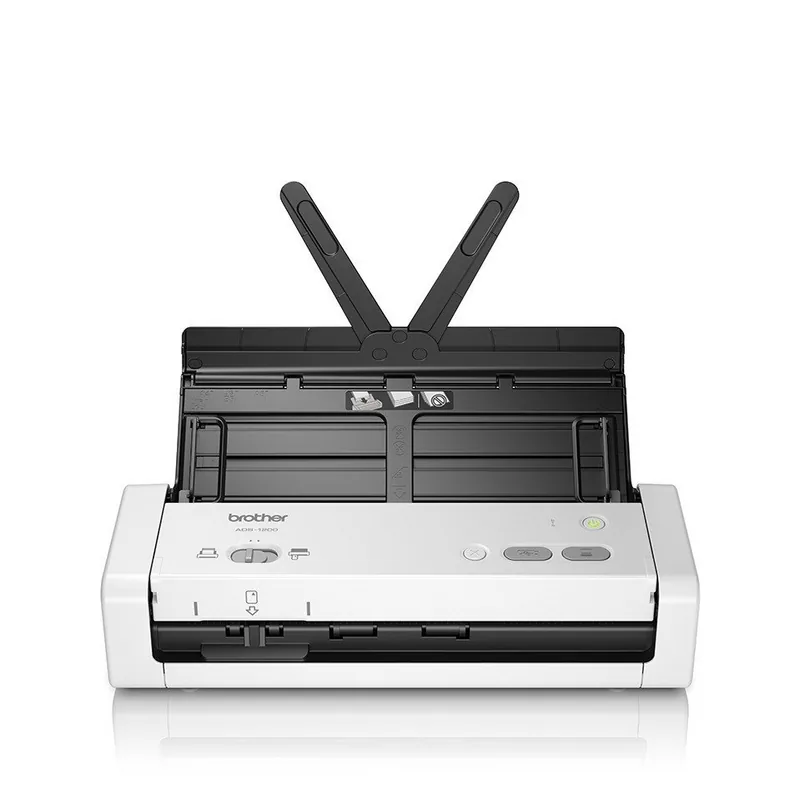
The Brother ADS-1200 is a compact document scanner for digitizing everyday paperwork at home, in a small office, or while traveling. It supports scanning to a connected computer or directly to a USB flash drive.
Is this answer helpful?
The automatic document feeder supports up to 20 sheets of standard paper. For smoother feeding, fan the stack, align the edges, and avoid mixing paper with very different thicknesses or finishes.
Is this answer helpful?
Yes. Duplex scanning is available for supported documents and can be selected in compatible scan software. Duplex scanning is not available when scanning long paper.
Is this answer helpful?
Yes, but a carrier sheet is recommended for receipts, thin pages, photos, folded sheets, irregular sizes, and other delicate originals. Load only one small document in a carrier sheet at a time.
Is this answer helpful?
Yes. The scanner supports one plastic card at a time through its card feed mode. Cards may be inserted in either orientation, but certain embossed cards may not produce ideal results.
Is this answer helpful?
Bus power mode lets the scanner receive power from a computer USB connection, which is useful away from a wall outlet. It requires a micro USB 3.0 cable and operates with reduced speed and feature limitations.
Is this answer helpful?
Advantages and Disadvantages
Advantages

- Compact scanner design suits limited desks, shared offices, and portable work setups.
- Automatic document feeder handles up to 20 sheets for convenient batch scanning.
- Dedicated Scan to PC and Scan to USB buttons support simple, direct workflows.
- Supports standard pages, long documents, receipts, business cards, and plastic cards.
- Bus power mode can run from a computer USB connection with a micro USB 3.0 cable.
Disadvantages

- Bus power mode reduces scan speed and does not support long paper, thick paper, or scan-to-USB.
- Carrier sheets for delicate or unusual documents are recommended but are not included.
- Plastic cards must be scanned one at a time and some embossed cards may not scan correctly.
- Documents with staples, clips, tape, folds, wet ink, or unsuitable coatings can cause jams or damage.
- Advanced scan preferences require software or Remote Setup rather than front-panel adjustment.
Product Specification
Type
Document scanner (CIS)
Resolution
600 x 600 dpi
Speed
25/25 ppm (B&W/color)
Paper/film size
Letter
Paper/film input
20-sheet DADF, duplex unit
Memory
256 MB (RAM)
Ports
1x USB 3.0, 1x USB-A 2.0 (host)
Wireless
N/A
Display
N/A
Software
OCR software (PaperPort 14)
Power consumption
8 W (typical), 3.2 W (standby), 1.3 W (sleep)
Dimensions
11.81 x 3.27 x 4.06 in
Weight
3 lb
Special features
LED illumination, USB direct scan, separate document feeder
Manufacturer warranty
3 years in AT/DE/PL (on-site after registration), 1 year in the UK
Product Description
Brother ADS-1200 Manual: Compact Scanning for Everyday Work
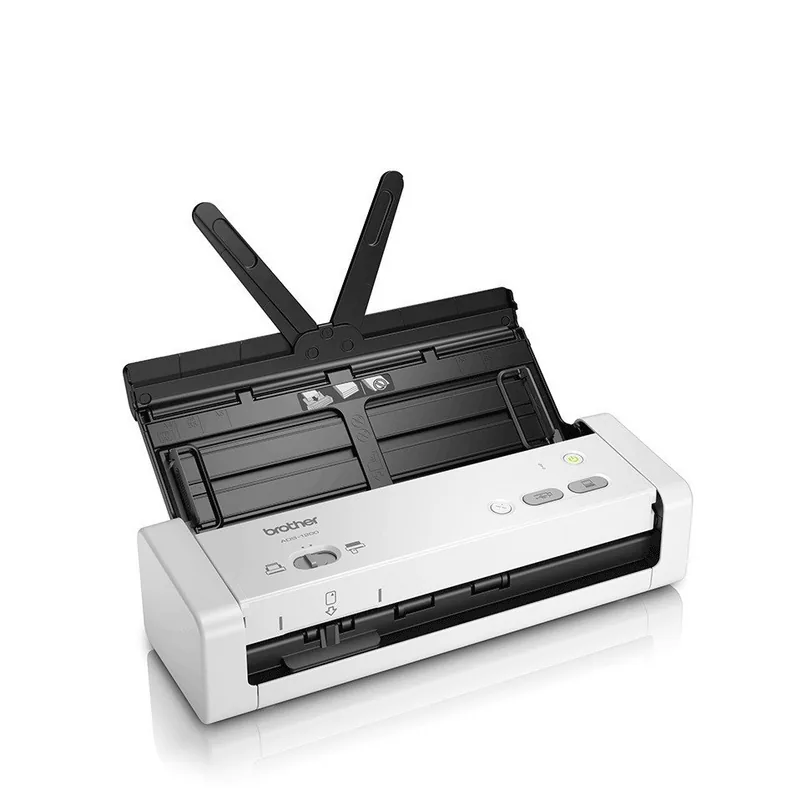
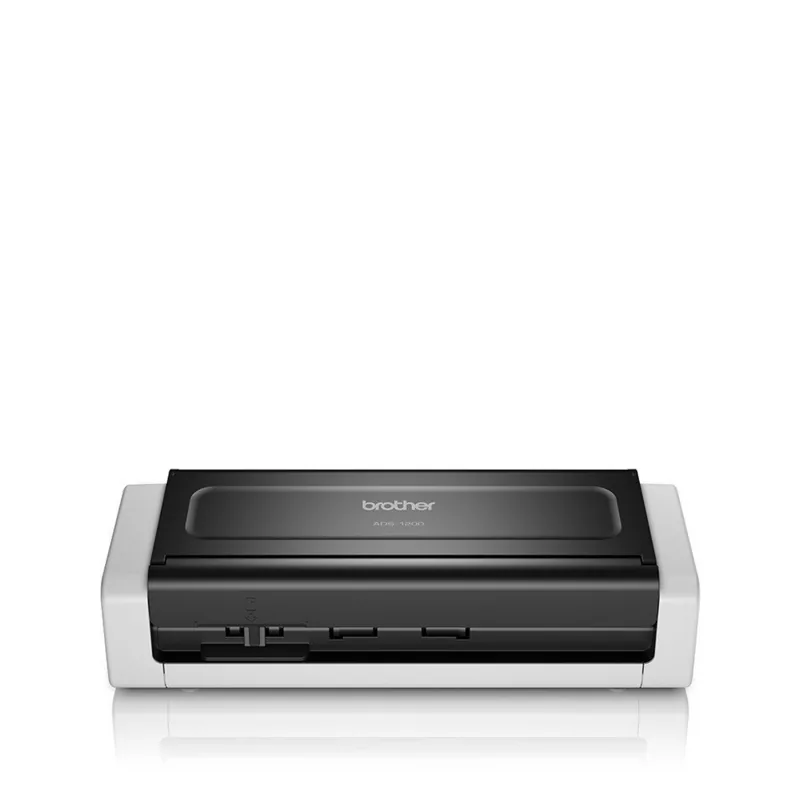
The Brother ADS-1200 is a compact document scanner designed for home offices, mobile professionals, and small teams that need a practical way to digitize paperwork. The Brother ADS-1200 Manual highlights a straightforward scanner built around USB connectivity, an automatic document feeder, and direct scan-to-PC or scan-to-USB functions. Its portable footprint makes it a useful option where desk space is limited but regular document capture is still important.
The scanner uses an automatic document feeder that can hold up to 20 standard paper sheets. It supports common sizes such as A4, Letter, Legal, A5, and A6, while also accommodating receipts, business cards, long documents, and plastic cards with the appropriate feed mode. Paper guides help align pages before scanning, which is useful for keeping multi-page batches organized. For special, fragile, narrow, folded, or irregular originals, a carrier sheet is recommended to protect both the original and the scanner mechanism.
A key advantage of the Brother ADS-1200 is its simple control layout. Dedicated buttons let users scan directly to a connected computer or a USB flash drive, while a stop button cancels an active job. Scan settings such as resolution, color mode, file size, document size, and duplex scanning can be configured through Brother software or Remote Setup. This gives users flexibility to create scans suited for archiving, sharing, or everyday record keeping.
The Brother ADS-1200 Manual also explains bus power mode, which allows the scanner to receive power through a computer USB connection when using a compatible micro USB 3.0 cable. This feature can be valuable for travel or temporary workspaces without convenient access to a wall outlet. However, bus power mode has limits: scanning speed is reduced, long or thick paper is not supported, and scan-to-USB is unavailable in this mode.
For computer-based workflows, the scanner works with Brother iPrint&Scan and can be used with compatible Windows and Mac scanning applications. Options such as automatic color detection, blank-page removal, image rotation, deskewing, brightness, contrast, and edge adjustment help refine results. Duplex scanning is available for supported paper types, helping reduce the time spent processing double-sided records.
Notes
- Use clean, dry documents without staples, clips, tape, or wet ink.
- Fan paper stacks and align edges before loading the feeder.
- Clean rollers and sensors regularly to support reliable feeding.
- Use a micro USB 3.0 connection for bus power mode.
Search for 67,706 Manuals online


Type-in Brand or Model