

Braun DigiFrame 159 Business Line Manual
PDF manual · 60 Pages
English



Quick check
Incorrect answer, please try again.
Chat with your Braun DigiFrame 159 Business Line manual using AI
Get instant AI answers from your Braun DigiFrame 159 Business Line manual
Ask anything about the Braun DigiFrame 159 Business Line. Answers come from this manual, with the pages they are based on.
DigiFrame 159 Business Line Maintenance Schedule
The CR2025 battery lasts about half a year under normal conditions. Replace it if the remote control stops functioning.
If fingerprints or dust accumulate, use a soft non-abrasive cloth moistened with cleaning solution. Handle carefully as the glass screen can scratch.
Free maintenance reminders
Timed to your purchase date. Always free, unsubscribe anytime.
Ask a Question
Do you recommend DigiFrame 159 Business Line?
Yes NoDo you recommend DigiFrame 159 Business Line?
Yes NoFrequently Asked Questions
You need to create a TXT file and save it in Unicode format. Name the file SCROLL.TXT in capital letters. Copy this file to your USB stick or memory card. Insert the media into the frame. The subtitles will display automatically during photo, music, or video playback.
Is this answer helpful?
Yes, the device supports an HDMI-IN function. You can connect a device with an HDMI output to the HDMI-IN interface on the frame. Then press the source button and select HDMI as the signal source to view the external input.
Is this answer helpful?
The capacity of the built-in memory is 8 GB. Files from a USB stick can be copied automatically if you add a specific text file. Ensure you back up files in the built-in memory or they may be deleted after use.
Is this answer helpful?
Treat the screen with care as it is made of glass. Use a soft, non-abrasive cloth like a camera lens cloth. You may moisten the cloth with a cleaning solution. Do not apply liquid directly to the screen to avoid damage.
Is this answer helpful?
No. This device is designed only for private use and is not intended for commercial utilization. Using it for business purposes may invalidate the warranty or violate terms.
Is this answer helpful?
Mark the setup icon on the main menu and press enter. Select the language option. You can choose from English, German, French, Italian, Spanish, Dutch, Romanian, or Greek.
Is this answer helpful?
You can adjust the brightness level through the setup menu. Access the setup, select brightness, and press enter. You can select a value between zero for lowest setting to one hundred for highest setting.
Is this answer helpful?
Advantages and Disadvantages
Advantages

- HDMI-IN support allows connection of external video sources directly
- Built-in 8GB memory storage for quick access to copied files
- Subtitle scrolling function enhances video viewing experience
- Supports wide range of formats including JPEG, MP3, AVI, MPEG
- Remote control included for easy navigation from a distance
Disadvantages

- Private use only; commercial usage is not permitted
- Remote control requires separate CR2025 battery replacement
- Glass screen is fragile and requires careful cleaning
- File copy to internal memory requires specific filename naming
- No WiFi capability for direct internet media streaming
Product Specification
Display
15.6" / 15.6 in
Resolution
1920x1080
View Angle
178° / 178°
Formats
JPEG, BMP, GIF, PNG, MOV, MPG, AVI, VOB, MP4
Internal Storage
8GB
Card Reader
SD/SDHC/SDXC
Ports
1x USB 2.0 (Host), 1x HDMI, 3.5mm Jack
Dimensions (WxHxD)
14.96" x 9.53" x 1.18"
Weight
2.76 lbs
Features
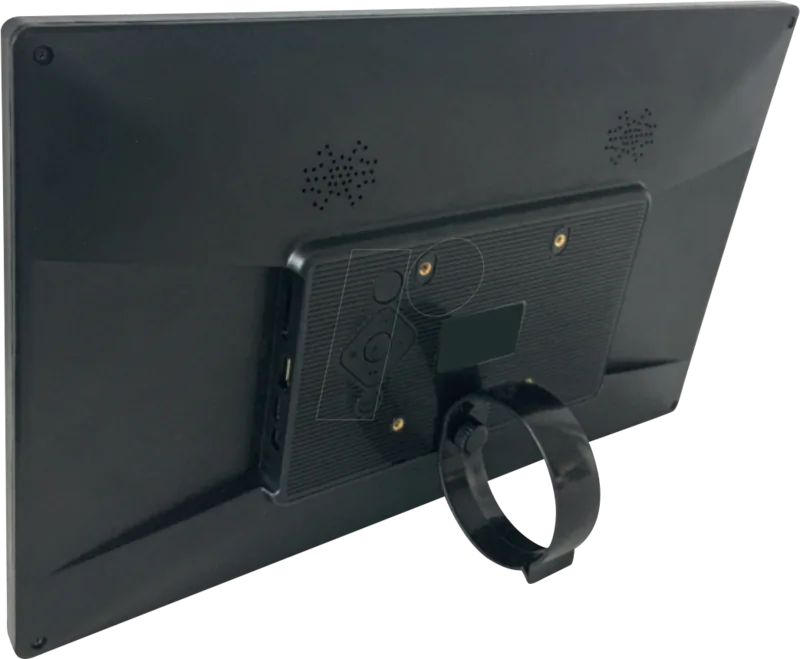
IPS Panel, Motion Sensor, Integrated Speakers (2x 3W), VESA 75x75, Remote Control
Product Description
Elevate Your Digital Display Experience with Braun
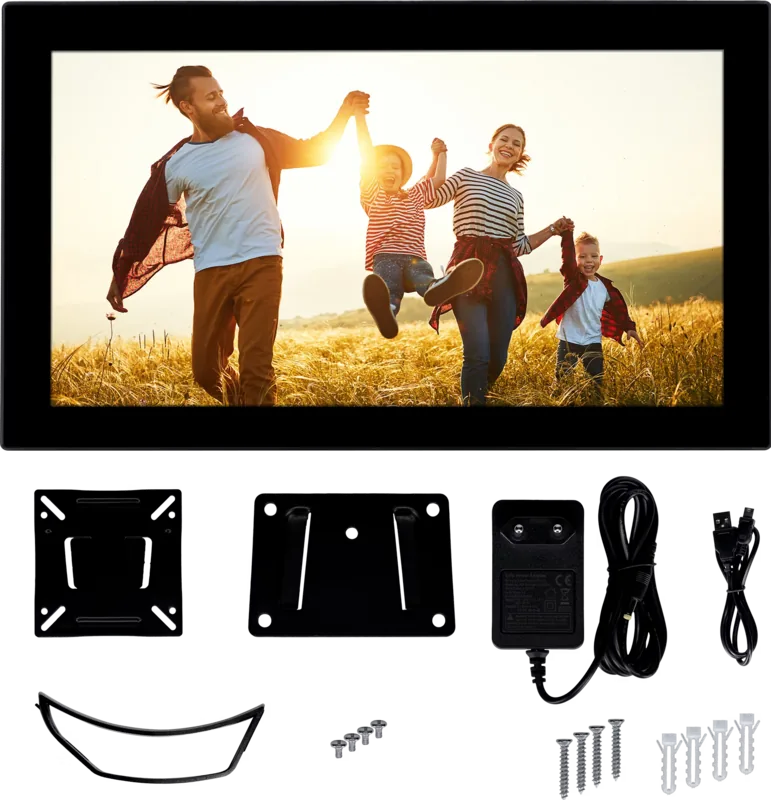
Welcome to the future of digital displays with the Braun DigiFrame 159 Business Line. This sleek black device transforms your personal memories into an interactive visual experience suitable for any home or office environment. By utilizing the Braun DigiFrame 159 Business Line black Manual, you can easily set up the unit for immediate use. The frame features a large screen that delivers vibrant colors and sharp details for your photos. You do not need to be a tech expert to operate this machine. Connectivity options include a USB port and memory card slots for versatile storage solutions. The HDMI-in function allows direct video input from external devices. Background music can be added to slideshows for enhanced engagement. Running subtitles are supported during video playback for better understanding. A remote control facilitates navigation without needing to touch the screen. Users can adjust brightness and contrast levels to suit lighting conditions. The internal memory capacity holds eight gigabytes of data for quick access. Copying files from a USB stick to the internal storage ensures convenience. The device includes an integrated clock and alarm for time management. Regular maintenance with a microfiber cloth keeps the glass screen clear. Always avoid exposing the unit to direct sunlight or moisture. This equipment is intended for private consumption purposes only. Commercial activities may violate warranty terms specified in the manual. Enjoy showcasing your best moments with this reliable modern frame. It represents a perfect blend of functionality and elegant design for your living space or workplace.
Video playback supports numerous formats such as MPEG and AVI for seamless entertainment. Audio files can be played in MP3 format while you browse through your photo collection. The setup menu allows you to customize the slideshow timing intervals effectively. You can choose between one-time, daily, or continuous automatic power settings. The calendar function helps maintain your schedule directly on the screen. Troubleshooting guides assist in resolving common power or remote control issues quickly. Battery life for the remote is optimized for standard usage patterns. Ensure the device ventilation holes remain unblocked to prevent overheating during long play sessions. If no power is detected, check the plug connection firmly in the socket. If a file fails to play, verify the format compatibility list beforehand. The color balance can be tuned to reduce eye strain during evening viewing. This versatile gadget keeps your digital life organized and accessible at all times.
The battery type required for the remote control is a standard lithium button cell. Replacing it is simple after half a year of normal use. The screen surface is glass and requires gentle handling to avoid scratches. Cleaning should be done only when the device is powered off for safety. You can rename subtitle files to ensure they appear correctly during playback. This attention to detail ensures a professional display at all times. Proper placement avoids heat accumulation and extends the lifespan of the electronics inside. Regular updates to your file library keep the frames fresh and engaging. It is an excellent choice for families and business professionals alike. Experience seamless transitions between your media files effortlessly.
Notes
- Only for indoor use.
- Use CR2025 battery for remote.
- Support for subtitles requires specific file naming.
- HDMI input requires compatible source device.
- Ventilation holes must not be covered.
- Do not dismantle the unit for warranty reasons.
Search for 67,732 Manuals online


Type-in Brand or Model