
BakkerElkhuizen OysterMouse Wireless Manual
PDF manual · 1 Pages
English


Quick check
Incorrect answer, please try again.
Chat with your BakkerElkhuizen OysterMouse Wireless manual using AI
Get instant AI answers from your BakkerElkhuizen OysterMouse Wireless manual
Ask anything about the BakkerElkhuizen OysterMouse Wireless. Answers come from this manual, with the pages they are based on.
Ask a Question
Do you recommend OysterMouse Wireless?
Yes NoFrequently Asked Questions
It works on Mac but copy and paste functions are not supported.
Is this answer helpful?
Open to the released position first before closing to prevent breakage.
Is this answer helpful?
It connects but the manual specifies up to Win 7 for all features.
Is this answer helpful?
Yes, it supports both hands via a dedicated switch mode configuration.
Is this answer helpful?
Only if not from misuse or forcing the joint without releasing first.
Is this answer helpful?
It connects via a USB port using the included cable interface.
Is this answer helpful?
Left click, right click, and scroll are standard with extra click modes.
Is this answer helpful?
Advantages and Disadvantages
Advantages

- Adjustable mechanical design reduces wrist strain during long work.
- Compatible with Windows up to Win 7 for full feature access.
- Supports both left and right handed users via switch mode.
- Wired USB connection ensures stable data transfer without pairing.
- Includes detailed manual for proper maintenance and safe usage.
Disadvantages

- Copy paste functions do not work when used on Mac computers.
- Joint requires specific release position to close safely without damage.
- Warranty does not cover damage resulting from misuse or force.
- Limited support for newer Windows versions beyond 7 specified.
- Manual handling required to prevent mechanical breakage of joints.
Product Specification
Handedness
Both hands (left hand, right hand, vertical)
Buttons
5 (total), 2 (main), 2 (side), 1 (scroll wheel click)
Scroll Wheel
1x 2-way
Sensor
LED-red/IR
Resolution
1200 dpi
Backlight
N/A
Connection
Wireless, USB-A 2.0
Power Supply
Battery (built-in)
Dimensions (WxHxD)
3.54x1.77x3.74 in
Volume (Approx)
6.16 in^3 (approximate shape)
Weight
5.11 oz
Color
multicolor, black/silver
Features
Thumb rest, Geometry adjustable (tilt), Charging status indicator, left hand/right hand mode switchable
Product Description
Discovering the BakkerElkhuizen Oyster Mouse Wireless Medium, USB Manual Experience
An Innovative Ergonomic Solution
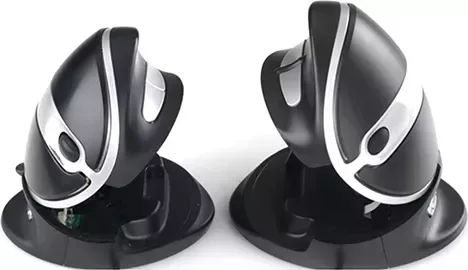
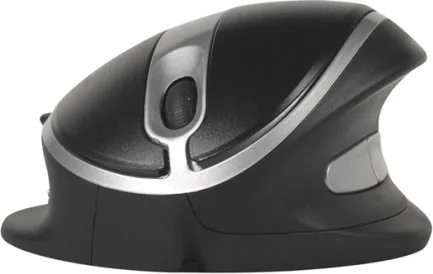
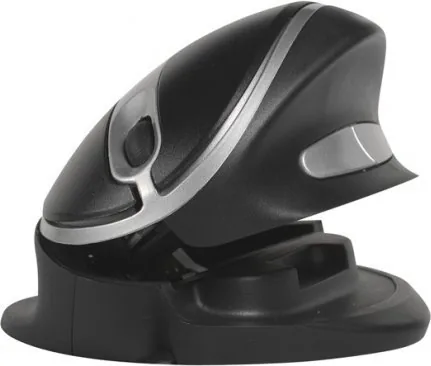
The BakkerElkhuizen Oyster Mouse Wireless Medium, USB Manual represents a unique approach to computer interaction for modern users. Designed specifically for those who value flexibility and physical comfort, this device stands out significantly in the crowded peripheral market today. Unlike traditional static mice found everywhere, the OysterMouse features a distinct mechanical design that allows for adjustable angles and positioning. This adaptability helps reduce wrist strain during long working hours, making it an ideal companion for both busy office environments and home setups alike.
Connectivity and Compatibility Details
Users can easily connect the OysterMouse securely to a standard USB port on their computer system. The device operates reliably on Windows systems up to Windows 7 version. It is important to note that specific features will behave differently depending on the operating system in use. For instance, copy and paste functions are not supported when using a Mac computer system. Therefore, Windows users gain access to the full range of functionality intended by the designers. The wired USB connection ensures reliable data transfer without the hassle of complex wireless pairing processes usually required.
Usability and Physical Handling Instructions
The manual guide emphasizes understanding mechanical functions completely before initial use begins. The mouse opens naturally to a position you find comfortable for your hand. To close the mouse safely or reduce the angle, you must first open to the released position completely. This specific mechanism prevents serious damage to the internal joint structure. If too much force is used when pressing the top of the mouse down without the release mechanism first, the joint might break permanently. In this case, such damage is not covered by the standard warranty policy. Warranty does NOT cover user misuse or negligence.
Hand Positioning and Button Functions
This device supports both left and right handed users through a dedicated switch mode feature. Button functions vary based on which hand is utilized during operation. Left click, scroll, and right click capabilities are standard across configurations. Some specific configurations allow for paste and copy double clicks depending on the selected hand mode setting. Understanding how the switch mode affects button functionality ensures optimal workflow efficiency without the need for constant adjustments during work sessions.
Maintenance and Warranty Awareness Guidelines
Proper care is absolutely essential for maximum longevity of the mouse unit. Users should handle the folding joints with extra care and caution always. Always ensure the mechanism is in the released position before closing the device. This simple step protects the internal plastic joints from snapping under heavy pressure. Reading the BakkerElkhuizen Oyster Mouse Wireless Medium, USB Manual documentation fully prevents accidental damage to the unit. It serves as a vital guide to longevity for this distinctive input device.
Search for 67,706 Manuals online


Type-in Brand or Model
Klara Schmidt
7 months ago
Does the adjustable tilt mechanism tend to fail within the first year of use?
Manual.ly
7 months ago
Thank you for asking. Product reliability can vary per unit. If the mechanism malfunctions under warranty, please contact our support team with your proof of purchase. They will guide you through the next steps for repair or replacement options available.