
BakkerElkhuizen Evoluent D Manual
PDF manual · 8 Pages
English



Quick check
Incorrect answer, please try again.
Chat with your BakkerElkhuizen Evoluent D manual using AI
Get instant AI answers from your BakkerElkhuizen Evoluent D manual
Ask anything about the BakkerElkhuizen Evoluent D. Answers come from this manual, with the pages they are based on.
Ask a Question
Do you recommend Evoluent D?
Yes NoFrequently Asked Questions
The recommended posture involves placing your wrist in a neutral position, similar to shaking hands. This avoids the full turning found in standard mice where the palm faces down. It is easier to maintain and more pleasant during extensive computer sessions. This neutral posture helps improve comfort and productivity.
Is this answer helpful?
Yes, you can customize button functions using the Evoluent Mouse Manager driver software. You can assign tasks like back navigation, copy, paste, or launch applications. The top button is left click, bottom is right click, and middle is auto-scroll. Some thumb buttons require drivers to function fully.
Is this answer helpful?
To adjust the speed, press the button located on the side of the mouse. You can read the current setting from the indicator lights on the top of the mouse. This allows you to set the speed according to your preference and workflow needs.
Is this answer helpful?
Before connecting, remove any previous EVOLUENT Mouse Manager software via Control Panel. Uncheck Swap Primary and Secondary Buttons and Enhance Pointer Precision in Mouse settings. Set pointer speed to the middle position. Insert the USB connector into a port directly on the computer.
Is this answer helpful?
Yes, drivers are available for both Mac and Windows users. You can download the latest driver from the official website. The driver allows you to program buttons and adjust scroll speeds for optimal performance.
Is this answer helpful?
Combining the Evoluent Mouse with a compact keyboard reduces arm strain. It minimizes the distance you need to reach when moving from keyboard to mouse. This setup supports a healthier working posture and reduces fatigue during long workdays.
Is this answer helpful?
For more information about ergonomic solutions, you can visit the official BakkerElkhuizen website. The site provides details on their product portfolio and other devices designed to improve workspace comfort.
Is this answer helpful?
Advantages and Disadvantages
Advantages

- Promotes neutral handshake grip posture to reduce wrist strain
- Customizable buttons via Evoluent Mouse Manager driver software
- Adjustable scroll speed with side button and indicator lights
- Auto-scroll function on middle button for better navigation
- Reduces risk of repetitive strain injuries over long use
Disadvantages

- Requires driver installation for full advanced customization features
- Bottom thumb button requires driver to function properly
- USB wired connection only, no wireless option included
- Initial setup requires removing old software to avoid conflicts
- May take time to adapt from flat mouse to vertical style
Product Specification
Handedness
Right Hand (vertical)
Buttons
6 (total), 3 (main), 2 (side), 1 (scroll wheel click)
Scroll Wheel
1x 2-way
Resolution
3200 dpi, adjustable to 2400/1600/800 dpi
Lighting
N/A
Connection
Wired (7.22 ft), USB
Power
USB
Color
Multicolor, gray/black
Product Description
Revolutionizing Your Workspace with the BakkerElkhuizen Evoluent D Vertical Mouse
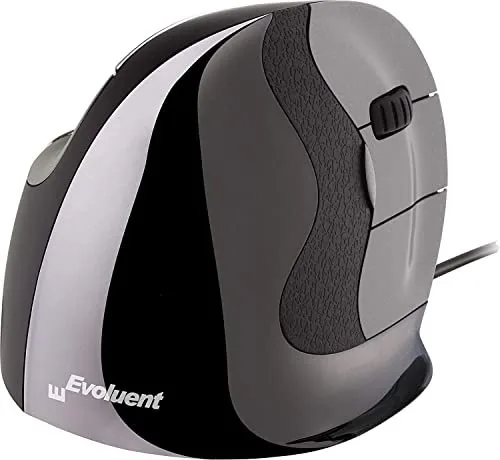
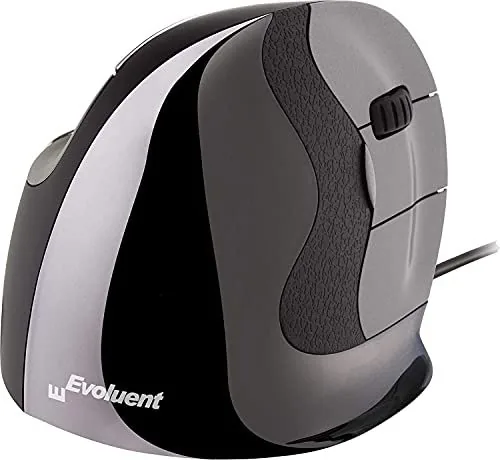
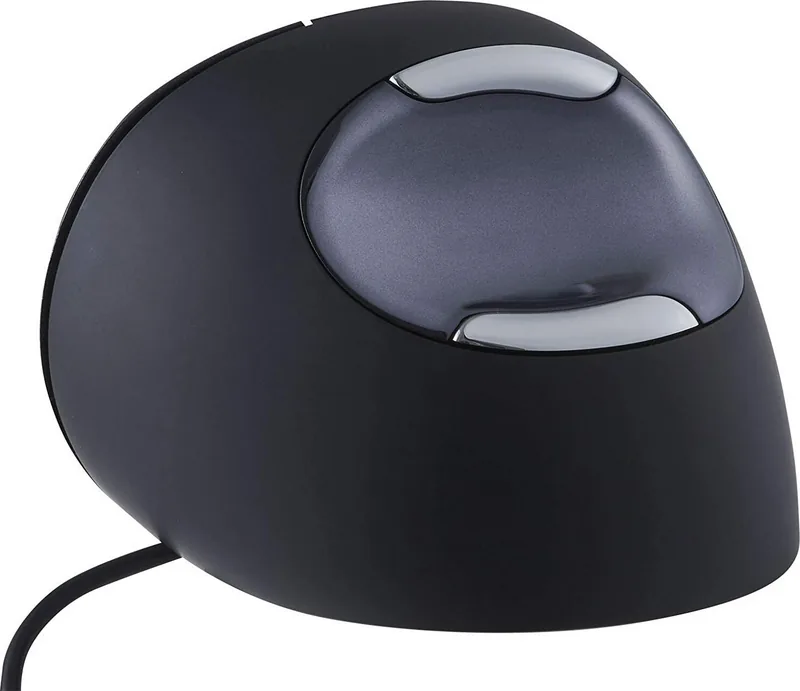
Using a standard mouse often forces your wrist into an unnatural position where the palm faces downwards. This posture can lead to strain and discomfort over long periods. The BakkerElkhuizen Evoluent D Vertical Mouse, USB Manual confirms that a handshake grip position provides a neutral posture for your wrist. This is easier to maintain and feels more pleasant during extensive use. The more comfortable you are sitting in front of your computer, the more productive you can be. This device stands out as the most advanced vertical mouse in the BakkerElkhuizen product portfolio.
Ergonomic Design and Comfort
The Evoluent mouse promotes a healthier working posture. By adopting the vertical design, users can maintain a natural handshake grip. This reduces the pronation of the forearm and minimizes the risk of repetitive strain injuries. The device is designed to reduce stress on your hands and wrists significantly. Many users find this transition easier to adapt to compared to conventional mice. It is an ideal solution for professionals who spend hours navigating digital documents and applications daily.
Customization and Control
One of the standout features is the ability to customize button functions. The mouse includes standard button settings where the top button acts as the left click and the bottom as the right click. The middle button handles auto-scroll functions effortlessly. Additionally, there are thumb buttons that can be programmed via the Evoluent Mouse Manager driver software. Users can assign various tasks such as back navigation, copy, paste, or even launch specific applications. This level of control streamlines workflows and enhances overall efficiency.
Installation and Performance
Setting up the device involves standard procedures for Windows and Mac users. Before connecting, it is recommended to remove any previous software to avoid conflicts. You can adjust the scroll speed using a button located on the side, with indicator lights showing the current setting. For advanced features, downloading the latest driver from the official website is essential. The driver offers extensive options for programming buttons and adjusting scroll speeds. Combining this mouse with a compact keyboard can further reduce arm strain by minimizing reach.
Productivity and Health
Investing in ergonomic tools is an investment in long-term health for professionals. The Evoluent D helps maintain comfort throughout the entire workday. By prioritizing neutral posture, users can work longer without fatigue or pain. The manual details specific steps to ensure optimal performance on your system. Whether you are a graphic designer or an office worker, this mouse supports your physical well-being while boosting productivity effectively. Many users report a noticeable improvement in wrist comfort within the first week. For more information about our ergonomic solutions, users can visit the official BakkerElkhuizen website directly. Always check driver compatibility and ensure USB port is working properly. Ensure a balanced setup for best results.
Search for 67,706 Manuals online


Type-in Brand or Model