
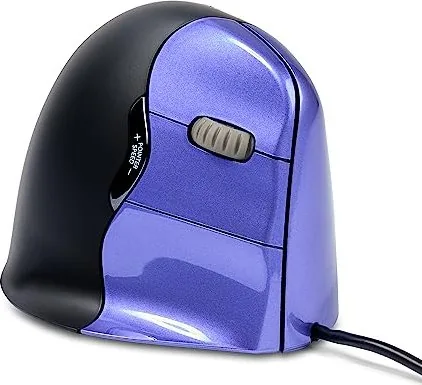
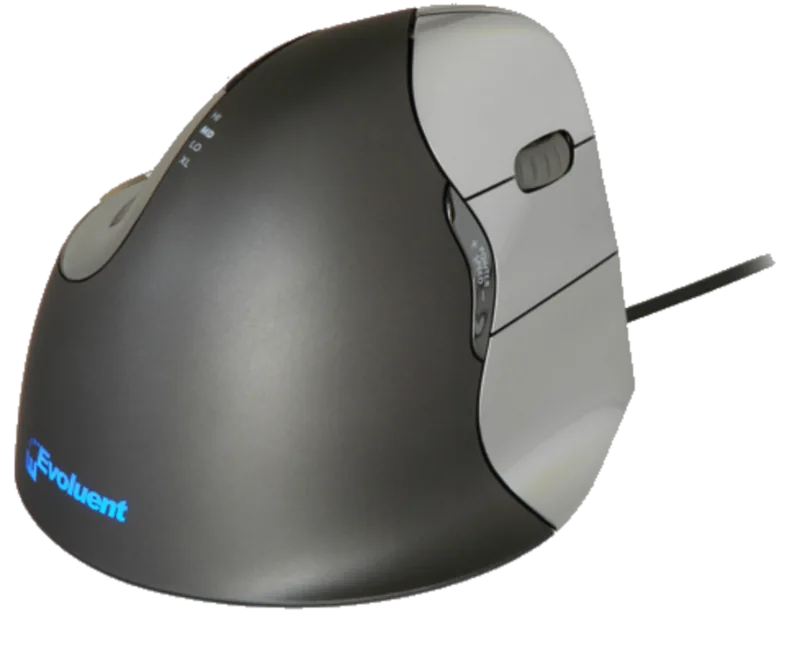
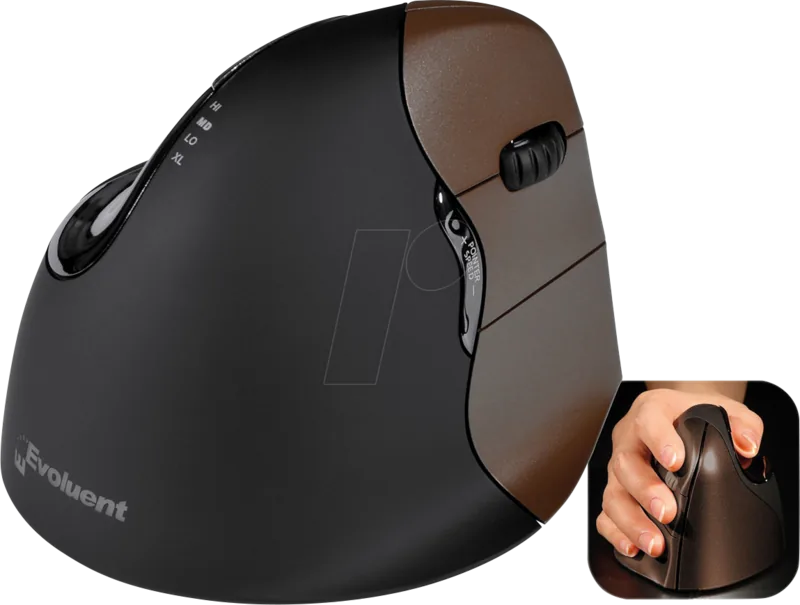
BakkerElkhuizen Evoluent 4 Small Manual
PDF manual · 8 Pages
English



Quick check
Incorrect answer, please try again.
Chat with your BakkerElkhuizen Evoluent 4 Small manual using AI
Get instant AI answers from your BakkerElkhuizen Evoluent 4 Small manual
Ask anything about the BakkerElkhuizen Evoluent 4 Small. Answers come from this manual, with the pages they are based on.
Ask a Question
Do you recommend Evoluent 4 Small?
Yes No
Lena Vogel
11 months ago
Is this mouse worth the price? Mine feels like basic plastic and the cable is not fully sheathed. Also, can I really remap the buttons with the software?

Manual.ly
11 months ago
The price reflects the ergonomic shape and precision design, and many users find it quickly improves wrist and elbow comfort, especially for smaller hands. The software/driver included with the mouse is designed to let you freely remap the buttons and set assignments to your workflow. If you notice a cable quality issue (for example, insufficient sheathing), please contact support with a short description and photos so we can check the item and arrange a replacement or warranty handling if needed. For best longevity, avoid sharp bends and use a gentle cable strain relief at the desk or monitor arm.
Frequently Asked Questions
The neutral posture is the handshake grip position. This keeps the wrist aligned naturally and reduces pain compared to the pronation of a standard mouse.
Is this answer helpful?
Remove old software first. Set Enhance Pointer Precision and speed to middle. Connect USB directly. Select Human Interface Device Compliant Mouse if prompted.
Is this answer helpful?
Yes, download the Evoluent Mouse Manager driver. You can program buttons for functions like Alt, Back, Copy, and specific key shortcuts per application.
Is this answer helpful?
The top five buttons work standard. The bottom thumb button requires the driver to be installed to assign specific functions to it effectively.
Is this answer helpful?
Press the plus or minus button on the side of the mouse. The current setting is displayed via indicator lights on the top of the unit.
Is this answer helpful?
This unit is the USB model. It connects via a USB connector directly into a port on your computer for power and data.
Is this answer helpful?
This is the Small version. It is designed for users with smaller hands. Verify size suitability if you have larger hands.
Is this answer helpful?
Advantages and Disadvantages
Advantages

- Neutral handshake grip reduces wrist strain effectively.
- Buttons are highly customizable via available driver software.
- Speed control is accessible via physical side buttons.
- Compatible with both Windows and Mac operating systems.
- Auto-scroll and navigation features improve workflow speed.
Disadvantages

- Bottom thumb button requires driver for function activation.
- Vertical design requires an initial learning curve period.
- Requires a direct USB port connection rather than hub.
- Small size variant may not fit larger hand sizes well.
- Installation requires removing previous mouse software first.
Product Specification
Handedness
Right Hand
Buttons
7 (total), 3 (main), 2 (top), 2 (left)
Scroll Wheel
1x 2-way
Tracking
LED-red/IR
Resolution
2600 dpi, adjustable
Connection
Wired, USB
Power Source
USB
Features
Thumb rest
Product Description
Experience Better Ergonomics Today
Working at a computer for extended periods often leads to significant discomfort and pain. The standard mouse requires turning the wrist so the palm faces down completely. This is not a natural posture for human anatomy. A neutral posture is the handshake position. This guide details the BakkerElkhuizen Evoluent 4 VerticalMouse Small, USB Manual usage effectively for all users seeking relief from repetitive strain.
The Evoluent Mouse is the most advanced vertical mouse in the BakkerElkhuizen portfolio. It promotes productivity through comfort and design optimization. When you sit comfortably in front of your computer, you work better. The vertical design keeps the wrist in a handshake grip. This is easier to maintain and is at the same time more pleasant. Reduced strain means longer working sessions without pain or fatigue. The Small size is ideal for users with smaller hands who prefer a compact grip and precise control.
Button Configuration
The device features multiple controls for complex tasks and workflows. The top button acts as the left click. The middle button handles auto-scroll efficiently. The bottom button serves as the right click. The wheel button moves forward. The upper thumb button goes back. The bottom thumb button requires a driver for proper function. This layout allows for complex navigation without moving the arm excessively.
Installation and Setup
For Windows, remove old mouse software first. In settings, enhance pointer precision and set speed to the middle. Connect the USB connector directly to port. If a wizard appears, select Human Interface Device Compliant Mouse. Customize functions using the driver software provided by the manufacturer. This ensures maximum compatibility and performance with your operating system.
Customization Power
Download the driver for Windows or Mac. You can set different functions for each application easily. Options include keyboard shortcuts, navigation commands, macros, and special keys. Speed adjustment is available via side buttons plus or minus. Indicator lights show the current setting clearly. Click lock and auto-click functions are also available for efficiency. Functions include Alt, Back, Backspace, Close, Copy, Ctrl, Cut, Delete, Double Click, Enter, Esc, Explorer, F1 to F12, Forward, Keystroke Recording, Launch Application, Maximize, Minimize, Page Down, Page Up, Paste, Pointer Speed Toggle, Print Screen, Run, Shift, Show Hide Desktop, Spacebar, Start, Switch Applications, Tab, Undo, and Zoom. Ensure you download the latest driver to access the full range of programmable features including F1 through F12 keys. This manual ensures you understand the layout before connecting.
Combine this mouse with a compact keyboard to reduce arm strain by reaching. For more ergonomic solutions, visit the official website. This tool is essential for anyone seeking health improvements while working daily. It remains a top choice in the BakkerElkhuizen portfolio for vertical mice.
Notes
Check the driver website regularly for updates. Keep USB port directly on the computer.
Search for 67,706 Manuals online


Type-in Brand or Model
Lisa Weber
8 months ago
Does this mouse come in different sizes since reviews mention it fits small hands but I have larger hands?
Manual.ly
8 months ago
Yes, we offer this model in three size formats to ensure a proper fit for all users. The size discussed in the reviews is the smallest option, ideal for hands around 16 to 18 centimeters in length, though larger sizes are available. Many users report significant relief from wrist and elbow pain compared to standard mice due to the ergonomic shape. Additionally, the software allows for customizable button programming to suit your workflow.