
BakkerElkhuizen Evoluent 3 Manual
PDF manual · 6 Pages
English



Quick check
Incorrect answer, please try again.
Chat with your BakkerElkhuizen Evoluent 3 manual using AI
Get instant AI answers from your BakkerElkhuizen Evoluent 3 manual
Ask anything about the BakkerElkhuizen Evoluent 3. Answers come from this manual, with the pages they are based on.
Ask a Question
Do you recommend Evoluent 3?
Yes NoFrequently Asked Questions
The main benefit is the ergonomic vertical design that promotes a neutral handshake grip, reducing wrist strain and improving productivity compared to standard flat mice.
Is this answer helpful?
Uninstall old mouse software, set pointer speed to middle, enable Enhance Pointer Precision, and select Human Interface Device Compliant Mouse driver during setup.
Is this answer helpful?
Press the bottom button on the mouse until the light indicator turns blue to adjust the speed settings to your preference.
Is this answer helpful?
Top is left click, Wheel is middle click, Middle section is right click, Bottom is back, and Thumb button is for forward navigation.
Is this answer helpful?
Yes, combining this mouse with a compact keyboard is recommended to reduce arm strain caused by reaching excessively for the mouse.
Is this answer helpful?
If an installation wizard appears, do not search for best drivers. Instead choose Display All Drivers and select Human Interface Device Compliant Mouse.
Is this answer helpful?
Advantages and Disadvantages
Advantages

- Promotes neutral wrist posture through vertical handshake grip design for reduced strain.
- Features customizable button layout including back and forward thumb controls for navigation.
- Allows easy speed adjustment via bottom button light indicator system.
- Compatible with Windows system settings and HID Compliant Driver installation.
Disadvantages

- Requires specific Windows Control Panel settings changes before first use.
- May have a learning curve for users switching from standard mice.
- Needs direct USB connection without using intermediate hubs for best stability.
Product Specification
Handedness
right hand (vertical)
Buttons
5 (total), 3 (main), 1 (left), 1 (scroll wheel click)
Scroll Wheel
1 x 2-way
Sensor
Red LED/IR
Resolution
2600dpi, adjustable to 1800/1300/800dpi
Connection
wired, USB
Power Supply
USB
Dimensions (WxHxD)
3.11 x 3.27 x 4.49 in
Approximate Volume
11.96 cubic inches (approximate shape)
Weight
0.41 lbs
Features
Thumb rest
Product Description
Work Smarter with Ergonomic Design
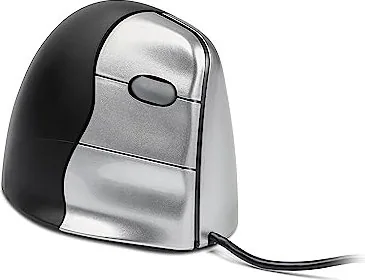
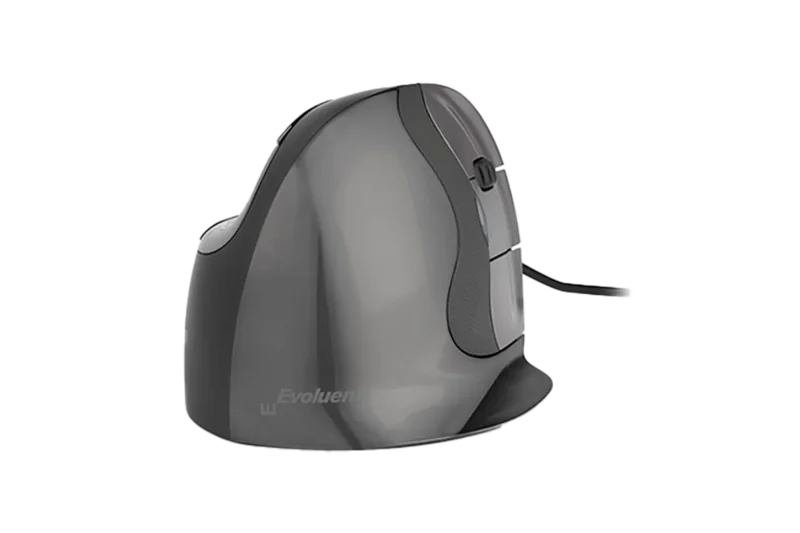
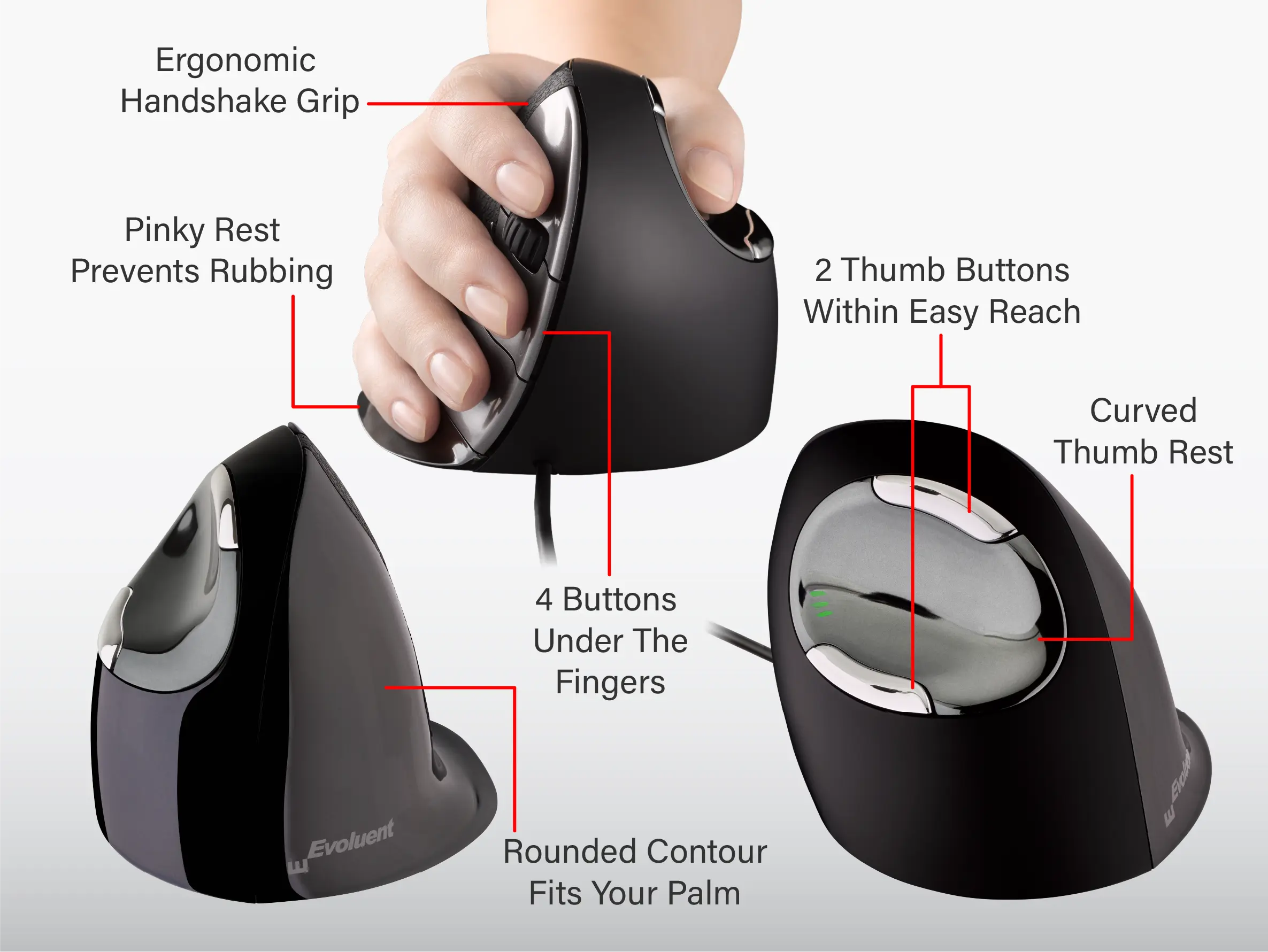
Discover the BakkerElkhuizen Evoluent 3 VerticalMouse. This tool changes how you handle computer work every day. Standard mice force wrists downward fully. That specific posture is unnatural for humans. It causes strain over time during usage. The vertical design flips the palm position effectively. Imagine a handshake grip when you hold it. This feels natural immediately upon first touch. It keeps the wrist in a neutral position. You are more comfortable while working all day. Comfort leads to higher productivity levels for everyone. You feel good about using your tools daily. It creates a better experience for everyone. The brand focuses on health first.
Button Layout and Controls
This device offers advanced button settings for efficiency. The top button acts as the primary left click. The wheel handles middle clicks for panning tasks. The middle section is designated for right click. You get back and forward access via bottom. A thumb button provides forward access too. This saves movement for your fingers. You navigate faster without excessive reaching. Speed is easy to adjust quickly too. Press the bottom button until the light turns blue. This simple action changes the pointer speed instantly. It fits different user habits and needs.
Installation Steps for Windows
Getting started on Windows requires specific settings. First remove old mouse software from Control Panel. Check for any previous Evoluent Mouse Managers there. Uncheck swap buttons in settings automatically. You must check Enhance Pointer Precision in options. Set pointer speed to the middle position on slider. Plug the USB connector directly into the port. If a wizard appears choose Display All Drivers there. Select Human Interface Device Compliant Mouse. This ensures connection stability and function. It works without complex extra software loads. Do not select Search for Best Driver option. This avoids installation conflicts on your PC.
Pro Tips for Best Results
Combine this mouse with a compact keyboard. It reduces arm strain significantly by reducing reach. Reaching less means less fatigue on the arms. For more details check the official website online. The solution works for many office environments well. It stands out as an advanced option for users. Many users report less physical pain overall. It is suitable for long sessions without discomfort. Build good habits early in your career path. Protect your hands for the future of work. This ensures long term health benefits. Use it correctly for all tasks.
This manual guides you through proper setup. Following these steps ensures optimal performance now.
Search for 67,706 Manuals online


Type-in Brand or Model