
BakkerElkhuizen DXT Manual
PDF manual · 6 Pages
English



Quick check
Incorrect answer, please try again.
Chat with your BakkerElkhuizen DXT manual using AI
Get instant AI answers from your BakkerElkhuizen DXT manual
Ask anything about the BakkerElkhuizen DXT. Answers come from this manual, with the pages they are based on.
Ask a Question
Do you recommend DXT?
Yes NoVideo Manual
BakkerElkhuizen DXT Precision Mouse
Frequently Asked Questions
Yes. Both wired and wireless versions are plug-and-play. The wired model connects via USB cable. The wireless model uses a USB dongle; insert the dongle and the mouse is ready to use without additional software.
Is this answer helpful?
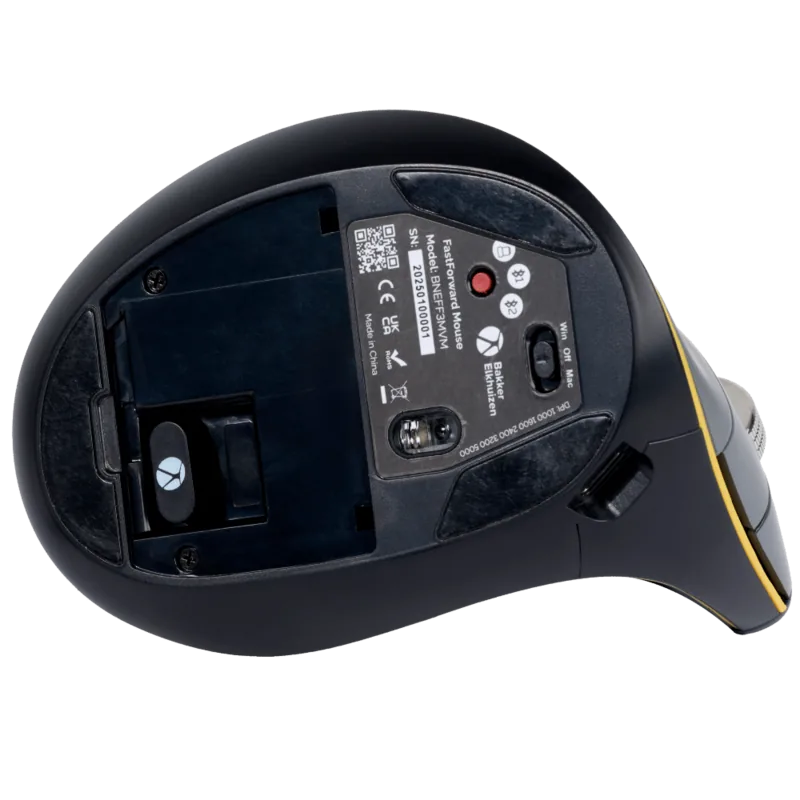
Press the R/L button located beneath the thumb surface. An LED will illuminate or flash to indicate left or right hand mode. The mouse ships set to right-handed by default.
Is this answer helpful?
The default DPI is 1000. Press the DPI button to cycle settings: 1 flash = 500 DPI, 2 flashes = 1000 DPI, 3 flashes = 1500 DPI, 4 flashes = 2000 DPI. LED flashes indicate the current DPI level.
Is this answer helpful?
A full 90-minute charge provides up to two weeks of normal use. The quick charge system gives up to two hours of use after a 30-second charge. LEDs indicate charging status and turn off when fully charged.
Is this answer helpful?
Yes, most primary functions remain usable while charging, but the DPI and R/L buttons will not operate during charging. LED indicators show charging progress.
Is this answer helpful?
Basic cursor speed and some button settings can be adjusted through your computer’s control panel or OS mouse settings. There is no special software required; advanced remapping depends on OS tools.
Is this answer helpful?
Losing the dongle may prevent wireless connection. The mouse can still be used in wired mode if you have the USB cable, or you may need a replacement dongle compatible with the device.
Is this answer helpful?
Advantages and Disadvantages
Advantages

- Ergonomic vertical design reduces wrist pronation and strain during extended use.
- Plug-and-play via USB (wired or wireless dongle) — no additional drivers required.
- Quick-charge delivers up to two hours of use after just 30 seconds of charging.
- Multiple DPI settings (500/1000/1500/2000) adjustable with a dedicated button.
- Switchable left/right handed modes with LED feedback for easy hand configuration.
Disadvantages

- Some buttons (DPI and R/L) are disabled while charging, limiting on-the-fly adjustments.
- Vertical shape may require an adjustment period for users accustomed to traditional mice.
- Limited onboard customization — advanced remapping relies on OS control panel.
- Wireless model depends on a USB dongle which occupies a port and can be misplaced.
- Default right-hand orientation requires manual switch for left-hand users.
Product Specification
Compatibility
both hands (left hand, right hand, vertical)
Buttons
3 (total), 2 (main), 1 (scroll wheel click)
Scroll wheel
1x 2-way
Tracking
LED-red/IR
Resolution
2000dpi, reducible to 1500/1000/500dpi
Illumination
N/A
Connection
wired (6.56 ft), USB
Power supply
USB
Dimensions (WxHxD)
1.77x3.19x2.32in
Approximate volume
3.42 in^3 (approximate shape)
Weight
3.00 oz
Special features
Thumb rest
Note
Right-handed/left-handed operation switchable by button.
Product Description
BakkerElkhuizen DXT Precision Mouse — Vertical Mouse, USB Manual
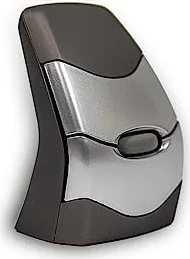
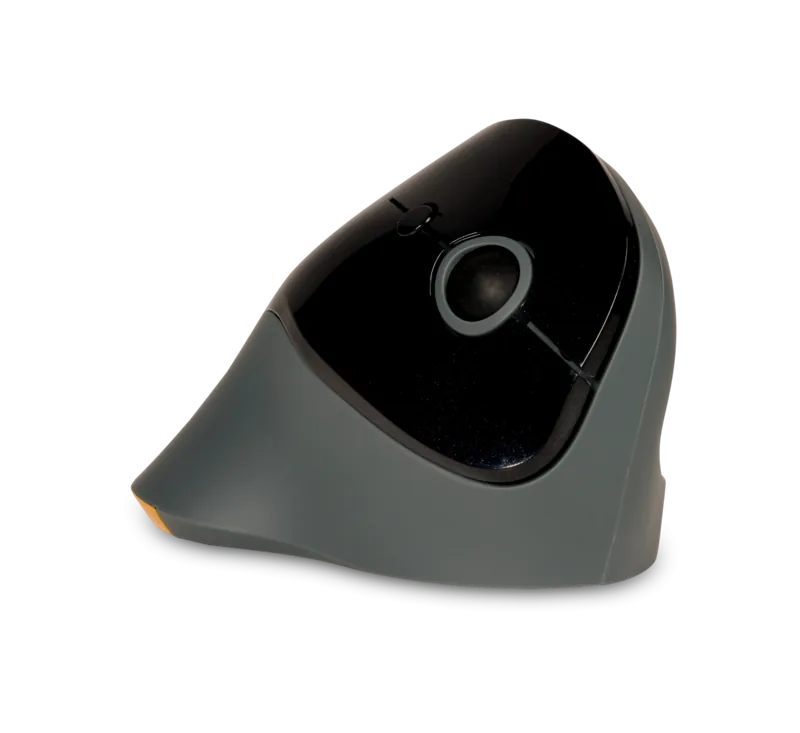
The BakkerElkhuizen DXT Precision Mouse is a vertical, ergonomic USB mouse designed to combine comfort with accurate control. Built for users who spend long hours at a desk, the DXT helps reduce wrist strain by promoting a natural handshake position while retaining precise cursor control. Its vertical profile cradles the hand and encourages relaxed finger placement, making it suitable for office work, design tasks, and general computing.
Quick Start and Setup
The DXT is plug-and-play for both wired and wireless versions. For the wired model, simply connect the USB cable to an available port. The wireless model uses a USB dongle; insert the dongle and charge the mouse via mini USB before first use. Charging indicators show battery status; the mouse supports rapid quick-charge and extended battery life.
Charging and Battery
A full 90-minute charge provides up to two weeks of typical use. The quick charge system delivers up to two hours of operation from a 30-second charge, and LED indicators show charging progress. While charging, some buttons are temporarily unavailable but core functionality remains.
Handedness and Comfort
The DXT supports both left- and right-hand configurations. A dedicated R/L switch beneath the thumb surface toggles modes, indicated by LED feedback. The mouse features a curved thumb ridge for consistent hand placement and several recommended grip positions to accommodate different hand sizes and grips.
Precision and Customization
Default DPI is 1000, with a dedicated DPI button cycling through 500, 1000, 1500, and 2000 DPI settings, indicated by flashes. The mouse offers responsive tracking suitable for detailed tasks. Additional adjustments for buttons and cursor speed can be made through the computer’s control panel for fine-tuning.
Practical Use and Features
Auto power-off conserves battery when idle. The DXT’s vertical design and sculpted surfaces encourage a relaxed posture, reducing the risk of repetitive strain. It provides straightforward functionality without requiring special drivers, yet allows personalization through standard OS mouse settings.
Notes
- Default handedness: right-handed out of the box.
- LED flashes indicate DPI and handedness settings.
- Quick-charge feature is useful for short bursts when time is limited.
- Some buttons are disabled while charging but primary functions remain.
- Use the control panel in your OS to further customize button mapping and cursor speed.
Search for 67,706 Manuals online


Type-in Brand or Model