

BakkerElkhuizen DXT 3 Manual
PDF manual · 2 Pages
English



Quick check
Incorrect answer, please try again.
Chat with your BakkerElkhuizen DXT 3 manual using AI
Get instant AI answers from your BakkerElkhuizen DXT 3 manual
Ask anything about the BakkerElkhuizen DXT 3. Answers come from this manual, with the pages they are based on.
Ask a Question
Do you recommend DXT 3?
Yes NoFrequently Asked Questions
No, the text indicates the device is wired, which limits cable mobility but ensures consistent power delivery without battery charging needs.
Is this answer helpful?
Yes, the design supports both right and left-handed users, specifically through the configurable Button 4 for ergonomic adjustments.
Is this answer helpful?
There is a dedicated DPI button available on the mouse body which allows for instant sensitivity adjustments without needing additional software.
Is this answer helpful?
It features Button 5 for back navigation and Button 6 for forward movement functions immediately upon unboxing.
Is this answer helpful?
The device utilizes high-grade PTFE low-friction feet designed to reduce wrist strain during extended work sessions.
Is this answer helpful?
Yes, it features a standard scroll wheel designed for vertical navigation alongside the primary click buttons.
Is this answer helpful?
Advantages and Disadvantages
Advantages

- High-grade PTFE feet ensure smooth gliding across desk surfaces
- Dedicated DPI button allows instant sensitivity switching
- Side buttons map back and forward actions out of box
- Button 4 configurable for right or left-handed use
Disadvantages

- Wired connection limits user mobility around the desk
- Specific button layout may require a learning curve
- No wireless version mentioned in the source text
- Advanced software settings not detailed in the manual
Product Specification
Handedness
both hands (left hand, right hand, vertical)
Buttons
7 (total), 2 (main), 2 (left), 2 (right), 1 (scroll wheel click)
Scroll Wheel
1x 2-way
Tracking
LED-red/IR
Resolution
2400 dpi, reducible to 1600/1200/800 dpi
Lighting
N/A
Dimensions (WxHxD)
1.65 x 3.43 x 2.64 inches
Approximate Volume
3.91 in^3 (approximate shape)
Weight
4.52 oz
Color
Black, Logo
Note
Right-handed/Left-handed operation switchable via button.
Product Description
Elevate Your Workflow with the BakkerElkhuizen DXT 3 Precision Mouse
The BakkerElkhuizen DXT 3 Precision Mouse represents a significant step forward in ergonomic design and functional versatility for professionals who demand reliability from their office peripherals. In today's fast-paced digital workspace, the right tool can make the difference between frustration and sustained productivity. Designed with precision engineering, this device is ideal for office environments where efficiency, accuracy, and physical comfort are paramount. Users often seek comprehensive guides like the BakkerElkhuizen DXT 3 Precision Mouse Manual to fully understand its specifications, but the hardware speaks volumes about its intended use case.
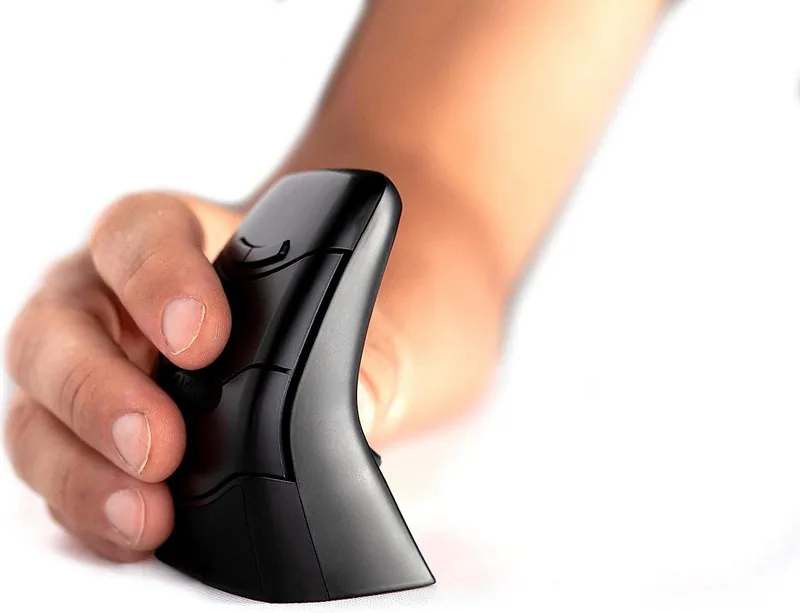
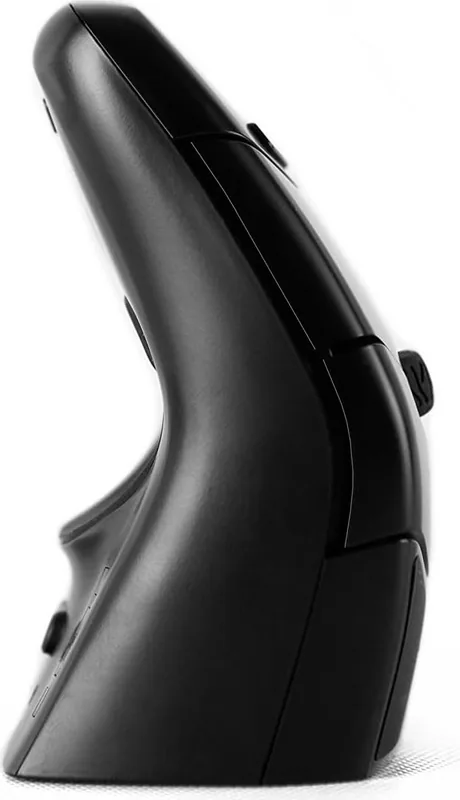
One of the standout features is the extensive customizable button mapping designed for productivity boosts. The setup includes a standard left-click, right-click, and scroll wheel for navigation. It offers specialized side buttons, however. Button 5 is configured as a back action and Button 6 serves as a forward action right out of the box. This configuration allows for rapid web browsing without breaking hand posture or reaching for keyboard function keys. A dedicated DPI button sits conveniently within reach, enabling users to switch sensitivity levels instantly. This is crucial for tasks ranging from detailed work to fast-paced scanning across large spreadsheets.
Comfort and movement efficiency are further enhanced by high-grade PTFE feet. These low-friction glides ensure smooth movement across various desk surfaces, significantly reducing wrist strain during extended work sessions. The internal optical sensor technology provides pixel-perfect tracking, ensuring that every subtle hand movement registers accurately on screen. Notably, Button 4 is uniquely positioned to accommodate both right and left-handed setups depending on individual user preference. This level of physical adaptability makes it a strong choice for diverse teams working on shared devices.
The integration of these features means less time fumbling with menus and more time focusing on core tasks. Whether you are managing complex spreadsheets, coding applications, or designing layouts, the tactile feedback provides confidence in every interaction. The build quality supports high durability, making it suitable for high-volume administrative environments where equipment is used heavily. By adopting this peripheral, users can expect a seamless transition from previous models while gaining access to advanced control schemes. It effectively redefines standard productivity tools for the modern user.
Search for 67,706 Manuals online


Type-in Brand or Model