
Avaya 2410 Manual
PDF manual · 64 Pages
English



Quick check
Incorrect answer, please try again.
Chat with your Avaya 2410 manual using AI
Get instant AI answers from your Avaya 2410 manual
Ask anything about the Avaya 2410. Answers come from this manual, with the pages they are based on.
Ask a Question
Do you recommend 2410?
Yes NoFrequently Asked Questions
Enter *35*P# where P is your login code. For hot desking at another extension, use *35*N*P#, where N is your home extension number.
Is this answer helpful?
Yes. Press TRANSFER, dial the destination number, and press TRANSFER again immediately for an unsupervised transfer.
Is this answer helpful?
The phone will display Invalid and play a busy tone. You must wait 90 seconds before attempting to log in again.
Is this answer helpful?
Press Log, then More, select Delete, and confirm by pressing Erase. Note this also deletes speed dial entries and personalization.
Is this answer helpful?
The 2410 is supported on a range of Avaya phone systems, whereas the 5410 model is exclusively supported on IP Office.
Is this answer helpful?
Dial *08 to turn it on. Dial *09 to turn it off. You can add exceptions by dialing *10 followed by the number.
Is this answer helpful?
Advantages and Disadvantages
Advantages

- Supports multiple call appearance keys for efficient line management
- Built-in speakerphone and headset support for versatile communication
- Stores up to 48 personal speed dial entries for quick access
- Integrated Visual Voice for direct voicemail management
- Customizable ring patterns and display contrast settings
Disadvantages

- Limited to specific Avaya systems unless configured otherwise
- Speed dial and call log data may not transfer during hot desking
- Requires system administrator access for full feature programming
- Speakerphone performance may vary in noisy environments
- NoUser configuration restricts incoming calls until logged in
Product Description
Avaya 2410 Digital Phone Overview
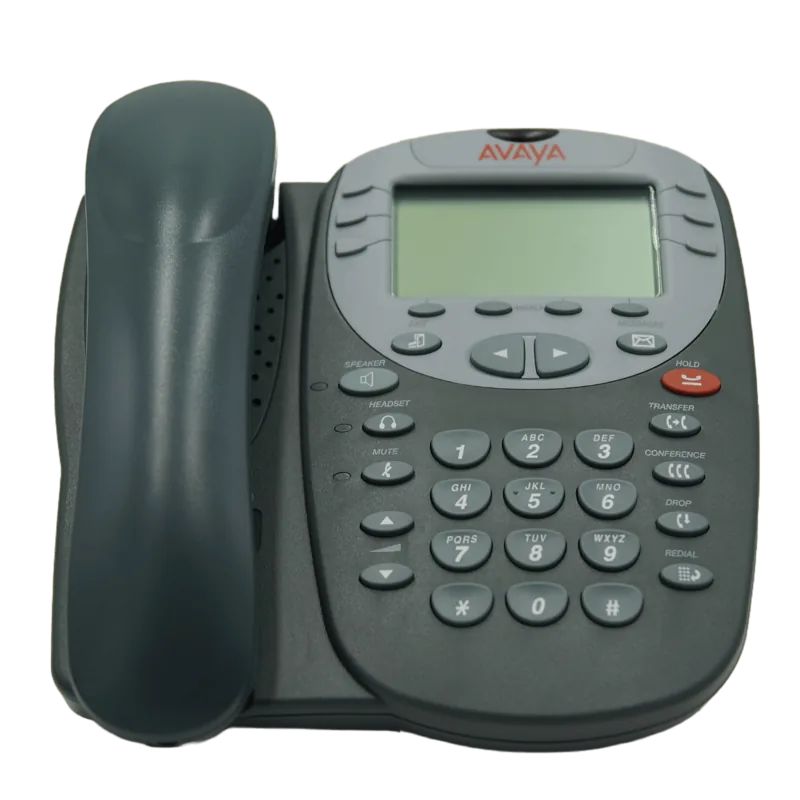
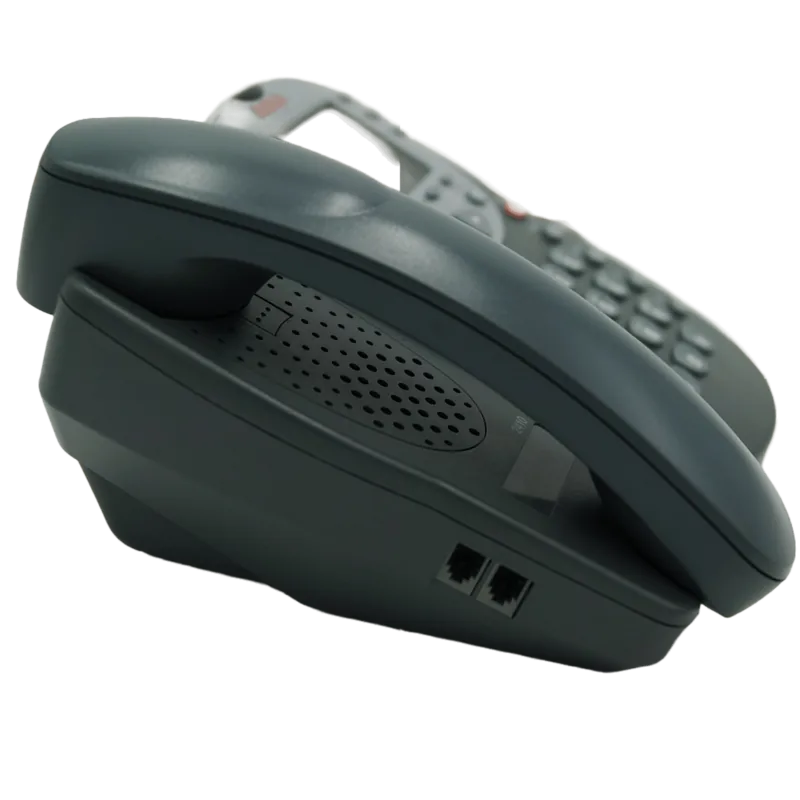
The Avaya 2410 Digital Phone is a robust communication tool designed for the IP Office system and various other Avaya phone platforms. This device features a clear display that provides essential call information, including status indicators for held calls, conference sessions, and message waiting lights. The phone supports multiple call handling capabilities through its dedicated Call Appearance keys, allowing users to manage incoming and outgoing lines efficiently.
Key Features and Functionality
Users can seamlessly switch between handset, headset, and speakerphone modes using intuitive buttons located on the front panel. The built-in speakerphone enables hands-free conversations, while the Mute button ensures privacy during discussions. The device includes a comprehensive speed dial list capable of storing up to 48 personal entries, simplifying frequent calls. Additionally, the call log feature tracks answered, missed, and outgoing calls, offering options to redial or save entries directly to speed dials.
Advanced Configuration Options
The Avaya 2410 allows for extensive customization through its Option menu. Administrators and users can adjust ring patterns, contrast levels, and language settings to suit individual preferences. Automatic Gain Control (AGC) optimizes audio volume for clearer conversations regardless of the caller's speaking level. System features like Call Forwarding, Do Not Disturb, and Parking Calls are accessible via short codes, enhancing workflow flexibility.
Visual Voice Integration
For enhanced voicemail management, the phone integrates with Visual Voice when Voicemail Pro or Embedded systems are installed. This feature enables users to listen to messages, send voicemails, change greetings, and configure email alerts directly from the phone interface. The ability to transfer calls to mailboxes without alerting the recipient further streamlines office communication processes.
Notes
- Ensure your system administrator has configured the necessary licenses for advanced features like Bridged Appearances.
- Regularly update phone software to maintain optimal performance and security.
- Use the Self Test function to verify lamp and display operations if issues arise.
Search for 67,706 Manuals online


Type-in Brand or Model