

Avaya 1608-I Manual
PDF manual · 50 Pages
English



Quick check
Incorrect answer, please try again.
Chat with your Avaya 1608-I manual using AI
Get instant AI answers from your Avaya 1608-I manual
Ask anything about the Avaya 1608-I. Answers come from this manual, with the pages they are based on.
Ask a Question
Do you recommend 1608-I?
Yes NoFrequently Asked Questions
You can make calls using the handset, speakerphone, or a supported headset; dial directly, use the contacts list, or redial from the call log. Programmable line/feature keys provide quick access to lines and features.
Is this answer helpful?
Use the administered Call Forward (CFrwd) or SAC feature buttons. Press CFrwd to enter the forwarding number; press SAC to route incoming calls to the configured coverage destination. If enabled via a feature code, the display icon may not appear.
Is this answer helpful?
Yes. The phone supports bridged and shared line appearances. You can answer ringing bridged/shared lines, join in-progress calls, and make outgoing calls on shared lines when permitted by your system configuration.
Is this answer helpful?
The contact directory supports up to 100 entries. Conference calls support up to five parties using the phone’s built-in conferencing features; larger or more advanced conferencing requires system-based options.
Is this answer helpful?
You can adjust screen brightness and contrast, ring pattern, button click and error tones, call timers, visual alerting, redial mode, audio path (speaker or headset), automatic gain control, and language selection, depending on admin settings.
Is this answer helpful?
Call logging can be turned on or off and configured to include primary, bridged, and line calls. You can also choose whether to log line calls answered by others. The call log stores all/answered/outgoing/missed lists and allows adding numbers to contacts.
Is this answer helpful?
LED states (steady, slow/fast blinking, red/green) denote active, ringing, on-hold, or pending transfer/conference states. Display icons show missed calls, call forward/SAC/EC500 status, incoming calls, active calls, and on-hold indicators.
Is this answer helpful?
Advantages and Disadvantages
Advantages

- Simple, intuitive interface with context-sensitive softkeys and navigation arrows for quick operation.
- Programmable buttons support bridged or shared line appearances for team-based call handling.
- Essential features like transfer, hold, mute, conferencing, and voicemail access are easy to use.
- Customizable settings (ring pattern, display, redial, audio path, automatic gain control) via Avaya Menu.
- Compact hardware with clear LED indicators makes call status and alerts immediately visible.
Disadvantages

- Limited to basic conferencing (up to five parties) without advanced conferencing add-ons.
- Feature availability depends on system administration; some useful functions may be restricted.
- Contacts capped at 100 entries, which may be small for larger user needs.
- No built-in advanced collaboration features; relies on Avaya system services for extended capability.
- Manual configuration and administrative dependencies can complicate feature access for end users.
Product Specification
Type
VoIP phone (corded)
Display
3.5", monochrome
Phonebook
100 entries
Call list
100 entries
Interfaces
2x 10/100Base-TX (PoE), 1x Headset
Answering machine
no
Features
Caller ID, hands-free function, programmable keys (8), hearing aid compatible, optical call signaling
Product Description
Avaya 1608-I Manual: Overview and Practical Guide
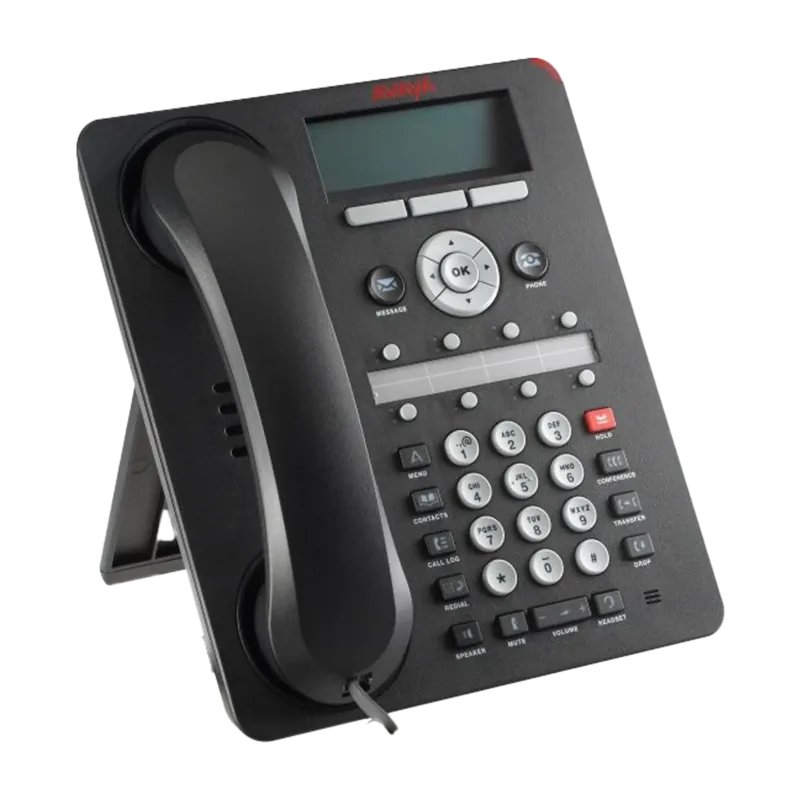
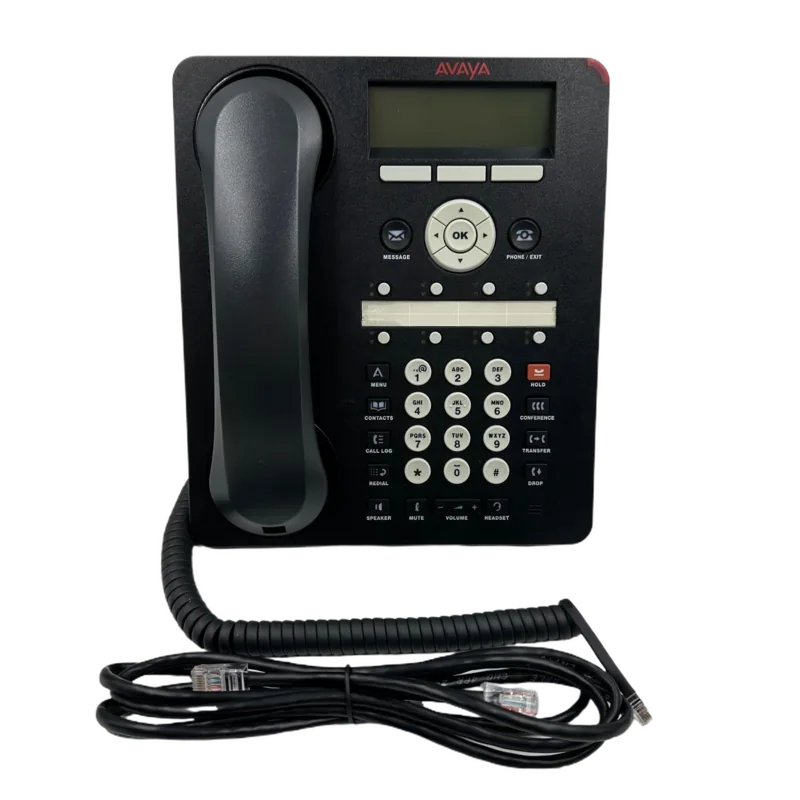
The Avaya 1608-I is a compact, business-focused multiline IP deskphone designed for use with Avaya Communication Manager and Avaya Distributed Office systems. It combines a clear display, physical navigation and feature buttons, and basic conferencing and messaging capabilities to support everyday office communications. The handset, speakerphone, and headset options provide flexible audio paths, while the illuminated LEDs and on-screen icons make call status and alerts easy to interpret.
Equipped with up to eight programmable buttons that can serve as line appearances or feature keys, the 1608-I supports bridged and shared line appearances, enabling teams to answer or join calls across extensions. Core telephony functions are straightforward: make calls by lifting the handset, using speaker or headset, or selecting a line; view and dial contacts; and access a call log that records missed, answered, and outgoing calls. Call forwarding, Send All Calls (SAC), and Extension-to-Cellular (EC500) let users redirect incoming calls to alternate numbers or mobile devices as administered by the system.
Handling calls is intuitive: answer incoming calls via handset, headset, speaker, or the Answer softkey; mute, hold, transfer, and conference with clearly labeled buttons and softkeys; and send calls directly to voicemail when needed. Conference calls support adding multiple parties, viewing participant details, dropping the last-added participant, and silencing external participants. LEDs give immediate feedback—steady and blinking patterns indicate active, ringing, on-hold, or pending states.
The phone’s user interface includes softkeys that change contextually, navigation arrows for list and screen movement, and an Avaya Menu for deeper configuration. The Avaya Menu and Features menu let users adjust display brightness/contrast, ring patterns, button sounds, call timers, visual alerts, redial behavior, and automatic gain control for handset/headset/speaker. Users can log in and out to retain personal contacts and settings on shared phones. Network and diagnostics information is accessible for troubleshooting.
Security and administrative features are emphasized: license and warranty terms control software and hardware use, third-party components and toll-fraud precautions are noted, and administrators control which features are available. The phone also supports up to 100 contact entries, easy contact editing, and adding numbers from the call log.
Overall, the Avaya 1608-I targets small to medium office environments that need reliable, no-frills IP telephony with essential call handling, simple conferencing, and administrative control.
Notes
- Feature availability depends on system administration; some options may be disabled.
- Visual and LED alerts help identify call states and missed messages quickly.
- Call logging and bridged/shared line behavior can be configured to meet team workflows.
Search for 67,706 Manuals online


Type-in Brand or Model