
Avaya 1603SW-I Manual
PDF manual · 32 Pages
English



Quick check
Incorrect answer, please try again.
Chat with your Avaya 1603SW-I manual using AI
Get instant AI answers from your Avaya 1603SW-I manual
Ask anything about the Avaya 1603SW-I. Answers come from this manual, with the pages they are based on.
Ask a Question
Do you recommend 1603SW-I?
Yes NoFrequently Asked Questions
It supports standard making and answering, plus call control tools like Hold, Transfer, Mute, Redial, and Speaker use. It also supports conference calls (up to three participants) and can work with bridged call appearances and, in Distributed Office setups, shared line appearances.
Is this answer helpful?
Each call/line appearance and feature button uses color and blinking patterns on green and red LEDs. Steady or blinking states indicate active, ringing, on hold, or pending operations. Using these LED cues helps you select the correct call appearance when multiple calls arrive.
Is this answer helpful?
Yes. The Avaya Menu lets you adjust display brightness and contrast, change ring patterns, toggle button click sounds and error tones, and enable or disable Visual Alerting. You can also select a display language (depending on what is available) and review network information.
Is this answer helpful?
It does. Logging in maintains personal options so the experience matches the user, even when the phone is shared. Logging out helps prevent unauthorized use during your absence. The available logout behavior can depend on whether you are currently on a call.
Is this answer helpful?
Start a conference from an active call using the Conference button, dial the additional number, and press Conference again to add the participant. You can add someone while that person is on hold and place the entire conference on hold so participants can continue talking.
Is this answer helpful?
Some capabilities depend on how your system administrator has administered your extension. If an option is missing, assume it is not enabled for your setup and contact your administrator for confirmation or alternatives.
Is this answer helpful?
Advantages and Disadvantages
Advantages

- Multiline IP deskphone with direct buttons for Conference, Transfer, Hold, Redial, Mute, and Speaker.
- Two-line display shows caller details, navigation prompts, and call status clearly.
- LED signaling provides fast visual confirmation for ringing, active calls, hold, and pending operations.
- Supports conference calls with up to three people on the same call.
- Avaya Menu enables customization for display, ring pattern, alerting, sounds, language, and network info.
Disadvantages

- Not all features may be available depending on your specific system and administration settings.
- Some behavior (like how LEDs work for certain features) can differ by call processing system.
- Advanced options and language availability may require administrator configuration.
- Shared, bridged, and appearance-based calling can be confusing without training.
- Voicemail and several settings are administered functions controlled by your organization.
Product Specification
Type
VoIP phone (corded)
Display
2.6", monochrome
Interfaces
2x 10/100Base-TX
Answering machine
no
Features
Caller ID, Speakerphone, SIP, programmable keys (3), hearing aid compatible, visual call signaling
Product Description
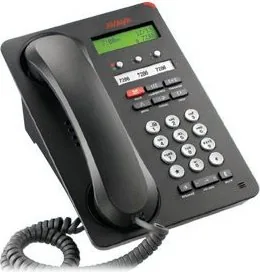
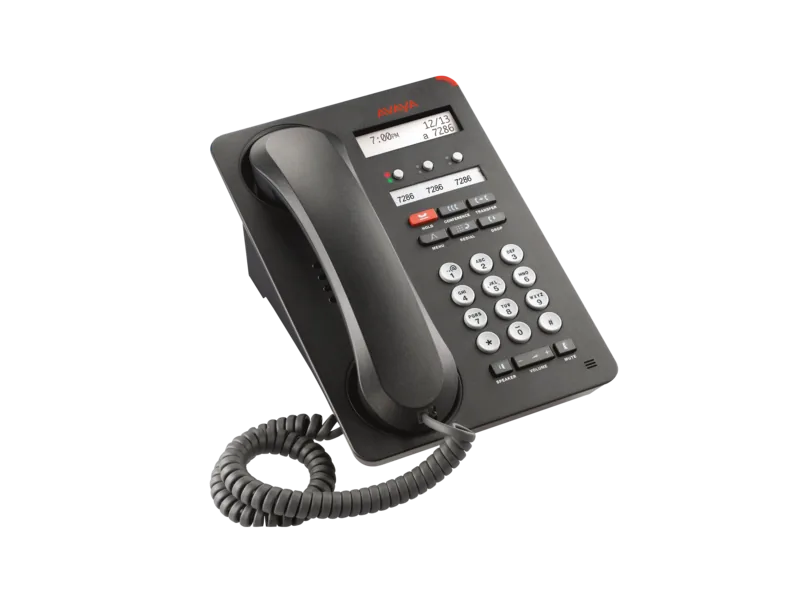
Avaya 1603SW-I IP Deskphone (Avaya 1603SW-I Manual)
The Avaya 1603SW-I is a multiline IP deskphone designed for everyday business calling with Avaya Communication Manager or Avaya Distributed Office. It brings key call controls to your fingertips, including dedicated buttons for Conference, Transfer, Hold, Redial, Mute, and Speaker, plus a menu system for personalizing how your phone behaves.
At a glance, the phone uses a two-line display to show calling and called-party information, navigation cues, and other status details. Message waiting support is indicated by a red light in the upper-right corner, which can also blink for incoming calls when Visual Alerting is enabled.
Call handling is streamlined through clear LED feedback on call/line appearance and feature buttons. When you answer, the phone can automatically select the ringing appearance, and when multiple calls occur, you can choose the line whose green LED is flashing. During active calls, you can mute with one press, put a call on hold, resume from hold instantly, and transfer calls by dialing a number and confirming with the Transfer button.
For collaboration, the Avaya 1603SW-I supports conference calling with up to three people on the same call. You can start a conference, add another participant by dialing, place the conference on hold so participants can continue talking, and drop the last added person if needed.
The phone also supports user login and logout, which helps protect personalized settings on shared desks or when using the same extension elsewhere. Through the Avaya Menu, you can adjust brightness and contrast, choose ring patterns, enable or disable button click sounds and error tones, turn Visual Alerting on or off, and view network information such as IP and Quality of Service. Some options depend on how your extension is administered by your system administrator.
Notes
- Feature availability may vary by system administration.
- If Auto Hold is enabled, you can answer without manually placing your current call on hold.
- Avoid using nearby cell phones or two-way radios, as they may cause interference.
- Take toll fraud seriously and contact Avaya support if you suspect misuse.
Key results
- Dedicated buttons and LED status make answering, holding, muting, and transferring faster and more predictable.
- Conference support enables practical, small-group collaboration without extra hardware.
- Avaya Menu customization improves comfort with sound, visual alerts, display, and language settings.
- Login/logout helps keep personalized behavior consistent on shared devices.
Search for 67,706 Manuals online


Type-in Brand or Model