
Avantree TWS116 Manual
PDF manual · 1 Pages
English


Quick check
Incorrect answer, please try again.
Chat with your Avantree TWS116 manual using AI
Get instant AI answers from your Avantree TWS116 manual
Ask anything about the Avantree TWS116. Answers come from this manual, with the pages they are based on.
Ask a Question
Do you recommend TWS116?
Yes NoFrequently Asked Questions
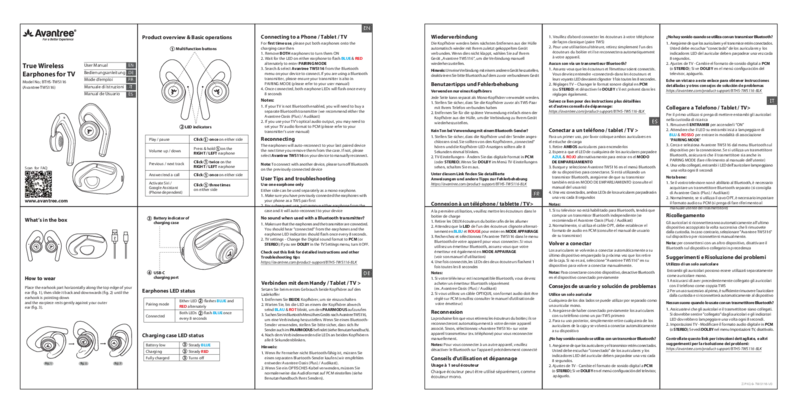
Place both earphones in the charging case, remove them to power on, wait for an alternating blue/red LED to indicate pairing mode, then select "Avantree TWS116" from your device's Bluetooth list. If using a transmitter, ensure it is also in pairing mode.
Is this answer helpful?
Confirm the earphones and transmitter show as connected (earphones announce "connected" and LEDs flash every 8 seconds). Set the TV audio format to PCM or stereo and disable Dolby in TV settings if present. Refer to the product support page for detailed troubleshooting.
Is this answer helpful?
Yes. Each earphone can operate independently as a mono headset. Ensure the pair was initially set up as a TWS pair; thereafter, removing either earbud from the case will auto-reconnect it to the paired device.
Is this answer helpful?
Multifunction buttons on each earbud handle play/pause (single press), volume change (press & hold), track skip (double press), call answer/end (single press), and voice assistant activation (triple press or as specified). Exact actions follow the manual’s button mapping.
Is this answer helpful?
Alternating blue/red on an earbud means it’s in pairing mode. Connected state is shown by both earphones flashing blue once every eight seconds. The case shows steady blue when charging and steady red for low battery or charging in progress per model indicators.
Is this answer helpful?
Yes. If your TV lacks Bluetooth, use a compatible Bluetooth transmitter. Avantree recommends models like the Oasis (Plus) or Audikast for low-latency and reliable pairing with the TWS116.
Is this answer helpful?
Visit the Avantree product support page for the TWS116 for detailed instructions, troubleshooting guides, and possible firmware updates: https://avantree.com/product-support/BTHS-TWS116-BLK1.
Is this answer helpful?
Advantages and Disadvantages
Advantages

- Secure earhook design for stable, comfortable wear during extended use.
- Independent earbud operation allows single-ear mono use and flexible scenarios.
- Straightforward pairing with auto-reconnect to the last paired device.
- Clear LED indicators and voice prompts for connection and battery status.
- USB-C charging case offers convenient, modern charging and extra battery life.
Disadvantages

- May require an external Bluetooth transmitter for TVs without Bluetooth.
- Some TV setups need audio format adjustments (PCM/stereo) to avoid no-audio issues.
- Limited advanced codec detail provided — potential variable performance across devices.
- On-ear button controls may need a learning curve for multi-press actions.
- LED feedback alone may be insufficient for diagnosing some connection problems.
Product Specification
Design Type
Earbuds (Open-Ear)
Form Factor
True Wireless, Earhook
Acoustic Design
open
Microphone
integrated
Wireless
Bluetooth 5.0
Operating Time
7h, 70h (with charging case)
Battery
USB-C charging port, Charging case, 2.5h charging time
Driver
0.79 in
Software Features
Voice Assistant (Apple Siri, Google Assistant)
Color
black
Weight
0.26 oz (per earbud), 3.53 oz (charging case)
Product Description
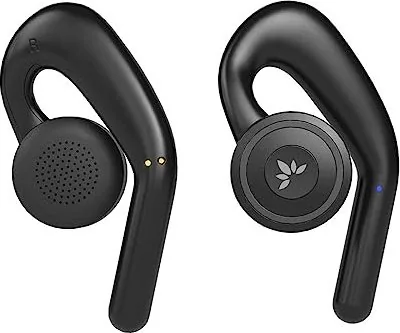
Avantree TWS116 — Seamless True Wireless Listening
The Avantree TWS116 offers comfortable, reliable true wireless earphones tailored for TV, phone, tablet, and transmitter use. Designed with earhooks for a secure fit and a compact USB-C charging case, the TWS116 focuses on simple pairing, long-lasting convenience, and multi-device flexibility. LEDs on both the earphones and case give clear status feedback for pairing, battery level, and charging.
Design and fit
The earphones use an earhook design that rests gently on the outer ear for stable wear during movement or long listening sessions. Each earpiece can function independently as a mono earphone, allowing one-ear use for calls or when you need ambient awareness. The compact charging case provides additional battery top-ups and includes a USB-C port for modern fast charging.
Connectivity and pairing
Initial setup is straightforward: place both earphones in the case, remove them to power on, wait for alternating blue/red LEDs to indicate pairing mode, then select Avantree TWS116 from your device’s Bluetooth menu. The earphones auto-reconnect to the last paired device when removed from the case. They also support connection via Bluetooth transmitters for TVs that lack built-in Bluetooth — with recommended Avantree transmitters like the Oasis (Plus) or Audikast for best results.
Audio and TV use
When using a transmitter or an optical TV output, set the TV audio format to PCM or stereo for reliable playback. If Dolby formats appear in the TV settings, disabling Dolby often resolves no-audio issues. The TWS116 announces connection status and flashes LEDs every 8 seconds when connected.
Controls and operation
On-ear multifunction buttons support play/pause, track navigation, volume control, call handling, and voice assistant activation (Siri/Google Assistant depending on the phone). Both left and right earphones offer intuitive press and hold or multi-press actions for different commands.
Troubleshooting tips
Common fixes include ensuring the transmitter is in pairing mode, confirming the earphones report “connected,” changing TV audio format to PCM, and disabling Bluetooth on previously connected devices when switching hosts. A dedicated product support page provides step-by-step help and firmware or troubleshooting resources.
Notes
- Each earbud can work solo as a mono headset.
- Use a compatible Bluetooth transmitter if the TV isn’t Bluetooth-enabled.
- For optical connections, set the TV audio to PCM (or stereo).
Search for 67,706 Manuals online


Type-in Brand or Model