• 100+ Step by step video Guide – youtube.com/avantree/playlists
Telephone Support (Mon-Fri):
• USA / CANADA +1 800 232 2078 (EN, PST 9am-5pm)
• EU / Asia telephone No. refer to http: //www.avantree.com/contact-us
(Response Time: 1 working day)
EN
DE
FR
IT
ES
User Manual
Bedienungsanleitung
Mode d’emploi
Manuale di Istruzioni
Manual de Usuario
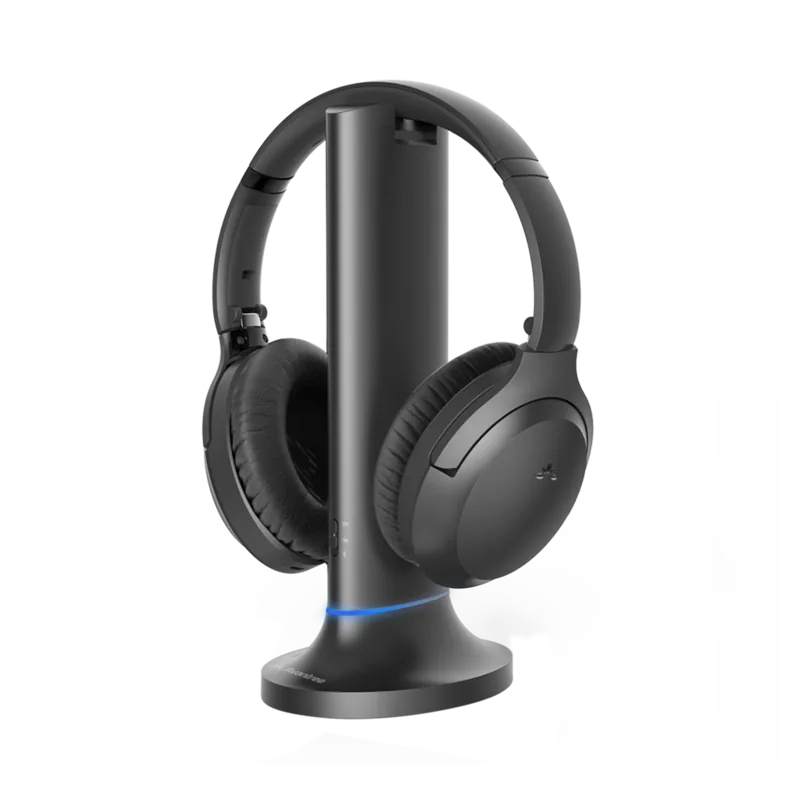
1. The Opera BT Transmitter and Headphones x 1
2. Optical Audio Cable x 1
3. 3.5mm Audio Cable x 1
4. 3.5mm to RCA Audio Cable x 1
5. USB Type-C Cable x 2
You may use the Type-C USB cable included in the package to connect the headphone to a
power source such as a USB port on your Laptop/TV or a wall plug (via USB-Wall Plug Adapter).
Option 2 - Using a USB Type-C Cable (5V/500mA-2A output)
NOTE: Both the transmitter and the headphone will automatically switch OFF when charging.
What’s in the box?
Product overview
/
/
/
/
Mute Speaker
X
//
Power ON – Slide the power switch to
Power OFF – Slide the power switch to
Basic Operations
Connect Transmitter to your AV Receivers with 6.35mm Phone Jack at
front
Add a 2nd pair of Bluetooth headphones
- Anzeige ROT
ROT
leuchtet.
HINWEIS: Sowohl der Sender als auch der Kopfhörer schalten sich beim Laden automatisch aus.
Die LED-Anzeige am Senderständer sollte beim Laden sein. Ist dies nicht der Fall,
überprüfen Sie, ob der Kopfhörer ordnungsgemäß auf dem Ständer platziert wurde. Sobald der
Ladevorgang abgeschlossen ist, leuchtet die LED am Senderdock dauerhaft OFF.
Option 1 - Verwenden des Senderständers.
Sie können das im Lieferumfang enthaltene USB-Kabel vom Typ C verwenden, um den K
opfhörer an eine Stromquelle wie einen USB-Anschluss Ihres Laptops / Fernsehgeräts oder
einen Wandstecker (über den USB-Wandsteckeradapter) anzuschließen.
Option 2 - Verwenden eines USB-Typ-C-Kabels (5 V / 500 mA-2A-Ausgang)
Schließen Sie den Sender mit dem mitgelieferten USB-Netzkabel Typ C an einen beliebigen 5-V / 1-2-A-USB
-Wandadapter (nicht im Lieferumfang enthalten) an.
Hinweis: Wir empfehlen, die USB-Anschlüsse Ihres Fernsehgeräts nicht zu verwenden, da sonst sich der Sender
bei jedem Ausschalten des Fernsehgeräts ebenfalls ausschaltet und die Kopfhörer nicht mehr aufgeladen werden.
Den Sender mit Strom versorgen
1. Schalten Sie den Sender ein - stellen Sie den Modusschalter auf „ON“. Die LED-Anzeige leuchtet auf.
2. Kopfhörer einschalten - Schieben Sie den Schalter am Kopfhörer in die Mitte. Die LED-Anzeige am
Kopfhörer blinkt BLAU und Sie hören „Welcome to Avantree“ vom Kopfhörer.
3. Geben Sie ihnen einige Sekunden, sie werden automatisch verbunden. Sobald die Verbindung
hergestellt ist, hören Sie über den Kopfhörer „connected“. Die LED-Anzeigen sowohl am Sender als auch
am Kopfhörer leuchten BLAU.
Einschalten und Verbinden des Senders und der Kopfhörer
Check your audio source output options before connecting, refer to FIG 1-1.
If your TV has Digital Optical Out (SPDIF/TOSLINK)>
FIG 1-1
FIG 1-3
FIG 1-4
Connect the Transmitter to your TV/audio source
Überprüfen Sie die Audioausgabequelle vor der Verbindung, am FIG 1-1.
Sender mit TV / Audioquelle verbinden
1.Turn on the transmitter - slide the Mode switch to the “ON” position. The LED indicator will light up.
2. Turn on the headphones – slide the power switch on the headphones to the middle position. The LED
BLUE and you will hear “Welcome to Avantree” from headphones.
3. After a few seconds, the transmitter and headphones will automatically connect. Once connected, you
will hear “Connected” from the headphones. The LED indicators on both the transmitter and the headphones
will turn solid BLUE.
1. Plug one end of the Optical Cable (included in the package) into your TV’s optical port, the other end
into the transmitter’s “OPT IN” port.
2. On the transmitter, please make sure that it’s been switched to OPT Input Mode.
3. Go to your TV’s Sound/Audio Settings Menu and set your TV’s Audio Format/ Digital Sound Out to
“PCM”.
4. If you have an option for Dolby/ DTS Digital, please make sure that it’s been turned “OFF”.
5. Ensure that your TV’s Sound Out/ Speaker setting has been set to “External Speaker” or “Optical audio
out”, e.g.: Samsung > Audio Out/ Optical; LG > Optical Out. Various on other TV brands.
6. The LED indicator on the back of the transmitter will turn SOLID WHITE when the audio signal is coming
through the transmitter.
Now you can stream audio from your TV.
NOTE: If you don’t know how to change the settings on your TV, or if you cannot hear anything through
the headphone after changing the settings, please contact your TV manufacturer for support.
Unplug any device from the 3.5mm AUX jack while using the OPTICAL out.(If anything is plugged into the
AUX jack, the transmitter will prioritize the AUX signal).
Wenn Ihr Fernseher über einen digitalen optischen Ausgang (SPDIF / TOSLINK) verfügt>
1. Stecken Sie ein Ende des optischen Kabels (im Lieferumfang enthalten) in den optischen Anschluss Ihres
Fernsehgeräts und das andere Ende in den „OPT IN“ -Anschluss des Senders.
2. Am Sender sicherstellen, dass er in den OPT-Eingangsmodus geschaltet wurde.
3. Gehen Sie zum Menü Ton- / Audioeinstellungen Ihres Fernsehgeräts und stellen Sie das Audioformat /
den digitalen Tonausgang Ihres Fernsehgeräts auf „PCM“.
4. Wenn Sie eine Option für Dolby / DTS Digital haben, stellen Sie bitte sicher, dass diese ausgeschaltet ist.
5. Stellen Sie sicher, dass die Einstellung für Tonausgang / Lautsprecher Ihres Fernsehgeräts auf "Externer
Lautsprecher" oder "Optischer Audioausgang" eingestellt ist, z. B.: Samsung> Audioausgang / Optisch;
LG> Optischer Ausgang. Anders bei anderen TV-Marken.
6. Die LED-Anzeige auf der Rückseite des Senders leuchtet WEISS, wenn das Audiosignal durch den Sender
kommt.
Jetzt können sie das TV-Audio senden.
Wenn Ihr TV einen Kopfhörerausgang hat>
1. Stecken Sie ein Ende des AUX-Kabels (im Lieferumfang enthalten) in Ihr Fernsehgerät und das andere
Ende in den AUX IN-Anschluss des Senders.
2. Am Sender sicherstellen, dass er in den AUX-Eingangsmodus geschaltet wurde.
Jetzt können Sie Audio von Ihrem Fernseher streamen.
Hinweis: Wenn von Ihren Kopfhörern kein Ton abgespielt wird, stellen Sie die Einstellung Tonausgang /
Lautsprecher Ihres Fernsehgeräts auf „Kabelgebundene Kopfhörer“ oder „Headset“ ein.
Wenn Ihr Fernsehgerät über einen rot / weißen Audioausgang verfügt (Cinch - nur für Fernsehgeräte),>
1. Verbinden Sie das Cinch-Kabel (im Lieferumfang enthalten) mit dem AUX-Kabel (ebenfalls im
Lieferumfang enthalten).
2. Stecken Sie das ROT / WEISS-Ende in das Fernsehgerät und das AUX-Ende in den AUX IN-Anschluss des
Senders.
3. Am Sender sicherstellen, dass er in den AUX- Eingangsmodus geschaltet wurde.
4. Die LED-Anzeige auf der Rückseite des Senders leuchtet WEISS, wenn das Audiosignal durch den Sender
kommt.
Hinweis: Wenn über Ihre Kopfhörer kein Ton abgespielt wird, stellen Sie die Einstellung Tonausgang /
Lautsprecher an Ihrem Fernsehgerät auf „Externer Lautsprecher“.
If your TV has Headphone Out>
1. Plug one end of the AUX cable (included in the package) into your TV, the other end into the trasmitter’s
AUX IN port.
2. On the transmitter, please make sure that it’s been switched to AUX Input Mode.
Now you can stream audio from your TV.
Note: If there is no sound playing from your headphones, please set the Sound Out/ Speaker setting on
your TV to “Wired headphones” or “Headset”.
If your TV has Red/White Audio Out (RCA- only for TV), >
1. Connect the RCA cable (provided in the package) with the AUX cable (also in the package).
2. Plug the RED/WHITE end into the TV, the AUX end into the transmitter’s AUX IN port.
3. On the transmitter, please make sure that it’s been switched to AUX Input Mode.
4. The LED indicator on the back of the transmitter will turn SOLID WHITE when the audio signal is coming
through the transmitter.
Note: If there is no sound playing from your headphones, please set the Sound Out/ Speaker setting on
your TV to “External Speaker”.
FIG 1-2.>
1. Please use the wired microphone (included in the package). Plug it into the transmitter’s “MIC IN” port
and stick the microphone close to TV’s built-in speaker.
2. On the transmitter, please make sure that it’s been switched to MIC Input Mode.
3. The LED indicator on the back of the transmitter will turn SOLID WHITE when the audio signal is coming
through the transmitter.
Now you can stream audio from your TV.
Reboot both the headphones and the transmitter, give them 5-10 seconds to reconnect. If they don’t
connect, please follow directions below.
Step 1: Clear the pairing history of the headphones: After turning on, Press and hold both “+” and “-“ for 6
seconds until the RED and BLUE LEDs are on SIMULTANEOUSLY for 2 seconds (may look PINK), then release
your hands. Now the pairing history of the headphones has been cleared. It will enter pairing mode
RED and BLUE alternately.
Step 2:Give it a few seconds, it should reconnect to the transmitter dock.
1) Select the correct mode on the transmitter– OPT for optical, AUX for AUX/RCA, MIC for wired
microphone.
2) Make sure that the TV setting is correct; make sure that you’re using the transmitter’s input port not
output; please refer to the section above titled “Connect the Transmitter to your TV or other audio
source”.
Troubleshooting
No Sound
1.1 Audio input not valid
1.2 Opera transmitter and headphones fail to reconnect
Starten Sie sowohl die Kopfhörer als auch den Sender neu und geben Sie ihnen 5-10 Sekunden Zeit, um
die Verbindung wiederherzustellen. Wenn sie keine Verbindung herstellen, befolgen Sie bitte diese
Anweisungen.
Schritt 1: Löschen Sie den Kopplungsverlauf der Kopfhörer: Halten Sie nach dem Einschalten 6 Sekunden
lang die Tasten „+“ und „-“ gedrückt, bis die ROTE und die BLAUE LED 2 Sekunden lang GLEICHZEITIG
leuchten (möglicherweise PINK). Lassen Sie dann die Taste los. Jetzt wurde der Kopplungsverlauf der
Kopfhörer gelöscht. Der Kopplungsmodus wird automatisch aktiviert, wobei die LED abwechselnd ROT
und BLAU blinkt.
Schritt 2: Geben Sie ihm einige Sekunden Zeit, um die Verbindung zum Sender wiederherzustellen.
1) Wählen Sie den richtigen Modus am Sender - OPT für optisch, AUX für AUX / RCA, MIC für
kabelgebundenes Mikrofon.
2) Stellen Sie sicher, dass die TV-Einstellung richtig ist. Stellen Sie auch sicher, dass Sie den
Eingangsanschluss und nicht den Ausganganschluss des Senders verwenden. Weitere Informationen
Titel „Verbinden des Senders an Ihr Fernsehgerät oder
eine andere Audioquelle“.
Fehlerbehebung
Kein Ton
1.1 Audioeingabe nicht richtig
1.2 Opera Sender und die Kopfhörer können sich nicht wiederverbinden.
• If you are using an OPTICAL cable with your TV, please use an OPTICAL cable to connect transmitter
(from OPT IN to OPT OUT) to your sound system.
• If you are using an AUX/RCA cable with your TV, please use an AUX/RCA cable to connect the transmitter
(from AUX IN to AUX OUT) to your sound system.
Turn On and Connect the Transmitter and Headphones
Volume up / down – Press / once
Next / Previous track – Hold / for 2s
Answer / End a call – Press once
Redial most recent call – Press twice
Reject a call – Hold 2s whilst a call coming
Activate / Deactivate Voice Assistant – Press once
Press EQ once to select
sound mode. (Setting will
persist even after powering
EQ
Mute/
Unmute
Speaker
Play / Pause music – Press once
Use to mute the audio from the headphones during ads.
Speaker muted, LED is SOLIDOrange
Pairing Mode – Hold the switch at the position for 3s until LED blinks RED & BLUE alternately
FIG 1-2
LOCK
AUX
AUX
DC IN
OPT
OPT
MIC
AUX
OPT
MIC
Input From TV Bypass Output To Speaker
MIC IN
MIC
AUX
OPT
Wenn Ihr Fernseher keinen Audioausgang hat oder es schwierig ist, die Kabel einzurichten. Siehe BILD 1-2.
Bitte verwenden Sie das Kabelmikrofon (im Lieferumfang enthalten). Stecken Sie es in den „MIC IN“
- Anschluss des Senders und stecken Sie das Mikrofon in die Nähe des eingebauten Lautsprechers des
Fernsehgeräts.
1. Vergewissern Sie sich am Sender, dass er in den MIC- Eingangsmodus geschaltet wurde.
2. Die LED-Anzeige auf der Rückseite des Senders leuchtet WEISS, wenn das Audiosignal durch den Sender
kommt.
Jetzt können Sie Audio von Ihrem Fernseher streamen.
Streaming audio through the Bluetooth headphones and the sound
system simlutaneously
If your TV is connected to a sound system (e.g. external soundbar, AV receiver, external speaker), our
unique “Bypass” feature allows you to connect the transmitter to both the TV and its sound system at
FIG 1-4.
NOTE:
Please do NOT use the STEREO ports on the back of your AV receiver. They will not work and may
permanently damage the transmitter. Refer to FIG 1-3.
• Please use the BIG 6.35MM PHONE OUT located in the FRONT of your AV Receiver. You’ll need a 6.35mm
to 3.5mm adapter (not included).
• Do NOT set the volume on the AV Receiver too high.
• You may test the port with wired headphones before using.
Opera
Opera
Opera
Verbinden des Senders mit einer 6,35-mm-Buchse an der Vorderseite
des AV- Receivers
Audio über die Bluetooth-Kopfhörer und das Soundsystem gleichzeitig
senden
Wenn Ihr Fernsehgerät an ein Soundsystem angeschlossen ist (z. B. externe Soundbar, AV-Receiver,
externer Lautsprecher), können Sie mit unserer einzigartigen Bypass-Funktion den Sender gleichzeitig an
das Fernsehgerät und das Soundsystem anschließen. Selbst wenn der Sender ausgeschaltet wird,
funktioniert die Bypass-Funktion weiterhin. Siehe BILD 1- 4.
HINWEIS: Bitte verwenden Sie NICHT die STEREO-Anschlüsse auf der Rückseite Ihres AV-Receivers.
Sie funktionieren nicht und können den Sender dauerhaft beschädigen. Siehe BILD 1-3.
• Bitte verwenden Sie den GROßEN 6.35MM PHONE OUT an der Vorderseite Ihres AV-Receivers. Sie
benötigen einen Adapter von 6,35 mm bis 3,5 mm (nicht im Lieferumfang enthalten).
• Stellen Sie die Lautstärke am AV-Receiver NICHT zu hoch ein.
• Sie können den Anschluss vor der Verwendung mit kabelgebundenen Kopfhörern testen.
Reconnecting: The next time you use the set, please turn on the headphone that came with the Opera set
please slide the Mode switch to the “PAIR” position (then release) to reconnect the headphones.
• Wenn Sie ein OPTISCHES-Kabel für Ihr Fernsehgerät verwenden, verwenden Sie bitte ein OPTISCHES -
Kabel, um den Sender (von OPT IN nach OPT OUT) an Ihr Soundsystem anzuschließen.
• Wenn Sie ein AUX / RCA-Kabel für Ihr Fernsehgerät verwenden, verwenden Sie bitte ein AUX / RCA -
Kabel, um den Sender (von AUX IN bis AUX OUT) an Ihr Soundsystem anzuschließen.
Zweite Kopfhörer hinzufügen
1. Schalten Sie sowohl den Sender als auch den mit Opera gelieferten Kopfhörer ein. Die LED - Anzeige
wird BLAU leuchten.
2. Schalten Sie den Sender manuell in den KOPPLUNGSMODUS - Schieben und halten Sie den
Modusschalter zur Seite, bis die LED - Anzeige abwechselnd ROT und BLAU zu blinken beginnt.
3. Setzen Sie Ihr zweites Kopfhörerpaar in den Bluetooth-KOPPLUNGSMODUS ein (weitere Informationen
4. Halten Sie die Geräte nahe beieinander und warten Sie. Nach dem Anschließen blinken die LED -
Anzeigen am Sender entweder BLAU oder bleiben BLAU.
WIEDERVERBINDEN: Wenn Sie das Gerät das nächste Mal verwenden, schalten Sie bitte zuerst den
Kopfhörer ein, der mit dem Opera-Gerät geliefert wurde. Schalten Sie nach dem Anschließen den
zweiten Kopfhörer ein.Wenn der zweite Kopfhörer nicht wieder angeschlossen werden kann, schieben Sie
den Modusschalter in die Position „PAIR“ (und lassen Sie ihn dann los), um den Kopfhörer wieder
anzuschließen.
English
Deutsch
- Audio signal OK
Solid White
- Invalid signal
Flashing
Back LED 2
Mode switch
OFF/ON/Pairing
Input format switch
Select input format
(OPT/AUX/MIC)
Back View
LOCK
AUX
AUX
DC IN
OPT
OPT
MIC
AUX
OPT
MIC
Input From TV Bypass Output To Speaker
- Headphones charging
Red
- Charging complete
- Connected
Blue
- Pairing
Red & Blue
Front LED 1
AUX IN
nd
HINWEIS: Wenn Sie nicht wissen, wie Sie die Einstellungen Ihres Fernsehgeräts ändern können, oder wenn
Sie nach dem Ändern der Einstellungen nichts über den Kopfhörer hören können, wenden Sie sich an Ihren
Fernsehgerätehersteller, um Unterstützung zu erhalten.
Trennen Sie andere Gerät von der 3,5mm AUX Buchse, während Sie den OPTISCHEN-Ausgang verwenden.
(Wenn etwas an die AUX-Buchse angeschlossen ist, priorisiert der Sender das AUX-Signal.)
ON
PAIR
OFF
MuteUnmute
Speaker
MuteUnmute
Speaker
LOCK
AUX
AUX
DC IN
OPT
OPT
MIC
AUX
OPT
MIC
Input From
TV
Bypass Output
T
o Speaker
1. Turn on both the transmitter AND the headphone that came with Opera. The LED indicator will turn
SOLIDBLUE.
2. Enter the transmitter into PAIRING MODE manually – Slide and hold Mode switch to side until the LED
RED and BLUE alternately.
3. Enter your 2 pair of headphones into Bluetooth PAIRING MODE (Please refer to your 2 headphone’s
user manual for more details).
4. Keep the devices close to each other and wait. Once connected, the LED indicators on the transmitter
BLUE or stay SOLIDBLUE.
nd
PAIR
Please charge the headphones when you hear the “low battery” voice prompt, or when the LED indicator
becomes solid RED
RED
.
The LED indicator on the transmitter dock should turn when charging; if it doesn’t,
please check and see if the headphone has been placed on the dock properly. Once the
charging is complete, the LED on transmitter dock will turn OFF.
Option 1 - Using the transmitter dock.
Charging the Headphones
Connect the transmitter to any 5V/1-2A USB-Wall Adapter (not included) using the USB Type-C power cable
provided.
Note:
Powering the transmitter
Opera
(Not included)
LOCK
AUX
AUX
DC IN
OPT
OPT
MIC
AUX
OPT
MIC
Input From TV Bypass Output To Speaker
DC IN
Note: Contact us at [email protected] for a FREE USB wall charger (for US / UK / EU ) if
you need one.
Hinweis: Kontaktieren Sie uns unter [email protected] für ein KOSTENLOSES USB-Ladegerät
(für USA / UK / EU), wenn Sie eines benötigen.
Music
(Default)
Dialogue
Music
(Default)
EQ
Dialogue
EQ
/2
%
Quick check
I'm not a robot
Incorrect answer, please try again.
Chat with your Avantree Opera manual using AI
Get instant AI answers from your Avantree Opera manual
Ask anything about the Avantree Opera. Answers come from this manual, with the pages they are based on.
Ask a Question
0/1000
Do you recommend Opera?
YesNo
Frequently Asked
Questions
A
Plug the optical cable into your TV’s optical out and the transmitter’s OPT IN. Set the transmitter to OPT mode, change the TV’s digital audio format to PCM, and disable Dolby/DTS. Ensure TV sound out is set to external speaker or optical; the transmitter’s back LED turns solid white when signal is present.
Is this answer helpful?
A
Yes. The headphones charge on the transmitter dock or with the included USB-C cable (5V/500mA–2A) to a USB wall adapter. LEDs indicate charging (red) and full charge (off on dock). Avoid using TV USB ports to power the transmitter as it may turn off when the TV powers down.
Is this answer helpful?
A
Turn on the Opera transmitter and the included headphones. Put the transmitter into manual Pair mode by sliding and holding the mode switch until the LED flashes red and blue. Put the second headphones in Bluetooth pairing mode, keep devices close, and wait until they connect and the LEDs turn blue or stay solid blue.
Is this answer helpful?
A
Check the transmitter input mode (OPT/AUX/MIC), confirm TV audio output settings (PCM for optical; set speaker output to Headphones or External Speaker for AUX/RCA), and ensure nothing is plugged into the AUX jack when using optical. Reboot both units and clear headphone pairing history if needed.
Is this answer helpful?
A
With the headphones powered on, press and hold both + and − for about 6 seconds until the red and blue LEDs light simultaneously for 2 seconds (may appear pink), then release. The headphones will enter pairing mode with alternating red/blue flashes.
Is this answer helpful?
A
Bypass lets the transmitter send audio to Bluetooth headphones and an external sound system at the same time. Connect the transmitter from OPT IN/AUX IN to your sound system’s OPT OUT/AUX OUT as instructed; use the front 6.35mm phone out on AV receivers (with adapter) rather than rear stereo ports.
Is this answer helpful?
A
For technical support and inquiries, email [email protected]. Avantree may provide a free USB wall charger for US/UK/EU customers on request; refer to their support channels for availability and shipping details.
Is this answer helpful?
M: OA-GPT-5-NAN
Advantagesand
Disadvantages
Advantages
Multiple input options (Optical, AUX, RCA, MIC) for broad TV compatibility.
Bypass feature streams to Bluetooth headphones and external sound system simultaneously.
Easy pairing and automatic reconnection with manual Pair mode for a second headphone.
Convenient charging via transmitter dock or USB-C; LED indicators show status.
Low-latency Bluetooth performance with dedicated TV transmitter and EQ modes.
VS
Disadvantages
Optical input requires TV set to PCM and disabling Dolby/DTS for proper audio.
Transmitter may turn off if powered from TV USB port, stopping headphone charging.
Using rear stereo RCA ports on AV receivers can damage the transmitter.
Some troubleshooting (clearing pairing history) is needed if devices fail to reconnect.
USB wall adapter not included; may require separate purchase or support request.
M: OA-GPT-5-NAN
Product
Specification
Type
Headphones (Over-Ear)
Form factor
Headband
Acoustic design
closed
Microphone
integrated
Connection
0.14 in jack, Digital Audio In (optical), Stereo Line In (RCA)
Wireless
Bluetooth 5.0, aptX, aptX LL
Cable
single-sided, detachable
Controls
4-button remote control
Battery life
35h
Battery
USB-C charging port, charging station
Frequency range
20Hz-20kHz
Impedance
32Ω
Sensitivity
96dB
Software features
Equalizer presets
Special features
incl. base station
Color
black
Weight
0.54 lb
M: OA-GPT-54-NAN
Product
Description
Avantree Opera — Stylish Wireless TV Audio with Simple Setup
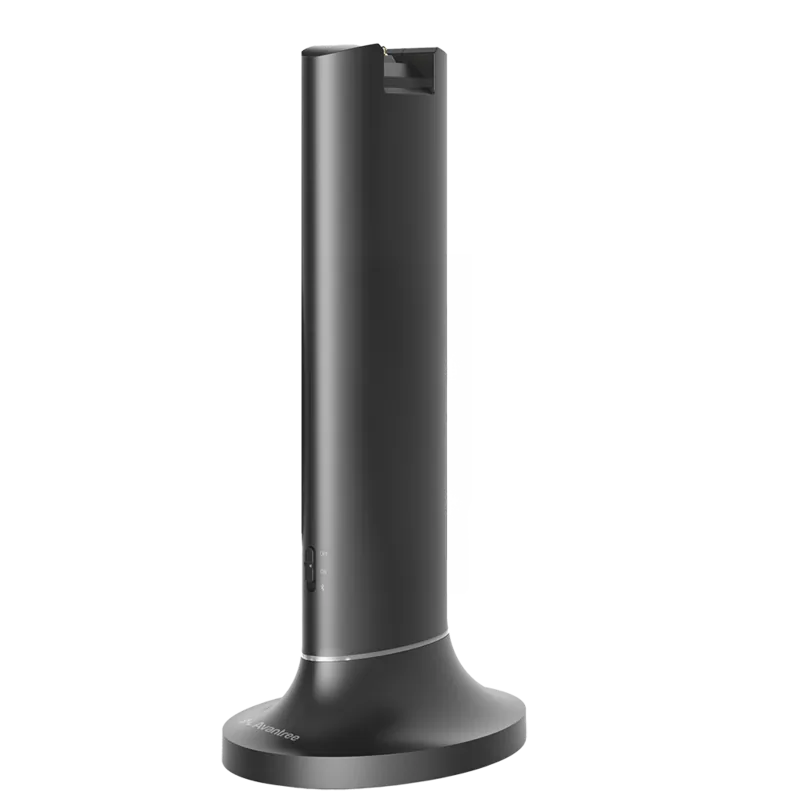
The Avantree Opera is a premium wireless TV audio kit that combines a Bluetooth transmitter dock and over-ear headphones designed for comfortable long listening and easy TV integration. The set supports multiple input types—optical (TOSLINK/SPDIF), 3.5mm AUX, and RCA—so it works with modern TVs, older sets, and AV receivers. A unique Bypass feature lets you stream TV audio to both Bluetooth headphones and an external sound system simultaneously, preserving your home theater setup while letting one or two listeners enjoy private, low-latency audio.
Setup is straightforward: place the transmitter on its dock or power it via USB-C, choose the input mode (OPT/AUX/MIC), and connect the appropriate cable to your TV. For optical connections, set the TV audio format to PCM and disable Dolby/DTS to ensure compatibility. If your TV lacks an output, the included wired microphone can be placed near the TV speaker and used as an input to transmit sound wirelessly. The headphones and transmitter automatically pair when powered on; a manual Pair mode is available to add a second Bluetooth headphone.
Battery and charging are convenient: the headphones charge on the transmitter dock or via a USB-C cable (5V/500mA–2A). LEDs indicate charging status, connection, and input signal validity (solid white for a valid input, flashing for invalid). Controls on the headphones handle volume, playback, call management, EQ modes (Music/Dialogue), mute, and voice assistant activation. The headphones provide voice prompts like "Welcome to Avantree" and "Connected" for easy feedback.
Troubleshooting steps are clear and practical: reboot both units, clear the headphones' pairing history by holding + and - for 6 seconds, confirm transmitter input mode, and verify TV sound output settings. Avoid using stereo RCA ports on the rear of AV receivers—use the big 6.35mm phone out on the front with an adapter if needed. The manual recommends not powering the transmitter from a TV USB port to prevent unwanted shutdowns when the TV turns off.
Notes:
For optical input, set TV digital audio to PCM and disable Dolby/DTS.
The Bypass feature allows simultaneous sound to Bluetooth headphones and external speakers; avoid rear stereo ports on AV receivers.
Contact [email protected] for assistance or to request a free USB wall charger (US/UK/EU regions).
Overall, the Avantree Opera offers flexible connectivity, simple pairing, and features tailored for TV listening—ideal for late-night viewing without disturbing others or for users wanting private, high-quality TV audio.