
Avantree Alto Clair 2 Manual
PDF manual · 1 Pages
English


Quick check
Incorrect answer, please try again.
Chat with your Avantree Alto Clair 2 manual using AI
Get instant AI answers from your Avantree Alto Clair 2 manual
Ask anything about the Avantree Alto Clair 2. Answers come from this manual, with the pages they are based on.
Ask a Question
Do you recommend Alto Clair 2?
Yes NoFrequently Asked Questions
This issue usually occurs if the correct input device is not selected in your system settings. Ensure you have selected the Avantree device as your default audio input in your computer sound preferences. You should also check that the microphone volume is not muted or set too low within the VoIP application itself.
Is this answer helpful?
To connect, insert the USB dongle into your computer and turn on the headphones. They should connect automatically. If not, hold the power button until the indicator flashes blue and red to enter pairing mode, then select the device on your phone list.
Is this answer helpful?
You can switch audio channels using the audio settings on each device individually. On the PC, change the output to the Avantree dongle. On the phone, select the device in the Bluetooth list. Simply toggling between active audio sources handles the switch.
Is this answer helpful?
The charging specifications require a DC 5V source, ideally drawing between 0.5A to 2A. Use the provided Micro USB charging cable and connect it to a compatible power source to maintain battery health effectively over use.
Is this answer helpful?
If the device does not auto-connect when powered on, try unplugging and replugging the USB dongle to refresh the connection. You may also need to manually select the Avantree device in your system settings to ensure the driver is active and recognized.
Is this answer helpful?
Visit the support website to register your product. This links your specific model number to your account for future claims. Registration is essential to ensure you receive the full warranty coverage for the hardware provided.
Is this answer helpful?
Advantages and Disadvantages
Advantages

- Auto-connect dongle provides stable wireless connection without standard interference issues found in crowded offices.
- Boom microphone effectively filters background noise to ensure professional voice clarity during calls.
- Charging stand keeps device powered and ready for extended conference sessions without battery anxiety.
- Simple settings allow easy switching between PC and mobile phone audio sources for different devices.
- Multiple support channels available globally including email and phone numbers for technical assistance.
Disadvantages

- VoIP apps might require closing other applications to prevent audio conflicts during critical calls.
- Setup could be complex if users are not familiar with computer sound settings and drivers.
- Dongle must remain connected to PC for audio routing which can limit portability compared to Bluetooth only.
- Battery life depends on proper charging with DC 5V source specified in technical requirements.
- Troubleshooting often requires restarting the computer if the device does not reconnect automatically.
Product Specification
Type
Headphones (On-Ear)
Style
Headband
Microphone
Boom Mic (Detachable)
Connector
3.5mm Jack, USB-A (Adapter)
Wireless
Bluetooth 5.0, aptX, aptX HD, aptX LL, Multipoint
Cable
3.94 ft, One-sided, Detachable
Controls
3-button remote, Mute button
Battery Life
16 hours
Battery
USB Micro-B Charging Port, Charging Station
Frequency Range
20Hz-20kHz
Impedance
32 ohms
Drivers
1.57 inches
Features
Includes Charging Station
Color
Black
Weight
0.33 lbs
Product Description
Avantree Alto Clair 2 System Overview
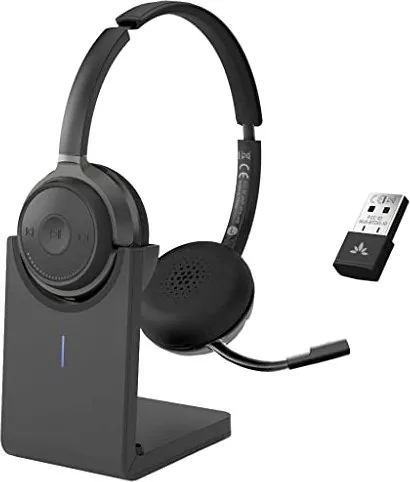
Experience superior audio communication with the Avantree Alto Clair 2 system designed for seamless productivity. This headset setup focuses on clear voice transmission for remote work environments. Users benefit from advanced pairing capabilities that simplify daily usage tasks significantly. The included USB dongle ensures stable wireless connectivity without interference often found in standard Bluetooth pairs within crowded offices. Integrating this device into your workflow allows for dedicated audio channels that separate work calls from personal media streams effectively. The model number BTHT-1060 identifies the specific charging stand configuration included in this package.
Configuration and Sound
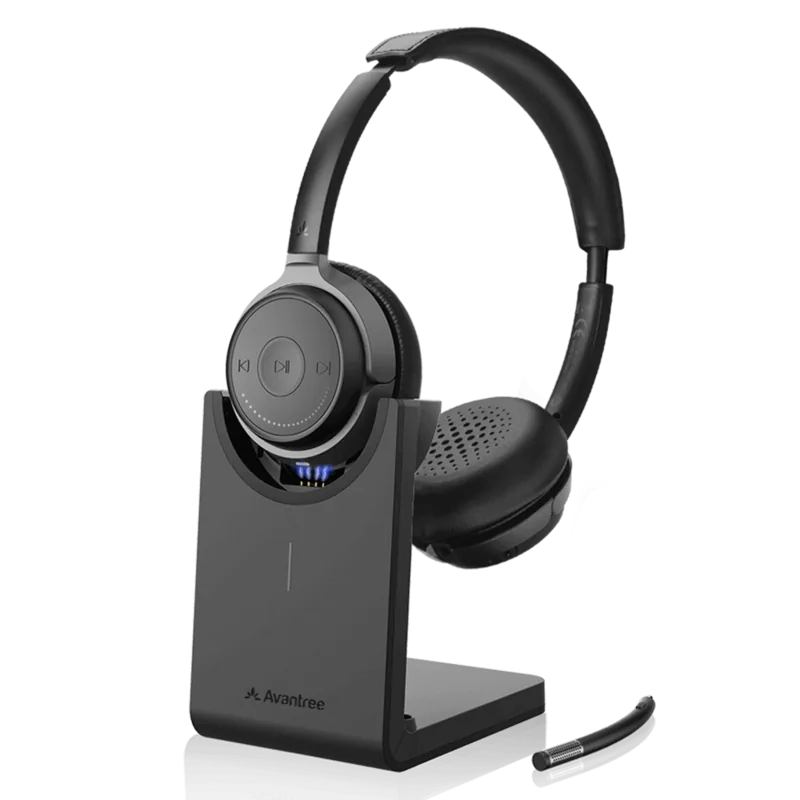
Setup involves inserting the dongle into your computer port and powering on the headphones immediately. Automatic connection protocols reduce the time spent in technical adjustment after every session. You can switch audio sources between a PC and mobile phone with simple settings adjustments on your preferred device. For VoIP applications like Zoom or Teams, selecting the correct input and output devices is crucial for colleagues to hear you clearly during meetings. If audio issues arise, resetting the connection by unplugging the dongle often resolves minor glitches instantly. The charging stand keeps your device ready for extended conference calls throughout the work day without battery anxiety.
Design and Comfort
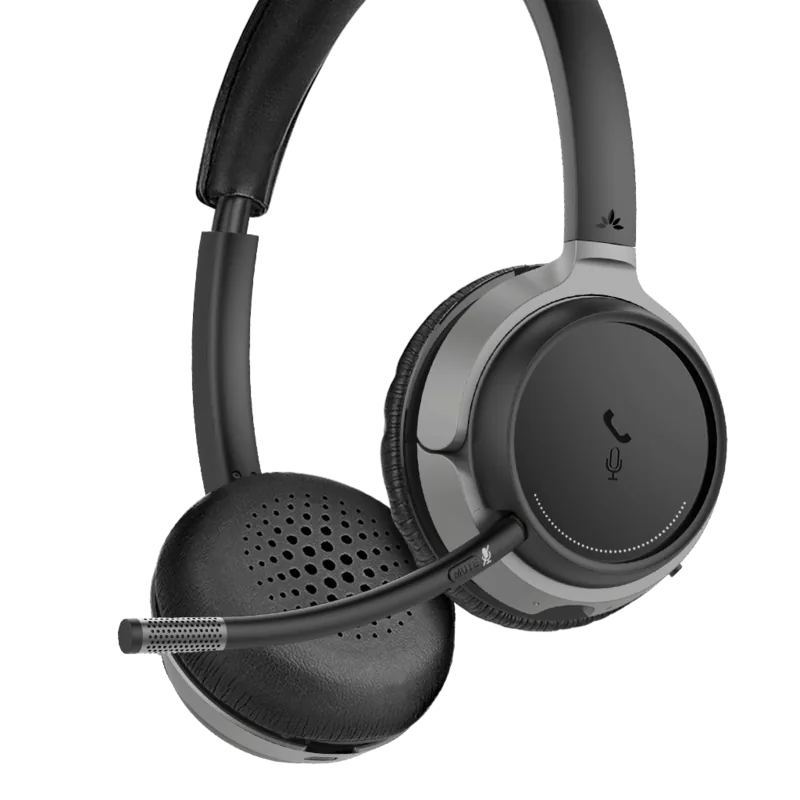
Comfort is also a priority with these over-ear options suitable for long sessions. The boom microphone filters background noise while capturing your voice precisely for professional clarity. Audio settings allow for customization based on your specific environment requirements and personal hearing preferences. Support resources are available online for further assistance regarding software permissions. Regular maintenance involves cleaning ear pads and storing the unit on the provided base securely. This comprehensive solution bridges the gap between home offices and corporate systems effectively.
Performance and Maintenance
Power management remains efficient with USB connectivity options. Ensure system sound settings prioritize the Avantree device for optimal performance. Closing other VoIP applications helps prevent conflicts during critical calls. The charging specifications require a DC 5V source to maintain battery health over years of use. Pairing mode is accessible by holding the button until lights flash which indicates connection success. The dongle acts as a dedicated receiver to guarantee zero latency for professional audio exchanges.
Overall, the product delivers reliable performance for hybrid work styles requiring high fidelity. Configuring the microphone as default helps avoid accidental muting during sensitive discussions. Troubleshooting steps usually involve checking the volume sliders and ensuring the correct driver is active. You gain control over input and output streams independently. This flexibility supports multitasking between phone calls and computer audio simultaneously. Accessory options expand functionality with cables and stands for versatility in any office setting.
Final Summary
Clear instructions ensure you utilize all features correctly for performance. Continuous updates from the manufacturer ensure your device stays compatible with new software releases. Enjoy your enhanced communication experience today with the Avantree Alto Clair 2 setup details in mind.
Search for 67,706 Manuals online


Type-in Brand or Model