
Apricorn Aegis Fortress L3 Manual
PDF manual · 10 Pages
English



Quick check
Incorrect answer, please try again.
Chat with your Apricorn Aegis Fortress L3 manual using AI
Get instant AI answers from your Apricorn Aegis Fortress L3 manual
Ask anything about the Apricorn Aegis Fortress L3. Answers come from this manual, with the pages they are based on.
Ask a Question
Do you recommend Aegis Fortress L3?
Yes NoFrequently Asked Questions
Press the Unlock control, enter a valid Admin PIN or User PIN, and confirm with the keypad. The drive becomes available to the connected computer only after successful authentication.
Is this answer helpful?
PINs must be 7 to 16 digits long. They cannot consist entirely of identical digits or a complete consecutive sequence. The Shift key can be used for additional input combinations.
Is this answer helpful?
The drive enters standby and is not recognized by the operating system. If a write operation is still underway, it waits until that operation is complete before locking.
Is this answer helpful?
Yes. An administrator can add User PINs while in Admin mode. This lets authorized users unlock the drive without needing the Admin PIN for normal access.
Is this answer helpful?
Yes. It is preformatted in NTFS, so it is ready for use in many Windows environments after it has been unlocked.
Is this answer helpful?
Unlock and connect the drive, then use Mac Disk Utility to erase and reformat it with a Mac-compatible file system. Mac OS Extended (Journaled) is the recommended format in the supplied guidance.
Is this answer helpful?
Advantages and Disadvantages
Advantages

- Built-in keypad requires a valid Admin or User PIN before data access.
- Locked standby mode is not recognized by the operating system.
- Supports separate Admin and User PINs for controlled shared access.
- LED self-test and status indicators provide immediate operating feedback.
- Preformatted in NTFS for Windows and can be reformatted for Mac use.
Disadvantages

- An Admin PIN must be set before the drive can be used.
- Mac users must reformat the drive to a compatible file system.
- Reformatting erases existing contents unless they are backed up first.
- PIN requirements may make setup less convenient for some users.
- A failed security self-test leaves the unit in an inoperable state.
Product Specification
Form Factor
2.5"
Internal Connection
1x SATA 6 Gb/s
External Connection
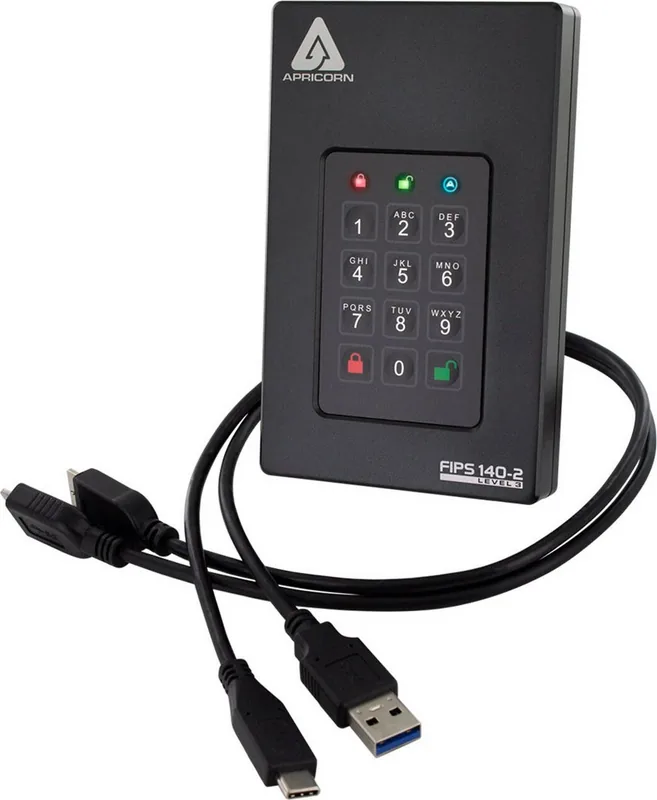
1x USB 3.0 Micro-B
RAID Level
N/A
Fan
N/A
Color
black
Manufacturer Warranty
three years
USB Notation
Link
Product Description
Apricorn Aegis Fortress L3 HDD External - Read, Download & Print Free
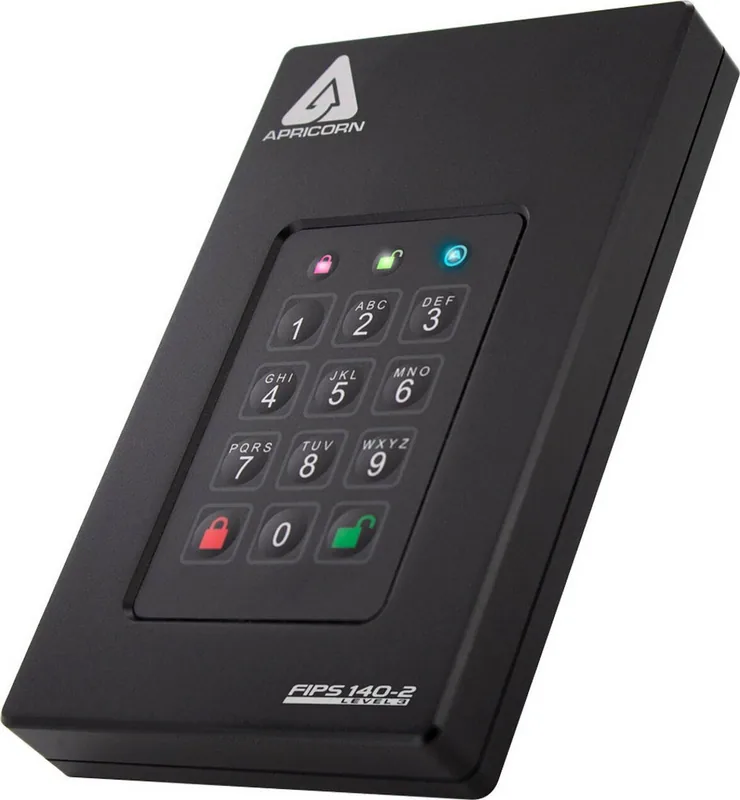
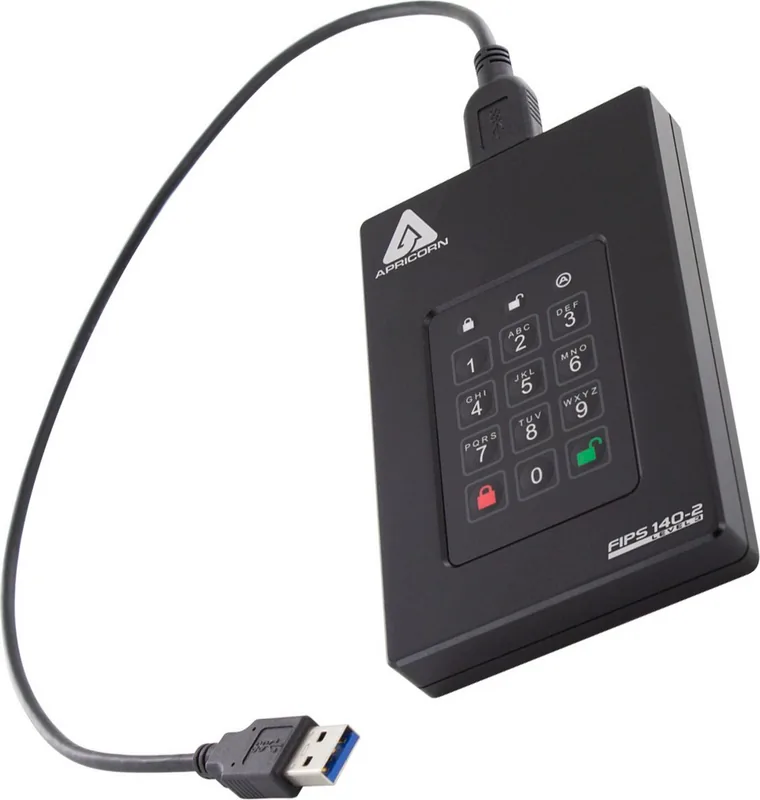
The Apricorn Aegis Fortress L3 HDD external is designed for people who need portable storage with an emphasis on controlled access. Its built-in keypad allows users to unlock the drive with an Admin PIN or User PIN before it becomes available to a connected computer. This approach helps keep stored information inaccessible while the drive is locked, including when it is connected through USB.
Keypad-controlled access
Before first use, the Fortress L3 requires an Admin PIN. The drive uses LED indicators to guide setup and show its operating condition. During startup, it runs a self-test across red, green, and blue LED stages. Three green flashes confirm that its security components are working correctly, while a flashing red light signals a failed test and an unusable unit.
PIN rules encourage stronger access codes. An Admin or User PIN must contain 7 to 16 digits, cannot be made entirely of identical numbers, and cannot use a fully consecutive sequence. The Shift key can expand the available input combinations, helping users create more varied PINs. Once the Admin PIN is configured, it can unlock the drive and provide access to administration functions.
User access and simple locking
The Admin can add separate User PINs for additional people who need access without sharing the main administrative code. This provides a practical distinction between routine use and management tasks. To unlock the drive, enter a valid Admin or User PIN and use the Unlock control. When work is complete, press Lock. If data is still being written, the drive waits for the write operation to finish before locking.
In its locked standby state, the Aegis Fortress L3 is not recognized by the operating system. That behavior supports a privacy-focused workflow: unlock it when access is needed, then lock it again before transport, storage, or handoff.
Windows and Mac compatibility
The Apricorn Aegis Fortress L3 HDD external arrives preformatted in NTFS for Windows, making it ready for many Windows environments. Mac users can prepare the drive through Disk Utility after unlocking and connecting it. The supplied guidance recommends selecting a Mac-compatible volume format, such as Mac OS Extended (Journaled), during the erase and reformat process.
Notes
- Save the Admin PIN securely, since it is required for administration and access.
- Verify that any device intended for Aegis Configurator use carries the configurable logo.
- Configure compatible units with the Aegis Configurator only while they are in factory or fully reset condition.
- Reformatting for Mac removes existing contents, so back up important data first.
For users seeking a portable HDD with keypad entry, visible status feedback, controlled user access, and a clear lock-after-use routine, the Fortress L3 offers a focused storage solution.
Search for 67,706 Manuals online


Type-in Brand or Model