
AMD Radeon PRO W6000 Manual
PDF manual · 13 Pages
English


Quick check
Incorrect answer, please try again.
Chat with your AMD Radeon PRO W6000 manual using AI
Get instant AI answers from your AMD Radeon PRO W6000 manual
Ask anything about the AMD Radeon PRO W6000. Answers come from this manual, with the pages they are based on.
Ask a Question
Do you recommend Radeon PRO W6000?
Yes NoFrequently Asked Questions
Power requirements vary by model: W6800 recommends a minimum 650W system power supply, while W6600 and W6400 typically require a minimum 350W. For multi-GPU setups, confirm combined power needs and consult AMD Customer Care if unsure.
Is this answer helpful?
Display support depends on the model: W6800 can handle up to two 8K (60Hz) or six 4K displays, W6600 supports one 8K or four 4K displays, and W6400 supports one 8K or two 4K displays. Actual configurations may vary with adapters and system bandwidth.
Is this answer helpful?
Download the latest Radeon PRO drivers and configuration software from AMD's support website (support.amd.com). It's recommended to reinstall Radeon PRO drivers after OS upgrades or when replacing a graphics card to avoid file conflicts.
Is this answer helpful?
Adapters or dongles can connect non-DisplayPort displays. Active adapters provide native DisplayPort signals and better compatibility; passive adapters work for some cases. Note the series removes the previous limit on passive adapters, but active adapters are still recommended for best results.
Is this answer helpful?
Turn off and unplug the PC, wait ~20 seconds before touching components, ground yourself to avoid static discharge, and ensure power is disconnected. Use retention brackets only if the chassis supports them, and tighten all securing screws to prevent movement.
Is this answer helpful?
Some W6000 cards include two end-bracket options (short SFF and standard). To swap, remove the retention screws, replace the bracket, and resecure screws without overtightening. Use retention brackets only when the chassis is designed for them.
Is this answer helpful?
AMD Customer Care offers technical support and troubleshooting via the support website, online forms, and phone contacts listed regionally. Support scope and availability vary; for returns or exchanges consult your reseller within their allowed period.
Is this answer helpful?
Advantages and Disadvantages
Advantages

- RDNA 2 architecture delivers professional-grade performance and certified software compatibility.
- Scalable options (W6800, W6600, W6400) cover high-end to entry professional workstation needs.
- Supports high-resolution outputs including up to dual 8K and multiple 4K displays (model-dependent).
- Comprehensive driver support via Radeon PRO drivers, with recommendations for OS upgrades and reinstalls.
- Flexible mounting options and brackets support standard and small form factor (SFF) chassis.
Disadvantages

- Higher-end models require substantial PSU capacity (W6800 recommends 650W), adding to system cost.
- Proper installation requires attention to static safety and potential bracket swapping for some chassis.
- Multi-GPU or multi-display setups may need careful planning of power, slots, and active/passive adapters.
- Users must rely on AMD support channels for warranty and some advanced troubleshooting scenarios.
- Some adapters and cables are not included and must be purchased separately for legacy displays.
Product Specification
Overclocking
-
Features
AMD reference design
Chip data
Chip architecture
RDNA 2 (from 2020/Q4)
API support
DirectX 12 Ultimate (12_2) / Vulkan 1.3 / OpenCL 2.1 / OpenGL 4.6 / Shader Model 6.7
Encoding
H.265, H.264
Multi-GPU connection
-
Product Description
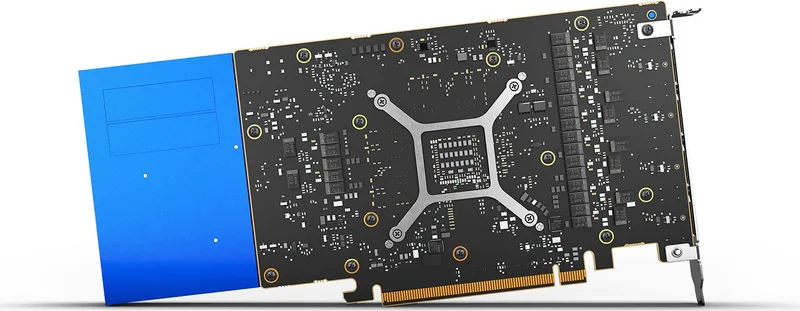
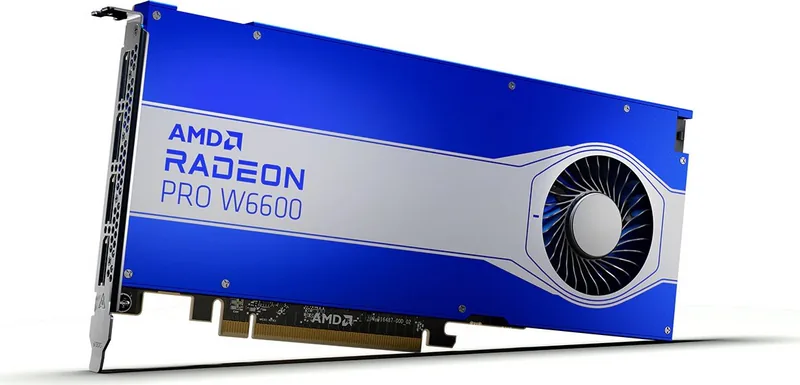
AMD Radeon PRO W6000 (RDNA 2) Manual
The AMD Radeon PRO W6000 (RDNA 2) Manual introduces a professional-class GPU family engineered for reliability, stability, and certified software compatibility. Built on RDNA 2 architecture, the W6000 series targets workstation users—designers, engineers, and content creators—who need high-fidelity visuals, multi-display support, and robust driver ecosystems for demanding applications. The guide covers setup essentials, system requirements, safe handling, installation steps, and display configurations to help integrate the card into modern workstations.
Product overview
The Radeon PRO W6000 family includes models such as the W6800, W6600, and W6400, offering varying power and display capabilities to match different workstation needs. W6800 is positioned for top-tier performance with support for multiple 4K displays and dual 8K outputs at 60Hz; W6600 and W6400 provide efficient midrange and entry professional options. All models emphasize certified drivers and software stability for CAD, 3D modeling, and video workflows.
Installation and requirements
The manual lays out minimum system requirements and step-by-step installation guidance: a PCIe x16 slot, recommended system power (350W minimum for some models, 650W for W6800), and at least 16 GB RAM (32 GB recommended). It details safe handling—grounding, power-off procedures, and careful seating of the card—and includes instructions for optional retention or end brackets to fit different chassis, plus auxiliary power connector guidance when applicable.
Drivers, displays and configuration
Radeon PRO drivers are essential for unlocking full GPU features and ensuring certification with professional apps. The guide recommends downloading the latest Radeon PRO drivers from AMD’s support site and reinstalling drivers after OS upgrades. Display support includes up to 8K resolution via DisplayPort, multi-display setups (varies by model), and guidance on active vs. passive adapters. The series removes previous passive-adapter limits, enabling more flexible multi-monitor configurations.
Support, compliance and safety
Comprehensive compliance and safety info is included—FCC, CE, UKCA, ISED, and other regional notices—plus disclaimers and environmental compliance references. AMD Customer Care contact options, warranty and support guidance, and troubleshooting tips are provided to help users address installation or operational issues.
Notes
- Record serial and part numbers before installation for registration and support.
- Use native or active display connections where possible for best results.
- Follow grounding and anti-static precautions when handling the card.
Search for 67,706 Manuals online


Type-in Brand or Model