
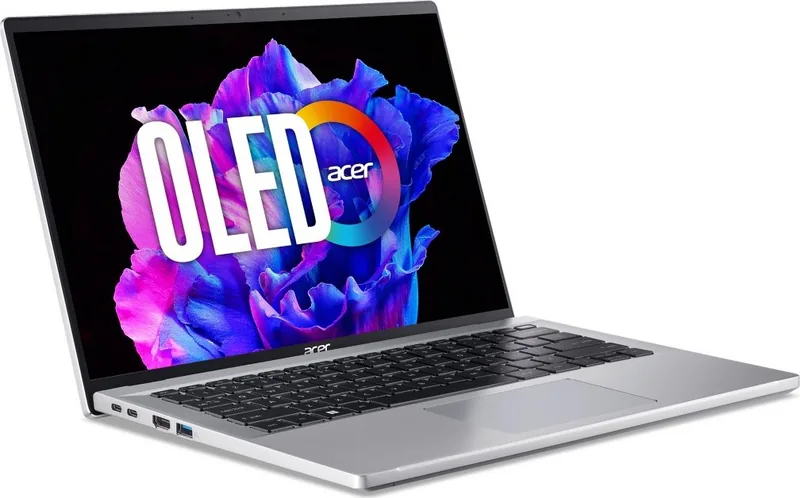

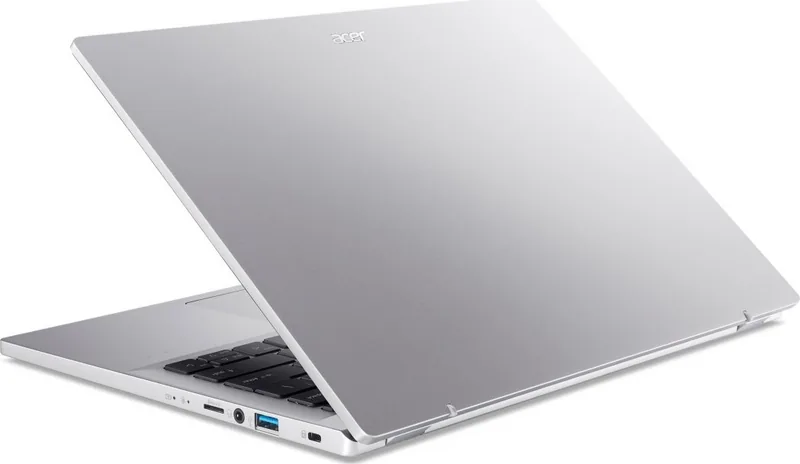
Acer Swift Go SFG14-71 Manual
PDF manual · 80 Pages
English


Quick check
Incorrect answer, please try again.
Chat with your Acer Swift Go SFG14-71 manual using AI
Get instant AI answers from your Acer Swift Go SFG14-71 manual
Ask anything about the Acer Swift Go SFG14-71. Answers come from this manual, with the pages they are based on.
Ask a Question
Do you recommend Swift Go SFG14-71?
Yes NoFrequently Asked Questions
Visit www.acer.com/myproducts using the same email as your Windows account to register and verify product data immediately upon setup.
Is this answer helpful?
Yes use the recovery tools in Windows Settings to choose the option to keep your personal files while reinstalling the operating system.
Is this answer helpful?
Avoid extreme temperatures charge to one hundred percent then unplug and do not leave plugged in constantly for months.
Is this answer helpful?
Enable the Bluetooth adapter in settings then click add device and select the item you wish to connect from the list shown.
Is this answer helpful?
Avoid static images use auto brightness and refresh screens periodically to prevent permanent ghosting on the display panel.
Is this answer helpful?
The fingerprint reader is integrated directly into the power button located at the top right corner of the keyboard deck.
Is this answer helpful?
Hold the power button for ten seconds to force shutdown wait two seconds then press the button again to restart the system safely.
Is this answer helpful?
Advantages and Disadvantages
Advantages

- OLED display offers deep blacks and brilliant colors
- Supports Thunderbolt 4 for high speed data transfer
- Fingerprint reader enables fast and secure login
- Pre-installed Norton security shields against malware
- SD card slot allows easy access to removable storage
Disadvantages

- Integrated battery may be difficult to replace
- Temperature sensitivity affects long term performance
- Requires specific charger for optimal charging results
- Screen may be prone to burn in with static images
- Limited repair accessibility without authorized service
Product Specification
Type
Laptop
Hard Drive
N/A
SSD
N/A
Operating System
Windows 11 Home
Input
Keyboard with German Layout (backlit, Rubber-Dome), Touchpad (Glass)
Ports
1x USB-A 3.0 (5Gb/s, BC), 1x USB-A 3.0 (5Gb/s), 2x Thunderbolt 4 (40Gb/s, Power Delivery), 1x HDMI 2.1, 1x 3.5mm Jack, 1x microSD
Authentication
Fingerprint Reader
Camera
3.7 Megapixels
Optical Drive
N/A
Features
Security Lock (Kensington Security Slot)
Weight
2.76 lbs
Dimensions
12.32 x 8.58 x 0.59 in (WxDxH)
Color
Silver, Manufacturer Designation: Pure Silver
Warranty
2 years (Mail-in)
USB Reference
Link
Product Description
Discover the Acer Swift Go SFG14-71 Experience
The Acer Swift Go SFG14-71 represents a significant step forward in portable computing performance. This sleek laptop combines power with efficiency designed for professionals who demand reliability on the move. Upon unboxing users are greeted with a modern interface powered by Windows 11 ensuring immediate productivity. One of the standout features highlighted during initial setup is the vibrant OLED display. This technology offers deep blacks and brilliant colors enhancing media consumption and creative tasks significantly. However proper care is essential to maintain this premium viewing experience over time.
Battery management plays a crucial role in your daily workflow. The integrated lithium battery provides flexibility for travel but adhering to specific guidelines ensures longevity. Avoid exposing the device to extreme temperatures above thirty-five degrees Celsius or below zero Celsius. Continuous charging beyond full capacity can also degrade performance so unplugging at one hundred percent helps preserve cell health. For those needing quick connectivity the unit includes multiple USB Type-C ports supporting Thunderbolt 4 and video output capabilities. It supports high speed data transfer speeds up to forty Gigabits per second.
Security is another priority built into the design. Users can utilize the fingerprint reader located near the power button for fast and secure login via Windows Hello. Setting up supervisor and user passwords adds layers of protection against unauthorized access. If you ever face system instability the recovery tools allow you to reset the personal computer while keeping files or removing everything entirely. Restoring drivers for wireless local area networks is also streamlined through the dedicated management center application. This feature simplifies troubleshooting without needing external software downloads.
Connecting peripherals is straightforward thanks to the SD card slot and HDMI port for external monitors. Whether working remotely or at a desk maintaining internet stability is key. Guidelines suggest using Norton security software pre-installed to shield against malware threats. Regularly updating your operating system through the provided settings menu keeps vulnerabilities at bay. Always eject devices safely to prevent data corruption when using storage drives. Physical health considerations are also addressed within the documentation recommending eye rest periods during extended screen time sessions.
Ultimately understanding the operational nuances maximizes the lifespan of your investment. Following these practical steps regarding cleaning sleep mode usage and physical handling protects your hardware. The swift nature of this machine demands careful attention to its cooling vents as well. Do not block ventilation openings located on the bottom and rear chassis surfaces. Dust accumulation can affect thermal regulation so regular maintenance with a soft cloth is recommended. By respecting these operational boundaries owners can enjoy a seamless digital lifestyle. This comprehensive approach to ownership ensures satisfaction whether for business or leisure activities throughout the year ahead.
Search for 67,706 Manuals online


Type-in Brand or Model