
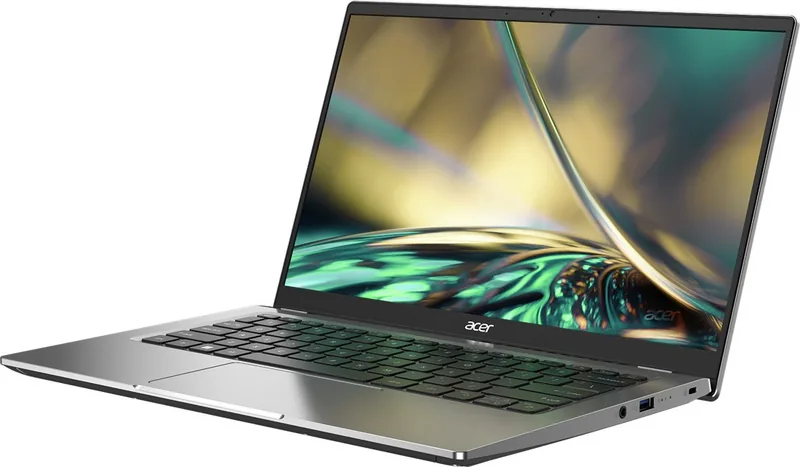
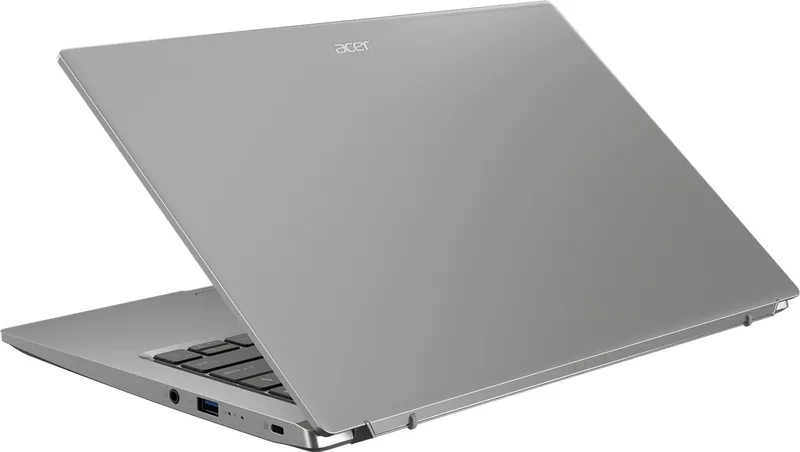
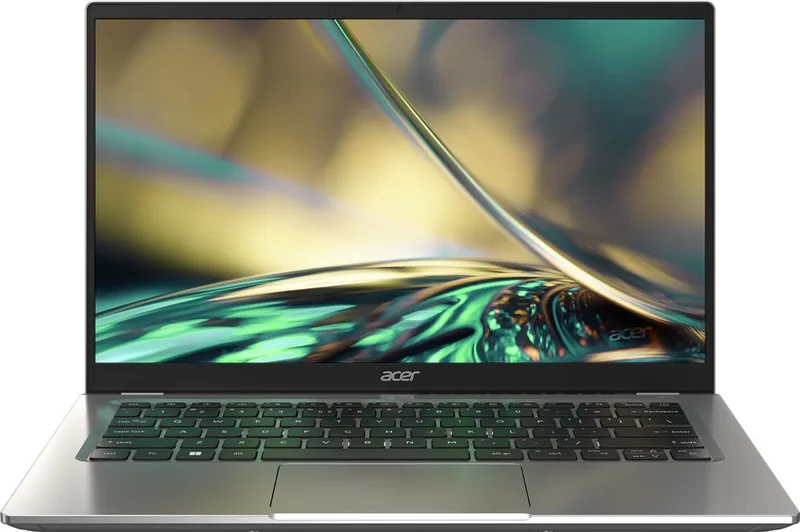
Acer Swift Go SFG14-41 Manual
PDF manual · 74 Pages
English


Quick check
Incorrect answer, please try again.
Chat with your Acer Swift Go SFG14-41 manual using AI
Get instant AI answers from your Acer Swift Go SFG14-41 manual
Ask anything about the Acer Swift Go SFG14-41. Answers come from this manual, with the pages they are based on.
Ask a Question
Do you recommend Swift Go SFG14-41?
Yes NoFrequently Asked Questions
The Acer Swift Go SFG14-41 is a portable Windows laptop with a built-in display, webcam, precision touchpad, fingerprint-enabled power button, wired ports, and wireless networking features for work, study, entertainment, and travel.
Is this answer helpful?
It includes USB Type-C with DC input and DisplayPort support, HDMI, USB Type-A ports, and a combined headset jack. The USB Type-C connection supports data transfers up to USB 3.2 Gen 2 capability, subject to connected devices.
Is this answer helpful?
Yes. An external display can be connected through HDMI or through compatible USB Type-C DisplayPort output. For best results, connect the display cable, power on the monitor, then start the laptop and review Windows display settings if needed.
Is this answer helpful?
Set up Fingerprint Recognition in Windows Hello under Settings, Accounts, and Sign-in options. After enrolling a fingerprint and confirming your PIN, you can use the sensor in the power button to sign in or unlock the system.
Is this answer helpful?
Lower screen brightness, disconnect unused USB accessories, use sleep mode when inactive, avoid extreme temperatures, and follow healthy charging habits. Acer recommends avoiding prolonged charging at full capacity and using approved charging equipment.
Is this answer helpful?
Yes. Enable Bluetooth in Windows Settings or Quick Settings, choose Add device, and select the device you want to pair. You may need to enter a pairing code, especially when connecting older Bluetooth accessories.
Is this answer helpful?
Advantages and Disadvantages
Advantages

- USB Type-C supports charging, data connections, and DisplayPort audio/video output.
- HDMI, USB Type-A, audio, Wi-Fi, and Bluetooth provide flexible everyday connectivity.
- Fingerprint reader supports Windows Hello for convenient, personalized sign-in.
- Precision touchpad gestures and hotkeys improve navigation and quick system control.
- Bluelight Shield and adjustable keyboard backlighting support comfortable extended use.
Disadvantages

- The integrated battery is not intended for user replacement and requires authorized service.
- USB Type-C requires suitable 65 W power delivery equipment for optimal charging performance.
- Some functions and specifications may differ depending on the exact configuration or Windows version.
- Apps installed after purchase may be removed during system reset procedures.
- Wireless use may be restricted during flights and depends on local rules.
Product Specification
Type
Laptop
Display
14 in, 1920 x 1080 (FHD), 16:9, 157 ppi, 60 Hz, non-glare (matte), IPS
RAM
16 GB LPDDR4 (16 GB soldered, not expandable)
Hard Drive
N/A
Flash
N/A
Input
Keyboard with German layout (backlit, rubber dome), touchpad
Ports
2x USB-C 3.1 with DisplayPort (10 Gb/s, power delivery), 1x USB-A 3.0 (5 Gb/s, BC), 1x USB-A 3.0 (5 Gb/s), 1x HDMI 2.1, 1x DC-in barrel jack (power input)
Authentication
Fingerprint reader, TPM 2.0
Camera
2 megapixels
Optical Drive
N/A
Battery
Non-removable, Li-ion, 3-cell, 48.85 Wh
Power Adapter
1x USB-C power connector (65 W / 19 V / 3.42 A)
Weight
2.76 lb
Dimensions
12.67 x 8.33 x 0.63 in (W x D x H)
Color
Silver
Warranty
Two years (return-to-depot)
USB Notation
Link
Product Description
Acer Swift Go SFG14-41 - Read, Download & Print Free
The Acer Swift Go SFG14-41 is a compact laptop designed for everyday productivity, flexible connectivity, and practical security. Built for users who work, study, travel, and manage digital tasks across different locations, it combines a portable format with features that support a smooth Windows 11 experience.
Designed for daily computing
Its layout includes a built-in display, webcam, digital microphones, full keyboard, and a precision touchpad. The touchpad supports multi-finger gestures for scrolling, zooming, switching windows, opening search, and viewing active tasks. Dedicated keyboard shortcuts make it easier to control volume, brightness, microphone access, airplane mode, keyboard backlighting, and performance settings without interrupting your workflow.
The power button also incorporates a fingerprint reader, allowing compatible Windows Hello sign-in options for quick and personal access. Additional security can be set through Windows credentials and BIOS-level passwords, while a Kensington lock slot adds a physical protection option in shared workspaces.
Ports and connections
The Acer Swift Go SFG14-41 offers useful connections for modern accessories and displays. A USB Type-C port supports charging input, USB devices, and DisplayPort audio/video output. It also includes HDMI for digital external displays, USB Type-A ports for common peripherals, and a combined audio jack for headphones, speakers, or a headset.
Wireless connections are equally important. Wi-Fi enables internet access through available networks, while Bluetooth supports pairing with compatible devices such as headphones, keyboards, phones, and tablets. These capabilities help keep a desk setup simple while also making the laptop easy to use on the move.
Battery, display, and comfort features
An integrated lithium battery supports mobile use between charging sessions. The system provides battery-status information and low-charge warnings, while its power management tools can reduce consumption when the laptop is inactive. Acer also recommends sensible charging and storage habits to help preserve long-term battery health.
For extended screen time, Bluelight Shield provides several reduction modes that can lower blue-light emissions. Users can select a mild setting for everyday use or stronger modes intended to reduce visual fatigue during longer sessions. Adjustable display brightness and fan modes add further control over comfort and system behavior.
Recovery and support tools
Windows recovery options and Acer Care Center features help users back up data, preserve network drivers, or reset the computer when troubleshooting is needed. The system can be restored while keeping personal data, or fully reset when a clean start is required.
Note: Use certified charging equipment, keep ventilation openings clear, and safely eject USB storage before disconnecting it. Product features can vary by configuration and operating system version.
Search for 67,706 Manuals online


Type-in Brand or Model