
Acer Swift Edge SFE16-42 Manual
PDF manual · 76 Pages
English


Quick check
Incorrect answer, please try again.
Chat with your Acer Swift Edge SFE16-42 manual using AI
Get instant AI answers from your Acer Swift Edge SFE16-42 manual
Ask anything about the Acer Swift Edge SFE16-42. Answers come from this manual, with the pages they are based on.
Swift Edge SFE16-42 Maintenance Schedule
For long-term storage, check the battery every 6 months and recharge it to approximately 50% capacity.
Rest your eyes for 5-10 minutes every hour and periodically look away from the display at a distant point.
Free maintenance reminders
Timed to your purchase date. Always free, unsubscribe anytime.
Ask a Question
Do you recommend Swift Edge SFE16-42?
Yes NoFrequently Asked Questions
Use Acer Care Center to restore PC and choose Keep my files option for safe reinstallation.
Is this answer helpful?
Use of non-Acer battery or charging equipment can cause damage to the product and will void the warranty.
Is this answer helpful?
Toggle Quick Access settings to reduce static content and adjust screen brightness to prevent permanent damage over time.
Is this answer helpful?
Yes, use the HDMI port or USB Type-C connector to link the laptop to an external display easily.
Is this answer helpful?
Security includes a Kensington lock slot, password protection, and a fingerprint reader for Windows Hello login.
Is this answer helpful?
Connect the AC adapter immediately after the warning appears to prevent data loss if shut down occurs.
Is this answer helpful?
Turn off the device, disconnect power, and use a soft moist cloth without liquid cleaners for safety.
Is this answer helpful?
Advantages and Disadvantages
Advantages

- OLED screen with vibrant colors and deep blacks
- USB4 support for high-speed data transfer up to 40 Gbps
- Integrated fingerprint reader on power button for security
- Bluelight Shield feature helps reduce eye strain
- Internal Li-ion battery with optimized power management
Disadvantages

- OLED screen risk of permanent burn-in if static images remain
- Built-in battery cannot be replaced by the user
- Fast startup can drain battery if not managed properly
- Charging port must be used with approved Acer equipment
- Performance limited at temperatures below 0 degrees Celsius or above 45 degrees
Product Specification
Type
Laptop
Display
16", 3840x2400, 16:10, 283ppi, 60Hz, glare (glossy), OLED, 500 cd/m2, VESA DisplayHDR True Black 500, 2ms, 100% DCI-P3
Processor
AMD Ryzen 7 7735U, 8C / 16T, 2.70-4.75GHz, 16MB+4MB Cache, 28W TDP, Codename "Rembrandt-R" (Zen 3+, TSMC 6nm)
SSD
1TB M.2 PCIe
HDD
N/A
Flash
N/A
Graphics
AMD Radeon 680M (iGPU), 12CU / 768SP, 2.20GHz, Architecture "RDNA 2" (Rembrandt+)
Input
Keyboard with German Layout (backlit, Rubber-Dome), Touchpad
Ports
2x USB4 with DisplayPort (40 Gb/s, Power Delivery), 1x USB-A 3.0 (5 Gb/s, Battery Charging), 1x USB-A 3.0 (5 Gb/s), 1x HDMI 2.1, 1x 3.5mm Jack
Wireless
Wi-Fi 6E (802.11a/b/g/n/ac/ax, 2x2), Bluetooth 5.2
Authentication
Fingerprint Reader (Power Button), TPM 2.0
Camera
2 Megapixels
Optical Drive
N/A
Battery
Built-in, Li-Ion, 3 Cells, 54Wh, 3220mAh, 9 hours runtime
Power Adapter
1x USB-C Power Adapter (65W)
Weight
2.58 lbs
Dimensions
14.04x9.54x0.55 inches (WxDxH)
Storage Slots
1x M.2 PCIe
Warranty
two years (Mail-In)
USB Naming
Link
Product Description
Acer Swift Edge SFE16-42 Overview
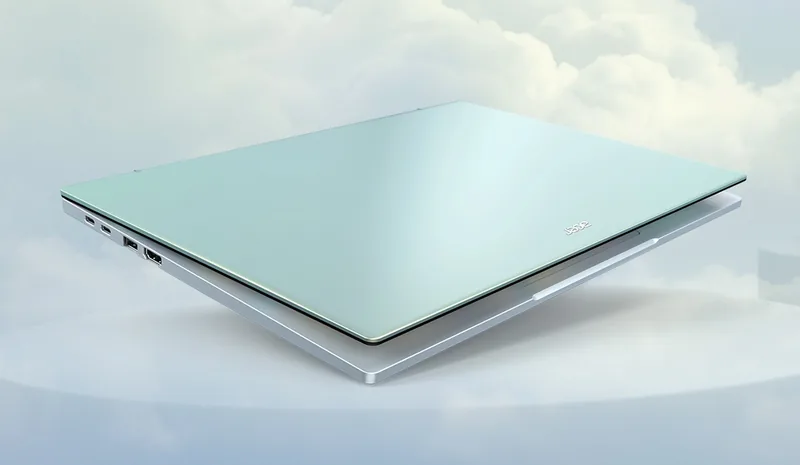
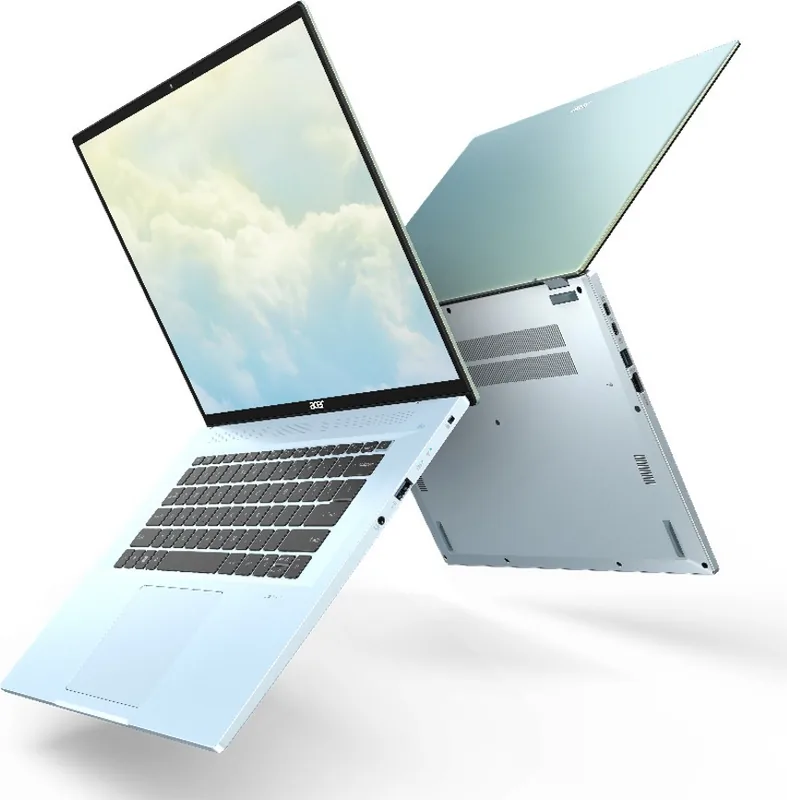
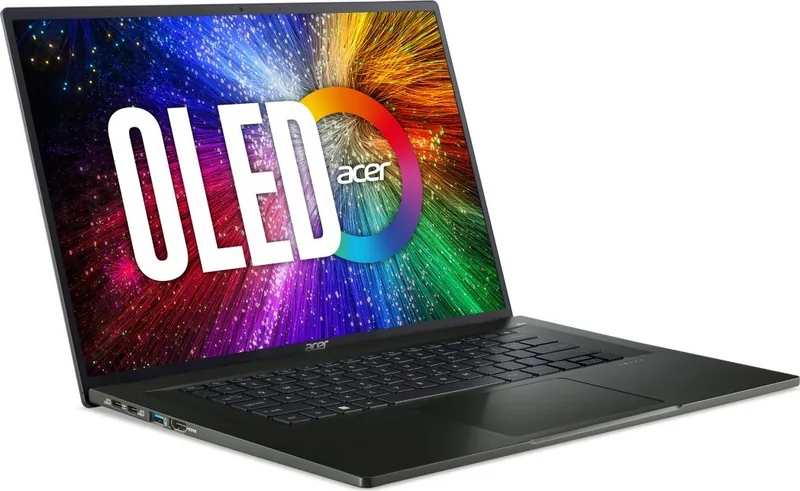
The Acer Swift Edge SFE16-42 defines modern mobile computing with its sleek design and powerful performance. This lightweight notebook offers an immersive visual experience thanks to its OLED screen technology. Users often appreciate the vibrant colors and deep blacks delivered by the display. The device supports USB4 for high-speed data transfer up to 40 Gbps. Charging is efficient due to the USB4 port supporting power delivery. The keyboard features a fingerprint reader integrated into the power button for secure Windows Hello login. This setup simplifies access while maintaining high security standards for personal data.
Battery and Power Management
Power efficiency is critical for professionals on the go. The internal lithium battery provides extended usage between charges. Owners should follow specific care guidelines to maximize lifespan. Avoid temperatures outside the recommended range to prevent damage. The system allows for optimized battery life settings within the software. Users can check the battery level easily through the taskbar icon. When the battery is low, saving work and plugging in the adapter is recommended to prevent data loss. Fast startup can be disabled to reduce power drain while ensuring a secure shutdown process. Recharging should occur in well-ventilated areas to avoid overheating risks.
Connectivity and Ports
Connectivity remains a strong point for this model. HDMI ensures high-definition video output to external monitors. Multiple USB Type-A ports allow connection to peripherals like mice or drives. The USB Type-C port serves multiple functions including data, display, and power. Bluetooth enables wireless connection to headsets and mobile devices. Wi-Fi connectivity keeps users connected to networks for remote work or entertainment. An external monitor can be connected with ease using the video and audio connectors.
Security and Maintenance
Data protection is handled through hardware and software layers. A Kensington lock slot allows physical security in public spaces. Passwords on boot and supervisor modes ensure unauthorized access is prevented. Regular updates via Windows Update and Acer Care Center maintain system health. The Bluelight Shield feature is available to reduce eye strain during long sessions. Users should regularly back up files using recovery management tools. Factory resets are possible if performance issues arise. Restoring keeps files or removes everything depending on the user choice.
Referring to the Acer Swift Edge SFE16-42 Manual helps users navigate these features. It covers troubleshooting steps for common errors like power issues or screen brightness problems. Cleaning should be done with a soft moist cloth while powered off. Avoid liquids entering the chassis to protect internal components. Proper ventilation ensures the cooling fan operates efficiently. Following these guidelines ensures longevity and optimal performance for your daily tasks. Screen care is vital as static images can cause burn-in. Adjust settings to avoid prolonged static content on the display.
Precision Input and User Experience
The precision touchpad offers smooth and accurate cursor control. Users can utilize various gestures for multitasking efficiency. Two-finger swipes allow scrolling, while three-finger gestures open task views. The touchpad sensitivity can be adjusted through settings for personal preference. It replaces the need for a physical mouse in most scenarios. The keyboard also includes dedicated hotkeys for brightness and volume control. This integration allows for quick adjustments without leaving your workflow. The laptop runs on Windows 11, providing a familiar interface.
Search for 67,706 Manuals online


Type-in Brand or Model