
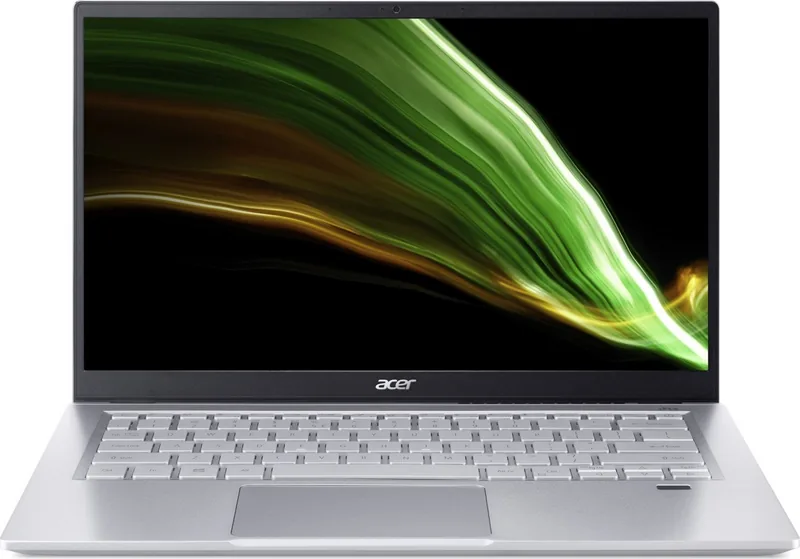
Acer Swift 3 SF314-511 Manual
PDF manual · 76 Pages
English


Quick check
Incorrect answer, please try again.
Chat with your Acer Swift 3 SF314-511 manual using AI
Get instant AI answers from your Acer Swift 3 SF314-511 manual
Ask anything about the Acer Swift 3 SF314-511. Answers come from this manual, with the pages they are based on.
Ask a Question
Do you recommend Swift 3 SF314-511?
Yes NoFrequently Asked Questions
Open Acer Care Center from the Start menu, select Recovery Management, then choose Restore. Pick Keep my files to reinstall Windows while preserving your personal data. You can choose Cloud download or Local reinstall based on your internet connection.
Is this answer helpful?
No, the internal battery must be replaced by an authorized service center. Attempting to remove it yourself can cause damage, void the warranty, and pose safety risks such as fire or explosion due to mishandling lithium batteries.
Is this answer helpful?
Bluelight Shield reduces blue-light emissions from the screen to protect your eyes. It offers four modes ranging from Low to High Reduction and a Long Hour Mode tuned for extended viewing periods to minimize eye strain.
Is this answer helpful?
Press the Windows key, go to Settings, select Bluetooth & devices, and toggle the switch to enable it. Then click Add device to pair with your peripheral. Ensure both devices have Bluetooth turned on before pairing.
Is this answer helpful?
Check if the AC adapter is plugged in and the battery has charge. If power is supplied but it still fails, unplug all USB storage devices and restart using Ctrl+Alt+Del. If issues persist, check for error messages in the BIOS utility.
Is this answer helpful?
Advantages and Disadvantages
Advantages

- Thunderbolt 4 support enables ultra-fast data transfer and dual 4K display connections
- Precision Touchpad offers accurate multi-gesture control for efficient multitasking
- Fingerprint reader provides secure and fast biometric login via Windows Hello
- Bluelight Shield reduces eye strain with customizable reduction modes
- Comprehensive recovery tools allow easy system restoration and file backups
Disadvantages

- Built-in battery cannot be replaced by the user and requires authorized service
- Fast Startup may prevent Wake on LAN functionality if disabled
- USB Type-C charging requires specific wattage adapters for optimal performance
- Keyboard backlight toggle is optional and may not be present on all units
- Battery life decreases significantly in temperatures above 35 degrees Celsius
Product Specification
Type
Notebook
HDD
N/A
Flash
N/A
Connections
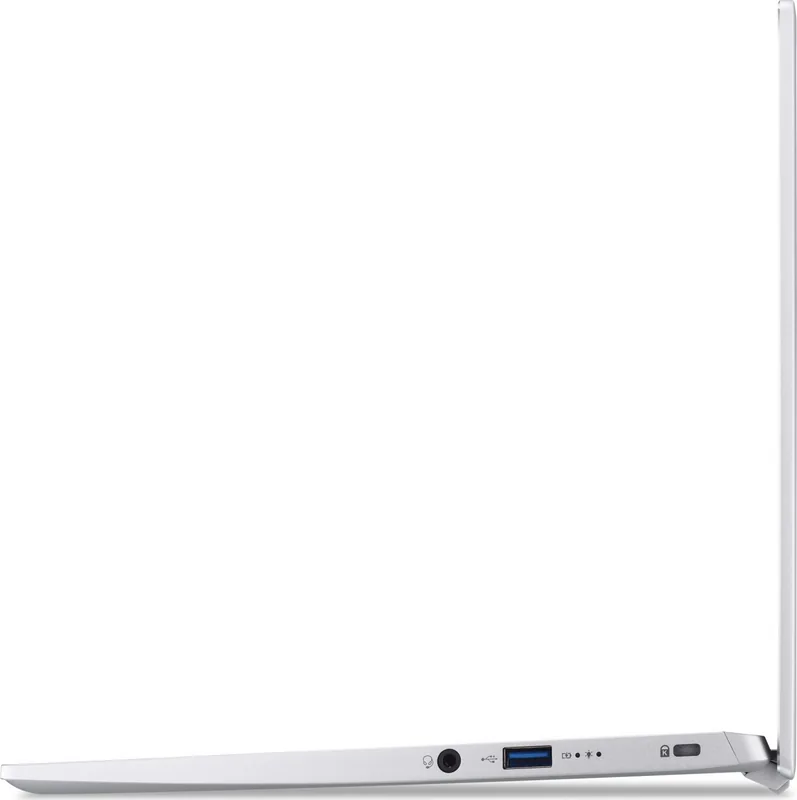
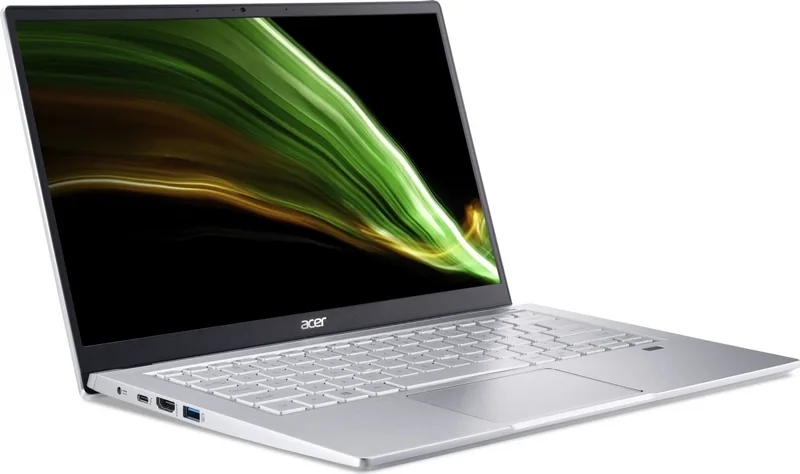
1x USB-A 3.0 (5Gb/s, BC), 1x USB-A 3.0 (5Gb/s), 1x Thunderbolt 4 (40Gb/s, power delivery, PD), 1x HDMI, 1x 3.5mm jack, 1x DC-In hollow socket (power supply)
Camera
0.9 Megapixel
Optical Drive
N/A
Power Supply
1x Hollow plug (65W), optional 1x USB-C power plug (65W/19V/3.42A)
Weight
2.65 lbs
Warranty
two years (return)
USB spelling
Link
Product Description
Acer Swift 3 SF314-511: Your Ultimate Mobile Companion
The Acer Swift 3 SF314-511 represents a perfect blend of portability and performance, designed for modern professionals and students who demand reliability on the go. This sleek notebook features a robust build that withstands daily wear while maintaining an elegant aesthetic suitable for any environment. Whether you are attending virtual meetings, editing documents, or streaming content, this device delivers consistent results.
Power and Connectivity
At the heart of the Swift 3 lies advanced connectivity options. The left view showcases a versatile USB Type-C port with Thunderbolt 4 support on the SF314-511 model, enabling lightning-fast data transfer speeds up to 40 Gbps. This single port can connect multiple displays, external drives, and power sources simultaneously. The inclusion of HDMI allows for easy connection to high-definition monitors, making presentations seamless. Additionally, the USB Type-A ports ensure compatibility with legacy peripherals without the need for adapters.
User Experience and Security
Navigating the Windows 11 interface is intuitive thanks to the Precision Touchpad. This input device supports multi-finger gestures for smooth scrolling, window switching, and quick access to search functions. For security-conscious users, the integrated Fingerprint Reader offers biometric authentication via Windows Hello, ensuring your data remains private. The keyboard layout includes dedicated hotkeys for managing brightness, volume, and sleep modes, enhancing productivity during long work sessions.
Battery Life and Care
The embedded Lithium battery provides extended usage between charges, ideal for travel. Guidelines suggest charging only when levels drop below 70% to maximize lifespan. The Bluelight Shield feature reduces eye strain by filtering harmful blue light emissions, offering four distinct modes for different lighting conditions. Proper care involves avoiding extreme temperatures and keeping the ventilation slots clear to maintain optimal cooling efficiency.
Key Notes
- Always use the provided AC adapter for safe charging.
- Enable Fast Startup for quicker boot times, though it consumes slightly more power in Sleep mode.
- Regularly back up files using OneDrive integration found in Acer Care Center.
Search for 67,706 Manuals online


Type-in Brand or Model