

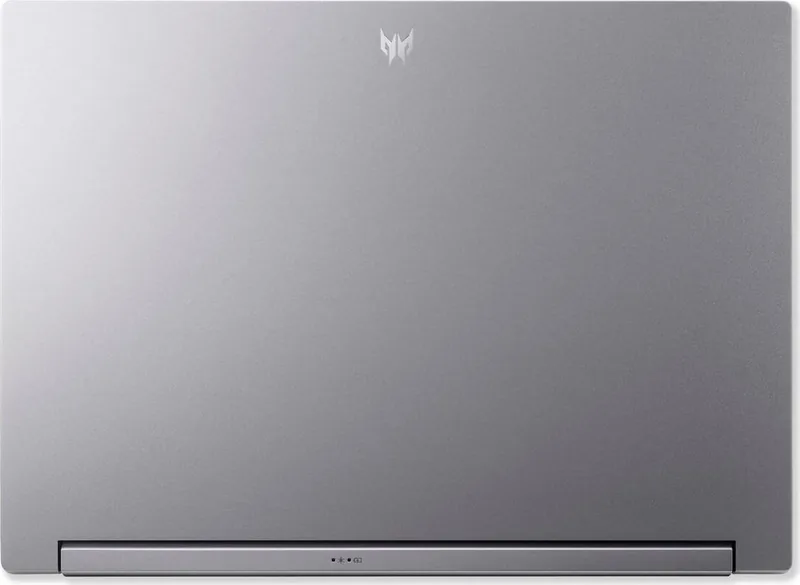

Acer Predator Triton 14 PT14-51 Manual
PDF manual · 106 Pages
English


Quick check
Incorrect answer, please try again.
Chat with your Acer Predator Triton 14 PT14-51 manual using AI
Get instant AI answers from your Acer Predator Triton 14 PT14-51 manual
Ask anything about the Acer Predator Triton 14 PT14-51. Answers come from this manual, with the pages they are based on.
Ask a Question
Do you recommend Predator Triton 14 PT14-51?
Yes NoFrequently Asked Questions
You can select the Restore tab in Recovery Management. Choose Keep my files option. Then pick Local reinstall or Cloud download. Follow on-screen prompts to finish resetting Windows without deleting personal documents.
Is this answer helpful?
No, the product warranty excludes damage from crypto mining. Using the device for mining activities can cause permanent harm. Do not attempt to run mining software on this hardware to maintain coverage.
Is this answer helpful?
It is positioned next to the power button on the top right of the keyboard deck. Press down gently to enroll your print for Windows Hello authentication access immediately.
Is this answer helpful?
Click the network icon in the taskbar. Select Manage WiFi connections. Choose your desired SSID from the list. Enter the security key if prompted to establish a secure link immediately.
Is this answer helpful?
Check if the sleep function activated by pressing any key. If not, adjust brightness settings. Verify if an external display is selected as primary output instead of the internal panel.
Is this answer helpful?
No, the internal battery requires service center replacement. Attempting self-repair may void warranties or cause safety hazards involving lithium cells.
Is this answer helpful?
Check the official website monthly. Go to Drivers and Manuals section. Search for your model number. Download latest firmware to ensure optimal hardware performance and bug fixes.
Is this answer helpful?
Advantages and Disadvantages
Advantages

- Includes Thunderbolt 4 and USB Type-C ports for versatile connectivity and high-speed data transfer.
- Integrated PredatorSense software allows precise control over fan speeds and system performance modes.
- Built-in Bluelight Shield reduces eye strain during extended usage hours effectively.
- Biometric fingerprint reader offers secure and quick access via Windows Hello authentication.
- OLED screen delivers vibrant colors and deep blacks for enhanced visual clarity.
Disadvantages

- Unit is not designed for cryptocurrency mining which voids the product warranty upon detection.
- Internal battery cannot be replaced by users requiring authorized service center visits.
- Static images on OLED screens may cause permanent burning damage if left unattended.
- System requires frequent updates to maintain optimal driver compatibility and performance stability.
- Ventilation grilles must remain uncovered to prevent overheating and thermal throttling issues.
Product Specification
Type
Laptop
Processor
Intel Core i7-13700H, 6C+8c/20T, 2.40-5.00GHz, 24MB+20MB Cache, 45-115W TDP (PBP/MTP), Codename "Raptor Lake-H" (Raptor Cove + Gracemont, Intel 7)
Memory
32GB LPDDR5 (32GB Soldered)
Hard Drive
N/A
SSD
N/A
Graphics
NVIDIA GeForce RTX 4070 - 8GB GDDR6 - Mobile, 36SM/4608SP, Codename "AD106" (Ada Lovelace, TSMC 5nm "NVIDIA 4N"), 95W Max GPU Power
Operating System
Windows 11 Home
Ports
1x USB-A 3.1 (10Gb/s, BC), 1x USB-A 3.1 (10Gb/s), 1x Thunderbolt 4 (40Gb/s, Charging, PD), 1x HDMI 2.1, 1x 3.5mm Jack, 1x microSD, 1x DC-In Barrel Connector (Charging)
Wireless
Wi-Fi 6E (Wi-Fi 802.11a/b/g/n/ac/ax, 2x2, Intel Killer AX1675), Bluetooth 5.3
Authentication
Fingerprint Reader (Touchpad), TPM 2.0
Camera
2 MP
Optical Drive
N/A
Power Adapter
1x Barrel Plug (230W)
Weight
3.75 lbs
Dimensions
12.34 x 8.94 x 0.78 in (WxDxH)
Color
Silver, Manufacturer Name: Sparkly Silver
USB Notation
Link
Product Description
Discovering the Acer Predator Triton 14 PT14-51 Experience
When selecting a high-performance laptop for gaming and professional tasks, the Acer Predator Triton 14 PT14-51 emerges as a standout choice. Users diving into the world of this powerful machine will appreciate the depth of functionality offered through its advanced feature set. Comprehensive documentation, often referred to in user circles as the Acer Predator Triton 14 PT14-51 Manual, serves as a valuable companion for maximizing daily utility. However, owning this device is about much more than following written instructions. It requires an understanding of how hardware and software interact to deliver consistent speed and stability.
The device boasts an impressive array of connectivity options that cater to modern workflow needs. Located strategically along the chassis, ports include USB Type-C and Thunderbolt 4 interfaces. These connections facilitate fast data transfers and the ability to drive external monitors effortlessly. Audio enthusiasts will also find dedicated jacks for headsets and microphones near the edges, simplifying setup for video calls or immersive soundscapes. The inclusion of a microSD card reader adds flexibility for media professionals who work directly on portable storage devices. HDMI ports allow direct connection to televisions or projectors for presentations and entertainment viewing.
Thermal management plays a critical role in maintaining performance levels under load. The cooling system utilizes multiple fans located on the sides and bottom to dissipate heat efficiently. Software integration via PredatorSense allows users to tailor fan curves and operating modes to suit specific demands. Whether switching to Silent mode for quiet office environments or boosting performance for intense gaming marathons, customization is seamless. Monitoring tools embedded within the interface provide real-time data on CPU and GPU temperatures to prevent overheating.
Battery health is paramount for mobile versatility. The built-in lithium-ion unit supports long-lasting operation away from wall outlets. Proper charging cycles help extend the overall lifecycle of the power source. Users are advised to avoid exposing the battery to extreme temperatures above thirty-five degrees Celsius or below freezing points. Protecting the screen from static image retention is equally important when utilizing OLED panels. Regular adjustments to brightness and contrast settings ensure visual comfort and reduce eye strain during extended work sessions. Bluelight Shield technology further protects vision by reducing harmful blue light emissions during late-night use.
Security features provide peace of mind for protecting sensitive information. A built-in fingerprint reader enables quick logins using Windows Hello authentication methods. Combined with BIOS-level password protections, unauthorized access is significantly harder to achieve. System recovery tools are accessible through Windows settings or the dedicated Care Center application. Restoring factory settings or creating backups ensures data safety in case of hardware failure or accidental deletions. Resetting the PC option allows keeping files or removing everything depending on future sale or troubleshooting needs.
Finally, general maintenance keeps the machine running smoothly. Keeping vents free from dust obstructions maintains airflow integrity. Using approved adapters prevents electrical damage to internal components. Following care guidelines ensures the investment remains productive for years. Regular updates to the operating system and drivers optimize compatibility with new software releases. With thoughtful usage, this laptop delivers reliable power for gamers, creators, and professionals alike. Always ensure physical safety regarding the Kensington slot when securing the device in public spaces.
Search for 67,706 Manuals online


Type-in Brand or Model