
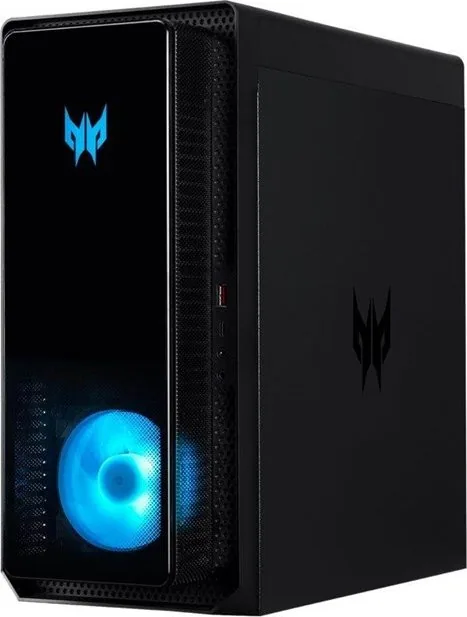
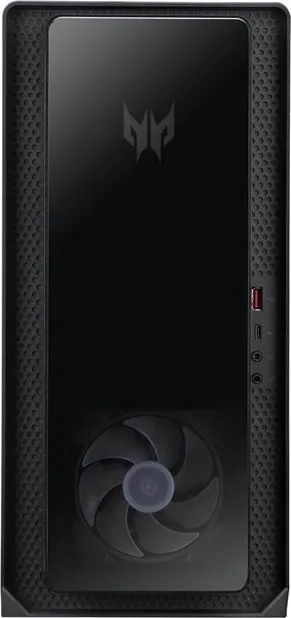
Acer Predator Orion 3000 PO3-640 Manual
PDF manual · 27 Pages
English


Quick check
Incorrect answer, please try again.
Chat with your Acer Predator Orion 3000 PO3-640 manual using AI
Get instant AI answers from your Acer Predator Orion 3000 PO3-640 manual
Ask anything about the Acer Predator Orion 3000 PO3-640. Answers come from this manual, with the pages they are based on.
Ask a Question
Do you recommend Predator Orion 3000 PO3-640?
Yes NoFrequently Asked Questions
Avoid removing components from protective packaging until installation, wear a wrist grounding strap attached to metal chassis, or maintain contact with the computer during procedures to minimize electrostatic discharge risk.
Is this answer helpful?
The system supports up to 64 GB DDR4 U-DIMM memory. Install modules starting with DIMM1, then DIMM2, DIMM3, and DIMM4 following the manual's population table to ensure correct configurations and optimal performance.
Is this answer helpful?
Common tools include a Phillips screwdriver, hex screwdriver, flat screwdriver, and scissors. Screws vary by component, so group screws by component during disassembly to avoid mismatches.
Is this answer helpful?
Some M.2 slots require temporary removal of the graphics board to access the slot. The manual instructs removing the GPU first for those specific M.2 positions, then reinstalling it after securing the SSD.
Is this answer helpful?
PredatorSense includes Home overview, Lighting controls with multiple effects and area/global modes, Fan Control with Auto/Gaming/Silence/Custom modes, and Monitoring for temperatures, loads, frequencies, voltages, and network usage.
Is this answer helpful?
Replace any removed expansion boards, reattach system covers, reconnect all cables and peripherals, then power on the computer. Verify hardware is properly seated and use PredatorSense or system BIOS to confirm component recognition and monitor temperatures.
Is this answer helpful?
Yes. Always power off and unplug the system before servicing. Do not attempt internal procedures if you are not a qualified service technician, and avoid touching hot surfaces or components during or after operation.
Is this answer helpful?
Advantages and Disadvantages
Advantages

- Clear, step-by-step hardware upgrade instructions for drives, memory, M.2 SSDs, and graphics cards.
- Supports up to 64 GB DDR4 memory with explicit slot population guidance for optimal configurations.
- Multiple storage options: 3.5" SATA HDD cage plus several M.2 NVMe slots with thermal pad guidance.
- PredatorSense software provides lighting, fan control, and monitoring for fine-tuning system behavior.
- Tool-friendly chassis design with removable left-side cover and labeled internal layout for easier servicing.
Disadvantages

- Custom fan control limited to 60–100%, preventing very low-speed fan tuning for quieter idle operation.
- Access to certain M.2 slots may require temporary GPU removal, adding complexity to some upgrades.
- Manual emphasizes technical procedures—some tasks may be unsuitable for novice users without experience.
- Screw variety requires careful organization during disassembly to avoid mismatches on reassembly.
- Certain images or features in the manual may not match all model variants; configurations can differ by model.
Product Specification
Flash
N/A
Rear ports
2x USB-A 3.0 (5Gb/s), 4x USB-A 2.0 (480Mb/s), 3x 0.14in jack, 1x RJ-45 1Gb LAN, 1x AC-In C13 (power connector)
Front/side ports
1x USB-C 3.2 (20Gb/s), 1x USB-A 3.1 (10Gb/s), 2x 0.14in jack
Optical drive
N/A
Camera
N/A
Power supply
internal 500W, 80 PLUS Gold
Dimensions
6.89x14.84x15.16in (WxHxD)
Volume
6.71gal (calculated)
Color
black
Warranty
two years (Pickup&Return)
USB notation
Link
Product Description
Acer Predator Orion 3000 PO3-640 Manual: Overview and Guide
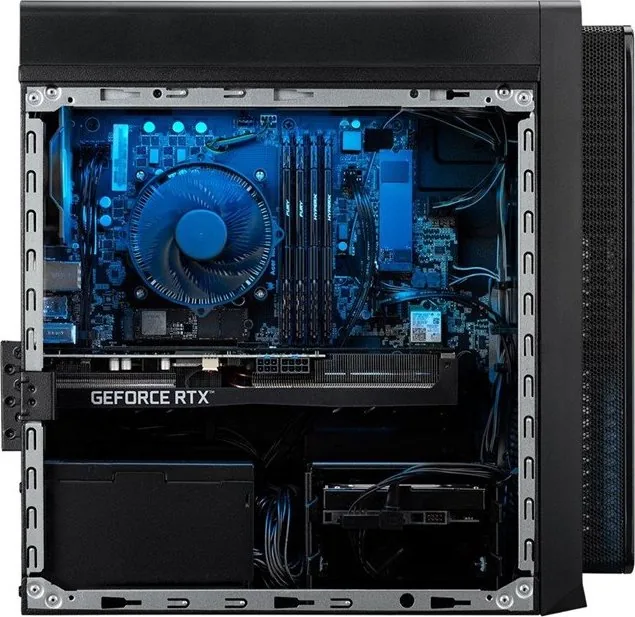
The Acer Predator Orion 3000 PO3-640 is a compact yet powerful gaming desktop built for enthusiasts seeking strong performance and convenient upgradeability. Equipped with multiple storage and expansion options, the system supports a variety of hardware configurations including 3.5" SATA drives, M.2 NVMe SSDs, DDR4 memory up to 64 GB, and one or two PCIe x16 graphics boards. The chassis layout emphasizes serviceability: a removable left-side cover, clearly labeled internal connections, and tool-friendly mounting racks make swapping drives, memory, GPUs, and M.2 modules straightforward for users comfortable with basic PC maintenance.
This model’s upgrade paths are well-documented, covering ESD precautions, required tools (Philips, hex, and flat screwdrivers), and step-by-step procedures for pre-installation and post-installation tasks. The manual stresses safety: power down, unplug peripherals and network cables, and follow proper handling to prevent damage. For storage, a removable black HDD rack houses 3.5" drives, while multiple M.2 slots accommodate NVMe SSDs with thermal pad placement guidance. Memory installation guidance clarifies DIMM population order and capacities to reach the 64 GB maximum, plus keyed insertion instructions to avoid improper seating.
Graphics card installation covers removal and reinstallation sequences, including disconnecting power cables, unscrewing retention points, and securing the GPU to a VGA holder bracket. M.2 SSD procedures require temporary removal of the graphics board for certain slots and recommend using the provided thermal pads. The manual also outlines how to remove and replace the left-side system cover and details a clear system layout map labeling CPU, PSU, HDD, SSD, M.2 slots, Wi-Fi, RAM, and VGA positions.
Acer’s PredatorSense utility for Windows 11 complements the hardware by offering software-level control over system lighting, fan performance, and real-time monitoring. PredatorSense delivers quick-access home status, customizable RGB lighting across front, left, and rear faces with multiple effects, and fan control modes (Auto, Gaming, Silence) plus a Custom range (60–100%). Monitoring panels show temperatures, load percentages, frequencies, voltages, and network throughput, helping users balance thermals and performance during gaming sessions.
Overall, the Acer Predator Orion 3000 PO3-640 is a serviceable gaming platform with clear maintenance guidance and robust software features to tune performance and aesthetics. Whether upgrading storage, expanding memory, or installing a new GPU, the system’s design and manual aim to make these tasks predictable and accessible to informed users.
Notes
- Follow ESD precautions and handle modules by edges.
- Power off and unplug before any service.
- Keep screws organized by component to avoid mix-ups.
- Custom fan control operates between 60% and 100%.
- Some M.2 slots may require GPU removal for access.
Search for 67,706 Manuals online


Type-in Brand or Model