

Acer Predator Helios Neo 16 PHN16-72 Manual
PDF manual · 108 Pages
English


Quick check
Incorrect answer, please try again.
Chat with your Acer Predator Helios Neo 16 PHN16-72 manual using AI
Get instant AI answers from your Acer Predator Helios Neo 16 PHN16-72 manual
Ask anything about the Acer Predator Helios Neo 16 PHN16-72. Answers come from this manual, with the pages they are based on.
Predator Helios Neo 16 PHN16-72 Maintenance Schedule
Turn off and unplug the device. Wipe with a soft damp cloth only; do not use liquid cleaners or sprays.
Run a check in PredatorSense to assess storage condition. Use Quick Cleanup or Advanced Cleanup to remove temporary files.
Ask a Question
Do you recommend Predator Helios Neo 16 PHN16-72?
Yes NoFrequently Asked Questions
Use PredatorSense or the Mode key to cycle between Quiet, Balanced, Performance, Turbo, and Eco. Some options depend on whether the AC adapter is connected and battery level; Turbo mode may require minimum battery capacity when plugged in.
Is this answer helpful?
The laptop includes HDMI 2.1 for high-definition video output and a Thunderbolt 4 / USB Type-C port supporting DisplayPort and up to 40 Gbps transfer speeds. USB 3.2 Gen1/Gen2 ports handle SuperSpeed transfers up to 10 Gbps on Gen2.
Is this answer helpful?
Open PredatorSense and use Pulsar Lighting to set Global or Area lighting, choose Static or Dynamic effects, adjust color, speed, and intensity, and save lighting settings within scenario profiles for automatic switching.
Is this answer helpful?
PredatorSense offers Optimized Battery Charging (limits charge to ~80% for longer lifespan) and Full Battery Charging. For everyday longevity, use Optimized mode; use Full when you need maximum runtime for travel or long sessions.
Is this answer helpful?
Use Acer Care Center’s Recovery Management to create backups, back up wireless/LAN drivers, or run Reset this PC (Keep my files or Remove everything). You can choose Cloud download or Local reinstall when performing the reset.
Is this answer helpful?
Avoid charging below 0°C or above 35°C, use Acer-approved chargers, store partially charged (~50%) for long-term storage, prevent liquid exposure and physical shocks, and seek authorized service for battery replacement.
Is this answer helpful?
Enable Bluetooth in Settings > Bluetooth & devices, click Add device, select the device from the list and follow on-screen prompts. Some older devices may require entering a PIN such as 0000 or 1234.
Is this answer helpful?
Advantages and Disadvantages
Advantages

- Powerful thermal design with customizable fan control (Auto/Max/Custom) for sustained performance.
- Comprehensive connectivity: HDMI 2.1, Thunderbolt 4/USB-C, USB 3.2 Gen1/Gen2, Ethernet, and SD card reader.
- PredatorSense centralizes monitoring, scenario profiles, lighting, and firmware updates for easy tuning.
- Comfort and usability features: low-blue-light display, per-key/zoned RGB, Precision Touchpad with gestures.
- Battery management options (Optimized/Full) and power-off USB charging to extend battery life and utility.
Disadvantages

- High-performance modes and Turbo may increase fan noise and reduce battery runtime.
- Some advanced features and software behavior vary by configuration or OS version.
- Embedded battery replacement requires authorized service centers, limiting DIY repairs.
- Continuous full charging or charging outside recommended temperatures can reduce battery lifespan.
- Weight and thermal hardware make it less ideal for users prioritizing extreme portability.
Product Specification
Type
Notebook
SSD
1TB M.2 PCIe 4.0
HDD
N/A
Flash
N/A
Operating System
Windows 11 Home
Input
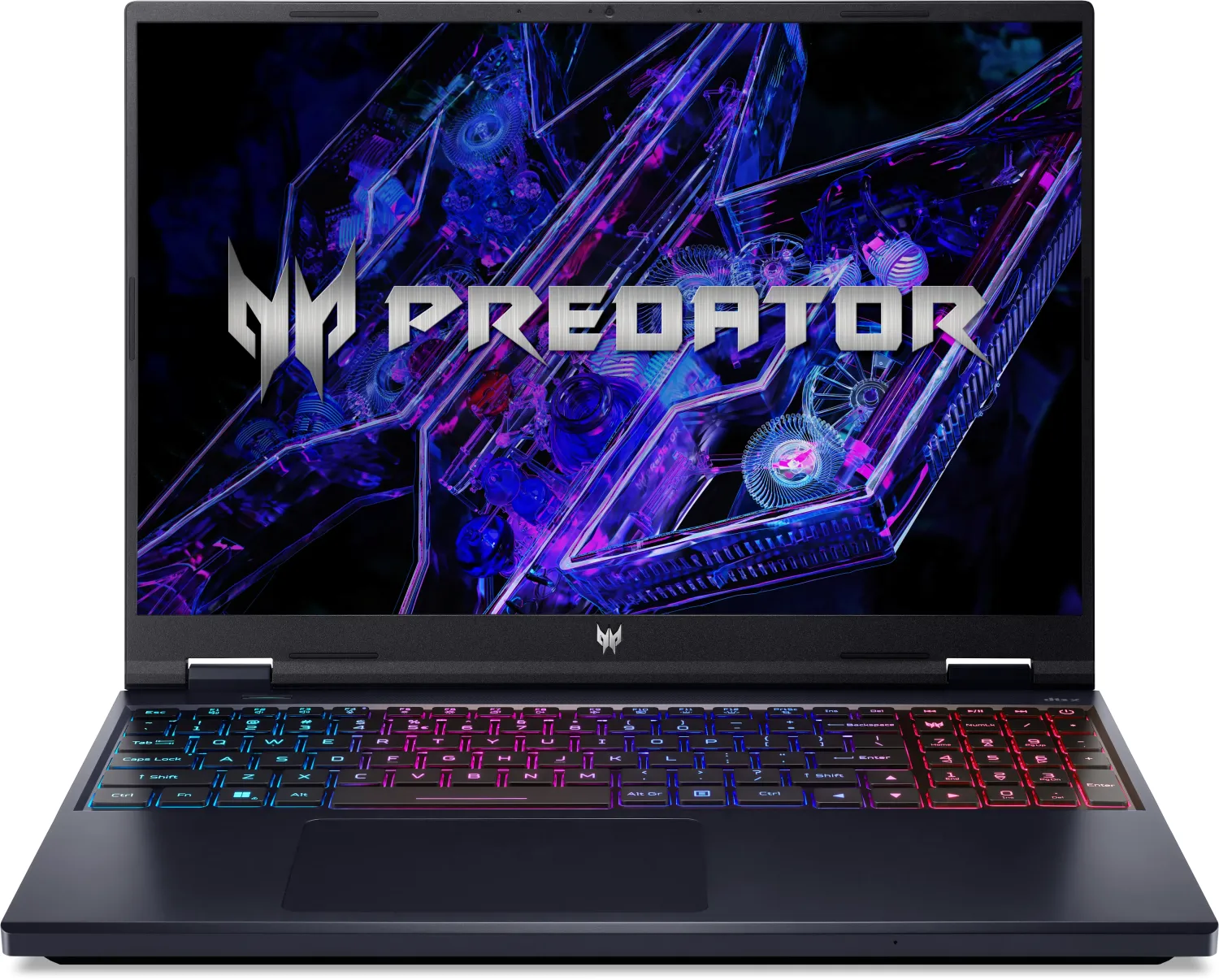
Keyboard with DE-layout (4-zone RGB illuminated, numeric keypad, rubber-dome), Touchpad (Microsoft Precision Touchpad)
Ports
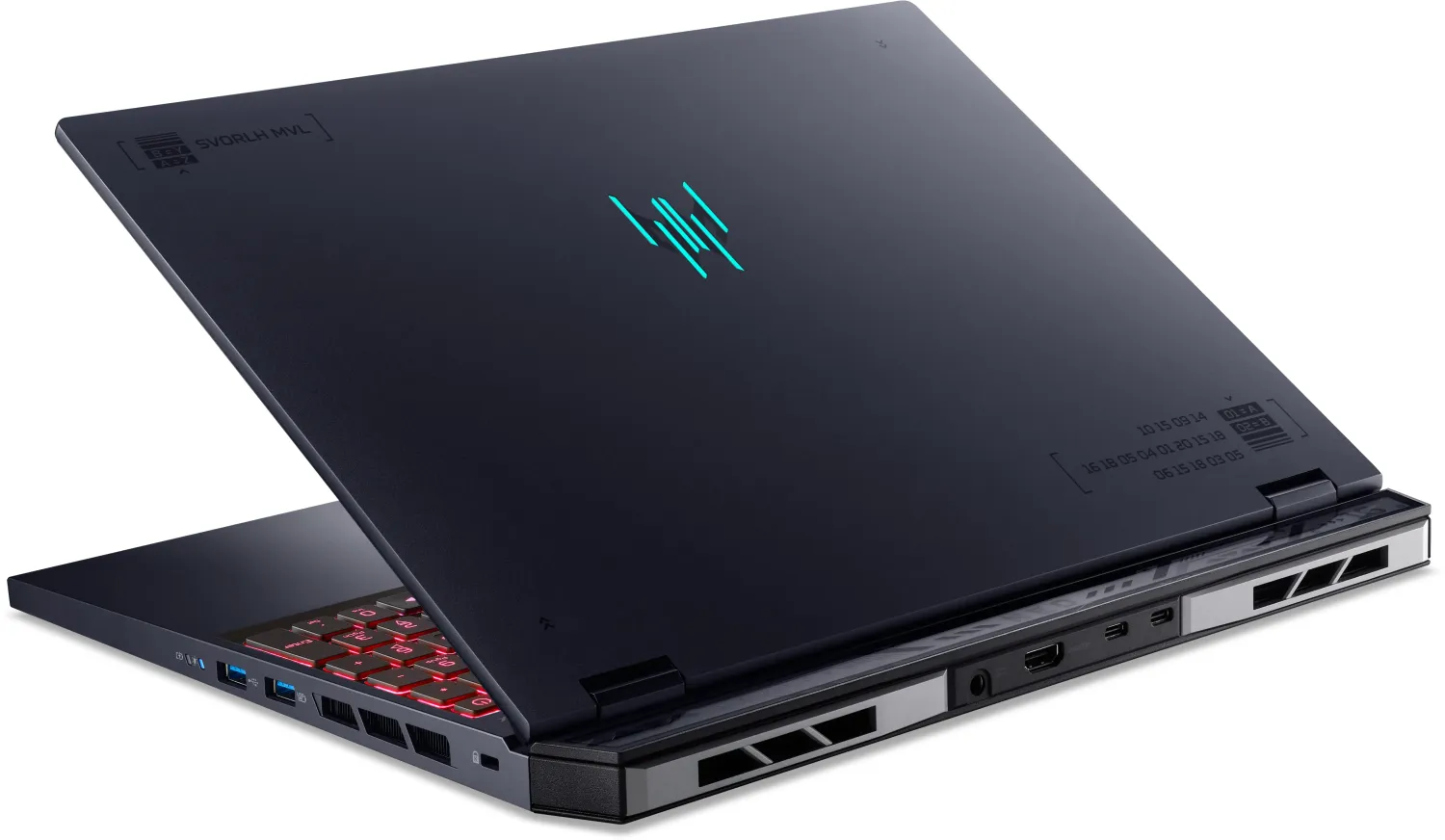
1x USB-A 3.1 (10Gb/s, BC), 1x USB-A 3.1 (10Gb/s), 1x USB-A 3.0 (5Gb/s), 2x Thunderbolt 4 (40Gb/s, PD), 1x HDMI 2.1, 1x 3.5mm Jack (Line-In/Out), 1x RJ-45 1Gb LAN (Intel Killer E2600), 1x microSD, 1x DC-In Barrel Jack (Power connection)
Authentication
TPM 2.0
Camera
0.9 Megapixel
Optical Drive
N/A
Battery
built-in, Li-Ion, 4 cells, 90Wh, 6h runtime (MobileMark 2018)
Power Adapter
1x Barrel connector (330W)
Special Features
Security lock (Kensington Security Slot)
Weight
6.17 lbs
Dimensions
14.09x10.97x1.10in (WxDxH)
Color
black, Manufacturer's designation: Abyssal Black
Warranty
two years (Mail-in)
USB notation
Link
Product Description
Acer Predator Helios Neo 16 PHN16-72 Manual Overview
The Acer Predator Helios Neo 16 PHN16-72 is a high-performance gaming laptop designed for demanding users who need powerful CPU/GPU performance, advanced cooling, and extensive customization. This review-style description highlights the laptop’s features, usability, and the tools included to optimize gaming and everyday workflows, using the keyword: Acer Predator Helios Neo 16 PHN16-72 Manual.
Design and build
The Helios Neo 16 blends a robust, ventilated chassis with a gamer-focused aesthetic. Strategically placed cooling vents and multiple fans help sustain performance during long sessions. The laptop includes a variety of I/O options — HDMI 2.1, Thunderbolt 4/USB Type-C, USB 3.2 Gen 1/2 ports, Ethernet, and an SD/microSD reader — making it flexible for peripherals, external displays, and fast storage.
Display and input
A large 16-inch low-blue-light panel gives clear visuals and reduced eye strain for extended use. The keyboard features per-key or zoned RGB lighting (Pulsar Lighting), dedicated PredatorSense key, full-size keys with a numeric keypad, and useful hotkeys for brightness, audio, and flight mode. The Precision Touchpad supports multi-finger gestures for smooth navigation.
Performance and cooling
Equipped to handle gaming and content creation, the Helios Neo 16 supports dynamic performance modes (Quiet, Balanced, Performance, Turbo, Eco) accessible via PredatorSense. Fan control offers Auto, Max, or fully custom curves for CPU and GPU cooling, allowing users to prioritize noise or thermal headroom depending on the task.
PredatorSense software
PredatorSense centralizes system monitoring, scenario profiles, lighting control, firmware updates, and app linking. Built-in widgets display live system metrics, and the Scenario Manager lets users create profiles that switch performance, fan behavior, and lighting automatically when specific apps run.
Battery, power, and portability
The laptop supports USB Power Delivery and DC-in charging; battery-charge modes (Optimized vs Full) and power-off USB charging help manage runtime and battery longevity. Guidance on conditioning new batteries and safe charging temperatures help preserve battery health during travel.
Connectivity and recovery
Wi-Fi, Bluetooth pairing, and Ethernet connectivity are straightforward. System recovery and backup tools (Acer Care Center, file history, driver backup, Reset this PC) are included to simplify restoration and troubleshooting if needed.
Notes
- Built-in safety guidance: avoid extreme temperatures, keep vents clear, and use approved chargers.
- Eye comfort features include Bluelight Shield and display positioning recommendations.
- Some features vary by model or OS configuration; firmware and driver updates may add functionality.
Search for 67,706 Manuals online


Type-in Brand or Model