
Acer K2 K242HQLCbid Manual
PDF manual · 27 Pages
English


Quick check
Incorrect answer, please try again.
Chat with your Acer K2 K242HQLCbid manual using AI
Get instant AI answers from your Acer K2 K242HQLCbid manual
Ask anything about the Acer K2 K242HQLCbid. Answers come from this manual, with the pages they are based on.
Ask a Question
Do you recommend K2 K242HQLCbid?
Yes No
Maria Braun
7 months ago
Is the monitor stand height adjustable or just tiltable? I want to make sure it fits my desk setup.

Manual.ly
7 months ago
This model supports tilt adjustment but lacks vertical height adjustment. Many buyers use a desk riser or book to raise it. Despite this, the Full HD resolution and fast response time make it highly rated for gaming and office use at this price point. It is stable enough for daily operations without height adjustment.
Frequently Asked Questions
Check if the power switch is on and ensure the AC power cord is connected. If the LED is blue, use the OSD menu to adjust brightness and contrast. If amber, check video signal connection and ensure the computer is not in power saving mode.
Is this answer helpful?
The LCD screen includes 99.99% or more effective pixels. Blemishes of 0.01% or less, such as missing or lit pixels, are normal and do not constitute a malfunction or returnable defect.
Is this answer helpful?
The monitor enters power saving mode via control signals, showing an amber LED. It wakes up within three seconds when signal, keyboard, or mouse input is detected to resume normal operation.
Is this answer helpful?
Yes, you can adjust the monitor tilt using both hands on the edges. It adjusts 25 degrees up and 5 degrees down for optimal viewing position without needing complex tools.
Is this answer helpful?
Do not use near water, place on unstable stands, or block ventilation slots. Unplug before cleaning and ensure the outlet is grounded to prevent electric shock or damage.
Is this answer helpful?
Yes, take short breaks regularly, perform stretching exercises, and maintain healthy posture. Adjust screen brightness to prevent eyestrain and avoid slouching for extended periods during use.
Is this answer helpful?
It complies with FCC Part 15, EMC Directive 2004/108/EC, RoHS Directive 2011/65/EU, and others ensuring safety and environmental standards are met for global use.
Is this answer helpful?
Advantages and Disadvantages
Advantages

- Wide connectivity options include VGA, DVI, and HDMI for versatile setup.
- Acer eColor Management allows quick switching between optimized display modes.
- Effective power saving mode with amber LED to reduce energy use.
- Adjustable tilt provides optimal viewing angles for ergonomic comfort.
- Built-in safety features protect against overheating and electrical issues.
Disadvantages

- Minor pixel variations are possible as per LCD manufacturing standards.
- Afterimage retention may occur if static images are displayed for long periods.
- No built-in speakers mentioned in the provided specifications.
- Requires manual adjustment for brightness and contrast levels via OSD.
- Power cord length is limited to standard maximum ratings.
Product Specification
Type
Monitor (stationary)
Diagonal
23.6 in
Resolution
1920x1080 (FHD), 16:9, 93 ppi
Panel
TN
Backlight
LED, Blue Light Filter
Brightness
300 cd/m^2 (typical)
Contrast
100,000,000:1 (dynamic)
Response Time
1ms (GtG)
Refresh Rate
60Hz (1920x1080)
Signal Frequency
30-80kHz (H) / 55-75Hz (V)
Ports
1x VGA (60Hz@1920x1080), 1x HDMI 1.4, 1x DVI, 1x AC-In C13 (Power)
Shape
Flat
Viewing Angles
170/160 deg
Finish
Non-glare (matte)
Color Depth
8bit (16.7M)
FRC
Unknown
Controls
Mechanical Buttons
Ergonomics
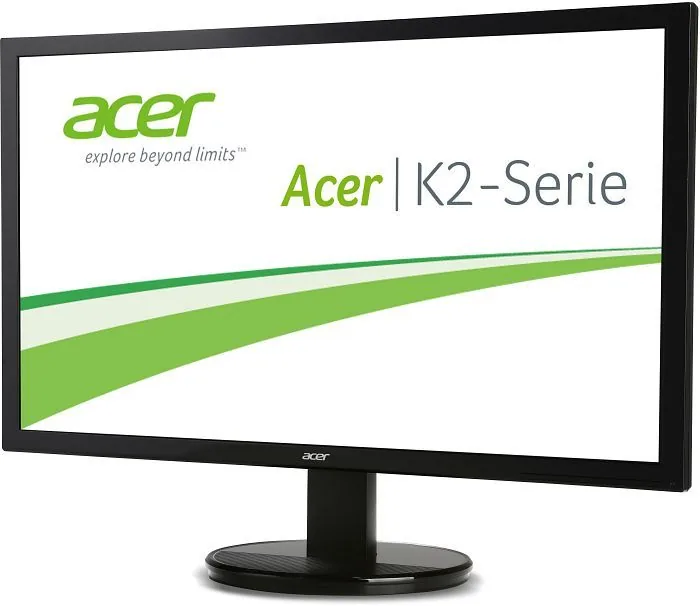
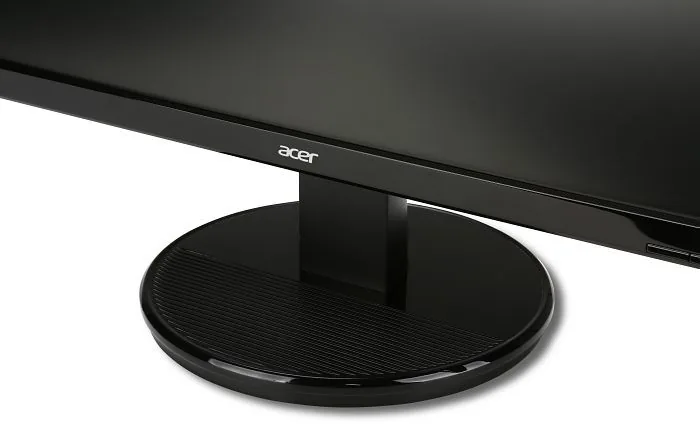
With Stand, Height Adjustable N/A, Pivot N/A, Rotatable N/A, Tilt (+25/-5 deg)
VESA
100x100 (Standard)
Power Consumption
27W (typical), 0.5W (standby)
Features
Security Lock (Kensington Security Slot)
Screen-to-Body Ratio
80.58% (Calculated)
Dimensions
22.32x16.57x8.19 in (WxHxD) with base compressed, 22.32x13.23x2.40 in (WxHxD) without base
Color
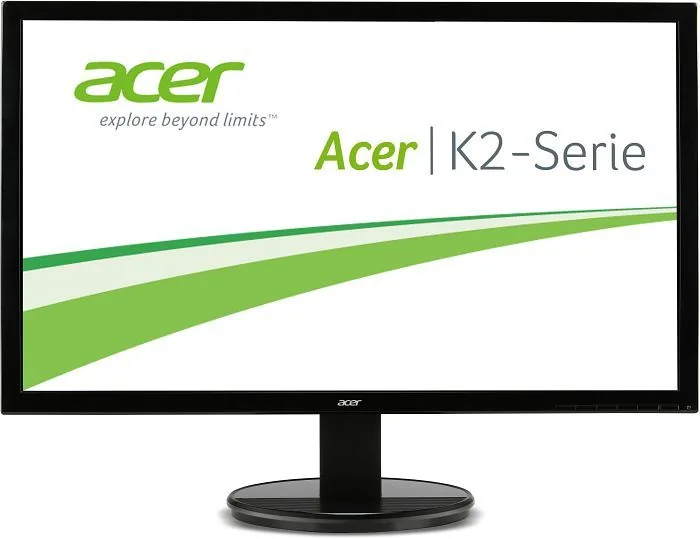
Black (Bezel) / Black (Lower Bezel) / Black (Base)
Weight
9.35 lbs (with base), 8.64 lbs (without base)
Power Supply
Internal
Warranty
Two Years (Bring-In)
USB Labeling
Left
Product Description
Discovering the Acer K2 K242HQLCbid 23.6 Experience
Setting up a modern workspace requires a display that balances performance with comfort. The Acer K2 series stands out as a reliable choice for daily computing tasks. Users looking for detailed guidance often reference the Acer K2 K242HQLCbid 23.6" Manual to understand specific features fully. This display delivers a clear viewing experience suitable for both professional and personal environments. The design focuses on delivering sharp images with accurate color reproduction for various tasks.
The screen offers ample screen real estate for multitasking without feeling cramped. Connectivity options are robust, supporting various input methods to ensure compatibility with different computers. You can connect via VGA, DVI, or HDMI depending on your setup requirements. Each connection type brings its own advantages for digital or analog signals. The monitor handles standard timing tables efficiently to ensure smooth visuals during use. Installation is straightforward provided you follow the correct sequence for power and signal cables. Secure connections prevent signal loss and ensure the display functions as intended.
Visual adjustments are intuitive through the On Screen Display menus. You can fine-tune brightness, contrast, and color temperature to match your ambient lighting conditions. The Acer eColor Management feature allows switching between scenarios like Movie, Graphics, or Standard modes. This flexibility helps optimize content consumption regardless of the task at hand. Power management is also a key component of the design. The unit switches to power saving mode when not in use, indicated by an amber LED. This helps reduce energy consumption while protecting the hardware from wear. Recovery from sleep mode is quick to maintain workflow efficiency.
Comfort and safety are prioritized in the overall engineering. Long viewing hours should not lead to fatigue, so proper posture and screen height matter. The tilt mechanism allows for angle adjustments to find the perfect viewing zone. Safety instructions emphasize correct electrical usage and ventilation to prevent overheating. Keeping ventilation slots clear ensures reliability over time. Users should also be aware of normal LCD behaviors such as minor pixel variations which do not indicate a malfunction. If issues arise like no picture, checking connections is the first step in troubleshooting.
Final Thoughts
Choosing the right monitor impacts daily productivity significantly. This model supports a wide range of resolutions up to Full HD. Proper setup ensures longevity and user health. Always check your environment for adequate space and lighting. With careful consideration of these factors, you can enjoy a stable computing experience for years to come. Regular maintenance and reading the provided guides help maximize potential.
Search for 67,706 Manuals online


Type-in Brand or Model
Thomas Miller
7 months ago
I need to know if this monitor is height adjustable. Some reviews mentioned the stand feels a bit wobbly. Is this accurate?
Manual.ly
7 months ago
Thank you for asking. This monitor offers tilt adjustment but does not feature height adjustment. Regarding stability, the stand is designed to be secure on flat surfaces. Some users place it on a solid desk to prevent wobbling. If you need precise vertical positioning, a VESA wall mount or stand is recommended. We are confident it meets your needs for home use.